
Did a “Link Text is URL” needs review issue appear in an Accessibility Checker audit of one of your WordPress posts or pages? Read on below for an explanation of this issue, how it impacts your website’s accessibility, and how to fix it.
Table of Contents
About the Link Text is URL Check
What links look like in code
In HTML an <a> tag is used to denote that an element is a link. At a minimum, a link should look like this in code:
<a href="https://website.com">this is the link anchor</a>The href attribute, href="https://website.com", is what tells the link where to go when clicked and the text “this is the link anchor” is what would be visible on the page to a sighted person or read aloud by a screen reader as an explanation of the link.
What does a Link Text is URL issue mean?
A Link Text is URL issue means that one of the links present on the web page is contains a URL instead of other meaningful text describing where the link will go if clicked or triggered.
Examples of Links with URL Text
A link with URL anchor text (sometimes called a naked link) is a hyperlink in which the visible text is the URL itself. For example:
This HTML:
<a href="https://www.example.com/resources/accessibility-guide.html">https://www.example.com/resources/accessibility-guide.html</a>results in a link like this, where the anchor is the same as the URL itself:
https://www.example.com/resources/accessibility-guide.html
While pasting links with the full URL visible may seem convenient—especially when sharing resources or citations—these links can create accessibility barriers and reduce the usability of your content for all users.
How does Accessibility Checker test for links with URL anchors?
While auditing your page or post content, Accessibility Checker will identify all links on the page by looking for <a> tags, then check whether each link has anchor text. It then checks to see if any of the following is true:
- Link text is the same as its
hrefattribute (with or without whitespace). - Link text is the same as a relative
href.
If either of the above is true, then Accessibility will create a Link Text is URL issue for manual review.
Impact on Accessibility
Why is using URLs for link text bad?
Links that rely on URLs to provide their name pose several accessibility challenges.
Screen reader users often navigate websites by listening to a list of all links on a page. When a screen reader encounters a “naked link” or URL, it reads the entire URL aloud, sometimes character by character. This slows screen reader users down compared to having words or phrases in the link text. It can also make it difficult to understand where the link is going.
Links with only a URL as their anchor text increase cognitive load for all users, not just those using assistive technology.
Users must parse and interpret the URL to understand where it leads. This is especially difficult for long, complex URLs, which are difficult to scan and understand at a glance.
Users with cognitive disabilities may struggle to process URL structure, or users who are older or less tech savvy may not understand what different parts of URLs mean, further adding to confusion.
How URLs sound with screen readers
Here is an example of how the link shown above sounds with a screen reader. Only the actual words will be read out, and other characters are read individually, similar to how it would sound if you were reading the URL to someone over the phone:
Link. h t t p s colon slash slash w w w dot example dot com slash resources slash accessibility dash guide dot h t m l.
Listen to it yourself being read by Voiceover:
Hearing a link character-by-character can make it take longer for the link text to be read.
It can also cause confusion about where the link goes, especially if the URL contains strings of letters or numbers or post IDs that don’t correspond to the title of the page or document being linked to.
Relevant WCAG 2.2 Success Criteria
2.4.4 Link Purpose (In Context) – Level A
The purpose of each link can be determined from the link text alone or from the link text together with its programmatically determined link context, except where the purpose of the link would be ambiguous to users in general.
How to Fix a Link Text is URL Issue
What to do (in short)
To fix a link text is URL issue, you will need to find the link that is being flagged and replace the visible URL with descriptive text that explains where the link leads.
How to find URL text links on your WordPress post or page
First, install the Accessibility Checker WordPress plugin.
In the Pro version of the plugin, run a full site scan so that Accessibility Checker can locate all problematic links across your entire site. You can then review each issue in the issue explorer.
For any pages or posts that have a Link Text is URL issue in the WordPress editor, you can open the details tab in the Accessibility Checker metabox or block editor sidebar, then expand the Link Text is URL issue to see a list of code snippets that caused the issue to be flagged.
This is an example of a code snippet you might see flagged:
<a href="https://www.example.com/resources/accessibility-guide.html">https://www.example.com/resources/accessibility-guide.html</a>Typically, links like this will appear in the post content area, not in your header or footer. You may recognize the link and know where it is in the content just by reading the URL in the code snippet.
If you are not sure where it is in the content, click the “View on Page” link; this will load the front end of your website with the link highlighted, so you can know exactly where it is in the content.
How to fix link text in the block editor
- Select or click on the link within the block editor.
- With the link still selected, click the link icon in the toolbar to open the link editor dialog.
- Click the edit link button (pencil icon).

- Change the text field to something descriptive, such as the title of the page or document you are linking to.

- Click the Apply button or press Enter to close the dialog.
- Save your post.
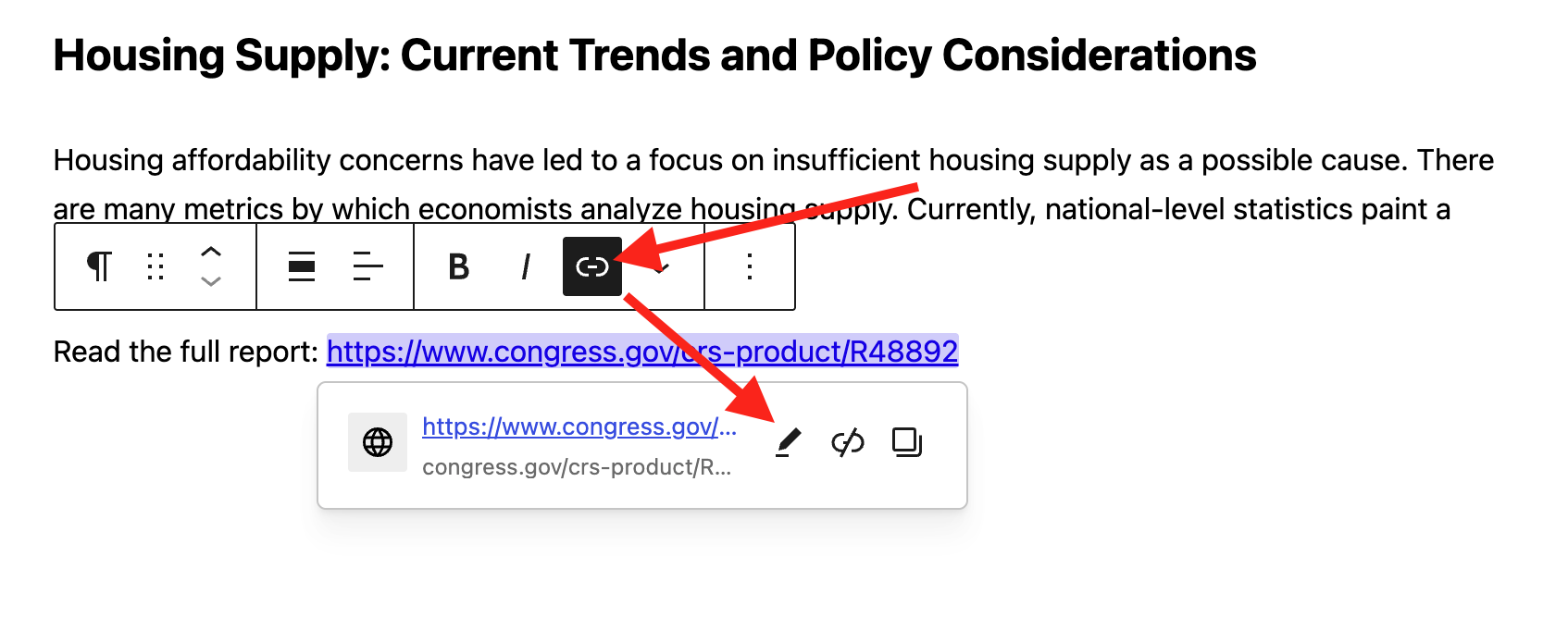
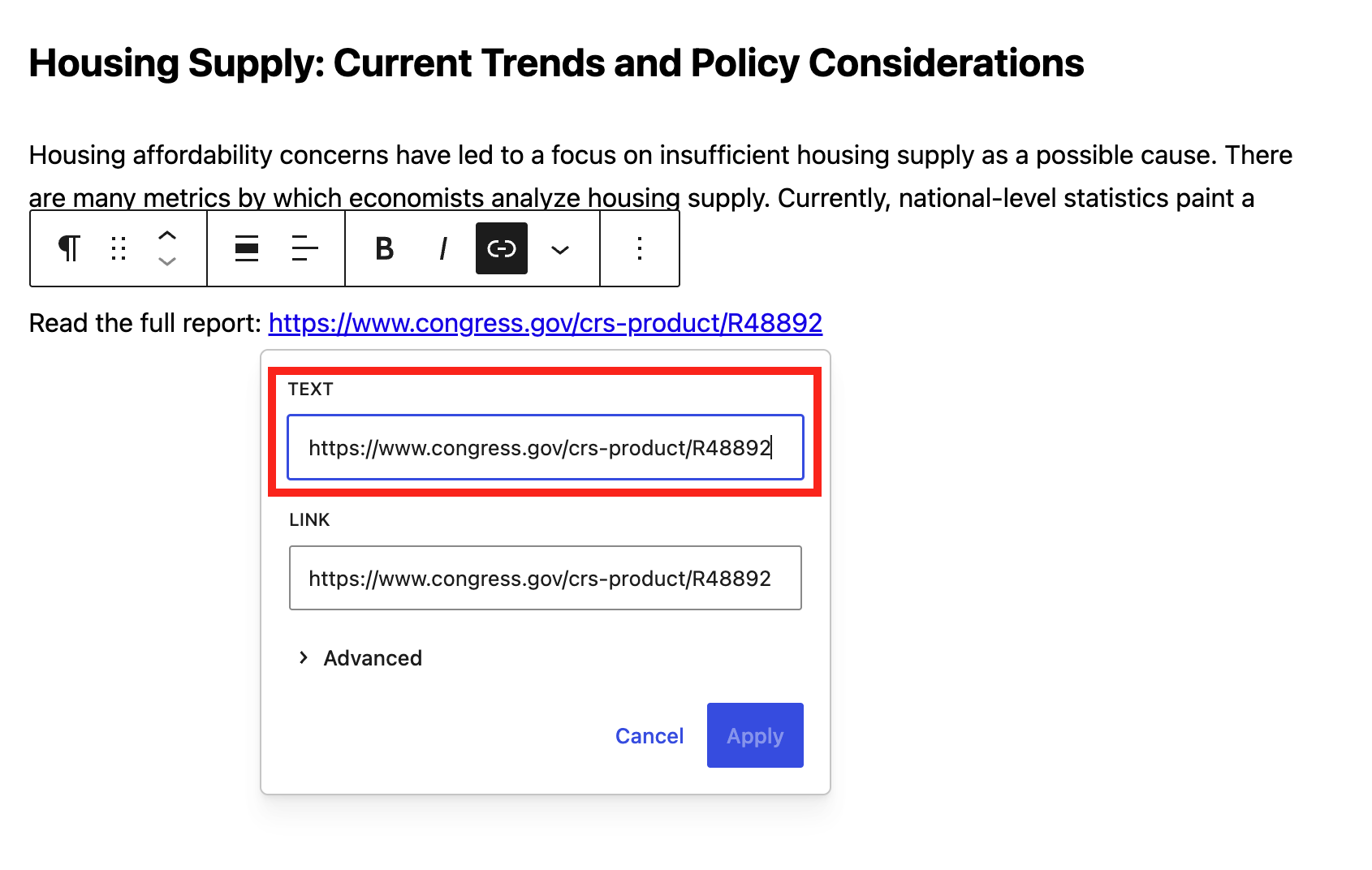
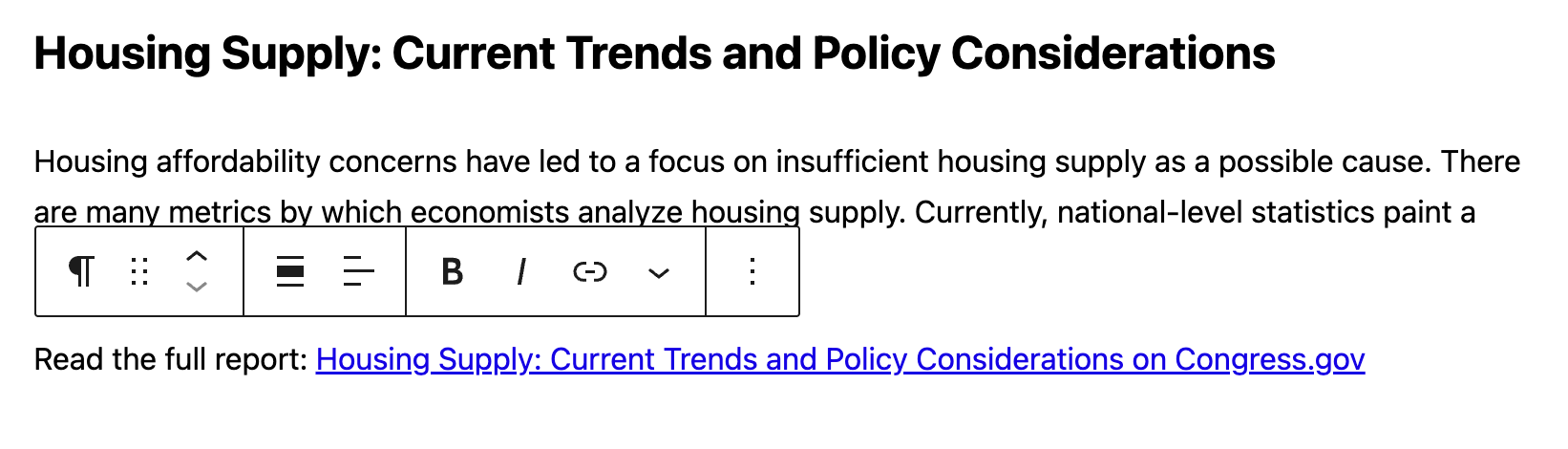
In this example, the link was changed from showing a URL on Congress.gov as the link text to showing the report name and “on Congress.gov”. This provides a meaningful name for the link while also indicating the legitimacy of the linked website (a government site).
Best practices for link text
When creating descriptive link text, follow these guidelines:
- Be specific: “Download the 2024 Annual Report” versus “download” or “annual report” (if there are multiple annual reports on the same page).
- Be concise: Aim for fewer than 10 words if possible.
- Front-load keywords: Put the most important words first.
- Make sense out of context: Link text should be meaningful even when read alone.
- Avoid generic phrases: Don’t use “click here,” “read more,” “learn more” without additional context.
- Don’t repeat: Avoid using the same link text for different destinations.
Learn more about writing good link text in our documentation article for the Ambiguous Anchor Text accessibility check.
When is it OK to show a URL?
There are legitimate cases where displaying a URL is appropriate:
- Citations and references: In academic or technical writing, where the URL is the source identifier.
- Print materials: When content may be printed, and users need the URL to access the resource.
- URL as content: When discussing or teaching about URLs themselves
In these cases, you have a few options to still display the URL while making the link more accessible to screen reader users.
Option 1: descriptive link followed by unlinked visible URL
Display both descriptive text and the URL, but only link the descriptive text. For example:
For more information, see the Web Content Accessibility Guidelines (https://www.w3.org/WAI/WCAG21/)
Example code:
For more information, see the <a href="https://www.w3.org/WAI/WCAG21/">Web Content Accessibility Guidelines</a> (https://www.w3.org/WAI/WCAG21/)Option 2: Create a print stylesheet
To make printed pages more useful, you can add a print stylesheet that automatically displays the destination URL after each link when a page is printed. This allows links to appear normally on screen with descriptive text, while printed copies include the full web address in parentheses.
For example, a link displayed as “Web Content Accessibility Guidelines” online would print as “Web Content Accessibility Guidelines (https://www.w3.org/WAI/WCAG21/)”.
This helps readers access referenced resources from a printed document and aligns with accessibility best practices for providing equivalent information in non-digital formats.
To create a print stylesheet, you first need to create a new file named print.css in your active theme’s folder (or child theme if you are using one), or in a custom plugin.
After creating the print.css file, you need to enqueue it in your theme/plugin. You can add code like this in your functions.php file to enqueue the file and ensure it only styles the print view of your website:
function mytheme_print_styles() {
	wp_enqueue_style(
		'mytheme-print',
		get_stylesheet_directory_uri() . '/print.css',
		array(),
		'1.0',
		'print'
	);
}
add_action( 'wp_enqueue_scripts', 'mytheme_print_styles' );
Then in the print.css file, add CSS like this to output the full URL after every link on the page:
a[href]::after {
	content: " (" attr(href) ")";
}
Consider using one of these two options to improve accessibility if you feel that displaying a complete URL is absolutely necessary.
Since
This check was added in version 1.44.0, released on June 22, 2026. Older versions of Accessibility Checker will not be able to scan for this issue.
