
Accessibility Checker v1.40.0 adds a new text format to the WordPress block editor: Screen Reader Only. This format lets you wrap any text in a visually-hidden span; text that screen reader users hear but sighted visitors do not see.
This is a feature available to users of both Accessibility Checker and Accessibility Checker Pro.
What Is Screen Reader Only Text?
Screen reader only text is content that is intentionally hidden from sighted users while remaining fully accessible to screen reader users. It is a standard accessibility technique used to add context that would be redundant or awkward if shown visually.
Common uses include:
- Extra link context: turning a generic “Learn more” link into “Learn more about our accessibility services” for screen reader users, without changing the visual label.
- Supplemental labels: adding descriptive text near a button or form control that sighted users do not need because the visual context makes it obvious.
- Navigation hints: providing additional orientation cues in complex layouts, such as with screen reader only headings for sections.
This is different from alt text (which describes images) and different from hiding content that should be visible to everyone. Screen reader only text is for additional context. Content that makes the experience better for screen reader users without cluttering the visual design.
Note: Do not use screen reader only text to hide content that sighted users should also see, to replace proper alt text, or to paper over structural accessibility problems. It is a tool for supplementing visible content, not concealing it.
Where to Find the Screen Reader Only Button
Accessibility Checker adds support for screen reader text in the WordPress default block editor and full-site editor. Currently, this feature is not available in any third-party page builders or the WordPress classic editor.
The Screen Reader Only button lives in the floating formatting toolbar that appears when you select text in any RichText block like paragraphs, headings, buttons, list items, and more.
To find this formatting option:
- Click into the block you want to add screen reader text to.
- Click the “More” button in the block tools toolbar. Visually, this button is a down arrow icon.
- Look for the eye with a line through it icon and the text “Screen Reader Only.”
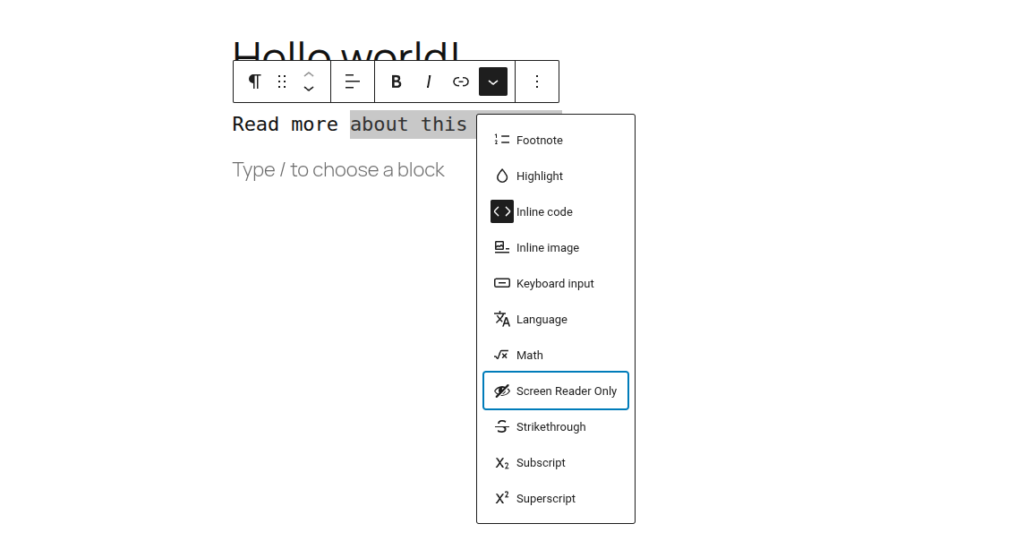
The button is available in:
- The standard post and page block editor
- The Full Site Editor (FSE)
How to Apply the Screen Reader Only Format
- Open a post, page, or template in the block editor.
- Click into a paragraph, heading, button, or other text block.
- Select the text you want to make screen-reader-only.
- In the floating formatting toolbar, click the more button.
- Click the “Screen Reader Only” option.
- The text is now wrapped in the screen reader only format.
To remove the format, select the formatted text and click the same button again. The format toggles on and off.
What It Looks Like in the Editor
By default, screen reader only text is invisible in the editor, the same as on the frontend. You will not see the text as you scroll through a block.
To help you keep track of where screen reader text exists:
When you click into the block, any screen reader only spans reveal a magenta outline and a small asterisk (*) beneath them. Hovering over the asterisk shows a “Screen Reader Text” tooltip.

This indicator only appears in the editor. Visitors never see it.
Always Show Screen Reader Text
If you work with screen reader only text frequently, you can turn on a persistent visual indicator. When this preference is active, the screen reader only text shows a magenta underline at all times in the editor, and you do not need to click the block to see where it is.
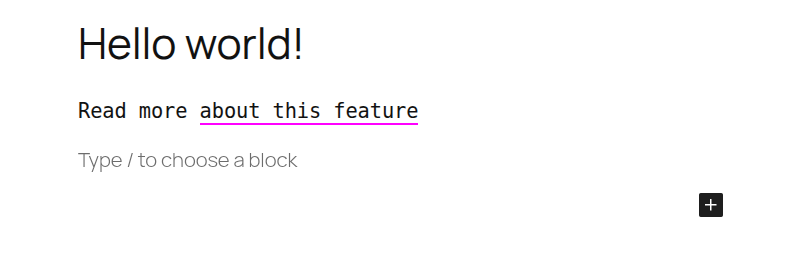
This setting is per-user. Turning it on for your account does not affect other editors or site visitors.
Controlling the “Always Show” Preference
In the Post or Page Editor
- Open the Accessibility Checker sidebar (click the AC icon in the top-right toolbar area if it is not already visible).
- Scroll to the Screen Reader Text Format panel at the bottom of the sidebar.
- Check or uncheck “Always show screen reader text?”
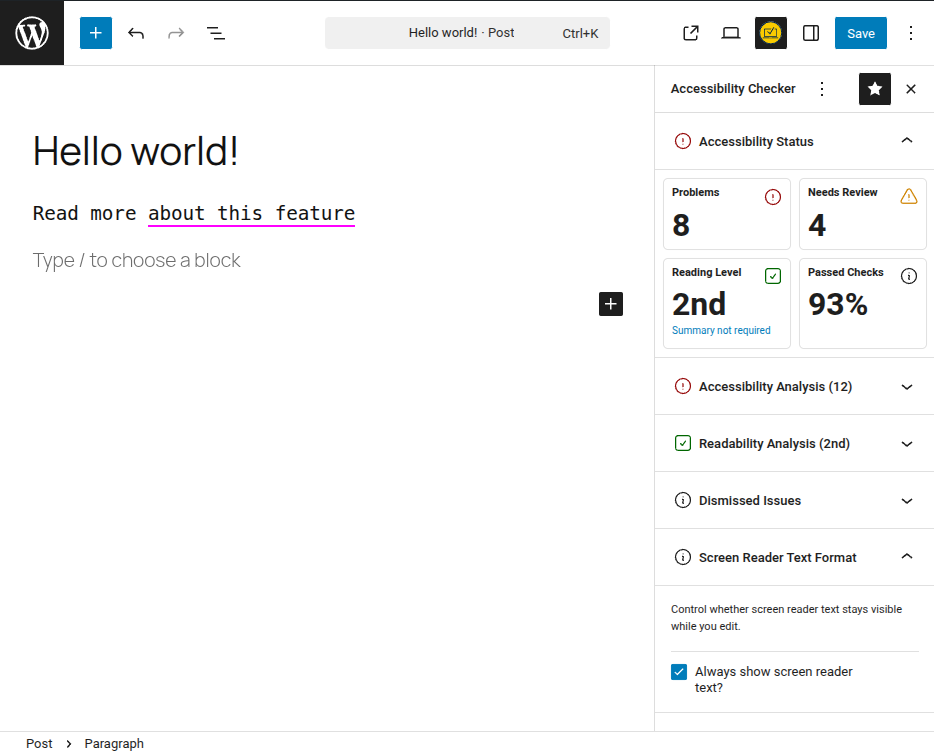
In the Full Site Editor
The Accessibility Checker sidebar is not available in the Full Site Editor. Instead:
- Click the three-dot menu (⋮) in the top-right corner of the editor; this is the Options menu.
- Look for “Always show screen reader text” in the list.
- Click it to toggle the preference on or off. The icon changes between an open eye and a crossed eye to reflect the current state.
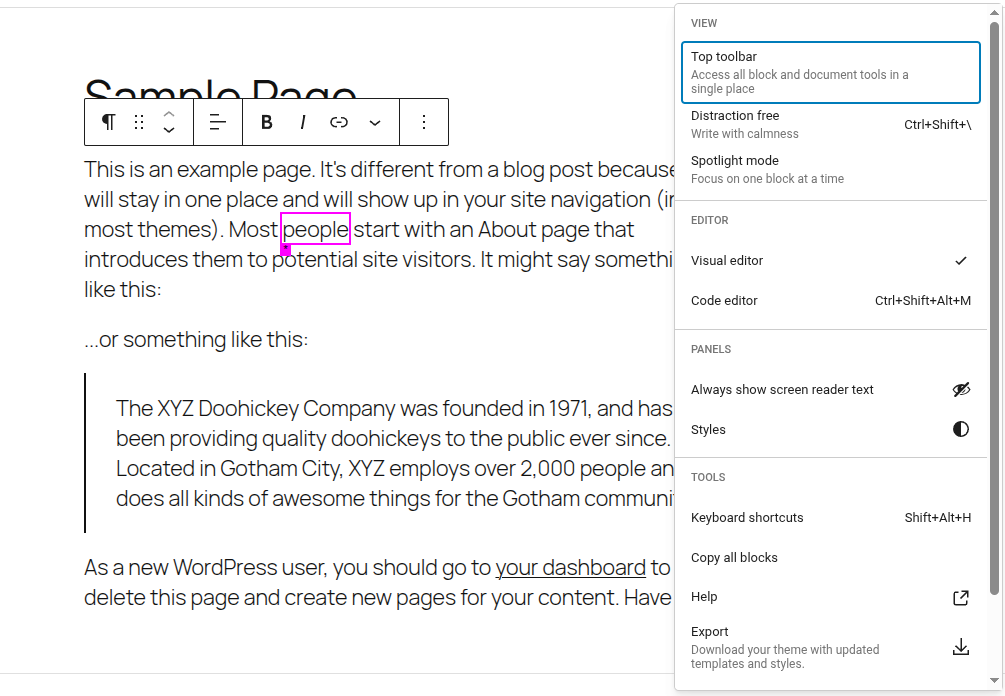
What Visitors See
When a visitor loads a page, screen reader only text is completely invisible to sighted users. The plugin automatically loads the required CSS on the page. You do not need to add any code or configure anything.
Screen readers announce the text normally as part of the page content.
For anyone inspecting the page source, the HTML output looks like this:
<span class="text-format-sr-only">additional context for screen readers</span>When to Use Screen Reader Only Text
Good uses:
- Adding destination context after generic link text (“Read more,” “Click here,” “Learn more”) so screen reader users know where a link leads.
- Providing a text equivalent for icon-only elements where sighted users understand the icon, but screen reader users need a label, and it is not possible to label the image. For example, placing “Call” and “Fax” before phone numbers.
- Providing context to CSS styles that are not read by screen readers, such as “struck out” pricing when an item is on sale.
- Supplementing table headers or data that is visually obvious from the layout but ambiguous when read linearly.
- Adding structural headings so it is easier for screen reader users to jump to sections, such as results lists in a group of filterable posts, or the footer.
Avoid using it to:
- Hide content from sighted users that they should see. Use CSS for design decisions, not accessibility workarounds.
- Replace image alt text. Images need alt text set in the image block settings, not a hidden span.
- Fix structural accessibility problems. If your content requires extensive hidden text to make sense to a screen reader, the underlying content structure likely needs attention.
Screen Reader Text Format Plugin
This feature in Accessibility Checker was heavily inspired by the Screen Reader Text Format plugin on WordPress.org, which was coded by Nick Croft.
That plugin was a great resource to us, and its core functionality is now built directly into Accessibility Checker. This means it is actively maintained, regularly updated, and supported as part of a widely used plugin that works seamlessly with the Full Site Editor (FSE) and modern versions of WordPress.
The class name used by the Screen Reader Text Format plugin is the same as the class name used by Accessibility Checker. If you were previously using that plugin, you can safely deactivate and uninstall it. Accessibility Checker will recognize and support all screen reader text previously configured via the Screen Reader Text Format plugin.
Requirements
- Plugin version: Accessibility Checker v1.40.0 or later (released April 21, 2026)
- Editor: WordPress block editor (Gutenberg) or Full Site Editor