
Accessibility Checker uses a heavy, dashed outline to help you locate elements on the website’s frontend. This outline color is pink (#f0f) by default.
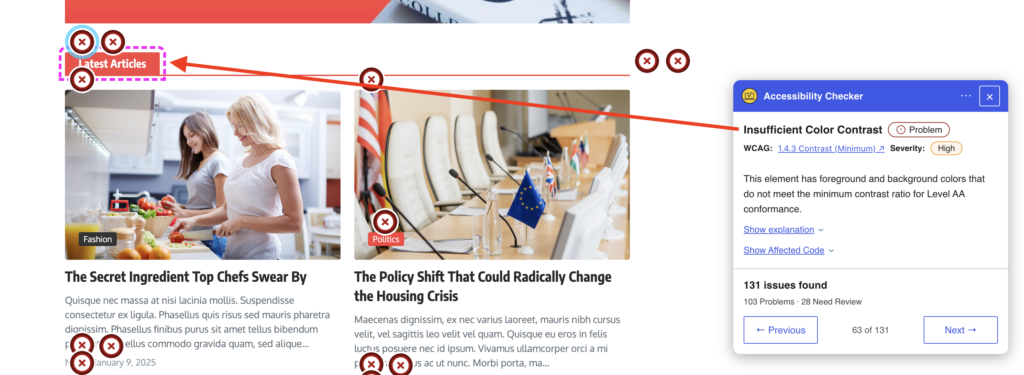
This pink color was selected because it meets contrast minimums for UI components on both white and black/dark gray backgrounds, and because it is not a color commonly used on websites, so it is likely to stand out and be easy to locate visually on most websites.
In some cases, depending on the colors used on your website, the pink of this outline may fail WCAG or not provide sufficient contrast for you to easily locate. For example, this website has a pink background for the main content area, which makes the outline barely stand out.
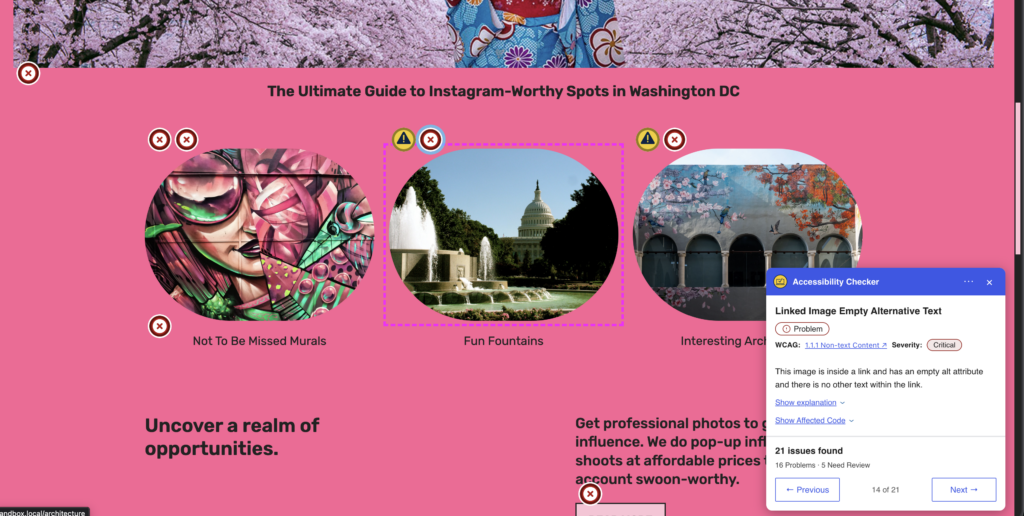
If the highlight outline color needs to be changed to support your WordPress theme or styles, you can easily do this with CSS added to the WordPress Customizer, your theme, or a code snippets plugin.
CSS Class
The class to target if you want to recolor the highlighter outline color or styles is: .edac-highlight-element-selected
Example Code Snippets
Change the highlight outline globally
This snippet will change the outline color of all outlines throughout your website. In this example, the outline is being set to black (#000). Change the hex code as needed for your own website.
.edac-highlight-element-selected {
    outline-color: #000 !important; /* Makes the outline black */
}
Change the highlight outline for parts of a web page
If the highlight works in some parts of the website but not others, then you may want to target your color change only to a specific section of the webpage. For example, the site shown above has a black header and footer, so globally changing the outline color to black would fix the contrast issue on the main content, but add a contrast issue for the header and footer. In this case, the best fix is to only change the color for a specific part of the website.
You can add additional CSS classes or IDs as needed to limit the color change only to elements in a specific container.
/* Change Accessibility Checker highlight only for main content */
main .edac-highlight-element-selected {
    outline-color: #000 !important; /* Makes the outline black */
}
Example After
This image shows the same element being highlighted after the CSS change has been applied.

With the CSS change, the dashed outline flagging the element is now black, which meets contrast minimums and is easy to spot against the pink background.