
By default, when a search is submitted with an empty search field, WordPress returns the main index, showing posts and pages seemingly at random with no error notice.
This can cause confusion and make it more difficult for users to try their search again if the search field is no longer visible. It may also be considered a failure of Web Content Accessibility Guidelines (WCAG) success criterion 3.3.1 Error Identification (Level A).
Here are easy, step-by-step instructions for ensuring blank searches in WordPress show an error.
How to Force Error Messages for Empty Search Form Submissions in WordPress
If your website is not providing sufficient error messages on blank searches, you can easily resolve that issue by using the WordPress Accessibility Checker plugin.
Step 1
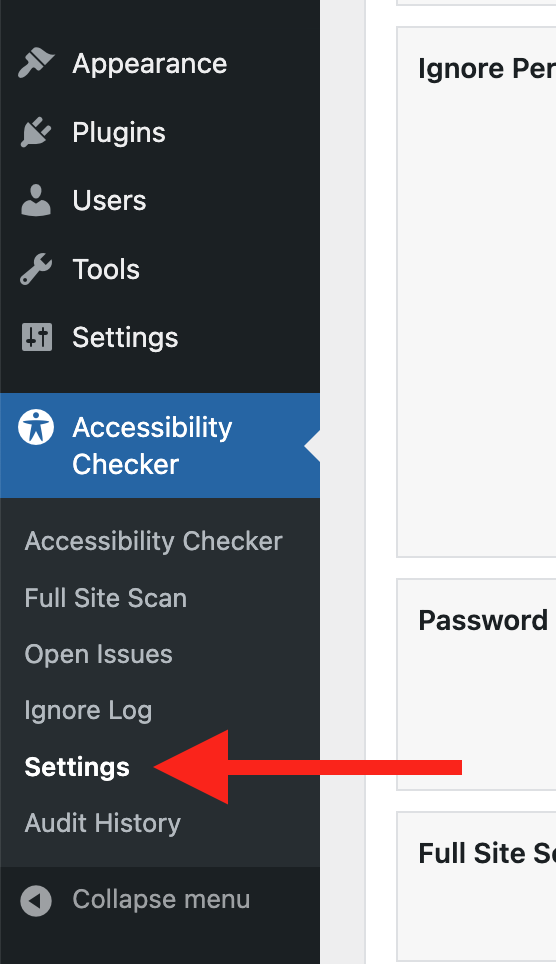
Click into the Accessibility Checker plugin settings in your WordPress dashboard (you must be logged in with an administrator account to access these settings).
Step 2
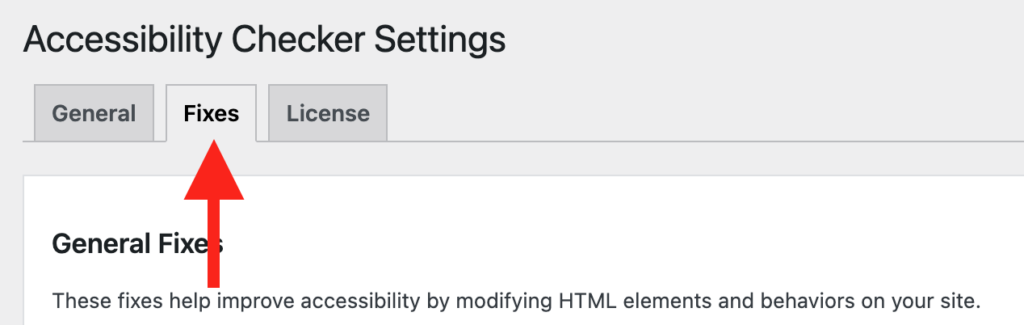
Go to the “Fixes” tab in the Settings Tabs navigation.
Step 3
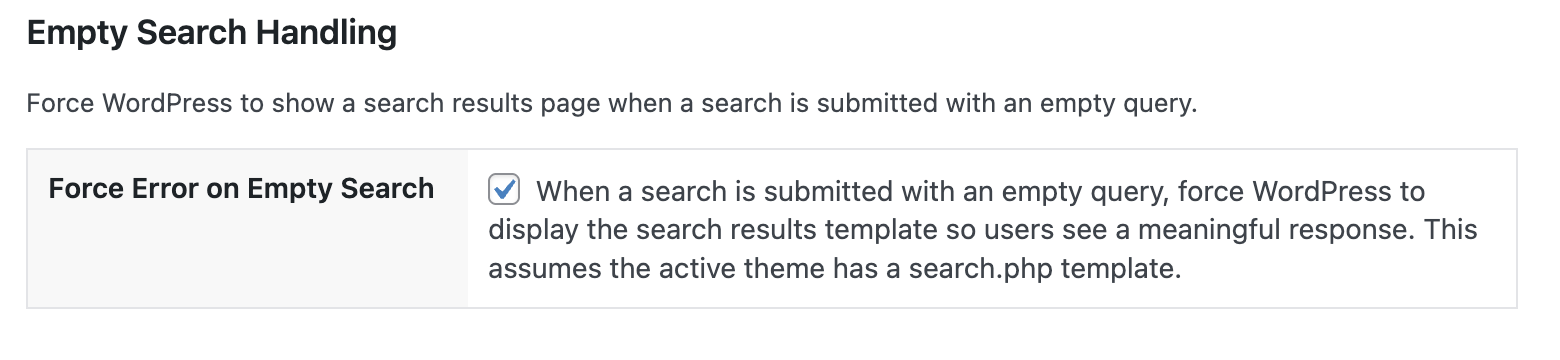
Check the box for Force Error on Empty Search, then scroll to the bottom of the page and click the “Save Changes” button.
You can test this fix by submitting your search form without any keywords or by adding ?s= to the end of your website URL.
Not seeing the fix?
The Force Error on Empty Search accessibility fix should start working immediately; however, if you don’t see the fix, it could be because you’re seeing a cached version of your website. Try clearing the cache in any caching plugins and on your hosting account, then look at your site in an incognito window to confirm the fix worked.
Note: This fix assumes that your website theme has a search.php template. If your WordPress theme does not have that template, the fix will not work. Learn more about search.php templates here.
What This Fix Does
When enabled, the Force Error on Empty Search fix watches for empty searches and uses PHP to change WordPress’s default behavior. Instead of returning index.php for empty searches, the fix returns search.php, which should show an error message that no content was found.
Example before enabling the fix
Here’s an example of what default WordPress results look like for empty searches:

As shown above, empty searches return a template that resembles your website’s blog template. There is no message communicating an issue with the search, and depending upon your blog design, there may not be a visible search form.
Example after enabling the fix
Here’s what an empty search on this same website looks like after enabling the Force Error on Empty Search fix:
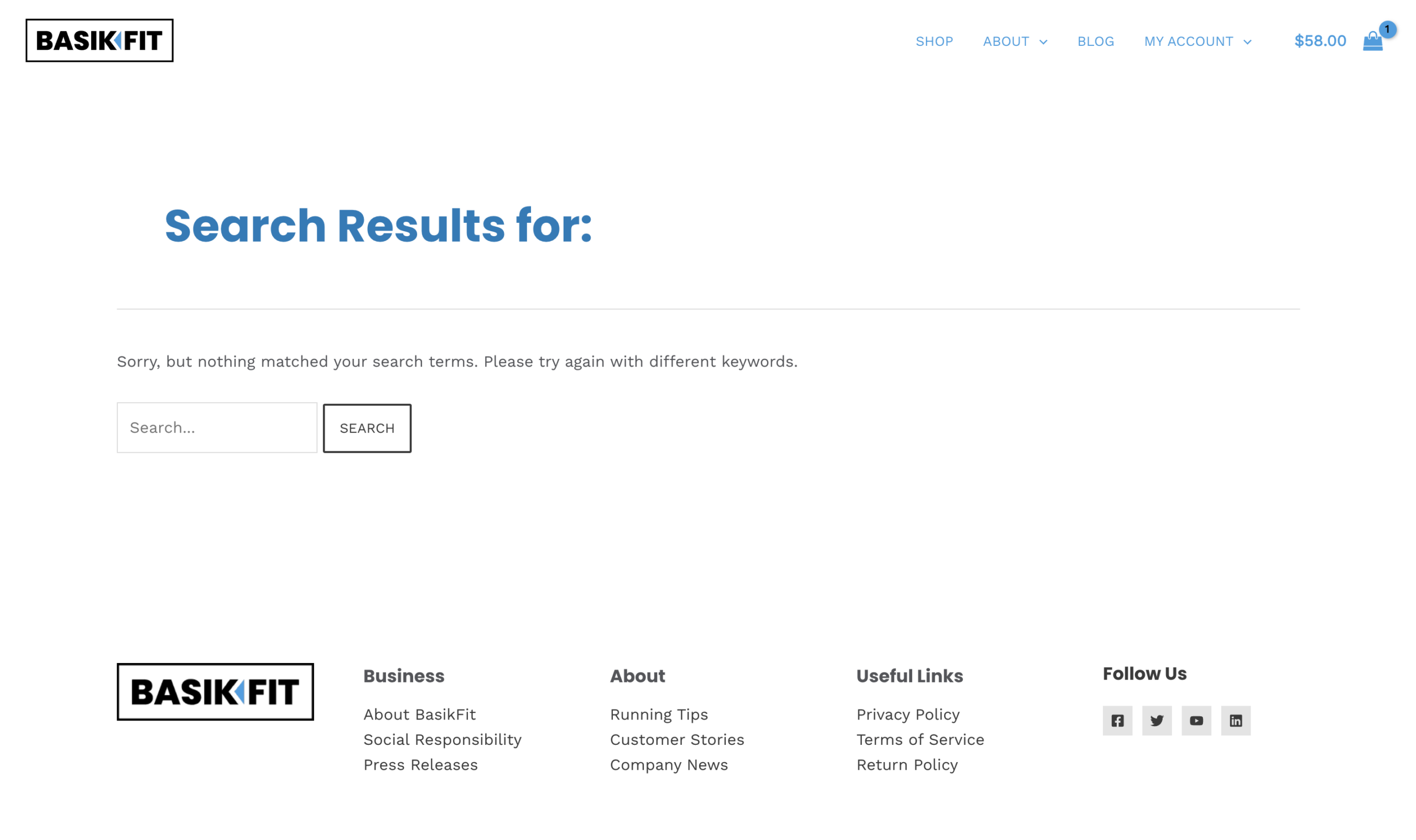
With the fix enabled, blank searches now show an error message and show the search form, so users can easily retry their search.
In this example, the error message is:
Sorry, but nothing matched your search terms. Please try again with different keywords.
Note: The search error message is defined by your theme. If you want to change the error message, you’ll need to edit the search.php template in your active theme.
Impact on Accessibility
The goal of Web Content Accessibility Guidelines (WCAG) 3.3.1 Error Identification is that users know an error exists and what is wrong. To pass this success criterion, websites must provide descriptive notification of errors.
Flagging errors clearly helps everyone, both people with disabilities and those without. When websites clearly communicate errors, we can all better understand what happened and how to resolve them.
This fix removes a WordPress behavior that frequently causes confusion and improves usability for all website visitors.