
Does your WordPress site include links that open in a new tab or window? Most WordPress sites do. This article explains how to easily add a warning to links that open in a new tab or window, which can help prevent some users from becoming disoriented or otherwise inconvenienced.
How to Fix Link Opens New Window or Tab
If your website has links that open in a window or tab and users are not sufficiently warned or notified of this, you can easily resolve that issue by using the WordPress Accessibility Checker plugin.
Step 1
Click into the Accessibility Checker plugin settings in your WordPress dashboard (you must be logged in with an administrator account to access these settings).
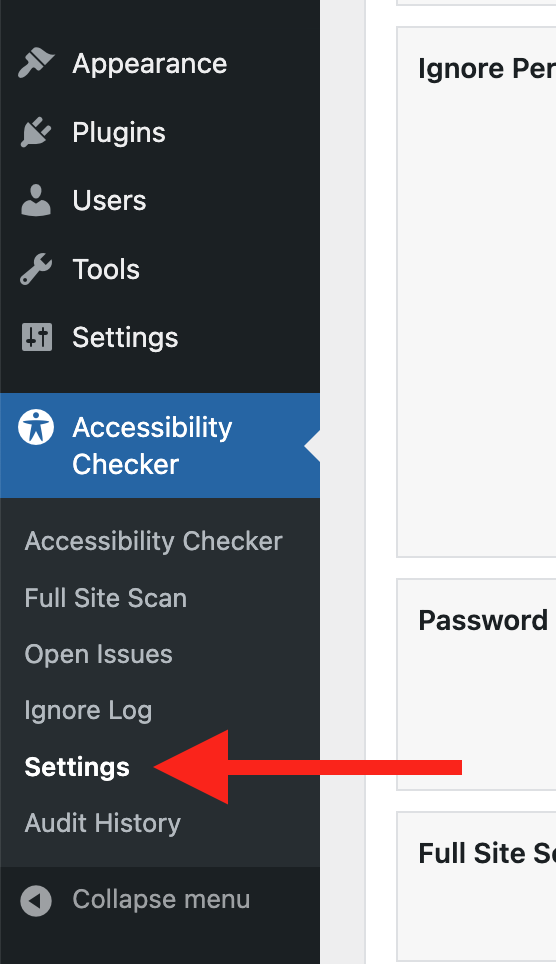
Step 2
Go to the “Fixes” tab in the Settings Tabs navigation.
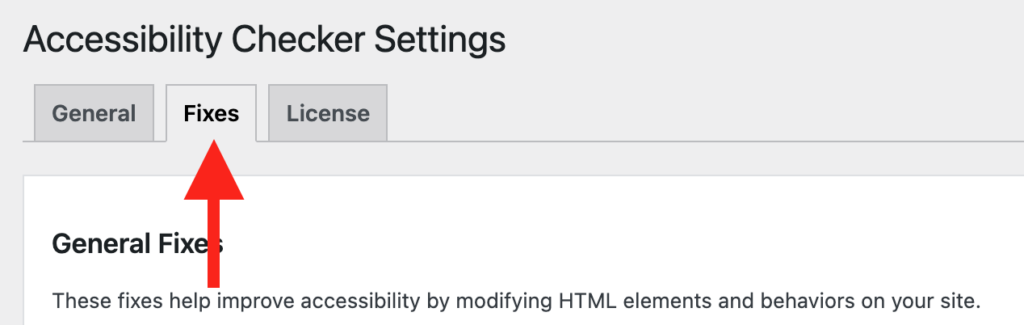
Step 3
Check the box for Add Label To Links That Open A New Tab/Window, then scroll to the bottom of the page and click the “Save Changes” button.

Note: Automated accessibility fixes use JavaScript or other methods to modify how your website functions. Occasionally, a WordPress theme or extension may conflict with or prevent our fixes from working as expected. We recommend testing these fixes on a local or staging copy of your website first.
Not seeing the fix?
The Add Label To Links That Open A New Tab/Window accessibility fix should start working immediately; however, if you don’t see the fix, it could be because you’re seeing a cached version of your website. Try clearing the cache in any caching plugins and on your hosting account, then look at your site in an incognito window to confirm the fix worked.
Note: Turning on a fix will not instantly remove related issues from Accessibility Checker reports. After turning on a fix, you can clear issues from reports by running a full site scan in Accessibility Checker Pro or by saving any individual post/page to trigger a rescan of that post/page only.
What This Fix Does
When enabled, the Add Label To Links That Open A New Tab/Window looks for all links that contain target="_blank". For any link with that attribute, a visual and auditory warning will be added to inform users that the link will open in a new tab or window.
Visual Warnings
Links that open new windows or tabs will have a new-window icon (a square with an arrow extending up from the top-right corner) appended to the link text.

Hovering over the link using a mouse or navigating to the link with a keyboard will reveal a visible tooltip with the phrase “opens a new window”.
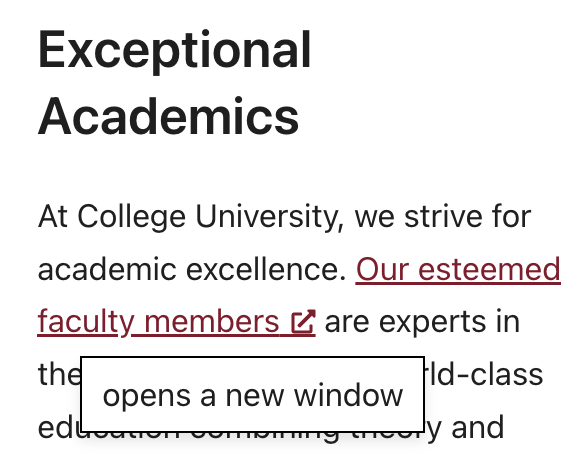
This tooltip complies with WCAG 1.4.13 Content on Hover or Focus. It can be:
- hovered with a mouse,
- dismissed with the escape key,
- and is persistent until hover or focus is removed or the user dismisses it.
The tooltip is helpful for less-savvy internet users or people with cognitive disabilities who may not understand what the icon means.
Auditory Warning
The fix also adds an aria-label to the link which includes the existing link text and “opens a new window”. This enables screen readers to provide an auditory warning of the new window behavior.
Here is an example:
Here’s the code for that link:
<a href="https://www.w3.org/TR/WCAG22/" target="_blank" rel="noreferrer noopener" aria-label="Read WCAG 2.2, opens a new window" data-nww-processed="true">Read WCAG 2.2<i class="edac-nww-external-link-icon" aria-hidden="true"></i></a>Available in 32 Languages
Accessibility Checker is available languages in more than just English. The plugin has been translated into 31 other languages. The “opens a new window” tooltip and aria-label will output in the language that matches your site.
Works with Linked Images
This fix also supports adding warnings to linked images. It will add both the icon and the tooltip to the linked image, and the aria-label will be built based on available accessible names from image alternative text, text in the image, or a combination.
Here is an example:
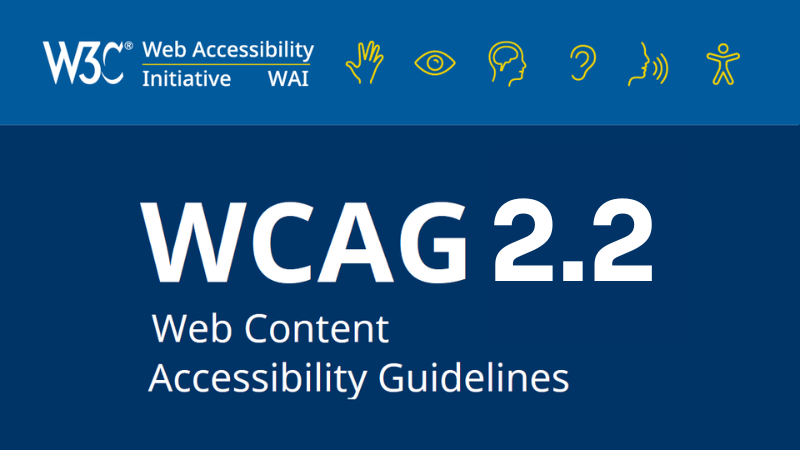
Code for example:
<a href="https://www.w3.org/TR/WCAG22/" target="_blank" rel=" noreferrer noopener" aria-label="W3c Web Accessibility Initiative (WAI) WCAG 2.2 Web Content Accessibility Guidelines, opens a new window" data-nww-processed="true"><img decoding="async" width="800" height="450" src="https://equalizedigital.com/wp-content/uploads/2024/03/WCAG2-2.png" alt="W3c Web Accessibility Initiative (WAI) WCAG 2.2 Web Content Accessibility Guidelines" class="wp-image-7567" style="width:444px;height:auto"><i class="edac-nww-external-link-icon" aria-hidden="true"></i></a>FAQ
The icon is getting added to my social media links. Is that expected?
Yes. When it comes to accessibility, warning users about links that open in new tabs or windows applies to all links, not just those in your body text. Adding the visible icon is essential for users with cognitive disabilities or mobility challenges, so they are warned about the new window before clicking on or activating links – it’s not sufficient to add screen reader text for blind and visually impaired users.
Depending on how you add linked icons, we understand this can result in a less-than-ideal appearance. If you don’t like how the visible icon appears, you have a couple of options: either change the link so it doesn’t open in a new window, or change the design of your social media or icon buttons, either in that plugin’s settings or with custom CSS.
It’s recommended not to hide the visible icon, but you could do so in some circumstances, since the tooltip will provide a visual warning before the link is clicked.
Why is the icon added to my images?
The icon is added to all linked images that are set to open in a new tab. If you have images that are linked and the links open in a new window or tab, the icon will be added. This is expected behavior and a best practice.
If you don’t want the icon there, here are some options:
- Consider whether the image should actually be linked. WordPress’s core default behavior is to link images to the file URL when inserting them into the block editor. In most cases, there is no reason to link images to their file URLs; you should remove the links entirely to fix this. To change this default behavior moving forward, go to yoursite.com/wp-admin/options.php; find the
image_default_link_typeoption, and change the value from “file” to “none”. - Change the link to not open a new tab. If the image needs to be linked, there is little reason to open the link in a new tab. Best practice is not to open links in new windows or tabs. If you disable the setting for opening the link in a new window or tab, the icon will go away.
- Hide the icon. In some circumstances, you can hide the icon and rely on the tooltip to provide the visible warning.
How do I hide the icon?
In some instances, you may want to hide the icon and allow the tooltip to provide the visible warning only on link hover or focus. You can hide the icon with CSS by targeting the .edac-nww-external-link-icon class.
Hide all icons like this:
.edac-nww-external-link-icon {
   display: none;
}
Narrow your targeting only to hide it on certain elements. For example, if you want to hide it only on your social media icons and each social media icon has a class of .social-follow-link you would hide it like this:
.social-follow-link .edac-nww-external-link-icon {
   display: none;
}
You can get the right CSS class for targeting by inspecting elements in your browser’s developer tools.
Is this the same as your Accessibility New Window Warnings plugin?
Yes, the functionality of this fix is the same as the Accessibility New Window Warnings plugin. You do not need both plugins active.
Note: Enhancements are built in Accessibility Checker before they are added in Accessibility New Window Warnings, which means that the code may not be identical between the two plugins. There may be a delay between releases. It is recommended to use the fix in Accessibility Checker rather than the standalone plugin to ensure you always have the most up-to-date version.
Impact on Accessibility
Web Content Accessibility Guidelines (WCAG) 3.2 Predictable specifies that web pages should appear and operate in predictable ways. Warning users when a link opens in a new tab or window helps set clear expectations and prevents disorientation.
This fix supports cognitive accessibility by reducing surprise. It makes it easier for blind users to return to previous pages — with the auditory announcement, they will know that to return to the previous page, they need to close the new window or tab rather than use their browser’s back button.
Providing the warning also improves transparency and trust for all visitors. This fix is inspired by Techniques for WCAG 2.0 G201: Giving users advanced warning when opening a new window.
Associated Checks
The following checks in Accessibility Checker are associated with this fix:
Changelog
Show/Hide Change Log
October 24, 2025
- Marked up all code as inline code.
- Clarified the Visual Warnings section to include more text descriptions of the warnings and not rely as heavily on screenshots.
- Added explanation that the tooltip complies with WCAG 1.4.13 Content on Hover or Focus.
- Added a section on the auditory warning to make it clear that screen reader users will hear something.
- Added examples of a text link and a linked image into the page with visible code.
- Added a note that this fix works in languages other than English.
- Added a FAQ section with information on how to hide the icon.
- Clarified Impact on Accessibility section, including links to relevant WCAG docs.