
Building an accessible WordPress site in 2026 is more achievable than ever, thanks to a growing ecosystem of accessibility-focused plugins. That said, no single plugin can make a WordPress site accessible on its own. Accessibility comes from ongoing decisions about content, design, development, and testing, supported by the right tools.
If you’re not sure where to start, start with testing. You can’t fix issues you don’t find, and a strong testing workflow helps you catch problems early, prevent regressions, and prioritize what matters most.
Below is a curated list of WordPress accessibility plugins grouped by function, so you can build an accessibility toolkit that matches your site’s needs.
Article continued below.
Stay on top of web accessibility news and best practices.
Join our email list to get notified of changes to website accessibility laws, WordPress accessibility resources, and accessibility webinar invitations in your inbox.
WordPress Accessibility Testing & Reporting Plugins
Accessibility Checker
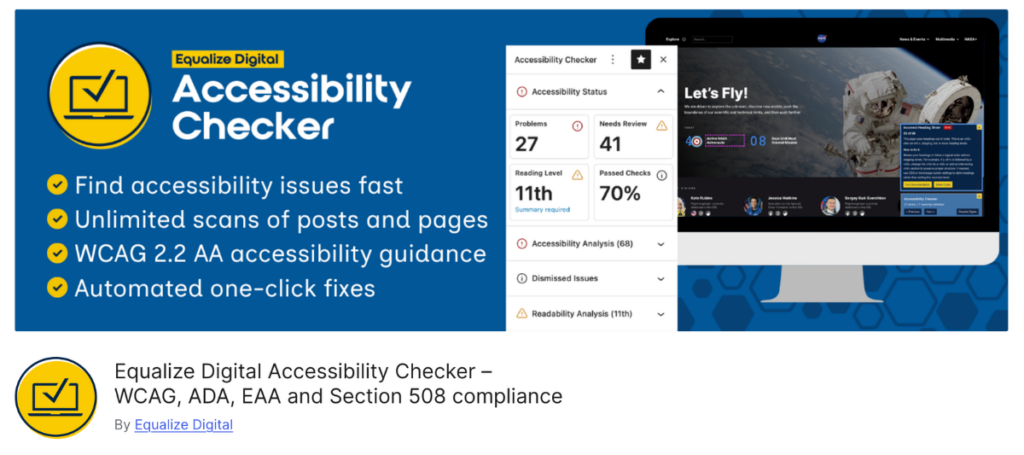

Accessibility Checker is a comprehensive accessibility auditing plugin designed specifically for WordPress. It scans posts, pages, and custom post types for accessibility issues and reports them directly inside the WordPress editor. The plugin detects a wide range of accessibility problems, including missing alternative text, improper heading structure, empty or ambiguous links, color contrast issues, form labeling issues, and other barriers that align with WCAG guidelines. Results are organized into Problems, Needs Review, and Passed Checks, making it easy for editors and developers to prioritize accessibility fixes.
Issues Accessibility Checker finds
This is a list of the issues Accessibility Checker checks for:
Problems
- Ambiguous Anchor Text
- Blinking or Scrolling Content
- Broken ARIA Reference
- Broken Skip or Anchor Link
- Duplicate Form Label
- Empty Button
- Empty Heading Tag
- Empty Link
- Empty or Missing Form Label
- Empty or Missing Table Header
- iFrame Missing Title
- Image Map Missing Alternative Text
- Image Missing Alternative Text
- Improper Use of Link
- Incorrect Heading Order
- Insufficient Color Contrast
- Linked Image Missing or Empty Alternative Text
- Long Description Invalid
- Missing Language Declaration
- Missing Title
- Missing Transcript
- Readability & Simplified Summary
- Zooming and Scaling Disabled
Needs Review
- A Slider is Present
- A Video is Present
- ARIA Hidden
- Duplicate Alternative Text
- Empty Paragraph Tag
- Image Animated GIF
- Image Empty Alternative Text
- Image Long Alternative Text
- Link Opens New Window or Tab
- Link Text is URL
- Link to MS Office File
- Link to Non-HTML File
- Link to PDF
- Low-quality Alternative Text
- Missing Subheadings
- Possible Heading
- Tab Order Modified
- Text Justified
- Text Too Small
- Underlined Text
Why Accessibility Checker
One of the biggest strengths of Accessibility Checker is its deep integration into the WordPress workflow. Accessibility scans run automatically as editors create or update content, surfacing issues before publishing. This is a major benefit over third-party SaaS solutions that offer external reporting dashboards and lack real-time scanning.
The plugin works with both the Block Editor and Classic Editor and allows teams to scan posts, pages, and custom post types without leaving the editing environment. This helps catch accessibility issues early, reducing the need for time-consuming audits later, which can significantly reduce remediation costs.
Accessibility Checker also goes beyond reporting issues by offering automatic accessibility fixes for common problems. These fixes can automatically correct certain accessibility barriers across a site, helping reduce manual remediation work. Read about Accessibility Checker Automatic Fixes.
Compared to other accessibility testing plugins that primarily highlight content issues, Accessibility Checker provides both broader detection and practical remediation tools. It identifies accessibility problems across content and page structure (including header, footer, widgets, and sidebars) while also offering automatic fixes that improve accessibility site-wide. This combination makes it easier for teams to maintain accessibility over time rather than simply identifying problems.
When to use it:
Accessibility Checker is the best choice for most WordPress websites. It provides continuous accessibility monitoring, clear issue reporting, and the ability to automatically fix certain accessibility problems while editors and developers work within the normal WordPress workflow. It’s a cost-effective option with a lifetime free tier that scans unlimited posts and pages.
Accessibility Checker Audit History
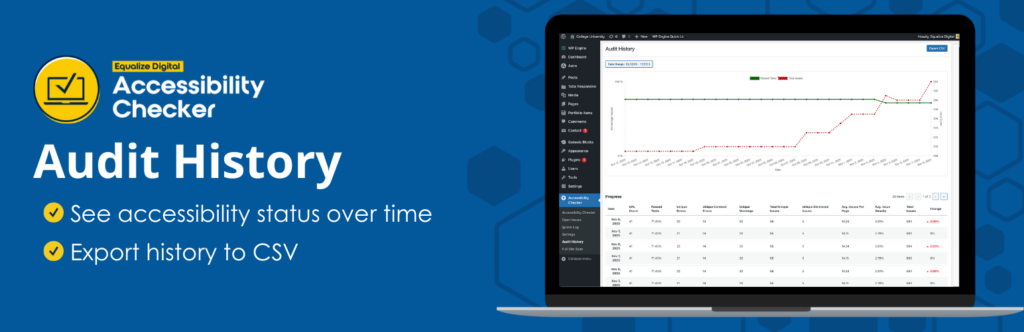
Our Audit History plugin is an add-on included free with Accessibility Checker small business and agency plans.
On its own, Accessibility Checker reports the current accessibility status of your WordPress site. The Audit History add-on, once installed, supports monitoring of accessibility trends and changes over time. It takes a daily snapshot of key accessibility data points and displays them in a table and line graph. Historical data can be exported in CSV format or viewed in the WordPress dashboard.
Accessibility Checker Audit History extends Accessibility Checker by providing historical tracking of accessibility scans. Instead of only seeing the current accessibility results for a page, this add-on records how accessibility issues change over time. Teams can track improvements, see when new issues appear, and understand how accessibility evolves across the site.
For organizations managing accessibility as an ongoing initiative, this kind of visibility is extremely valuable. When multiple editors contribute content or when design updates occur, accessibility regressions can happen unintentionally. Audit history allows teams to review previous scan results and identify exactly when accessibility issues were introduced or resolved.
When to use it:
Use Audit History when your team wants to track accessibility progress over time or demonstrate improvements across a site. It works best as part of a long-term accessibility strategy, or if you need to quickly report progress to stakeholders.
Editoria11y
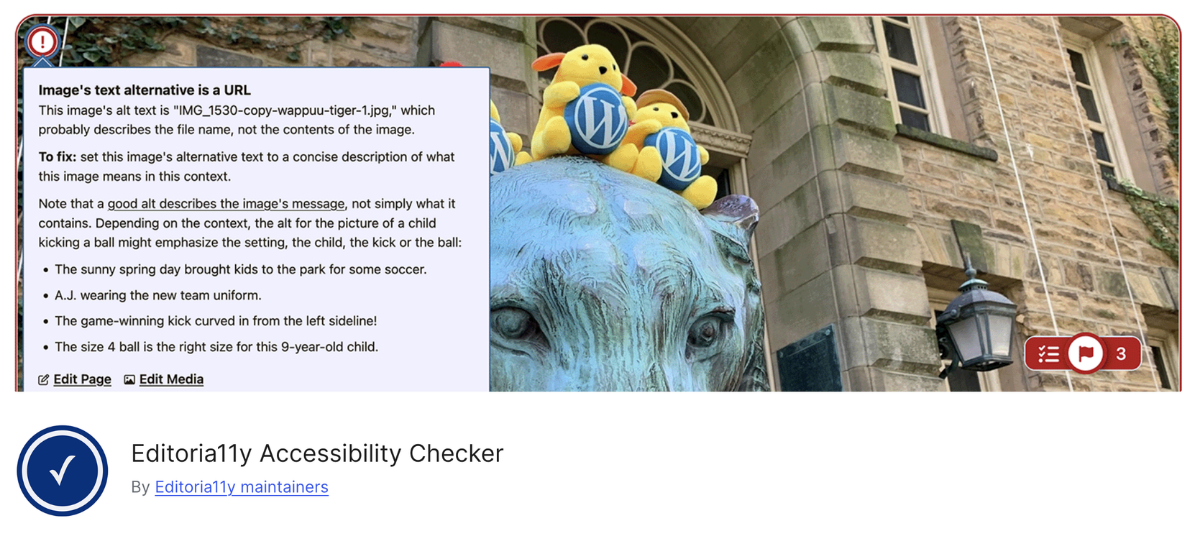
Editoria11y is a free WordPress plugin designed to help content authors identify accessibility issues as they write or edit content. It scans content in the_content a.k.a. the main post body, for some common accessibility problems that non-developers can control. Examples include missing alt text, incorrect heading levels, unclear link text, and tables without proper header structure. The plugin provides visual feedback within the editing interface so writers can see exactly where problems occur in their content.
The plugin focuses specifically on content-level accessibility issues, meaning the types of problems that writers and editors are most likely to introduce while creating content. Its interface is intentionally designed to be approachable and educational, helping content creators learn accessibility best practices as they work. This can be helpful for organizations where many contributors create content but may not have formal accessibility training; however, it is important to note that Editora11y is not a comprehensive testing tool.
Editoria11y originated in the higher education space, where websites are often tightly controlled, and content authors may not have permission to modify templates, navigation, or page layouts. Because of that, the plugin intentionally focuses on the types of accessibility issues authors can fix themselves and ignores problems that might require a developer or WordPress administrator to fix.
How it compares to Accessibility Checker
Accessibility Checker covers the same content-level issues as Editora11y but also scans for a broader range of accessibility barriers, including empty links, color contrast concerns, form labeling issues, and other WCAG-related problems across the page.
Accessibility Checker can also apply automatic fixes for certain accessibility barriers, such as enabling skip links, adding focus outlines, labeling search fields, or removing problematic tab index values, which go beyond what Editoria11y is designed to handle.
When to use it:
Editoria11y can be a helpful tool for organizations that want to guide content authors toward accessible writing practices, particularly in environments where authors have limited control over site structure. For teams seeking broader accessibility testing, detailed issue reporting, and automatic fixes for common accessibility problems, Accessibility Checker offers a more comprehensive solution.
Fix Alt Text
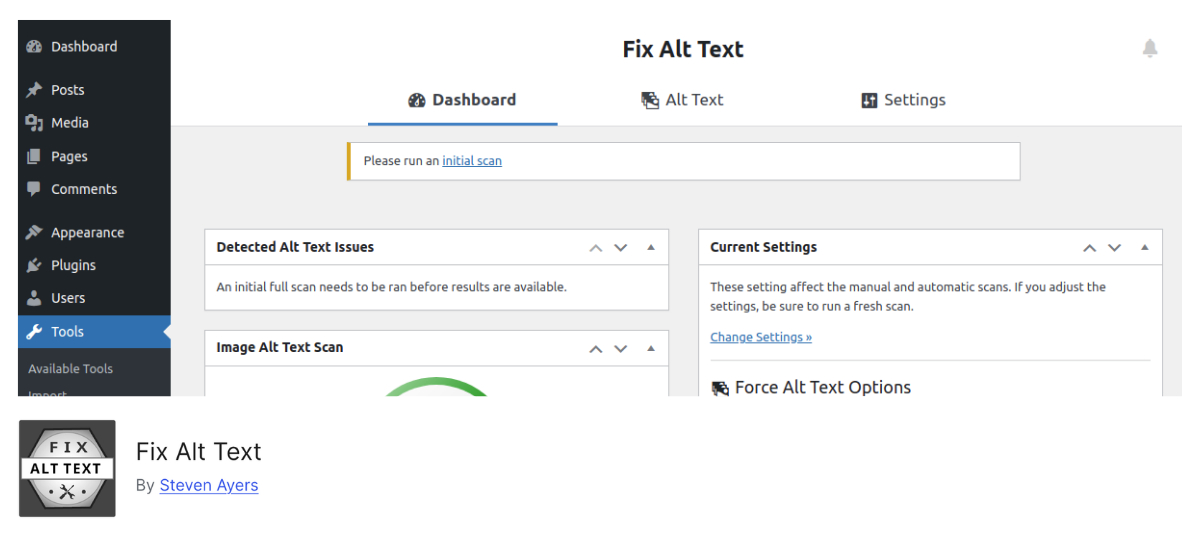
Fix Alt Text is a utility plugin designed to help WordPress site owners identify images that are missing alternative text. It scans the media library and highlights images without alt attributes, making it easier to locate and update them. This can be especially helpful for older websites where large numbers of images were uploaded before accessibility practices were widely understood.
The plugin provides a streamlined interface for reviewing images that need alt text. Instead of manually opening each image attachment, users can work through missing alt attributes more efficiently. For websites with large media libraries, this may significantly reduce the time needed to complete alt text remediation.
How it compares to Accessibility Checker
Alternative text is one of the most common accessibility issues on websites, and addressing it is often among the first steps in improving accessibility. However, missing alt text is only one of many accessibility barriers that can appear on a page.
Accessibility Checker also identifies missing alt text, but it additionally scans for issues such as empty links, improper heading hierarchy, form labeling problems, and other WCAG-related accessibility concerns. Accessibility Checker also offers automatic fixes for certain accessibility barriers, such as automatically converting title attributes (a common misstep on images) to alt attributes. This helps some site owners rapidly resolve image issues site-wide without requiring manual edits.
When to use it:
Fix Alt Text is a useful temporary remediation tool for quickly identifying and correcting missing alt attributes across your media library. Once those issues are addressed, a comprehensive accessibility auditing tool like Accessibility Checker would better help monitor accessibility across the rest of your content.
Sa11y
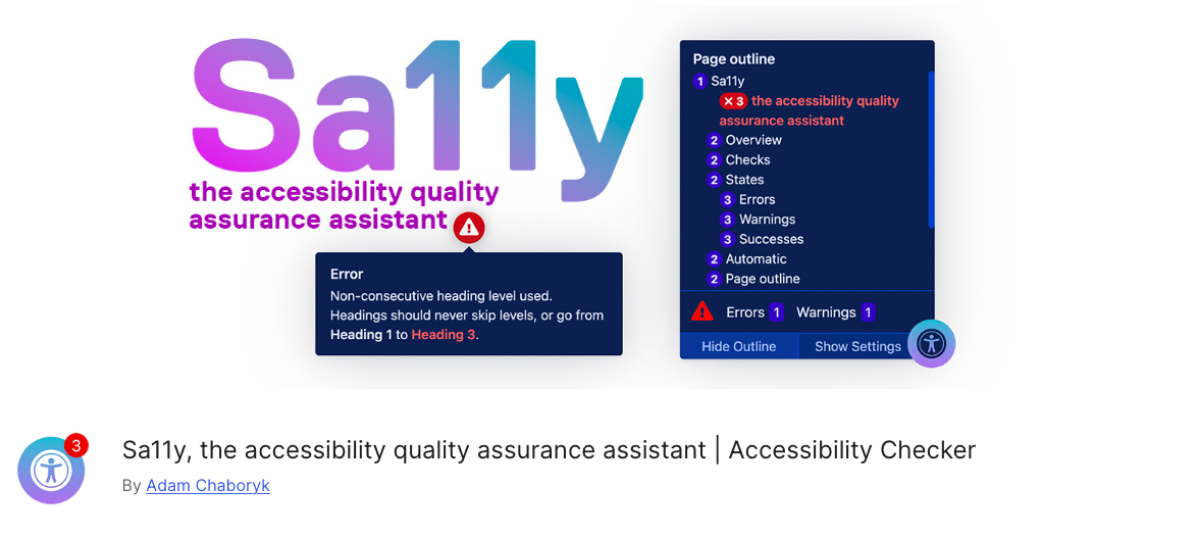
Sa11y is free WordPress plugin that helps content creators identify accessibility issues directly while editing pages.
It highlights potential accessibility problems visually within the content interface and provides guidance on correcting them. The plugin focuses on issues such as missing alt text, unclear link text, problems with heading hierarchy, and other common content-level accessibility concerns.
Sa11y is closely related to Editoria11y and builds on many of the same concepts. In fact, Sa11y is a fork of the Editoria11y project (meaning its codebase started as a copy of the Editora11y codebase). Both tools aim to help non-technical content creators identify accessibility issues as they write. Its goal is to make accessibility guidance easier to understand and apply without requiring deep technical knowledge.
How it compares to Accessibility Checker
Like Editoria11y, Sa11y was originally developed in the higher education community, where content editors often have limited control over site structure. As a result, the plugin focuses only on accessibility issues within the content itself, not accessibility of the full page.
Accessibility Checker covers these content-level issues as well, but goes further by scanning for a wider range of accessibility barriers across the page and organizing results into structured categories such as Problems, Needs Review, and Passed Checks. Accessibility Checker also provides automatic fixes for certain accessibility problems, such as enabling skip links, adding focus outlines, and labeling search fields, helping improve accessibility across the site.
When to use it:
Sa11y can be helpful for teams that want a visual accessibility assistant to guide content authors during content creation. For organizations seeking broader accessibility testing, structured reporting, and tools that automatically resolve some accessibility barriers, Accessibility Checker provides more comprehensive accessibility coverage.
WP Accessibility Tools & Missing Alt Text Finder
WP Accessibility Tools & Missing Alt Text Finder is a plugin designed to help WordPress site owners identify images that are missing alternative text. It scans posts, pages, and media items to locate images without alt attributes so they can be reviewed and updated. This can be especially useful for websites with large archives of existing content where missing alt text may be widespread.
The plugin only helps identify missing alt text and helps users address this specific accessibility issue. By scanning content and media libraries, it helps site owners quickly locate images that need descriptions so screen reader users can better understand the purpose of those images.
How it compares to Accessibility Checker
While missing alt text is an important accessibility requirement, it represents only one category of accessibility barriers on a page and is not even the most severe issue.
Accessibility Checker also detects missing alt text, but additionally scans for a much wider range of accessibility issues, including heading structure errors, empty links, color contrast problems, and form labeling issues. Accessibility Checker can also apply automatic fixes for some accessibility problems, such as enabling skip links, labeling search fields, or removing problematic tab index values.
When to use it:
This plugin works best as a targeted tool for identifying missing alt text across your site. For broader accessibility testing, structured reporting, and automatic fixes for some accessibility barriers, Accessibility Checker provides a more complete accessibility auditing solution.
WordPress Plugins That Fix Accessibility Problems
Some plugins help fix accessibility issues directly. These can be helpful, but they work best when paired with testing to confirm whether changes truly improved accessibility for real users.
Site-wide Fixes
Accessibility Checker
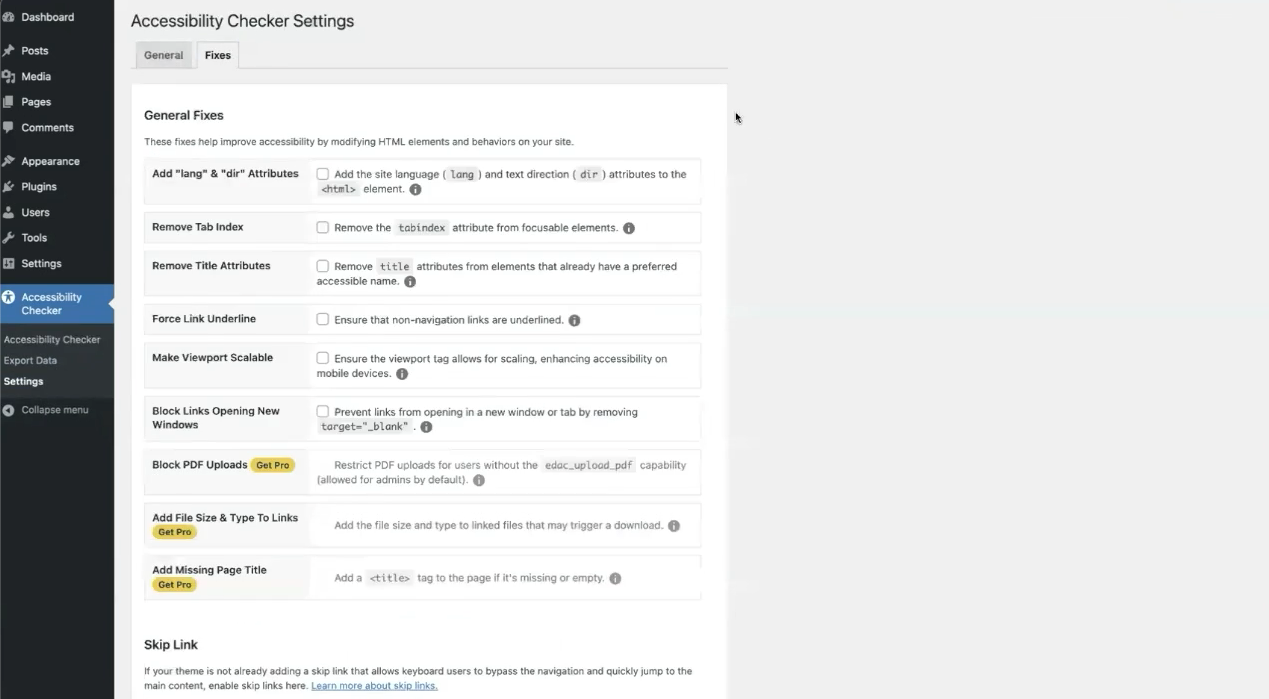
As mentioned above, Accessibility Checker doesn’t just identify problems; it also includes features to reduce remediation effort for certain issues.
The automatic fixes in Accessibility Checker are designed to handle repeatable cases where the change is straightforward, saving time on larger sites or those with frequent content updates.
Here are the current fixes included in Accessibility Checker:
- Add “lang” & “dir” Attributes
- Add File Size & Type To Links (Pro)
- Add Focus Outline
- Add Missing Page Title (Pro)
- Add Warning to Links Opening in a New Window or Tab
- Block Links Opening New Windows
- Block PDF Uploads (Pro)
- Enable Skip Link
- Force Error on Empty Search
- Force Link Underline
- Label Comment Fields
- Label Form Fields (Pro)
- Label Search Fields
- Make Viewport Scalable
- Remove Positive Tab Index
- Remove Title Attributes from Elements with Preferred Accessible Names
For issues that can’t be fixed automatically, Accessibility Checker provides contextual guidance and review prompts that help editors and developers understand why something is a problem and how to fix it in a way that aligns with accessibility best practices. This guidance is surfaced directly in the WordPress content editor, so teams can address issues as part of their normal content workflow instead of treating accessibility as a separate task.
This blend of issue identification, targeted automation, and human guidance reflects the way the plugin is positioned for ongoing content workflows. You can read more about how the fixes release expanded these automation and guidance capabilities.
WP Accessibility
WP Accessibility by our friend Joe Dolson is one of the longest-running accessibility plugins in the WordPress ecosystem, and for good reason. Rather than promising to “make your website accessible” with a single click, it focuses on helping site owners fix specific common accessibility problems found in themes and WordPress core.
A core strength of WP Accessibility is that it acknowledges an important truth about accessibility: most accessibility problems require thoughtful fixes, not overlays or quick patches. The plugin provides practical improvements that can make older or less accessible themes more usable while also including lightweight tools to help users spot accessibility concerns across their site.
WP Accessibility helps identify:
- Images missing alt text.
- Poor color contrast between colors.
- CSS-detectable accessibility issues.
- Accessibility problems caused by themes.
- Some accessibility issues that are created by WordPress core.
- Accessibility problems related to focus management and keyboard navigation.
How it compares to Accessibility Checker
WP Accessibility includes many of the same fixes as Accessibility Checker. Several of our fixes were inspired by those in the WP Accessibility plugin.
Compared to Accessibility Checker, WP Accessibility offers helpful fixes and settings, but it lacks comprehensive scanning, issue reporting, and guided remediation workflows. For that reason, some teams may choose to use Accessibility Checker instead of WP Accessibility, or use both plugins together.
It is possible to have both WP Accessibility and Accessibility Checker active on your website. Learn how you can use the WP Accessibility Plugin with Accessibility Checker here.
When to Use It:
WP Accessibility is a good option for websites running older themes or for users who need a lightweight collection of accessibility enhancements and helper tools. It’s especially useful if you want to add a front-end toolbar with some controls for high-contrast and font sizing. For organizations seeking ongoing accessibility monitoring, editorial guidance, and broader WCAG testing capabilities, WP Accessibility works best when paired with a more robust auditing tool, such as Accessibility Checker.
Micro-fixers
Micro-fixers are plugins that provide small, targeted fixes for a specific aspect of your site or a specific plugin, rather than global, site-wide fixes. These can be helpful, especially if you’re using a plugin with known problems, because they are custom built to solve that problem.
Accessibility New Window Warnings
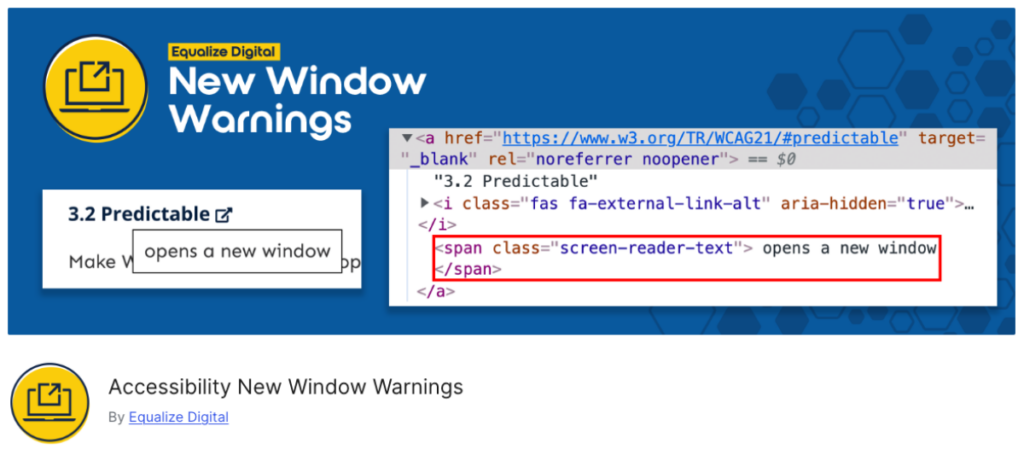
Accessibility New Window Warnings is a focused accessibility plugin designed to solve one very specific usability problem: links that unexpectedly open in new windows or tabs.
Under WCAG’s Predictable principle, users should be warned before a link changes context in a way they may not expect. Without a warning, new tabs and windows can be confusing for screen reader users, keyboard users, and people with cognitive disabilities who may lose track of where they are or how to return to the previous page, because they won’t be able to use their “back” button in their browser.
The plugin works automatically with no configuration required. Once activated, it detects links that open in new windows or tabs and adds multiple warning methods for different user types. These include a visual icon next to the link, a hover tooltip that says “opens a new window,” and hidden screen-reader text that announces the behavior to assistive technology users.
Because it focuses on a single accessibility issue, this plugin is lightweight and easy to implement, though some websites may require small CSS adjustments depending on how links or buttons are styled by themes or third-party plugins.
Accessibility New Window Warnings helps identify and remediate:
- Links that open in new windows or tabs without warning users.
- Accessibility concerns related to unexpected context changes.
- WCAG predictability issues tied to external links.
- Accessibility Checker “Link Opens New Window or Tab” warnings.
How it works with Accessibility Checker
The Accessibility New Window Warnings plugin is not necessary if you have Accessibility Checker installed. The same feature is available as a “fix” in the free version of Accessibility Checker and can be enabled by going to Accessibility Checker > Settings > Fixes in the WordPress admin.
When to use it:
Accessibility New Window Warnings is a great choice if your website frequently uses external links, downloadable documents, social sharing links, or buttons configured to open in a new tab. It’s especially helpful for organizations seeking a quick, sitewide fix for link-predictability issues without manually editing every link.
If, for some reason, you don’t have Accessibility Checker on your site, you can still have this popular feature as a standalone plugin.
Accessible Elementor Popups
Accessible Elementor Popups by Accessibility Zone is a micro-accessibility plugin designed to improve the accessibility of Elementor and Elementor Pro popups.
Popups are one of the most common accessibility pain points on WordPress websites because they often fail to manage keyboard focus correctly, trap users unexpectedly, or lack proper labels for screen readers. This plugin attempts to address those issues by adding accessibility-focused behavior and structure to Elementor’s popups with minimal setup required.
The plugin adds support for features like focus trapping, pop-up labeling, and screen reader-friendly popup titles. It also includes optional classes that allow developers to disable focus trapping or scroll blocking in specific situations.
One helpful feature is its guidance on popup headings, encouraging users to include a proper heading element that serves as the modal’s accessible name.
Accessible Elementor Popups helps remediate:
- Accessibility problems related to Elementor pop-ups.
- Missing popup titles and labels for screen readers.
- Keyboard focus trapping issues in modals.
- Scroll locking behavior in pop-up windows.
- Some screen reader usability problems in Elementor overlays.
How it works with Accessibility Checker
There are no known conflicts between Accessible Elementor Popups and Accessibility Checker. At this time, there is also no overlap between the features of the two plugins, so it is safe to use both on your website.
When to use it:
Accessible Elementor Popups may be useful for Elementor users who need a lightweight way to improve pop-up accessibility without custom development. It’s best suited for websites already heavily dependent on Elementor pop-ups. You only need to install it if you’re using Elementor to create popups. If you create them with a different plugin, then this plugin is not necessary.
Because the plugin does not appear to be actively maintained against recent WordPress versions, site owners should use caution and thoroughly test compatibility before activating it on production websites.
Contact Form 7: Accessible Defaults
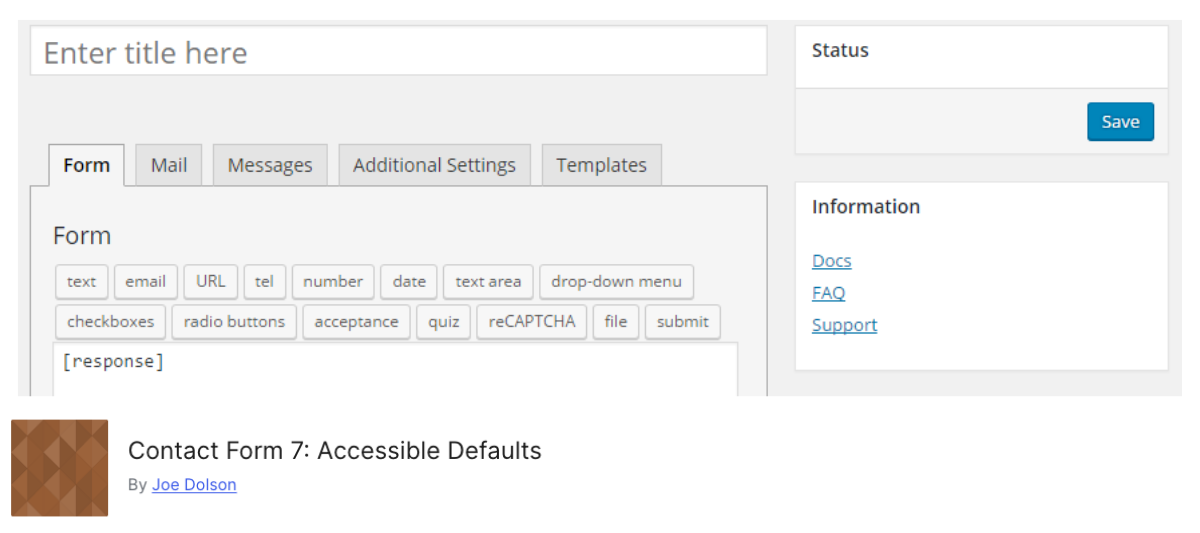
Contact Form 7: Accessible Defaults is a companion plugin for Contact Form 7 that improves the accessibility of newly created forms by replacing Contact Form 7’s default form template with a more accessible version. Rather than retrofitting accessibility fixes onto existing forms, the plugin provides form templates that use better label structures and more accessible markup from the beginning.
One of the key ideas behind this plugin is that accessible forms start with an accessible structure. Contact Form 7 itself already has a relatively accessible foundation, but this plugin enhances the default templates to encourage better implementation practices for form fields and labels.
The plugin also includes additional accessible starter templates that users can build from when creating new forms.
Contact Form 7: Accessible Defaults helps improve:
- Form field labeling structure.
- Accessibility of newly created Contact Form 7 forms.
- Default form markup and semantic structure.
- Screen reader usability for form inputs.
- Accessible form-building workflows.
It is important to note that the plugin cannot automatically fix previously created forms; site owners still need to manually review and remediate older forms that may contain accessibility issues.
How it works with Accessibility Checker
There are no known conflicts between Contact Form 7: Accessible Defaults and Accessibility Checker. At this time, there is also no overlap between the features of the two plugins, so it is safe to use both on your website.
When to use it:
Contact Form 7: Accessible Defaults is a good choice for websites that rely heavily on Contact Form 7 and want more accessible starter templates without having to build forms from scratch. It’s especially useful for content editors or teams creating many simple forms who may not be deeply familiar with accessible form markup. Install this plugin on every site where you are also using the Contact Form 7 plugin.
Because it does not remediate existing forms or provide ongoing accessibility testing, it works best alongside a scanning tool like Accessibility Checker.
TablePress Scoped Headers
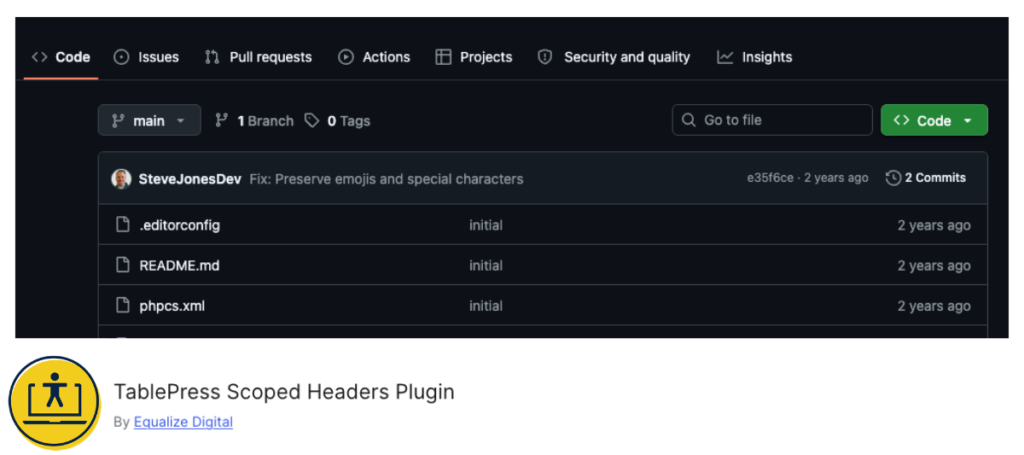
TablePress Scoped Headers is a lightweight add-on plugin that improves the accessibility of tables created with TablePress. As shown in the screenshot above, this is a free plugin available on Equalize Digital’s GitHub account.
Tables can become difficult or impossible for screen reader users to understand when header cells are not properly associated with the correct rows and columns. There is a known bug in TablePress, where th tags do not have a scope indicating if they are row or column headers. This plugin addresses that problem by automatically adding scope attributes to table headers, helping assistive technologies better interpret table relationships and structure.
Once activated, the plugin works automatically with no additional configuration required. It adds scope="col" to the header cells across a row and scope="row" to header cells down a column of TablePress tables. While this may seem like a small technical change, proper header associations can make a major difference for users navigating complex tables with screen readers.
Because the plugin focuses on one specific accessibility enhancement, it is intentionally simple and lightweight. However, it also means that broader table accessibility issues, such as missing captions, overly complex layouts, or poor mobile responsiveness, still need to be reviewed separately.
TablePress Scoped Headers helps remediate:
- Missing
scopeattributes in table headers. - Incorrect row and column header associations.
- Screen reader interpretation issues in data tables.
- Accessibility problems in TablePress-generated tables.
- WCAG issues related to table semantics and structure.
How it works with Accessibility Checker
There are no conflicts between TablePress Scoped Headers and Accessibility Checker. As both are maintained by our dev team at Equalize Digital, they are regularly tested for compatibility.
At this time, there is also no overlap between the features of the two plugins, so it is safe to use both on your website.
When to use it:
Install and activate TablePress Scoped Headers on all websites using TablePress.
🚨 Warning! Overlays Don’t Fix Accessibility
Accessibility overlays and toolbars often claim to “make your website accessible automatically,” but they generally don’t fix the underlying issues in your theme, templates, content, or code. Some users may find certain overlay features helpful, but overlays don’t replace real remediation, and they can introduce new usability and accessibility problems.
You’ll notice that this article does not discuss or recommend WordPress accessibility plugins in the overlay category. This includes:
- Accessibility by AllAccessible
- Accessibility by AudioEye
- Accessibility by UserWay
- Accessibility Widget by OneTap
- AccessiYes Accessibility Widget
- Ally by Elementor
- DJ-Accessibility
- EqualWeb Accessibility
- Web Accessibility by AccessiBe
- WP Accessibility Helper (WAH)
- And similar plugins
Overlays are typically not supported by people with disabilities, will not protect you from getting sued, have been fined by the government for false claims, and have been said to be ineffective by the European Commission.
For this reason, we will never recommend that you add an accessibility toolbar or “magic” AI-based fixer to your website.
For a deeper look at this topic, see Should I Add an Accessibility Toolbar to My Website?, which breaks down what these tools can and cannot do.
Plugins that Support Accessible Content Creation
Accessibility is easier when your tools support good defaults and flexible, semantic content. The plugins in this section help teams create better experiences as they build—especially when paired with training and a testing tool.
Platform WordPress Plugins
ArchiveWP

ArchiveWP is a WordPress archiving plugin designed to help organizations manage outdated or legacy content while maintaining transparency, public access, and accessibility compliance. This plugin was created to help site owners comply with legacy content exceptions in laws like the Americans with Disabilities Act and the European Accessibility Act.
Instead of deleting older content entirely, ArchiveWP provides tools that let you easily move it into a clearly designated archive section with updated URLs, disclaimers, search functionality, and optional redirects. This allows organizations to preserve important historical records without keeping outdated information mixed into active site content.
One of ArchiveWP’s biggest strengths is that it addresses a very real challenge for large websites: not all old content needs to remain part of active accessibility remediation efforts. Government agencies, educational institutions, nonprofits, and enterprise websites often have thousands of older pages that must remain publicly accessible for transparency or legal reasons.
ArchiveWP makes it possible to separate that content from the main website experience while preserving SEO value through automatic redirects and maintaining usability with searchable archive pages, taxonomy preservation, and customizable archive disclaimers. The plugin also integrates directly with Accessibility Checker, allowing archived content to be excluded from accessibility reports so teams can focus remediation efforts on active content.
ArchiveWP helps organizations:
- Separate outdated or legacy content from active website content.
- Maintain searchable public archives for transparency and record-keeping.
- Exclude archived content from Accessibility Checker remediation reports.
- Reduce accessibility remediation workload for inactive content.
- Preserve SEO value with automatic 301 redirects.
- Meet legal archived-content exception requirements in some accessibility laws.
- Keep historical content available with clear archive disclaimers.
Compared to many accessibility plugins that focus on fixing front-end code issues, ArchiveWP takes a more strategic content-governance approach to accessibility management. Rather than remediating individual accessibility errors, it helps organizations better define which content should remain part of ongoing compliance efforts and which should be archived.
How it works with Accessibility Checker
There are no conflicts between ArchiveWP and Accessibility Checker. As both are maintained by our dev team at Equalize Digital, they are regularly tested for compatibility.
There is also no overlap between the two plugins’ features, so it is safe to use both on your website. When paired with Accessibility Checker, ArchiveWP can make accessibility reports significantly more actionable by reducing noise from outdated pages and helping teams prioritize remediation work where it matters most.
Gravity Forms
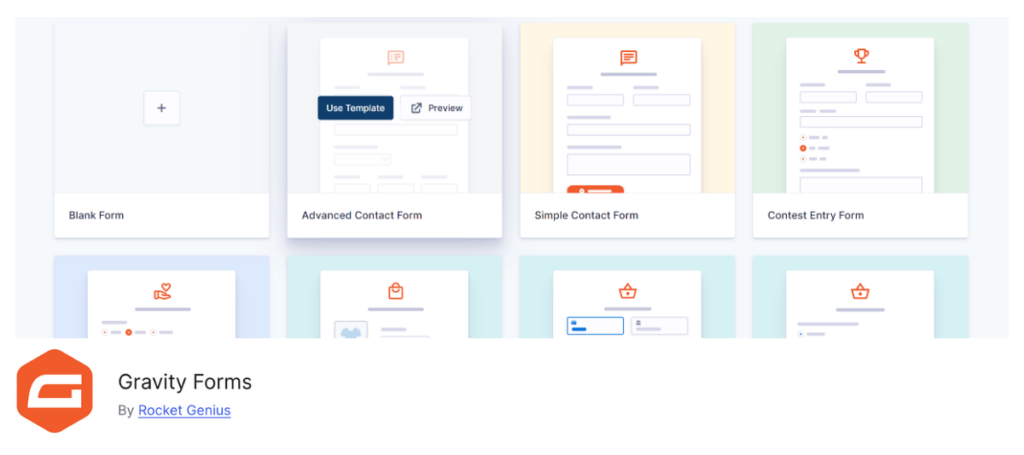
Gravity Forms is one of the most popular premium form builders for WordPress and has earned a strong reputation for prioritizing accessibility compared to many other form plugins.
While many drag-and-drop form builders introduce inaccessible markup, unlabeled fields, or keyboard navigation problems, Gravity Forms has invested heavily in improving the front-end accessibility of its forms. The plugin includes support for proper labels, field descriptions, validation messaging, keyboard accessibility, and semantic form structure, making it one of the strongest choices for organizations building accessible forms on WordPress.
One of Gravity Forms’ biggest advantages is that accessibility is built into the platform rather than treated as an afterthought. The plugin continues to improve accessibility support through ongoing development and documentation, and many accessibility professionals consider it one of the safer options for building forms that align with WCAG requirements.
Gravity Forms helps support:
- Accessible form labels and descriptions.
- Keyboard-accessible form interactions.
- Improved screen reader compatibility.
- Semantic form markup.
- Accessible validation and error messaging.
- More accessible form-building workflows for WordPress.
That said, accessibility still depends heavily on how forms are configured and customized. Poorly written labels, inaccessible embedded content, custom CSS, or third-party add-ons can still create barriers even when using an accessibility-conscious form builder. See this online course with Equalize Digital CEO, Amber Hinds, on how to build accessible forms with Gravity Forms.
How it works with Accessibility Checker
There are no known conflicts between Gravity Forms and Accessibility Checker. We have been using Gravity Forms as our form builder at Equalize Digital since 2010, so it is regularly tested for compatibility with the Accessibility Checker. Additionally, there is also no overlap between the two plugins’ features, so it is safe to use both on your website.
Accessibility Checker can help identify problems that are caused by content managers improperly setting up forms in Gravity Forms. Examples of accessibility problems that Accessibility Checker can alert you to include: missing labels, empty buttons, color contrast problems, incorrect heading structures, or accessibility issues introduced through customizations and embedded third-party Gravity Forms add-ons.
Even when using an accessibility-focused form plugin like Gravity Forms, ongoing accessibility testing is still important to ensure forms remain usable for all visitors.
Kadence Blocks
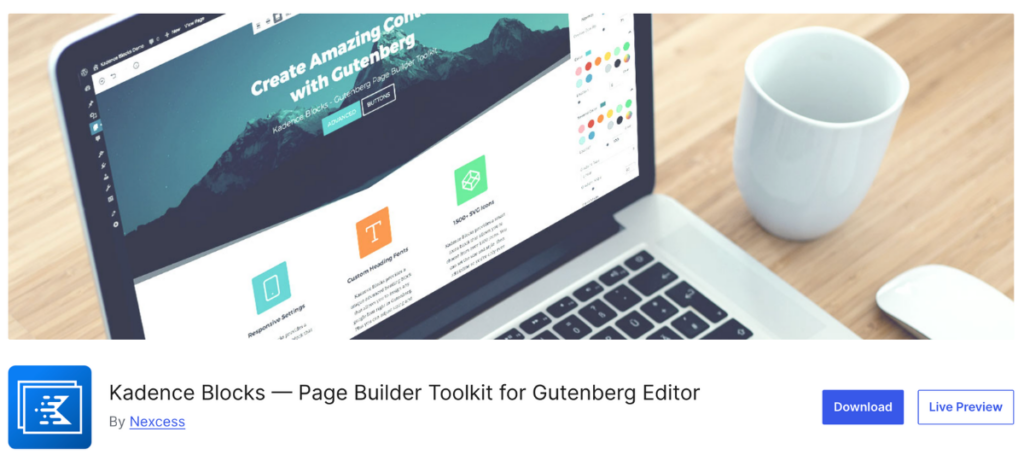
Kadence Blocks is a popular block library plugin that extends the native WordPress Block Editor with advanced layout, design, and content-building capabilities. It includes a large collection of custom blocks for things like accordions, tabs, galleries, forms, testimonials, buttons, row layouts, and dynamic content sections, all while keeping users inside the native WordPress editing experience instead of relying on a separate page builder interface. Kadence Blocks has become especially popular among users seeking greater design flexibility without sacrificing performance.
One of the standout aspects of Kadence Blocks is its strong focus on performance and accessibility-conscious development. Unlike some visual builders that generate inaccessible markup, Kadence Blocks generally produces cleaner code and includes thoughtful accessibility support across many of its components.
In our WordPress Page Builder Accessibility Comparison Report, Kadence Blocks consistently ranked among the top-performing page-building solutions for accessibility. That doesn’t mean every design built with Kadence Blocks will automatically be accessible or that every block in Kadence is problem-free, but it does provide a significantly stronger foundation than many competing builders, particularly when used thoughtfully by content creators and developers.
Kadence Blocks helps support:
- More accessible page-building workflows inside Gutenberg.
- Cleaner front-end markup compared to many visual builders.
- Accessible layouts, accordions, tabs, and interactive content components.
- Responsive and keyboard-friendly content structures.
- Better performance through conditional asset loading.
- Accessibility-conscious design flexibility without relying on overlays.
If you’re building your website in the WordPress block editor and need to go beyond core blocks, Kadence may be the right place to start.
How it works with Accessibility Checker
There are no known conflicts between Kadence blocks and Accessibility Checker. Accessibility Checker reports are visible in the block editor where content is created with Kadence blocks. Additionally, there is also no overlap between the two plugins’ features, so it is safe to use both on your website.
Kadence Blocks focuses on providing users with better tools to build accessible layouts and components from the start, while Accessibility Checker focuses on identifying accessibility problems throughout the website. Even with an accessibility-friendly builder like Kadence Blocks, issues can still arise from poor content structure, color choices, missing alt text, custom code, or embedded third-party content. Accessibility Checker helps catch those issues during content creation and ongoing maintenance, making the two tools highly complementary.
LearnDash
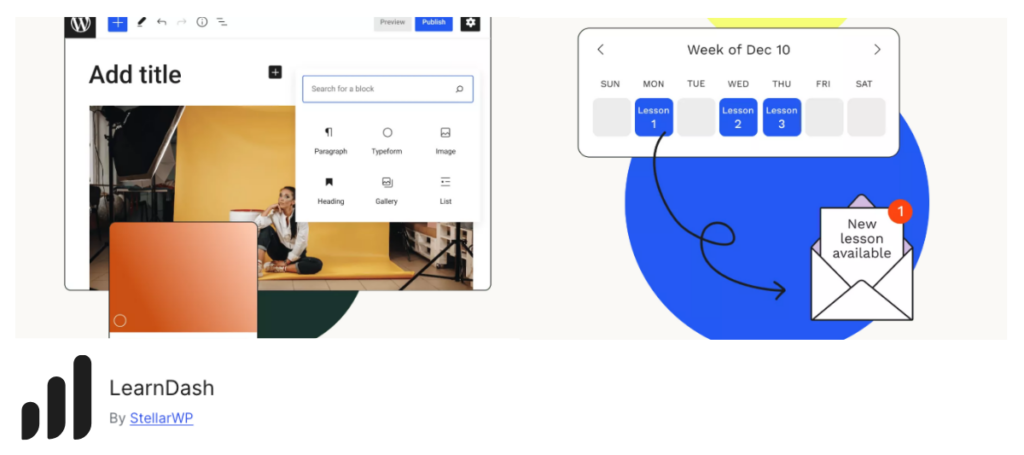
LearnDash is one of the most widely used learning management systems (LMS) for WordPress, powering online courses, training programs, certifications, and educational platforms for businesses, universities, nonprofits, and creators.
LMS platforms can present significant accessibility challenges because they often include quizzes, interactive lessons, progress tracking, navigation systems, multimedia content, and custom learning interfaces. LearnDash has made substantial efforts in recent years to improve the accessibility of its platform and align more closely with WCAG standards.
One of the reasons LearnDash stands out in this category is its ongoing investment in accessibility improvements and transparency. The company publishes a public LearnDash Accessibility Conformance Report (ACR) outlining accessibility compliance efforts and known limitations.
At Equalize Digital, we worked directly with the LearnDash team to accessibility test the plugin and generate their ACR. The platform has made meaningful progress in areas like keyboard navigation, screen reader compatibility, semantic structure, and form accessibility. While no LMS platform is perfect, LearnDash demonstrates a much stronger commitment to accessibility than many competing online course solutions, so it’s our top choice if you need an LMS.
LearnDash helps support:
- More accessible online course experiences.
- Keyboard-accessible learning interactions.
- Improved screen reader support for lessons and quizzes.
- Accessible navigation within LMS content.
- Better accessibility transparency through published conformance reporting.
- Ongoing accessibility improvements and testing workflows.
How it works with Accessibility Checker
There are no known conflicts between LearnDash and Accessibility Checker. We use LearnDash for our courses, so it is regularly tested for compatibility with Accessibility Checker on our own site.
To be able to test LearnDash pages and course posts for accessibility, you must have a paid version of Accessibility Checker. With Accessibility Checker Pro, reports are visible in the editor where course content is created, and all course pages, quizzes, etc., can be tested.
There is also no overlap between the two plugins’ features, so it is safe to use both on your website.
It is important to note that even with an accessibility-conscious LMS, problems can still arise from uploaded videos, PDFs, quizzes, embedded tools, poor heading structures, missing alt text, or inaccessible lesson content. Accessibility Checker helps organizations monitor and remediate those broader content-level accessibility issues as courses evolve over time.
My Calendar
My Calendar by Joe Dolson is a WordPress event management plugin built with a strong accessibility-first philosophy. The plugin allows users to create and manage event calendars with multiple display options, recurring events, venue support, category filtering, and customizable calendar layouts. Unlike many calendar plugins that focus primarily on visual presentation, My Calendar places significant emphasis on usability for administrators and visitors who use assistive technologies.
One of the most notable aspects of My Calendar is that accessibility is treated as a core product priority rather than an add-on feature. The plugin includes tools for communicating accessibility information about events and venues, and its interfaces are tested with assistive technology across both the front and back end. The developer has publicly stated that accessibility improvements take precedence over backward compatibility when necessary, which is relatively uncommon in the WordPress plugin ecosystem. While no calendar plugin can guarantee fully accessible event content, My Calendar provides a much stronger foundation for accessibility than many competing event management solutions.
My Calendar helps support:
- More accessible event calendars and listings.
- Screen reader-friendly event navigation.
- Keyboard-accessible calendar interactions.
- Accessible venue and event information.
- Better accessibility communication for event attendees.
- Accessible admin and front-end calendar management workflows.
How it works with Accessibility Checker
There are no known conflicts between My Calendar and Accessibility Checker. There is no overlap between the two plugins’ features, so it is safe to use both on your website.
To test My Calendar Event pages for accessibility, you must have a paid version of Accessibility Checker. With Accessibility Checker Pro, reports are visible in the editor where events are created, and all front-end views of My Calendar can be tested.
As with forms, LMS, and other plugins in this category, choosing an accessible starting point is only the beginning of maintaining an accessible website. You still need to regularly check for accessibility problems within calendar pages themselves, including issues introduced through event descriptions, uploaded media, custom styling, embedded maps, or third-party integrations. Accessibility Checker can help you ensure your My Calendar setup stays accessible.
Popup Maker
Popup Maker is one of the most widely used popup plugins in the WordPress ecosystem, offering tools for creating modal popups, slide-ins, banners, opt-in forms, announcements, cookie notices, and conversion-focused marketing campaigns. Popup Maker is the plugin we use on our website to create popups.
Popup Maker includes extensive targeting and triggering options, integrations with popular form builders and email marketing platforms, and flexible display controls that allow site owners to create highly customized popup experiences without writing code.
Popups are often a major accessibility challenge on WordPress websites because they can interfere with keyboard navigation, trap focus incorrectly, disrupt screen reader users, or create usability issues on mobile devices.
While Popup Maker is primarily designed as a marketing and conversion tool rather than an accessibility plugin, it has historically shown more awareness of accessibility concerns than many competing pop-up builders. The founder, Daniel Iser, once said in our WordPress Accessibility Showcase that he’s been including accessibility in his plugin since before it was cool.
Popup Maker helps support:
- Semantic HTML dialogs with appropriate
aria-labelsand keyboard focus traps. - More flexible and customizable popup workflows.
- Responsive popup behavior across devices.
- Integration with accessibility-conscious form plugins.
- Configurable popup triggers and display settings.
- User targeting and frequency controls that can reduce popup fatigue.
- Better control over modal behavior compared to many basic popup tools.
How it works with Accessibility Checker
There are no known conflicts between Popup Maker and Accessibility Checker. Accessibility Checker will report issues in your popups, even if they are hidden when the page initially loads. As we use Popup Maker on our website, it is regularly tested for compatibility with Accessibility Checker.
You can test Popup Maker popups for accessibility with the free version of Accessibility Checker, so long as you target them to display on a post or page (rather than a custom post type).
There is no overlap between the two plugins’ features, so it is safe to use both on your website. Popup Maker focuses on popup functionality and marketing workflows, whereas Accessibility Checker helps determine whether those popups meet accessibility requirements. Because popups are one of the most common sources of accessibility problems on modern websites, testing them carefully is especially important.
WooCommerce

WooCommerce is the most widely used e-commerce platform for WordPress, powering millions of online stores, from small businesses to large enterprise operations.
The plugin provides extensive tools for selling physical and digital products, managing payments and shipping, handling subscriptions and memberships, and integrating with hundreds of third-party extensions and services. Because e-commerce websites contain so many interactive components — product pages, carts, checkout flows, account areas, filters, forms, and payment systems — accessibility can have a major impact on whether customers are actually able to complete purchases successfully.
If you are building an online store, many laws around the world, including the Americans with Disabilities Act and the European Accessibility Act, require your store to be accessible. Choosing the right e-commerce plugin is the first step toward meeting your legal requirements.
In recent years, WooCommerce has made increasingly visible efforts to improve accessibility across its platform and storefront experience. The company has a public WooCommerce Accessibility Conformance Report (ACR) outlining accessibility testing, compliance efforts, and known limitations. There are also ACRs for many official WooCommerce add-ons.
At Equalize Digital, we’ve been working with the WooCommerce team for several years to support their ongoing accessibility improvements and reporting. If we were setting up an online store today, we would choose WooCommerce because of the company’s intentional focus on accessibility.
WooCommerce helps support:
- More accessible ecommerce and shopping experiences.
- Keyboard-accessible product browsing and checkout flows.
- Improved screen reader compatibility for store functionality.
- Accessibility transparency through published conformance reporting.
- Flexible ecommerce customization with accessibility-conscious development.
- Better accessibility foundations for WordPress online stores.
How it works with Accessibility Checker
There are no known conflicts between WooCommerce and Accessibility Checker. As we have been hired to test WooCommerce and official add-ons, it is regularly tested for compatibility with Accessibility Checker.
To be able to test WooCommerce product and shop archive pages for accessibility, you must have the paid version of Accessibility Checker. With Accessibility Checker Pro, reports are visible in the editor where products are created, and all product pages, blocks, and shortcodes can be tested.
To test your checkout page with WooCommerce, you must first add a product to the cart, as the default WooCommerce behavior is to redirect the checkout page if the cart is empty. Adding a product to the cart will allow the checkout page to be scanned.
It’s important to note that many accessibility problems in online stores come not from the WooCommerce plugin, but from your theme and third-party WooCommerce add-ons. Testing your WooCommerce store for accessibility is vital.
Accessibility Checker can detect problems that commonly appear in e-commerce stores, including inaccessible product images, missing form labels, poor color contrast, empty buttons, navigation issues, inaccessible pop-ups, and problems introduced by third-party WooCommerce extensions or custom themes. Since e-commerce websites are constantly changing with new products, promotions, and integrations, ongoing accessibility testing is especially important.
Micro-tools/helpers
These tools are small helpers you can use on your WordPress site to make specific components more accessible.
Able Player for WordPress
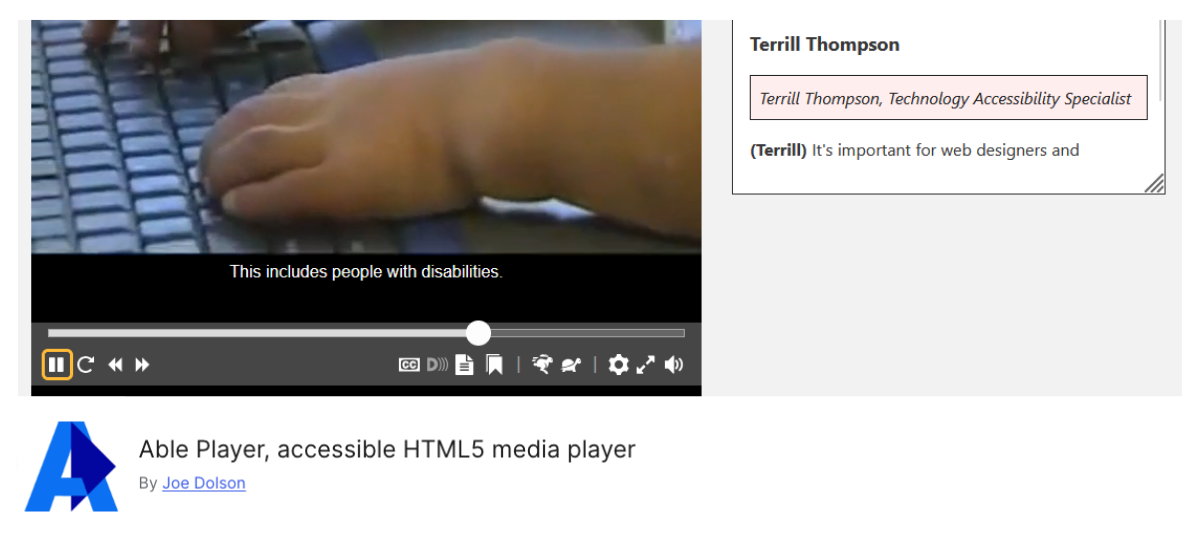
Able Player is a WordPress plugin that integrates the open-source Able Player media player into WordPress websites, providing a significantly more accessible experience for audio and video content.
Media accessibility is often overlooked on websites, but inaccessible video players can create major barriers for keyboard users, screen reader users, deaf and hard-of-hearing users, and people who rely on captions, transcripts, or audio descriptions. Able Player was specifically designed to address those challenges with accessibility as a primary focus rather than a secondary feature.
One of the biggest strengths of Able Player is the depth of its accessibility support. The plugin includes support for: captions, subtitles, interactive transcripts, audio descriptions, chapters, sign language videos, keyboard navigation, screen reader announcements, and customizable playback behavior.
It works with locally hosted media as well as YouTube and Vimeo content. Unlike many default media players, Able Player is intentionally designed to support WCAG-compliant media experiences and offers far more control over accessible media presentation. That said, site owners still need to ensure that captions, transcripts, and audio description files are created and uploaded correctly, as the plugin itself cannot automatically generate accessible media alternatives.
Able Player helps support:
- Accessible video and audio playback.
- Keyboard-accessible media controls.
- Screen reader-friendly media experiences.
- Captions and subtitles for video content.
- Interactive and navigable transcripts.
- Audio descriptions and chapter navigation.
- Sign language interpretation views.
- More accessible embedded YouTube and Vimeo videos.
We’re planning to introduce AblePlayer on our own website in the future.
How it works with Accessibility Checker
There are no known conflicts between AblePlayer and Accessibility Checker. Accessibility Checker will report issues in AblePlayer video and audio embeds. As we use AblePlayer our podcast website, it is regularly tested for compatibility with Accessibility Checker.
You can test AblePlayer video and audio embeds for accessibility with the free version of Accessibility Checker, so long as you add them to a post or page (rather than a custom post type). If your videos or audio players are on a separate custom post type (such as a podcast post type), then you will need Accessibility Checker Pro.
There is no overlap between the two plugins’ features, so it is safe to use both on your website.
Able Player focuses specifically on accessible media playback, while Accessibility Checker scans for broader accessibility issues across the website. Accessibility Checker can help identify media-related WCAG problems such as missing captions, autoplay concerns, inaccessible embedded players, empty controls, and missing alternative content. Because multimedia accessibility often involves both technical implementation and content creation, the two plugins work well together as part of a more comprehensive accessibility strategy.
Attributes for Blocks
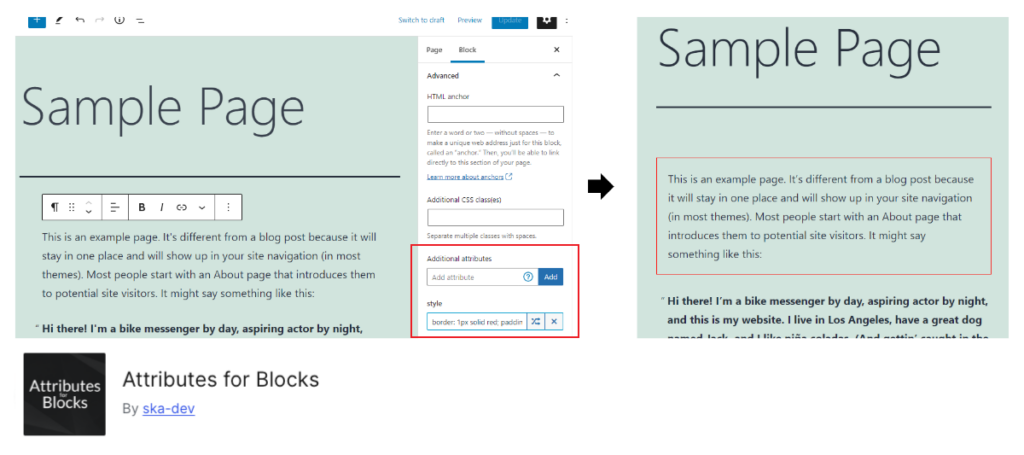
Attributes for Blocks is a developer-focused Gutenberg enhancement plugin that allows users to add custom HTML attributes directly to WordPress blocks.
Through additional inspector controls in the Block Editor, users can apply attributes such as ARIA labels, inline styles, data attributes, custom IDs, and JavaScript event attributes to block output without editing template files or writing custom block code. This gives developers and advanced site builders more flexibility when customizing how blocks behave and interact on the front end.
From an accessibility perspective, one of the most useful features of this plugin is the ability to manually add ARIA attributes and accessibility-related markup to blocks that may otherwise lack the necessary semantic information.
For example, users can add labels, descriptions, relationships, or custom attributes that improve screen reader support or integrate with accessible interactive components. However, because the plugin provides raw control over HTML attributes, it should be used carefully. Incorrect ARIA usage or poorly implemented custom attributes can sometimes create more accessibility problems rather than fixing them, particularly for users unfamiliar with accessibility best practices. Learn more about ARIA here.
Attributes for Blocks helps support:
- Adding custom ARIA attributes to Gutenberg blocks.
- Improving semantic information for assistive technologies.
- Adding custom IDs and data attributes to block output.
- Advanced block customization without editing theme or plugin files.
- Accessibility-focused front-end adjustments for specific blocks.
- Integration with custom JavaScript functionality.
How it works with Accessibility Checker
There are no known conflicts between Attributes for Blocks and Accessibility Checker. Accessibility Checker can report issues related to incorrect ARIA added with Attributes for Blocks, and, on the flip side, Attributes for Blocks can be used to resolve some of the accessibility issues flagged by Accessibility Checker.
The plugin allows developers to manually implement accessibility improvements, while Accessibility Checker helps identify whether accessibility problems exist across the site. Since ARIA should be used thoughtfully and only when necessary, testing after implementation is especially important.
There is no overlap between the two plugins’ features, so it is safe to use both on your website.
Screen Reader Text Format
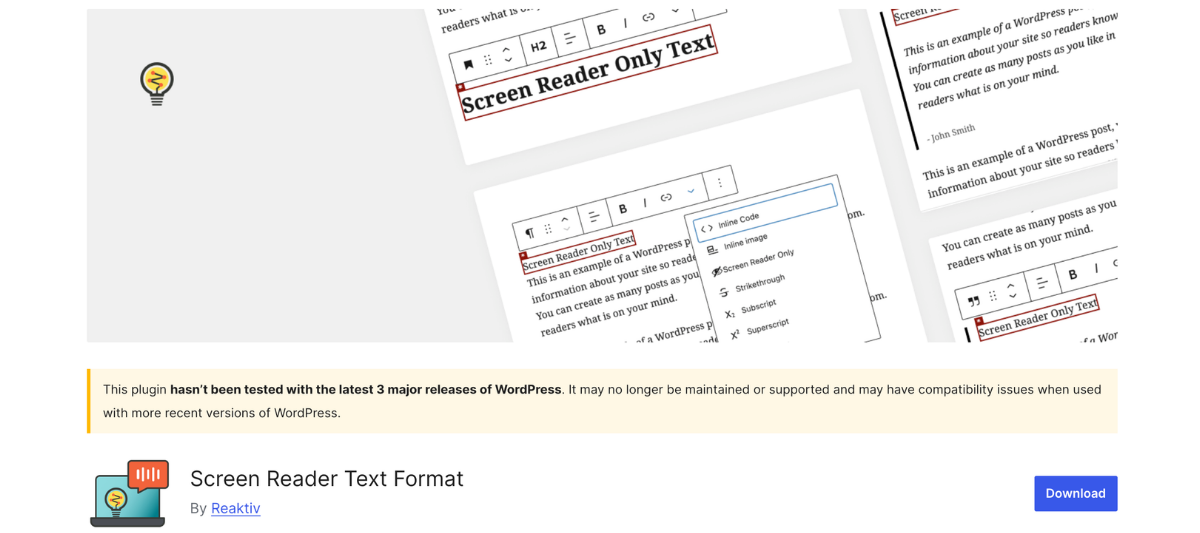
Screen Reader Text Format is a Gutenberg enhancement plugin that adds screen reader-only text formatting controls directly into the WordPress Block Editor.
NOTE: As of version 1.40.0 of Accessibility Checker, this plugin is no longer needed if you are using Accessibility Checker. See the “how it works with Accessibility Checker” section below for more information.
The Screen Reader Text Format plugin is designed to help content creators using the block editor add supplemental information or communicate visual formatting changes more clearly to screen reader users without requiring manual HTML editing.
The plugin extends Gutenberg blocks with a screen reader text format. This is especially useful in situations where meaning is conveyed visually through formatting such as strikethroughs, insertions, or bold emphasis that may not be properly announced by assistive technologies on their own. It can also be helpful for adding screen reader-only headings.
Screen Reader Text Format helps support:
- Screen reader-only contextual text inside Gutenberg.
- Better communication of visual formatting changes.
- Accessible handling of strikethrough and inserted text.
- Improved semantic meaning for emphasized content.
- More accessible editorial workflows in the Block Editor.
- Reduced need for manual HTML accessibility edits.
You can learn more about this plugin and best practices for screen reader text in this webinar presented by plugin developer Nick Croft.
How it works with Accessibility Checker
Accessibility Checker free v1.40.0 added a similar text format to the WordPress block editor, making this plugin unnecessary for Accessibility Checker users. As of this writing, the Screen Reader Text format plugin is no longer actively maintained and is incompatible with current WordPress versions.
The Screen Reader Text Format plugin was a great resource to us, and its core functionality is now built directly into Accessibility Checker. This means it is actively maintained, regularly updated, and supported to work seamlessly with the Full Site Editor (FSE) and modern versions of WordPress.
The class name used by the Screen Reader Text Format plugin is the same as the class name used by Accessibility Checker. If you were previously using the Screen Reader Text Format plugin, you can safely deactivate and uninstall it. Accessibility Checker will recognize and support all screen reader text previously configured via the Screen Reader Text Format plugin.
If you are not using Accessibility Checker, then you can try this plugin. Since it hasn’t been updated in more than 2 years, we recommend trying it on a staging site first, not on your live website.
SimpleTOC – Table of Contents Block
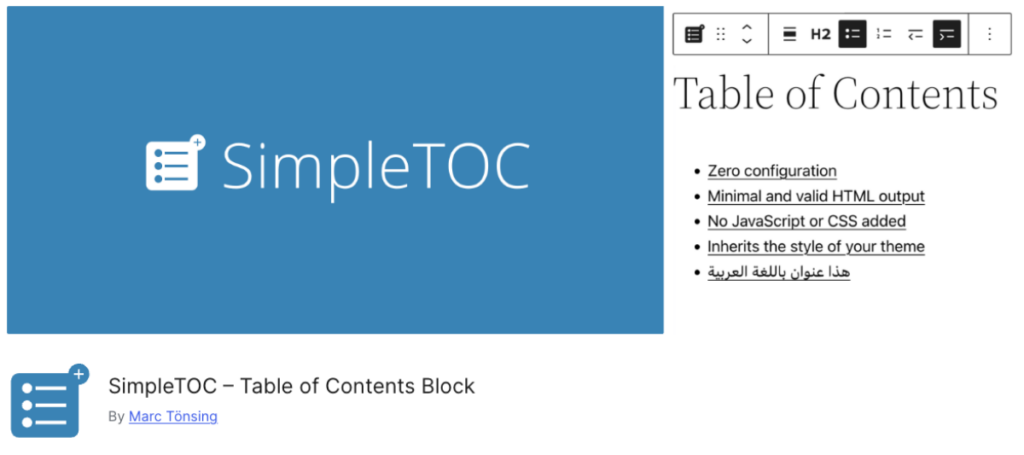
SimpleTOC – Table of Contents Block is a Gutenberg-focused plugin that automatically generates a table of contents from the headings within a post or page. The plugin creates a nested list of anchor links that help users navigate long-form content more easily, making it especially useful for articles, documentation, tutorials, FAQs, and accessibility-focused websites that prioritize strong content structure and usability.
One of the standout aspects of SimpleTOC is its emphasis on standards-based accessibility and lightweight performance. The plugin is intentionally built with minimal HTML output, optional styling, and little to no JavaScript dependency by default. It also uses native <details> and <summary> elements for collapsible functionality rather than relying on heavily scripted accordion systems that can create accessibility problems.
According to the plugin developers, SimpleTOC is designed for WCAG 2.2 AA conformance and tested with assistive technologies. Features like optional ARIA labels, semantic navigation support, keyboard-friendly interactions, and clean heading structures help make it one of the more accessibility-conscious table of contents plugins available for WordPress.
SimpleTOC helps support:
- Better navigation for long-form content.
- Keyboard-accessible table of contents functionality.
- Improved page structure and content discoverability.
- Screen reader-friendly heading navigation.
- Accessible collapsible TOC interfaces using native HTML semantics.
- Cleaner semantic markup with minimal JavaScript reliance.
- More usable FAQ and documentation layouts.
We had a positive experience reporting accessibility issues to the developer, who released fixes very quickly. We always recommend plugins that fix accessibility issues quickly, so if you’re looking to add a table of contents block in the block editor, this one might be worth checking out.
How it works with Accessibility Checker
There are no known conflicts between SimpleTOC and Accessibility Checker. You can test SimpleTOC blocks for accessibility with the free version of Accessibility Checker, so long as you use them on a post or page (rather than a custom post type).
There is no overlap between the two plugins’ features, so it is safe to use both on your website.
Making Accessibility Sustainable with WordPress Accessibility Plugins
No single plugin can make a WordPress site accessible, and that reality will not change in 2026. Accessibility grows from ongoing decisions about design, content, features, and testing.
Tools like Accessibility Checker play an important role by helping you identify issues early, understand priorities, and prevent regressions as your site evolves. When accessibility feedback becomes part of everyday workflows, teams can catch problems sooner and maintain progress more effectively.
Each plugin listed here supports accessibility in a different way. Some help you create accessible content from the start. Others help you fix issues or address gaps in WordPress core and themes. When used together and paired with regular testing, these tools make accessibility more manageable over time.
It’s also worth noting that not all accessibility-related tools offer the same level of support. Some solutions, such as accessibility toolbars or overlays, claim to fix accessibility issues automatically but often fail to address underlying problems. If you’re considering one of these tools, it’s important to understand its limitations.
Accessibility is not something you set and forget. As your site changes, user needs change too. Choosing tools that fit real workflows, rather than relying on quick fixes, puts you in a stronger position to build experiences that work for everyone.

