This post is part of a series where we explain Web Content Accessibility Guidelines (WCAG), an internationally recognized standard for measuring website accessibility. For more posts in this series, visit our Web Accessibility WCAG 2 Knowledge Base.
When a webpage is designed well, sighted users naturally follow the visual arrangement of headings, paragraphs, images, forms, and navigation. However, screen readers, refreshable braille displays, and other assistive technologies don’t interpret visual positioning—they read content in the order it appears in the Document Object Model (DOM).
That’s where WCAG Success Criterion 1.3.2: Meaningful Sequence comes in. 1.3.2 Meaningful Sequence requires that all users receive information in a logical order regardless of how they access the page (with or without assistive technology).
Whether you’re creating landing pages with columns, designing complex layouts using the WordPress block editor, or building custom page templates with a page builder, following WCAG 1.3.2 helps ensure that everyone can understand your content.
In this article, we’ll explain what WCAG 1.3.2 requires, why meaningful reading order matters, common implementation challenges, and practical ways to improve accessibility on your WordPress website.
What is WCAG 1.3.2 Meaningful Sequence?
WCAG Success Criterion 1.3.2 Meaningful Sequence (Level A) states:
When the sequence in which content is presented affects its meaning, a correct reading sequence can be programmatically determined.
Web Content Accessibility Guidelines 1.3.2
In plain terms: If the visual order of your content is important for understanding it, that same order must be reflected in the page’s underlying code. This applies to content such as:
- Multi-column layouts
- Step-by-step instructions
- Forms and questionnaires
- Tables and data presentations
- Articles and blog posts
- Product pages
- Interactive components
- Headings and their subcontent
The goal is to ensure that users of assistive technologies receive information in a logical sequence, as intended by the author.
Article continued below.
Stay on top of web accessibility news and best practices.
Join our email list to get notified of changes to website accessibility laws, WordPress accessibility resources, and accessibility webinar invitations in your inbox.
Why WCAG 1.3.2 Matters for WordPress Websites
Laws around the world, like the Americans with Disabilities Act and the European Accessibility Act, require websites to be accessible. These laws apply to WordPress websites for organizations in both the private and public sectors.
Being able to hear content read in a meaningful order is fundamental to accessibility. If content is read out in a jumbled or confusing order, then users may misunderstand it or be confused by it.
Here’s an example:
Imagine a WordPress landing page with two columns. The left column introduces a product with a heading and description, while the right column contains pricing and a call-to-action button.
Visually, the page makes perfect sense.
However, if the underlying HTML places the buy button and pricing section before the product description, a screen reader may announce:
- Buy Now
- Pricing
- Product description
- Product name
This confusing order can make the page difficult to understand or prevent users from making informed decisions.
What causes content to be read out of order
Content being read out of order most commonly occurs when:
- CSS is used to visually rearrange content.
- Page builders display sections in a different order than they appear in the code.
- Flexbox or Grid properties reverse the visual presentation.
- Instructions appear after the controls they describe.
- Tab order is modified.
Sometimes WordPress developers attempt to work around limitations in their page builder, theme, or a plugin by using CSS styles to rearrange content on the page. If the content is purely decorative (such as moving an image to the side of text), this is not a problem. But if text content is rearranged on the page without changing the underlying HTML order, it can introduce problems.
What conformance with 1.3.2 guarantees
WCAG 1.3.2 helps ensure that users receive information in a logical, predictable order regardless of whether they use a screen reader, keyboard navigation, braille display, or other assistive technology.
Proper implementation benefits users who use screen readers, navigate with a keyboard, and use refreshable Braille displays. Meeting this criteria ensures that your WordPress website is understandable and usable.
How to Meet This Success Criterion in WordPress
Meeting WCAG 1.3.2 primarily involves ensuring that the visual presentation matches the underlying reading order, but not always. In some cases, it is OK for the visual order to differ from the order in which a screen reader reads the content, as long as the content order, as read, is meaningful.
The top recommendation for making sure your WordPress website supports Meaningful Sequence is to ensure that headings, introductory text, images, buttons, and related content appear in a logical sequence both visually and programmatically. Below are some of our top recommendations and examples of things to look out for.
Build Content in a Logical Order
Whenever possible, create pages so that the content appears in the correct sequence within the WordPress editor. That means going top to bottom and left to right.
Avoid relying on CSS to rearrange sections after they’ve been added, unless you’re using it to improve the page’s meaning.
Be Careful with Columns
WordPress column blocks and many page builders allow complex layouts.
Ensure that:
- The reading order matches the intended flow.
- Mobile layouts preserve logical sequencing.
- Screen readers encounter content in a sensible order.
Don’t use columns incorrectly! We have seen many examples of WordPress websites where layouts were created with one row for all headings and a second row for the corresponding content, creating the appearance of a three-column grid.
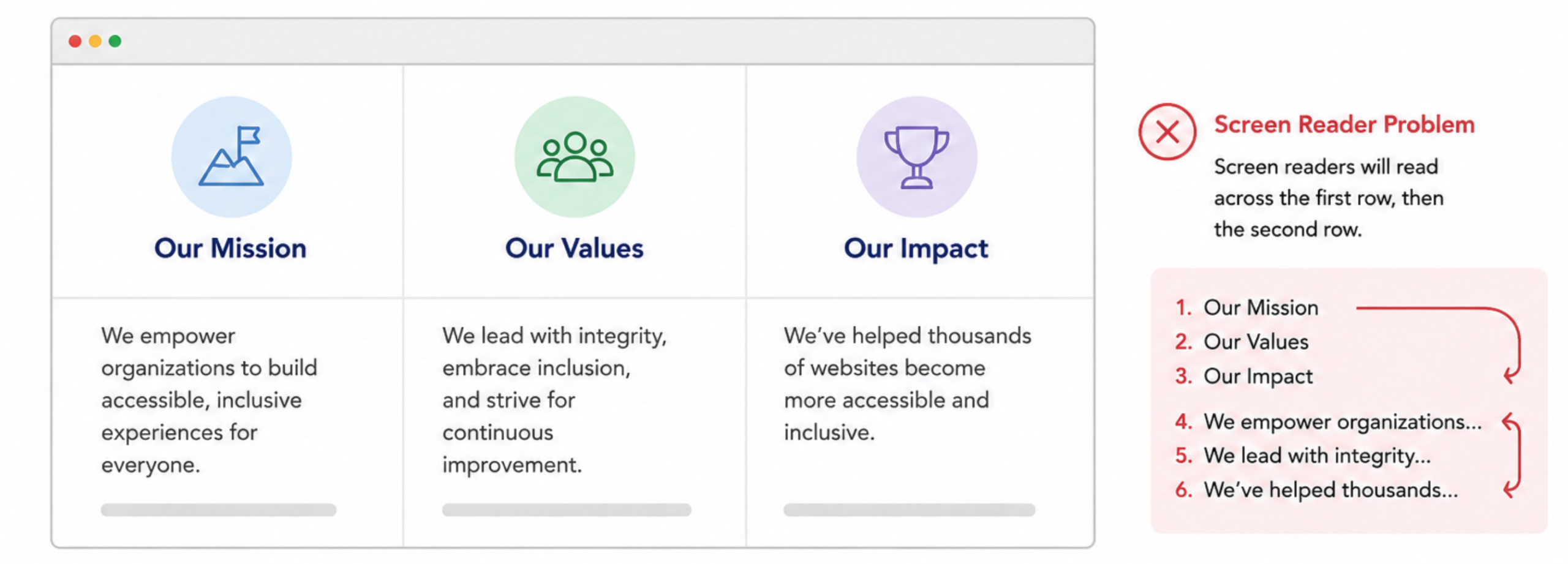
While this looks correct on a desktop screen, this layout creates accessibility and responsive design problems because the content order in the HTML no longer matches the visual relationships.
Screen readers will read all three headings before any associated content, making it difficult for users to understand which text belongs to which heading. On mobile devices, the layout typically stacks by row rather than by column, separating headings from their related content and creating a confusing reading experience.
Each heading and its associated content should instead be grouped together in the same container so they remain connected in both the reading order and responsive layouts.
Be Thoughtful About Reordering Content with CSS
Modern layout techniques such as Flexbox and CSS Grid allow developers to visually reorder elements using properties like order or flex-direction: row-reverse.
While these techniques can improve visual design, they leave the underlying DOM unchanged, creating a mismatch between what sighted users see and what assistive technologies announce. This may or may not be a problem depending upon the content and design.
In some cases, CSS positioning can introduce accessibility problems, but in others, these techniques can fix existing problems without disturbing the visual layout. Here is an example of a web page styled with the section heading to the right of the sub-content.
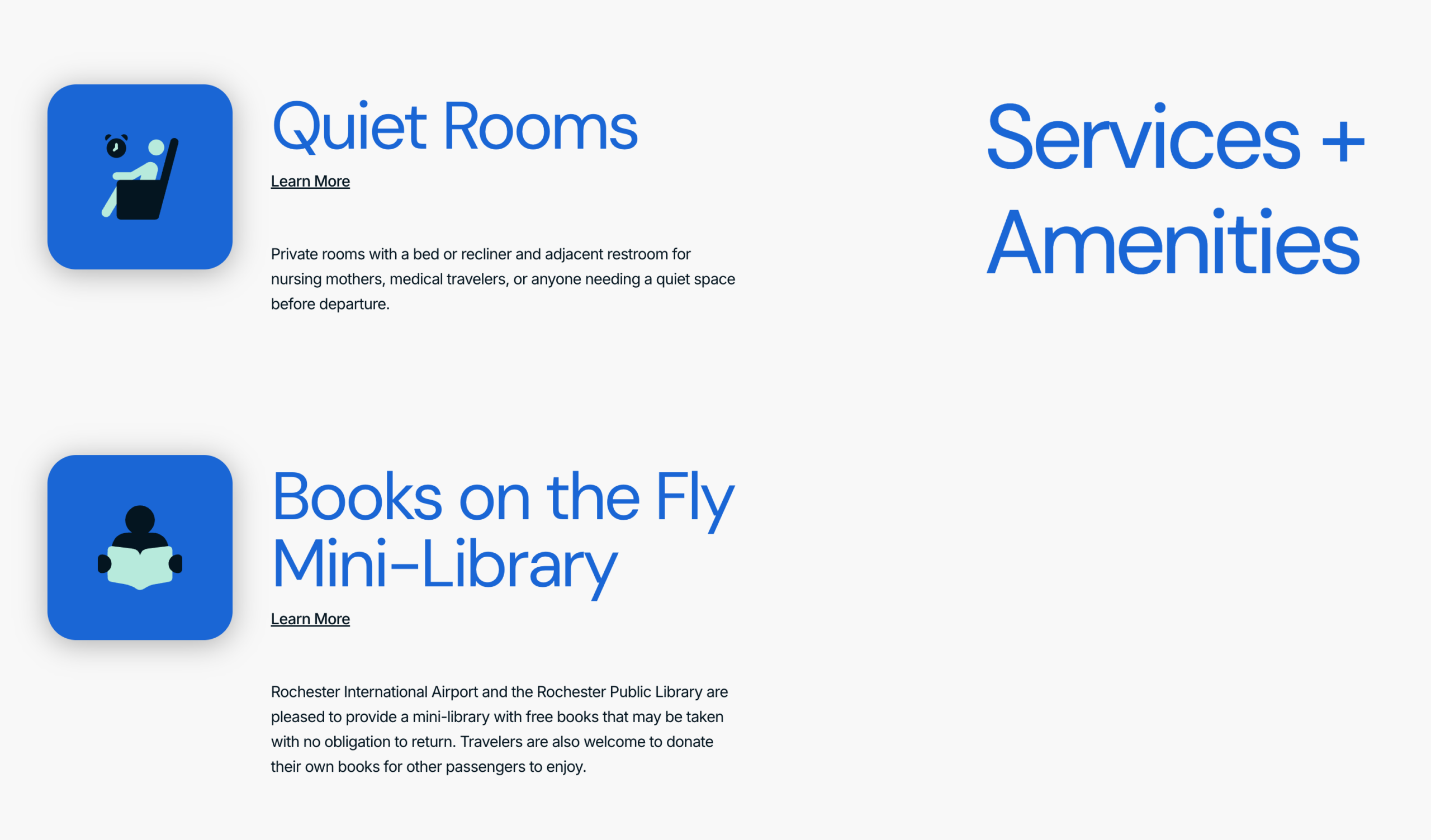
If this page were built as it is visually displayed, the H2 would be below its sub-content in the DOM, and read after the sub-content by screen readers. This would cause a Meaningful Sequence failure. However, this can be avoided by putting the H2 in the left column in the editor and then using display: flex; and flex-direction: row-reverse; to make it visually appear on the right.
Whenever possible, structure the HTML in the correct order first, then use CSS for presentation, as needed.
Place Instructions Before Controls
Instructions should appear before the form fields or interactive elements they describe. For example, users should hear “Select all that apply” before encountering a list of checkboxes.
Another common mistake is placing privacy statements for forms after the submit button.
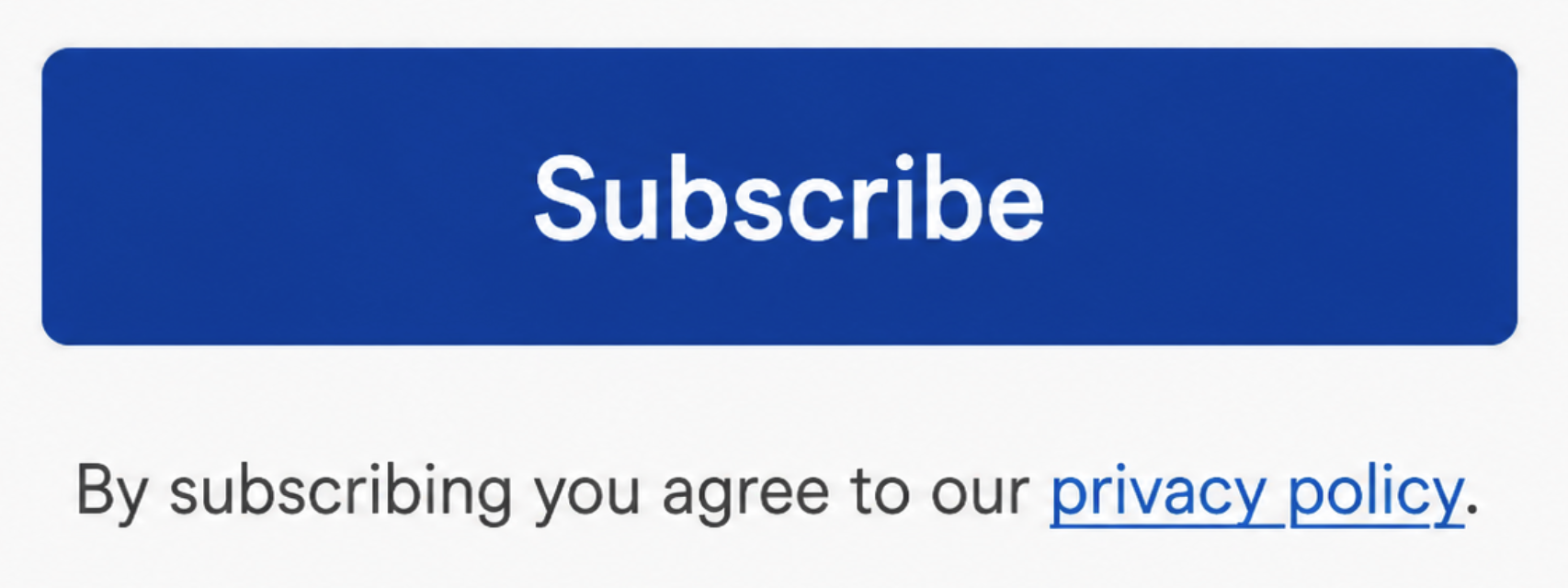
If the privacy policy link does not exist before the submit button, users may miss it completely. This may cause your WordPress website to be out of compliance not just with accessibility, but also with privacy laws.
Testing WCAG 1.3.2 Compliance in WordPress
Use Accessibility Checker
Accessibility Checker can help identify issues that may affect meaningful sequence, but automated testing alone cannot confirm full WCAG 1.3.2 compliance. This success criterion depends on whether the order of content preserves meaning, and that often requires human judgment.
Here on some relevant Accessibility Checker checks to watch for:
Tab Order Modified
One of the most relevant Accessibility Checker warnings for WCAG 1.3.2 is Tab Order Modified. This is a “needs review” issue that appears when an element has a tabindex value greater than 0, which can cause keyboard focus to move through the page in an order that does not match the natural reading order.
If a Tab Order Modified issue appears, open the issue details in the Accessibility Checker panel and review the flagged code. Then test the page on the front end with a keyboard to confirm whether the modified order helps users or causes information to be presented out of sequence or in a confusing way.
If the tab order modification is a problem, there is an automated fix in Accessibility Checker that allows you to easily remove positive tab index from all elements on your site.
Other Relevant Problems
Accessibility Checker may flag related structural issues that can make page content harder to understand in the correct order. These issues may not always be direct WCAG 1.3.2 failures, but they should be reviewed when testing for meaningful sequence to ensure that no failure is present.
These issues can point to problems with how content is organized, navigated, or understood by users of assistive technology.
Other Relevant Needs Review checks
Accessibility Checker issues under Needs Review are especially important for this success criterion because they often require manual judgment.
Relevant Needs Review checks may include:
For example, a slider, tabbed interface, accordion, or visually complex layout may appear logical on screen but may not be read or navigated in the same order by assistive technology. Accessibility Checker can help draw attention to these elements so they can be manually tested.
How to manually test for the Meaningful Sequence failures
As noted above, true conformance with this success criterion can only be determined through manual testing. Here is how to manually test for 1.3.2 Meaningful Sequence.
1. Read the Page Without CSS
Temporarily disable styles on the page so you can read the content without any CSS modifications and verify that the content still appears in a logical order.
You can temporarily disable styles on your WordPress site for yourself (not any website visitors) using Accessibility Checker. Here’s how:
- Log into your WordPress admin account.
- Go to the page you want to test.
- Click the button to activate Accessibility Checker on the front end of your website.

- In Accessibility Checker’s front-end highlighter, open the “More options” menu (the three-dot button in the highlighter header).
- Click “Disable Styles”.


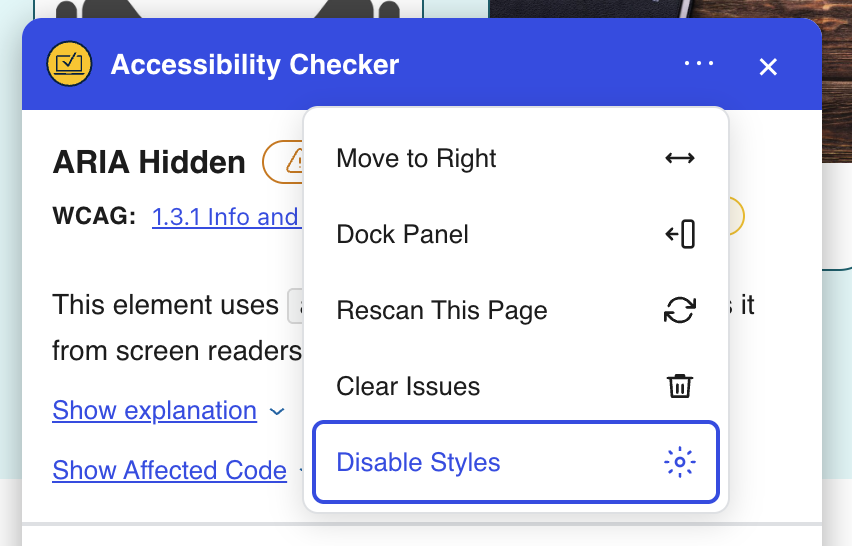
This will disable styles only on your currently viewed window and allow you to see the content in the order it appears in the DOM, without any CSS positioning.
2. Listen with a Screen Reader
Of course, the best way to know how a screen reader is reading the page is to listen to the page with… a screen reader! You can use a screen reader such as NVDA for Windows or VoiceOver on Mac to hear the page.
Starting at the top of the page, use the “read all” or “say all” command for the screen reader, and listen as it reads the page. While you listen, ensure that:
- Content is announced in the intended order.
- Instructions precede the controls they describe.
- Articles and forms are easy to follow.
- Multi-column layouts make sense when read linearly.
Don’t know how to use a screen reader? Learn how with our self-paced screen reader testing online courses.
3. Navigate Using Only the Keyboard
Move through interactive elements using the Tab key. Start at the top of the page and press Tab to go through every link, button, and interactive control until you reach the bottom of the page. Confirm that the navigation order aligns with the page’s logical sequence and nothing important is reached in a confusing order.
4. Review Responsive Layouts
Don’t forget to check desktop, tablet, and mobile versions of the page. Make your browser window more narrow, zoom up to 400%, or open the page on a real mobile device, and ensure that responsive design changes do not create a confusing stacking order that causes the content to lose meaning.
Start Making Your WordPress Site More Inclusive
WCAG 1.3.2 Meaningful Sequence helps ensure that users experience your content in a logical order, regardless of how they access your website.
By creating pages with a meaningful reading sequence, avoiding visual reordering that conflicts with the underlying HTML, and testing with assistive technologies, you can provide a more intuitive and accessible experience for everyone.
As you review your WordPress site, ask yourself a simple question: if someone couldn’t see the layout and only experienced the page as the HTML is ordered in the DOM, would everything still make sense? If the answer is yes, you’re well on your way to meeting WCAG 1.3.2 and creating a more inclusive web experience for all users.