
TL;DR: Don’t Add an Accessibility Toolbar/Widget to Your Website.
If you’re considering adding an “accessibility toolbar” or “accessibility widget” (those little floating menus that let visitors change contrast, text size, cursor size, etc.), the short version of the advice is: skip it. These toolbars do not meaningfully make your site accessible, may give you a false sense of compliance, and can even create new problems. Instead, plan to build accessibility into your site architecture, test with real users, and adopt proper accessibility practices.
What is an Accessibility Toolbar?
An accessibility toolbar (sometimes called an accessibility widget or menu) is a small interface component added to the front end of a website that allows users to trigger adjustments to the site experience, such as increasing text size, toggling high-contrast mode, disabling animations, changing fonts, or running a built-in screen reader. Some also claim to auto-fix accessibility issues by injecting code or overlaying scripts.
The idea is that you install a small plugin or snippet, and the widget appears (often as a floating icon) on all pages. Users can then click it to customize the site’s appearance or functionality. Many vendors market these as a fast way to “make your website accessible” or “meet WCAG/ADA compliance.” ADA compliance with a plugin is a myth.
Accessibility is far more than offering a menu of user controls. It requires semantic markup, meaningful structure, keyboard access, screen‐reader support, focus management, proper alt text, captions, headings, error states, keyboard navigation, and more. A toolbar is at best an enhancement, not a substitute for manual testing and remediation.
Article continued below.
Stay on top of web accessibility news and best practices.
Join our email list to get notified of changes to website accessibility laws, WordPress accessibility resources, and accessibility webinar invitations in your inbox.
Examples of Accessibility Toolbars
Here are some popular WordPress plugins/widgets that serve as “accessibility toolbars”. These are all examples of WordPress Accessibility plugins that you might have heard people recommend as an accessibility solution; however, they all fall in the category of plugins broadly recognized as accessibility overlays.
AccessiBe
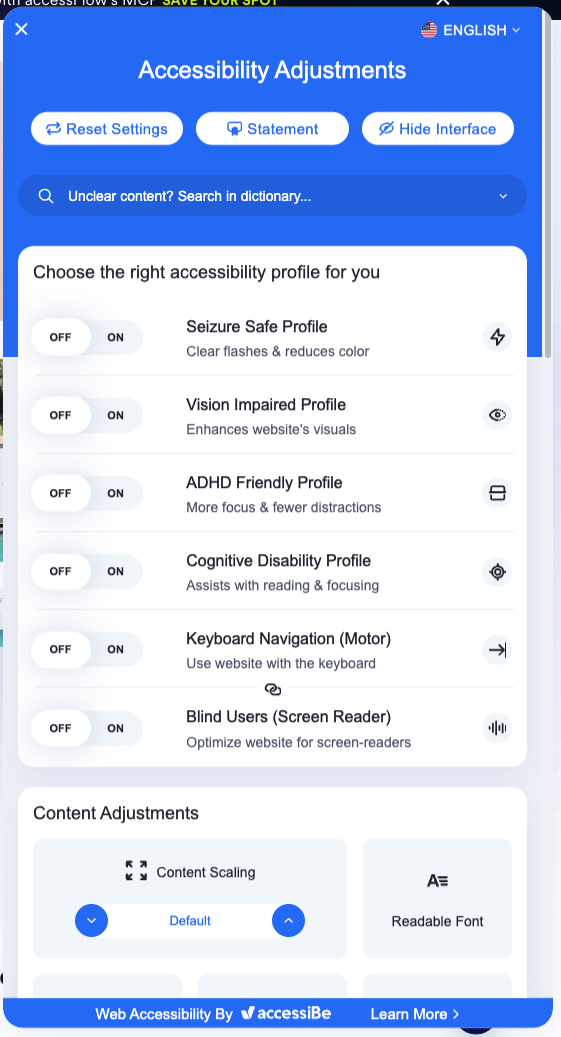
AccessiBe markets its widget as an AI-powered accessibility solution that can make a website compliant with ADA and WCAG requirements through a simple script installation. Their accessibility toolbar, branded as the “AccessWidget,” promises controls like text size adjustments, contrast modes, focus highlights, stop animations, and a built-in screen reader interface. The company strongly promotes automated remediation, claiming its AI scans a site and applies fixes in real time. In early 2025, AccessiBe was fined $1 Million by the FTC for falsely claiming their product can make websites accessible.
While AccessiBe does have a WordPress plugin, it is fundamentally a SaaS product: the plugin connects a WordPress site to AccessiBe’s external service.
UserWay
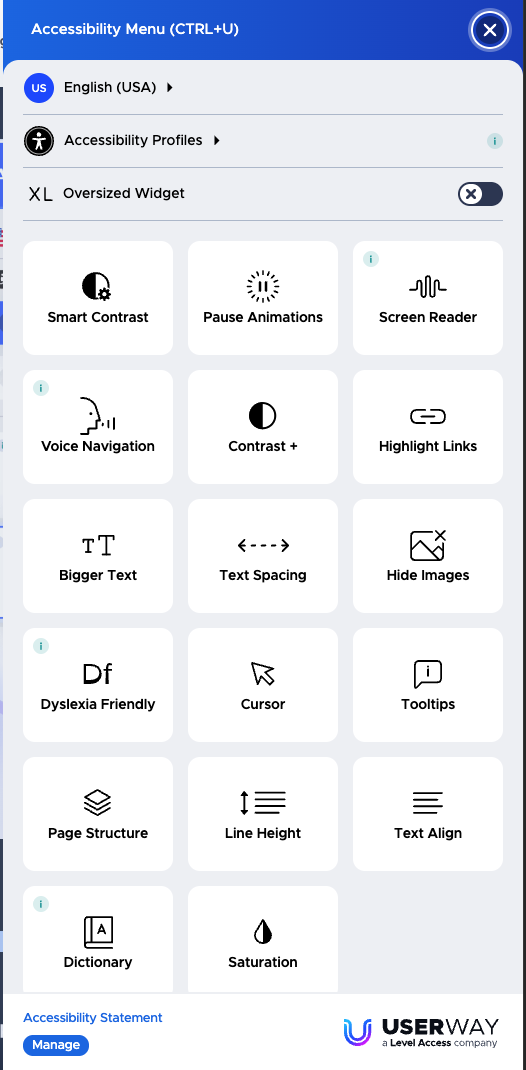
UserWay presents its accessibility widget as a “one-click solution” for improving access and helping a website reach ADA/WCAG compliance. It offers tools such as larger text, increased spacing, color adjustments, link highlighting, cognitive assistance features, and an optional screen reader. UserWay also promotes AI-driven automation for certain repairs, such as alt-text generation.
Like AccessiBe, UserWay is primarily a SaaS platform, and its popular WordPress plugin is simply an integration layer between a WordPress site and the larger UserWay system.
AccessibleWP
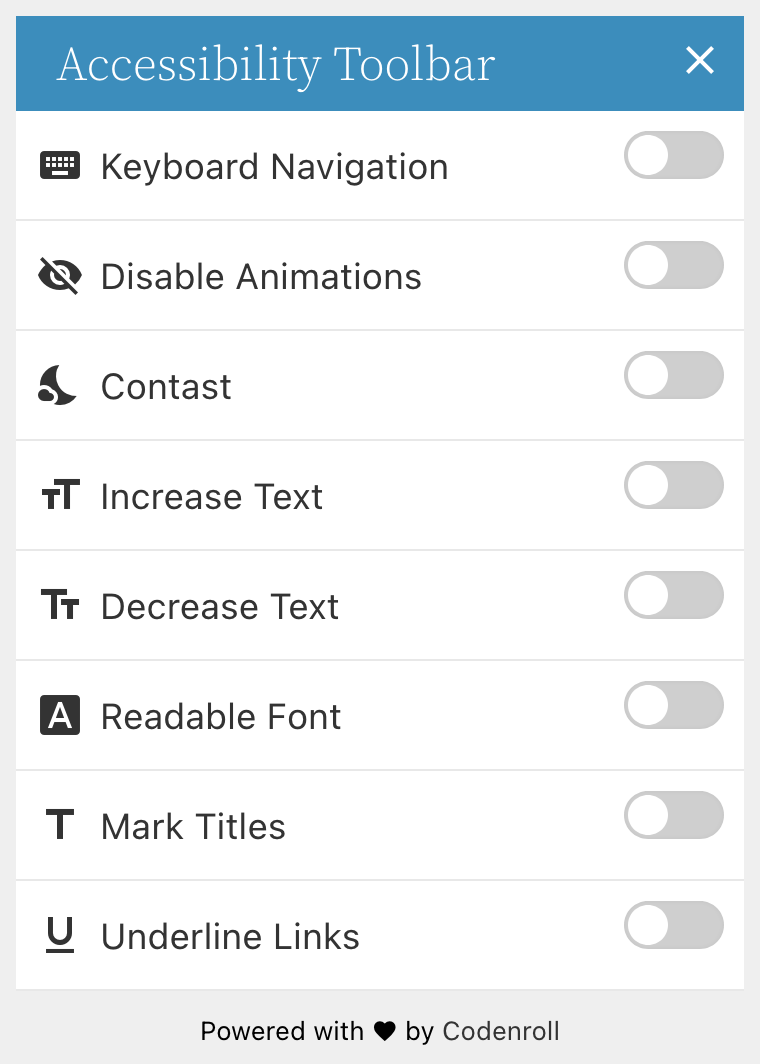
AccessibleWP is another accessibility toolbar that claims to offer site-level controls such as dark mode, font adjustments, readable typefaces, animation toggles, keyboard navigation enhancements, and link highlighting.
Originally developed as a standalone WordPress plugin, the project was later acquired by UserWay, and some of its features and branding overlap with the UserWay ecosystem. While AccessibleWP functions as a native WordPress plugin, its long-term direction has shifted toward integrating with UserWay’s broader SaaS offerings.
Accessibility Widget by OneTap
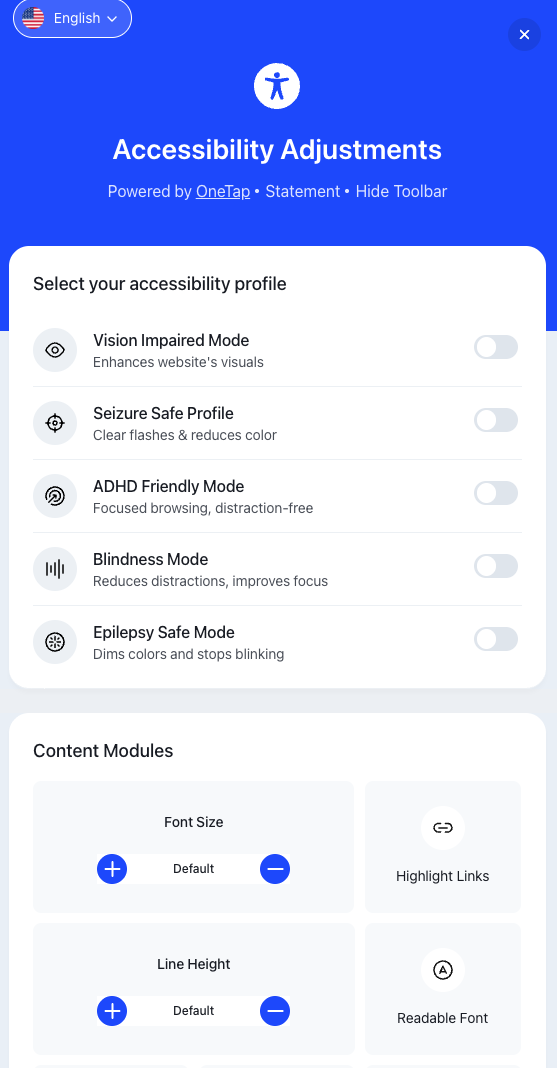
The OneTap Accessibility Widget provides common toolbar functions such as text resizing, color contrast changes, highlight-links mode, and disable-animations controls.
OneTap markets its plugin as a lightweight, privacy-friendly tool designed to provide users with quick visual adjustments, without promising automated compliance or AI-based code repair. This product is primarily a WordPress-only plugin.
Ally by Elementor (Previously Pojo Accessibility)
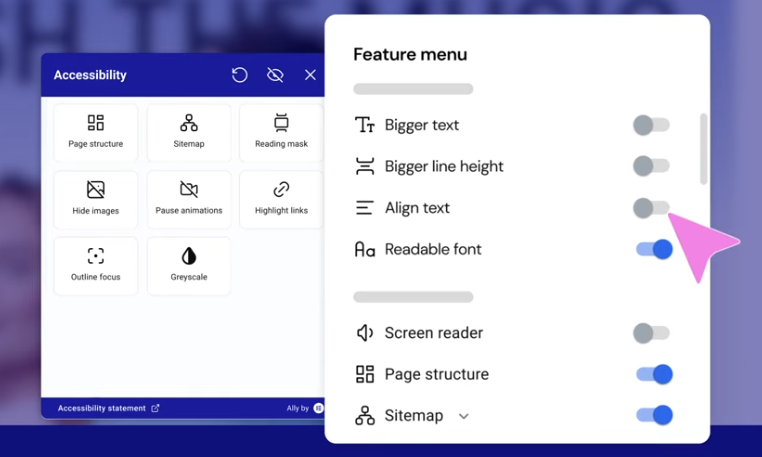
Ally (formerly Pojo Accessibility, now maintained by Elementor) is a WordPress plugin designed to add basic front-end accessibility enhancements to websites. It works on both Elementor and non-Elementor websites. Ally focuses on features like skip links, keyboard navigation support, focus and link highlighting, includes a built-in screen reader, and simple font or contrast adjustments.
If you upgrade from the free A11y plugin on WordPress.org to a version connected to an Elementor account, the plugin also offers automated accessibility testing and AI-powered fixes/fix suggestions.
Equalweb
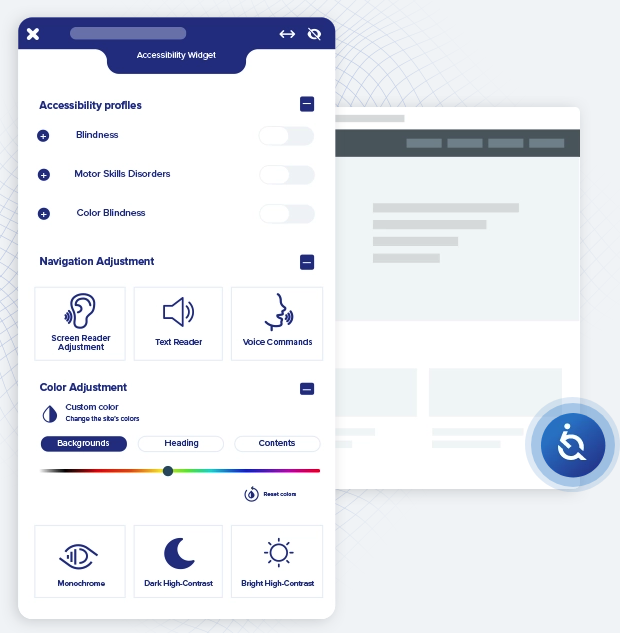
Equalweb’s accessibility widget is part of a larger commercial SaaS platform that combines a toolbar interface with automated scanning and AI-assisted remediation. The widget includes standard front-end controls such as text enlargement, contrast modes, readable fonts, and animation toggles, along with optional advanced features like on-demand adjustments for cognitive assistance.
Equalweb positions its service as a comprehensive accessibility solution, offering audits, monitoring, and remediation. The WordPress plugin primarily serves as a connector to the Equalweb SaaS service.
WP Accessibility Helper (WAH)
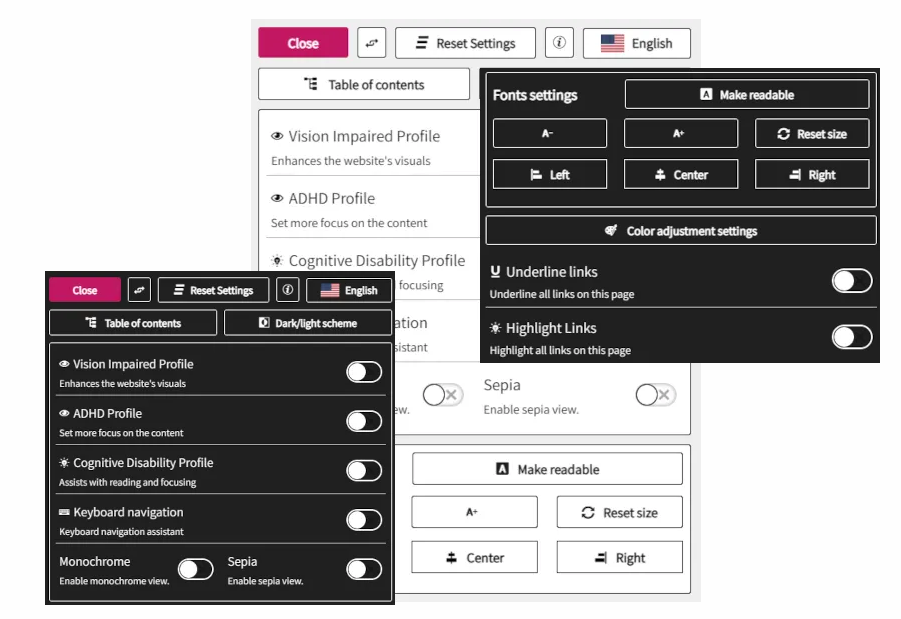
WP Accessibility Helper is a WordPress plugin that claims to provide a comprehensive on-page accessibility toolbar, offering functions such as text resizing, color and contrast adjustments, link highlighting, keyboard navigation support, and font adjustments.
WAH is a self-contained WordPress-only plugin without claims of AI-based remediation or external automated compliance. It is marketed as a tool for improving usability on WordPress sites, not as a full accessibility compliance service.
All-in-One Accessibility
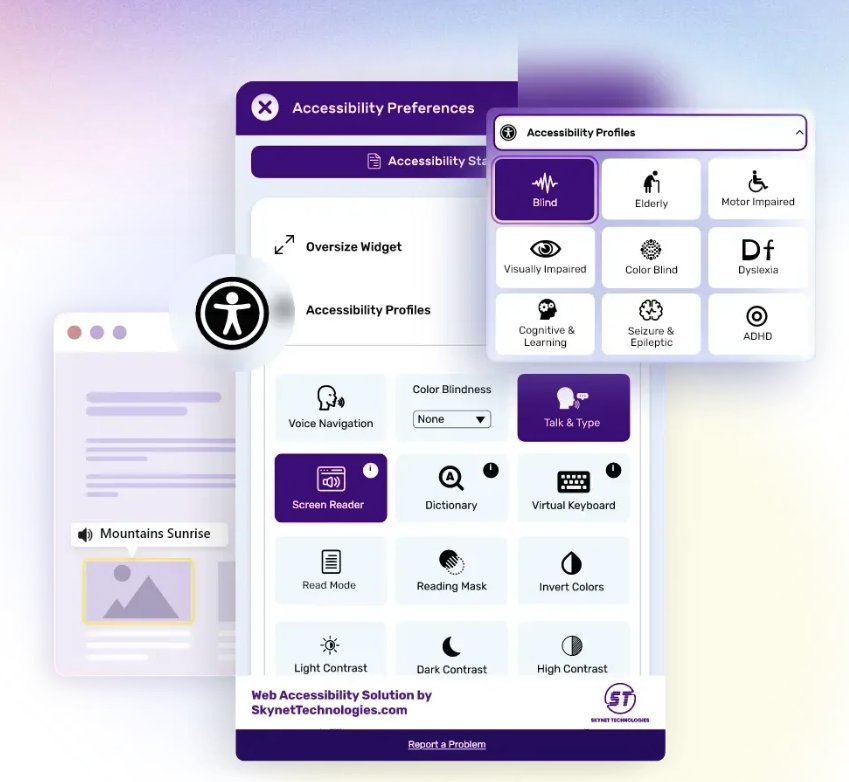
All-in-One Accessibility promotes itself as a hybrid accessibility solution, offering both a visual user toolbar and optional automated remediation features depending on the subscription tier. The toolbar includes text size controls, contrast and color options, font changes, cursor adjustments, and animation toggles.
Though the plugin is available in the WordPress repository, the service is actually part of a commercial SaaS offering, where most advanced features require connecting to their paid platform.
AccessYes Accessibility Widget
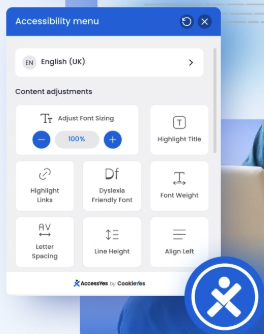
AccessYes advertises its widget as a quick way to add adjustable accessibility controls such as text enlargement, contrast changes, grayscale mode, and link highlighting. The plugin frames itself as a simple enhancement layer rather than a full accessibility solution, and it does not appear to promote automated or AI-based remediation.
At present, AccessYes functions primarily as a WordPress-specific plugin without a larger SaaS platform behind it.
AudioEye

AudioEye is a well-known commercial accessibility SaaS platform marketed as a combination of automated remediation, continuous monitoring, expert audits, and an accessibility toolbar.
The toolbar claims to offer user controls such as text size adjustments, contrast options, link highlights, and reader mode, while the SaaS backend claims to detect and resolve a range of WCAG issues. The WordPress plugin serves as a connector; its full functionality relies on an external subscription to the AudioEye service.
Problems With Accessibility Toolbars
While accessibility toolbars might look appealing, there are a number of serious concerns:
They can cause a false sense of security
Installing a widget gives many website owners the feeling they’ve “done” accessibility — but these tools don’t address the fundamentals: semantic markup, proper focus order, keyboard interaction, link text, error states, alt text, and so on. The underlying code may still be inaccessible. For example, many overlays only catch surface issues or rely on runtime fixes rather than source-code remediation.
In the United States, businesses that use accessibility toolbars still get sued for having inaccessible websites. In fact, this has led to a class-action lawsuit against AccessiBe by business owners who used their product and were sued anyway.
They often don’t help users with disabilities
Research by the Nielsen Norman Group found that screen reader users on mobile devices often ignore accessibility menus/toolbar widgets. The study concluded:
“Website accessibility widgets add little value in making your site accessible to users with partial or no vision.”
They can interfere with assistive technology / create new issues
Accessibility overlays/toolbars often inject scripts, overlay elements, or change page structure at runtime. That can affect performance, increase page load time, and sometimes conflict with screen readers or other assistive technologies. For example, the Overlay Fact Sheet notes that overlays that detect assistive technology may expose sensitive, disability-related information (a privacy risk) and may persist settings via cookies across sites.
Additionally, some overlay providers acknowledge they only fix a limited subset of issues. The Arizona State University web accessibility team states they “do not recommend the use of accessibility overlays” because they don’t fully make sites accessible and sometimes introduce more problems.
They don’t replace fundamentals
If your site’s code hasn’t been built accessibly (heading structure, accessible forms, keyboard access, ARIA where appropriate, alt text, error messaging, etc.), then a toolbar can’t fix that. Many critical problems are structural and cannot be patched via a front-end menu or JavaScript modification of the page.
Be Especially Cautious of Accessibility Overlays
When a toolbar claims not only to enable user controls (contrast, font, spacing) but also to automatically scan and repair your website code, you’re stepping into “overlay” territory. These overlays are marketed as “install once, fix everything” solutions. However:
- They modify your site at runtime rather than improving the source code.
- They often cannot fix all issues; many remain unaddressed.
- They may create legal risk by giving you a false sense of compliance.
- They may introduce privacy/tracking concerns.
If you are thinking of using one of these, read the overlay fact sheet.
In short, overlays are not a substitute for building accessibility into your design and code.
Users Already Have These Controls
Why don’t we recommend adding an accessibility toolbar or accessibility widget to your website? Simply put, it’s unnecessary.
The features offered by toolbar widgets (contrast toggles, bigger text, buttons to disable animations or highlight links) are already available to users via their operating system, browser, or assistive technology. For example:
- Most modern operating systems offer high-contrast modes, text scaling, font size adjustments, and motion reduction preference settings.
- Browsers support text zoom, custom stylesheets, and themes (including dark mode).
- People who need a screen reader need it for everything on their computer, not just your website.
Because users already have established workflows and assistive technologies, adding a toolbar rarely adds meaningful value; it often duplicates capabilities they already have and may complicate their experience.
Users with disabilities should be able to use their own preferred assistive tech (e.g., screen reader, screen magnifier, etc.) — they shouldn’t have to learn something different on every website they visit. All you need to do is make sure that your website has good underlying code to ensure that is possible.
How to Make Your Website Accessible Without a Toolbar
Rather than relying on a toolbar/widget, focus your efforts on building accessibility into your site at the source. Here’s how:
Build Accessibility Into Your Code and Design
Building an accessible website begins with writing clean, semantic HTML and structuring your content in a way that makes sense to both users and assistive technologies. Your headings, labels, landmarks, and navigation patterns should work together to create a clear, predictable experience that screen readers and keyboard users can easily follow, when accessibility is part of the design process from the beginning.
By honoring user preferences, supporting keyboard interaction, and ensuring all media and forms are accessible, you create a foundation that works for everyone.
Here’s a quick cheat sheet:
- Use proper semantic HTML (heading tags, landmarks, lists, etc.).
- Ensure keyboard navigation works (including tab order, focus states, and interactive elements that are reachable).
- Provide meaningful alt text for images, captions for videos, transcripts for audio.
- Ensure forms are labelled properly, error messages are announced, validation is accessible.
- Respect user preferences such as
prefers-reduced-motion,prefers-contrast, etc. - Use responsive design so your site works on mobile devices, tablets, and desktops.
- Test with real assistive technology (screen readers, magnifiers, switch devices) on actual devices.
- Conduct user testing with people with disabilities (blind, low vision, motor impairments, cognitive disabilities) — not just automated scans.
- Fix source-code issues rather than layering fixes on top via runtime scripts.
Get our more detailed Shift-Left with Accessibility Checklist for a comprehensive list of things to consider when making a website accessible.
Incorporate Accessibility Into Your Development Workflow
Accessibility should be considered from the start of every project, from initial design through content creation, development, and QA. Embedding accessibility checks and acceptance criteria into your team’s workflow helps prevent costly rework later and ensures consistency across your entire site. When accessibility becomes routine, the whole process becomes faster, easier, and more effective.
Test with an Automated Accessibility Checker
Automated tools can quickly identify common issues, such as missing alt text, low contrast, or incorrect heading structure. Using an automated testing tool to help you find and fix problems is the first step in making your website truly accessible.
For WordPress sites, Equalize Digital Accessibility Checker is a must-have accessibility plugin. It scans content directly in the editor, helping you fix issues at the source before they go live. Use Accessibility Checker regularly to monitor for problems and fix your website content or code as needed.
Conduct Screen Reader Testing
Automated tools can’t tell you how your site truly behaves for blind and low-vision users. Testing with a screen reader reveals exactly what users experience, helping you uncover real-world barriers, such as confusing navigation, missing labels, or poor focus management. Websites should be tested with screen readers when first built, when major new features are added, and at least annually.
We offer courses to help your team confidently test with the two most commonly used screen readers: NVDA for Windows and VoiceOver for macOS.
User Testing With People With Disabilities
Direct feedback from people who rely on assistive technologies is one of the most valuable tools you have. User testing reveals issues that even the best developers and QA testers often overlook. Incorporating disability-led testing into your workflow ensures that your accessibility efforts are grounded in authentic experiences, rather than assumptions.
Maintain an Accessibility Statement
An accessibility statement demonstrates your commitment to inclusivity and provides users with a means to report any issues. Keeping it updated also shows that you’re actively working to improve and maintain accessibility. For organizations concerned about compliance, this transparency can be incredibly valuable. Learn how to write an accessibility statement.
Keep Audit Logs and Track Issues
Documenting accessibility issues and fixes helps guide your ongoing improvements and provides accountability. Audit logs also serve as necessary documentation if you’re asked to demonstrate your accessibility efforts. Tracking issues over time ensures that problems don’t slip through the cracks as your website evolves.
Fix Issues in the Source Code
To create lasting accessibility, issues must be fixed directly in your website’s code, not through overlays, injected scripts, or quick fixes. Correcting your HTML, CSS, and JavaScript improves your site’s foundation and ensures long-term compatibility with assistive technologies. This is the most reliable and future-proof method for maintaining accessibility.
Establish a Remediation Roadmap and Ongoing Monitoring
Using your audit results and testing insights, create a prioritized plan to fix issues, assign responsibilities, and establish timelines. Accessibility is continuous, and content changes, plugin updates, and new features are added. Regular monitoring and iterative improvements ensure your site remains accessible over time, eliminating the need for emergency fixes.
Building Accessibility the Right Way
Accessibility toolbars may seem like a convenient solution, but they don’t address the underlying issues that make a website usable for people with disabilities. Real accessibility comes from thoughtful design, clean semantic code, and testing with assistive technologies—not from a widget layered on top. By focusing on the fundamentals and building accessibility into your site from the start, you create a more inclusive, usable experience for everyone.
If you’re looking for a practical way to identify issues in your WordPress content, Accessibility Checker can help you spot problems directly in the editor so you can resolve them before publishing. Combined with screen reader testing and user feedback, it supports a sustainable, long-term approach to accessibility without relying on quick fixes or overlays.

