
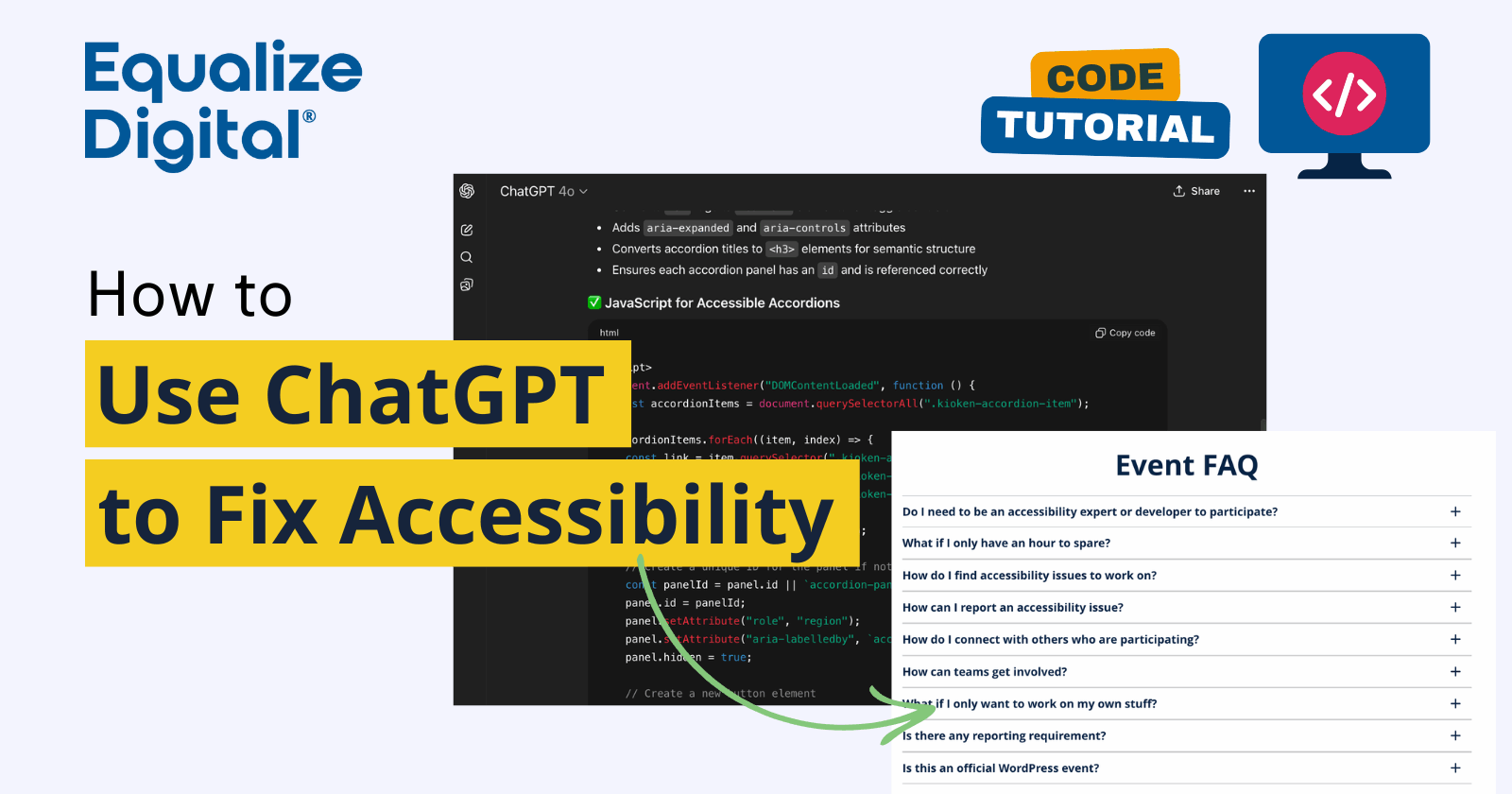
AI tools like ChatGPT can be incredibly powerful allies in fixing accessibility issues—especially when you understand accessibility but aren’t an advanced developer. In this post, we’ll explore how you can use ChatGPT to help write code that remediates accessibility problems found during manual testing or by using tools like Accessibility Checker.
At the end of this article, you’ll find a video walkthrough demonstrating exactly how I used ChatGPT to fix a real accessibility problem on a WordPress site.
Why Use ChatGPT for Accessibility Remediation?
If you’ve ever run a scan with Accessibility Checker and found a handful of errors that you know should be fixable in code, but you’re not sure how to get there, ChatGPT can help. It can generate JavaScript, PHP, or HTML adjustments to make existing components more accessible, saving time and giving you a place to start.
That said, it’s important to use AI tools responsibly and critically:
- You need to understand accessibility best practices well enough to verify ChatGPT’s suggestions.
- Always test the results with assistive technologies like screen readers.
- Never paste AI-generated code onto a live site without reviewing and testing it first.
Think of ChatGPT as your “accessibility code assistant”—it won’t replace human knowledge, but it can help you move faster when you already understand the problem.
Example: Fixing Inaccessible Accordions
In this video, I show how ChatGPT could be used fix broken accordions on an older version of Equalize Digital’s website.
Video
Amber Hinds: [00:00:00] Hey, this is Amber Hinds from Equalize Digital, and I am going to show you in this video how you can use ChatGPT to fix accessibility problems on your website. I totally understand that if you are a developer. You are freaking out right now and saying, “no, wait don’t do that.” But for people who are like me, like I understand code, I understand accessibility really well, but I’m not super great at JavaScript, ChatGPT can be really helpful.
So what I’m going to do is I’m going to share my screen and I’m going to show you a really specific example of how I used ChatGPT to write JavaScript to fix a problem with accordions on a WordPress website. Let’s dive in.
So here’s what we are looking at. We have a page up, it’s a copy of our Global Accessibility Awareness Day webpage from the Equalize Digital [00:01:00] website. And on this I can see an H2: Event FAQ. And then under it, there’s a bunch of questions. Do I need to be an accessibility expert or developer to participate?
What if I only have an hour to spare? How do I find accessibility issues to work on? All of those sort of things. These are accordions that I can click with my mouse to open and close. And if I use my keyboard without a screen reader on, they seem pretty good, I can tab to it. I can use the return key to open and close them.
So you might say, Hey, these look accessible. Hitting space does not do that. It just scrolls me down. What does that tell me? That tells me right there that these are links, not buttons. If I inspect them, then I see, let’s get this in view, that indeed there is a link on here, not a button. So this is not the appropriate [00:02:00] markup, and I even more, I notice that if I check them with Accessibility Checker.
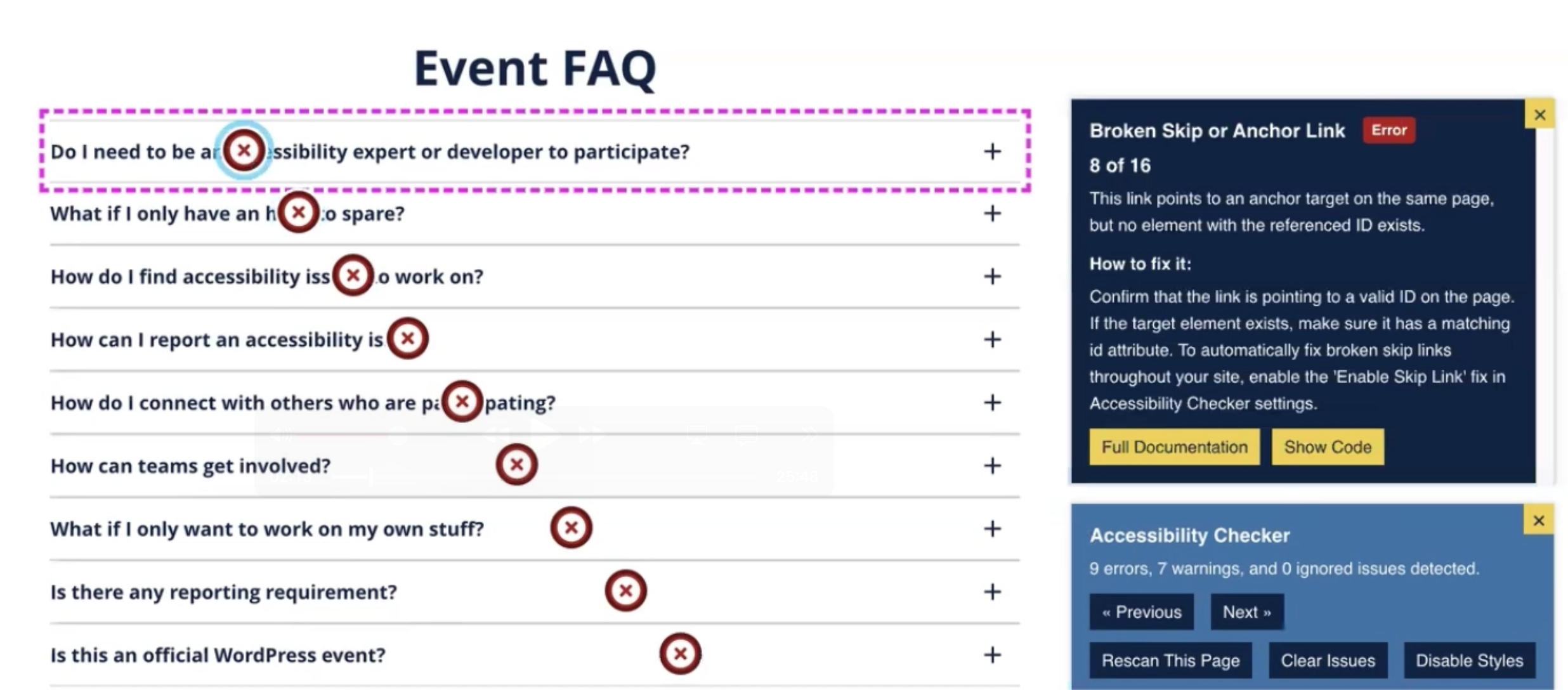
I also get a bunch of errors on these. So it tells me broken skipper, anchor link. This happens because when I look at the code, we can see that I have a link with an Hre F that is linking to a hashtag for the ID that matches the title of the accordion.
But there is no actual div with this id. Or other element with this ID on the page. And so from a HTML standpoint, this is wrong and incorrect because a link normally would take me somewhere not open and close an element. And of course this looks broken. Sometimes you see these actually where there’s nothing, no ID here.
And so instead of getting a broken skipper anchor [00:03:00] link. You might see the improper use of link error in Accessibility Checker. Either way, these are the same problem, which is that I have an accordion that does not function properly for accessibility and does not follow proper HTML markup. Let me close this out and we can listen to it as well.
So I’m going to turn on voiceover.
VoiceOver: Voiceover on Brave Group. You are currently on a tab inside of heading level two Event Heading level two. Event FAQ.
Amber Hinds: So I’m on the heading 2. If I tab to these, let’s see what they say.
VoiceOver: Link. Do I need to be an accessibility expert or developer to participate? Global Accessibility Awareness Day article. You are currently on a link to click the link. What if I only have an hour to spare your link? How do I find accessibility issues to work on? You are currently on a link to click this link press control option space.
Amber Hinds: So obviously, we heard that these are links. This would be pretty confusing for me because I would think if I click the return key, this is going [00:04:00] to take me somewhere else. But what does it do? It expands the accordion and it says nothing. This is a perfect example of why it’s really important to do screen reader testing and not just keyboard testing, because if I was just doing this with a keyboard, I might think this is okay, this is usable, when in fact, it’s really not.
So how do I fix this problem? There are a couple of things to do. One, I could go back to the developer of the plugin and say, Hey, these accordions have these accessibility issues. Go fix ’em. That is the best thing to do. However, this is a really weird scenario. Our website, which we are planning to rebuild really soon, was built more than six years ago, and this accordion block that we used on it, is no longer supported. It’s actually doesn’t even exist on WordPress dot org anymore, this plugin. So I can’t go and [00:05:00] ask the developer to fix it. Now, of course. What did we do on our live website? We fixed it a long time ago. If you go look at it, you don’t see this problem on our live website, but I wanna show you how I could fix this then, as someone who would say, okay, I have a whole bunch of these all over my website.
I don’t have time to switch plugins. ’cause that’s another option. I could switch plugins. Or as of WordPress, 6.9, we’re going to have an accordion block in core, which means I could go rebuild that. But let’s say you have these accordions everywhere, all over your website, so then that means you can’t go to that developer, you have to fix it.
The easiest way or the most common way to do this is to do it with JavaScript. So, so what did I do?
VoiceOver: Voiceover off.
Amber Hinds: So now that I’ve turned voiceover off, we’re going to talk about what my options are for fixing this and how I as a code savvy person, but not a developer. That’s what I’m going to call myself. How [00:06:00] I would go about fixing this.
So the first thing that I would do is I would inspect this in dev tools and I would go all the way up to my entire section, the top level item. So I’ve got a div class equals WP dash block dash kioken dash accordion. Space kioken dash accordion dash nine space kioken dash accordion dash ready.
So I’m going to get go to that entire div that contains all of the accordions within it, and I am going to right click and I’m going to hit copy element.
And then what I did is I went to ChatGPT and I say to ChatGPT, this is the prompt I give it: “Write scripts that can be added into the footer of a WordPress page to fix the accessibility of these accordions. The links should be buttons with aria expanded and aria controls, and the questions should be [00:07:00] H3s.
Now I know in my case that it is correct that these should be H3s. If we look at this page it is following an H2. And I know that everywhere on the site that we’ve used it, they’re always H3s. You might have to make your prompt a little bit different if the heading level is not always the same.
But in this case, I can do that. So I give it this prompt and then I paste it in this entire block of code. All the way down.
And then what it says to me, here’s a JavaScript snippet you can add to the head. We wanna put it in the footer. Of your WordPress site or enqueue and a plugin or theme to improve the accessibility of the kioken accordions, it gave me a script that converts the A tag to button elements for toggle controls, adds
ARIA [00:08:00] expanded and ARIA controls attributes, converts the accordion titles to heading three elements for semantic structure and ensures that each accordion panel has an id. Perfect. So I grab this. Now, let’s make sure we’re on a staging site, right? Not on our live website. I happen to be using a theme where I can go in the customizer and I can go header footer scripts, and I can just paste this in.
Now, you may not have that in your theme. There are a bunch of code snippets, plugins that are free on WordPress dot org that you can use to do this. Or if you are a more advanced developer and you have a custom theme, you could also obviously put the code there, which would be the best place. But regardless, what you wanna do is have this script load in the footer.
So I have added that, and in the customizer, and if I look at my preview. I can see, okay, now I’ve got button styles. [00:09:00] This is interesting. It’s okay, maybe that would work, except for they all look like buttons. I don’t know if I actually want to lose the styles for these elements. So I thought about this and I’m like, okay, I could do this.
I could keep it where they are buttons because this is the proper semantic markup. But then I’m going to have to also write a bunch of CSS styles and I don’t wanna do that. That could be very time consuming.
So I realized right away, I don’t want to write all that CSS or ask ChatGPT to do it. I liked the styles that it had when it was a link. So I went back to ChatGPT, and I said, “This is breaking too much. Instead of changing the link to a button add role equals button to the link.” And so then it gave me this script, which keeps them as a link, but semantically calls them buttons.
[00:10:00] So I’m going to copy the code, go back to my customizer, delete the previous script, and instead. Paste in this new script.
Okay, now it looks the same with this script. I’m going to go ahead and hit publish. Remember, I’m on a staging site, so it’s safe for me to do this. It’s not impacting anything on my live site yet. And once this has published. I’m going to go back to my page and I just do this in another tab. I leave this tab open and I’m going to go ahead and hit refresh on this page, and I’m going to do some initial looking at the element.
So we’ll just go ahead. It looks the same. I can click it with my [00:11:00] mouse. I can tab to it. Oh, my return key doesn’t seem like it works. That’s a little weird. Have to figure out why that is and then I can. I’m looking at this and I can see it does have role equals button. Let’s see if it told it Spacebar.
Nope, it’s still not opening, but it is toggling aria expanded. True and false. So this is where things get interesting and you have to try and troubleshoot a little bit. It does seem like it’s doing what it’s supposed to be doing. But visually, it doesn’t open and close unless I click it with a mouse. So why is that? Something is happening on mouse interaction
that the space bar and the return key is not supporting. So [00:12:00] what I would do then typically is I would then I would open it with my mouse like I’ve done here and inspect this and try to figure out is something different about these panels. So I can see it’s got a class of Kioken item, accordion item content, the accordion panel.
There’s. Aria labeled by referencing it. Let’s keep going. Let’s look at the link for the expanded one.
So I also notice, okay, so I’m looking at, there’s the link that we’ve given to role a button and what the class is, and then there’s a div that this entire panel or accordion is in. And in this one I can see we have a class of WP Dash block, dash Kioken dash accordion, dash item, and Kioken dash accordion item.[00:13:00]
Kioken dash accordion. Dash item, dash active. Ah, and then if I close this with my mouse, the accordion item, active class goes away. So what this tells me, and if I tab to this and I hit the return key, it is triggering it, giving it that aria expanded. It was false, but what it’s not doing. Is adding that active class onto the container div, which this particular plugin happens to be looking for in order to actually visually show the accordion.
So again, when you’re doing this, it takes a little bit of sleuthing. So I go back to ChatGPT. I said when an item is opened with the return key or space bar, change the div with a class of WP dash block dash [00:14:00] Kioken dash accordion dash item space. Accordion dash item to, WP dash block, dash Kioken dash accordion dash item space kioken dash accordion dash item space kioken dash accordion
dash item dash active. So this is me thinking this is what I need in order to actually make this function with a keyboard. So then ChatGPT gives me this script, so I’m going to copy the code, go back to my customizer, delete this other code, paste in the new script from ChatGPT, and then I’m going to hit publish.
Now I’m going to refresh my page one more time.
And I am going to test this with my mouse Uhoh. Something [00:15:00] weird happened. It opens for a second, and then it slides closed the first time. The second time it seems okay. Something odd, right? Then I test it with my mouse. Return still doesn’t work. Space bar still doesn’t work. Seems odd. I went back to ChatGPT and I said.
You suck. No, I didn’t say that. That’s what I wanted to say. I said, these are still not expanding via the keyboard. Here is what the original accordion looks like. Expanded, and I gave them the entire HTML for a single expanded accordion. And then I said, and collapsed, and I gave them. The original HTML for a collapsed accordion, and I said, what needs to change about the code to make the expanded slash [00:16:00] collapse work?
And then, ChatGPT comes back and says, thanks for the clarification. The issue is that kioken Accordion relies on toggling the style display block and display none properties directly on the kioken accordion item, content div, rather than using the hidden attribute or Aria expanded alone. So it took that information.
Obviously ChatGPT is super verbose. It said a bunch more that isn’t really relevant, but basically what it did was it changed those styles and then added or remove the class that I already had to do. So when I went and inspected and I looked for it, I missed that. These are other things that need to change.
So sometimes if you just go and you paste it in and you say, this is what I see in these two different states, what’s different? Then it can help figure it out. So I’m going to copy that code, go back to my customizer, delete the script that didn’t work. [00:17:00] Paste in the new one, hit publish,
and then if I go back to my page, I refresh it again.
I’m also going to add a no cash parameter this time just to make sure I’m getting the right script.
I am now going to check it with a mouse, still getting a weird flash right the first time. Have it with a keyboard.
Turnkey Space Bar. Space bar return key. So there’s still something a little odd happening for mouse users, but it seems a little bit better for screen reader users. And if I watch on that link with the role of button.
One of the things that I did notice about this. That is a problem is when I have that initial flash and it doesn’t open, and then I click it again and it opens my aria expanded can get reversed. So [00:18:00] in this instance, you can see I have expanded the first accordion,
but in the inspect element view in dev tools, it actually says Aria expanded equals false. And if I close that, it goes back to true. False. So it’s reversed in this instance, I think, related to that initial flash where it doesn’t quite work. So I went back to ChatGPT and I said The expanded and collapse is read in reverse here.
These start collapsed. And so of course it says, oh, good job, you noticed my mistake, and it gives me a corrected script. We’ll copy that code. Go back to the customizer, put in the new code, hit publish,
then go back to my page, add another number so I get another no cashed version of the page and refresh.
Now if I inspect these, [00:19:00] I am seeing Aria expanded equals false as the first value, and I click it with my mouse.
And it’s still doing something weird, right?
So I went back to ChatGPT, and I said, these work great with the keyboard. But now they briefly opened before collapsing again if clicked with the mouse. This only happens the first time when clicked. The second time, they opened and closed as expected. Only the aria expanded is backward. So ChatGPT seems to think that the issue was caused by a race between our script and the footers Click handler and the original Kioken Scripts default accordion behavior. Specifically, they think their script is still attached to the click event.
And when you click with the mouse, both scripts fired. And so our script [00:20:00] toggles it open and theirs immediately toggles it back closed. So. It needs to stop the plugin script from firing. So let’s get that code that it copied,
paste it in. You can see in there’s a comment in here that says, stop immediate propagation function. And it says, prevent Kioken script from firing, pasting that in. Publish.
Go back to my page. Let’s make sure we have a non-cash version.
Okay, so now I’m going to check for broken mouse clicks. Ah, when I open and close the accordion the first time with the mouse, it works. Let’s tab to it. Return key, open and close. Space bar, open and close. Also I can watch my ARIA expanded attribute. Currently, this first item is collapsed and it says false.
I’ve expanded it and it says true with the space bar. Same thing with the [00:21:00] return key. Expanded, true, collapsed. False with the mouse. Expanded true collapse. False. Ooh, this seems like it might work. I can also see, let’s go ahead and close that. And open headings map.
I can see in the headings map that I do have the proper heading structure now. I have my heading two for event FAQ, and I have heading threes for all of the individual questions. So this seems like this might have fixed my problem. Let’s turn on the screen reader and give it a listen.
VoiceOver: Voiceover on Brave Global Accessibility Awareness Day pledge. May 15th, two Q, selected. You are currently on a heading level two.
Amber Hinds: All right. Now that I have voiceover on, I am going to tab to the first element.
VoiceOver: Do I need to be an accessibility expert or developer to participate? Collapsed button group. You are currently on a button group.
To click this button, press control option space.
Amber Hinds: See how great that was? It told me it was a button. It told me it was collapsed. Unlike before when it just said link. And [00:22:00] then remember previously when I triggered it with the return key, it wouldn’t say anything. So now if I press the return key. Do I need to be an accessibility expert or developer to participate?
Expanded Button Group. Now it told me that it’s expanded Space Bar.
VoiceOver: Do I need to be an accessibility expert or developer to participate? Collapsed Button group
Amber Hinds: collapsed.
VoiceOver: Do I need to be an accessibility expert or developer to participate? Expanded button group Link. Link. Link. Link. What if I only have an hour to spare Collapsed Button Group Global.
What if I only have an hour to spare Expanded button group? You are currently on a button group to click this button, press control option space.
Amber Hinds: So you can hear now that when I open and close these accordions, it actually tells me what they are. Let’s turn voiceover off.
VoiceOver: Voiceover off.[00:23:00]
Amber Hinds: So as we just heard, when I interact with these, with both my space bar and the return key, it is actually telling me whether they are expanded or collapsed. I have checked and I have the proper heading structure. They also say that they are buttons instead of links, and if I open Accessibility Checker.
Remember I had nine errors and those were all of these. Accordions here, all nine of them had an error. So if I re-scan this page with Accessibility Checker.
We can now see that I have zero errors, so obviously there’s some warnings, things that I need to look into, but those specific problems that we had here with the broken skipper rank. Anchor link are all fixed. Now I know that this accordion is all over my website, so what I would do now is I would go run another full site scan so that it would fix all of the instances where this is, because this particular script is going to be on every page, [00:24:00] fixing every accordion.
I hope you found this example of using ChatGPT to help write scripts to fix accessibility problems on your WordPress website. Helpful. The biggest tips that I have for you is that, first of all, you need to be really clear about what the problem is with ChatGPT and how you expect it to fix it. So I don’t typically recommend just relying on scripts from ChatGPT if you don’t have a solid understanding of what you’re looking for and what the problems are
from an accessibility standpoint, you need to be able to double check ChatGPTs work to make sure what it’s doing is correct. For example, at one point in time. In the middle of this remediation, we saw that ChatGPT was reversing the aria expanded attribute. If we didn’t know what it was supposed to say, at what point in time, that might have been something that we missed.
So you do really have to have a deep understanding of [00:25:00] accessibility. But if you have that solid knowledge of what is supposed to be happening on the website, and you give ChatGPT enough information by copying in as I did large chunks of code out of the inspector, then you can get very good results.
And this sort of AI supported development can really speed up your remediation time and help you solve problems that you’re seeing in Accessibility Checker or with your manual testing faster. Thanks for tuning in. Please hit like on this video, subscribe to our channel so you can find more, and we’ll be back in the future with more accessibility, remediation, and testing tips.
Problems with existing code
The accordions looked accessible at first glance: they could be toggled by keyboard, and visually they behaved as expected. But screen reader testing revealed that they were coded as links (<a> tags) instead of buttons, and were missing aria attributes, thus preventing screen reader users from knowing whether accordions were open or closed.
Example incorrect markup:
<div class="wp-block-kioken-accordion-item kioken-accordion-item">
<a href="#accordionwhat-if-i-only-have-an-hour-to-spare" class="kioken-accordion-item-heading"><span class="kioken-accordion-item-label">What if I only have an hour to spare?</span><span class="kioken-accordion-item-collapse"><svg xmlns="http://www.w3.org/2000/svg" width="24" height="24"><path d="M12 5a1 1 0 0 1 1 1v5h5a1 1 0 1 1 0 2h-5v5a1 1 0 1 1-2 0v-5H6a1 1 0 1 1 0-2h5V6a1 1 0 0 1 1-1z" fill="currentColor" fill-rule="evenodd"></path></svg></span></a>

<div class="kioken-accordion-item-content" style="display: none;">
<p>That’s perfect. Even one hour spent fixing a heading structure, testing a form, or reporting an issue can make a difference. This day is about collective action—every contribution adds up.</p>
</div>
</div>
When I ran Accessibility Checker, I also saw several errors for “broken skipper anchor link”, confirming the markup wasn’t semantically correct.
Find more information about the code for accessible accordions here.
Steps for Fixing with ChatGPT
Crafting a ChatGPT prompt
To use ChatGPT to fix accessibility issues on your site, you first need to identify the problems and have a solid understanding of the HTML and ARIA required to make the component accessible.
Once I identified the issues, I copied the entire accordion markup from the site’s inspector and gave ChatGPT a specific prompt:
“Write scripts that can be added into the footer of a WordPress page to fix the accessibility of these accordions. The links should be buttons with aria-expanded and aria-controls, and the questions should be H3s.”
This prompt also included all the code for the element that needed to be fixed, so that ChatGPT would have access to all the necessary classes and IDs to correctly target the element.
It’s not enough to tell ChatGPT to “make it accessible” — that prompt is guaranteed to result in items being missed. Instead, you need to ask for all the relevant HTML and ARIA changes needed.
Iterating and Troubleshooting
ChatGPT produced a JavaScript snippet that converted links to buttons and added correct ARIA attributes.
The initial script broke the styling in a way that would have required a lot more CSS to be introduced, so I revised my prompt to ask ChatGPT to keep links styled the same but add role="button" instead. ARIA attributes, like role, can be really helpful if you’re remediating an existing element and need to change it but don’t want to break styles.
A native <button> element would have been ideal, but if switching to a native element is difficult, then ARIA is your friend — so long as you also have JavaScript adding the correct keyboard functionality to match. In this case, adding role="button" also requires adding support for triggering the link with the spacebar. Learn more about ARIA button role.
Once ChatGPT gives you a script, add it to your staging or testing site and retest the element. In my example above, this took several iterations and prompting for ChatGPT to provide a correct script that didn’t also conflict with the native plugin script.
Testing the Fix
It’s vital to test any code provided by ChatGPT. In the example video, you can see I tested the accordions again with:
- Mouse interaction.
- Opening and closing with the return/enter key.
- Opening and closing with the spacebar.
- Listening with VoiceOver.
- Inspecting code in the browser.
- Rescanning the page with Accessibility Checker to ensure the errors had cleared.
Don’t skip testing! This is very important because, as we all know, ChatGPT can make mistakes. You want to confirm the code works as expected and doesn’t add any other issues before putting it on your live website.
Article continued below.
Stay on top of web accessibility news and best practices.
Join our email list to get notified of changes to website accessibility laws, WordPress accessibility resources, and accessibility webinar invitations in your inbox.
When to Use ChatGPT to Fix Accessibility
If you discover an accessibility problem that originates in a WordPress plugin or theme you didn’t develop, the first step should always be to report the issue to the developer.
Most reputable plugin and theme authors appreciate detailed accessibility feedback, and responsible reporting helps ensure that the fix is made at the source. This benefits all users, not just your website. And ensures the fix will continue working in the long run, as the plugin or theme is updated.
However, you may sometimes find that the plugin is no longer supported or that the developer is unresponsive. In those cases, it may be better to switch to a different, more accessible solution that is receiving active support and updates. If that’s not possible using ChatGPT to generate a JavaScript or CSS workaround can be a practical short-term solution.
Using JavaScript to modify the page is especially useful if switching solutions would require a significant time investment to rebuild many parts of the website. This kind of fix generated by ChatGPT may take as little as 5-10 minutes, and is a valid approach if fast remediation is required.
Just remember that AI-generated fixes are best treated as temporary patches, and you should document them clearly in your site’s code so that future updates (or accessible replacements) can remove the workaround when a proper fix becomes available.
The Bottom Line
Using ChatGPT to assist with accessibility remediation can be a powerful, time-saving approach—especially for site owners or accessibility specialists who aren’t full-time developers. With the right knowledge, prompts, and testing, AI can help you close the gap between identifying an issue and implementing a fix.
If you’d like to see how Accessibility Checker identifies issues like these, try the Accessibility Checker demo here.
And if you found this example helpful, subscribe to our email list for more accessibility tutorials and tips.

