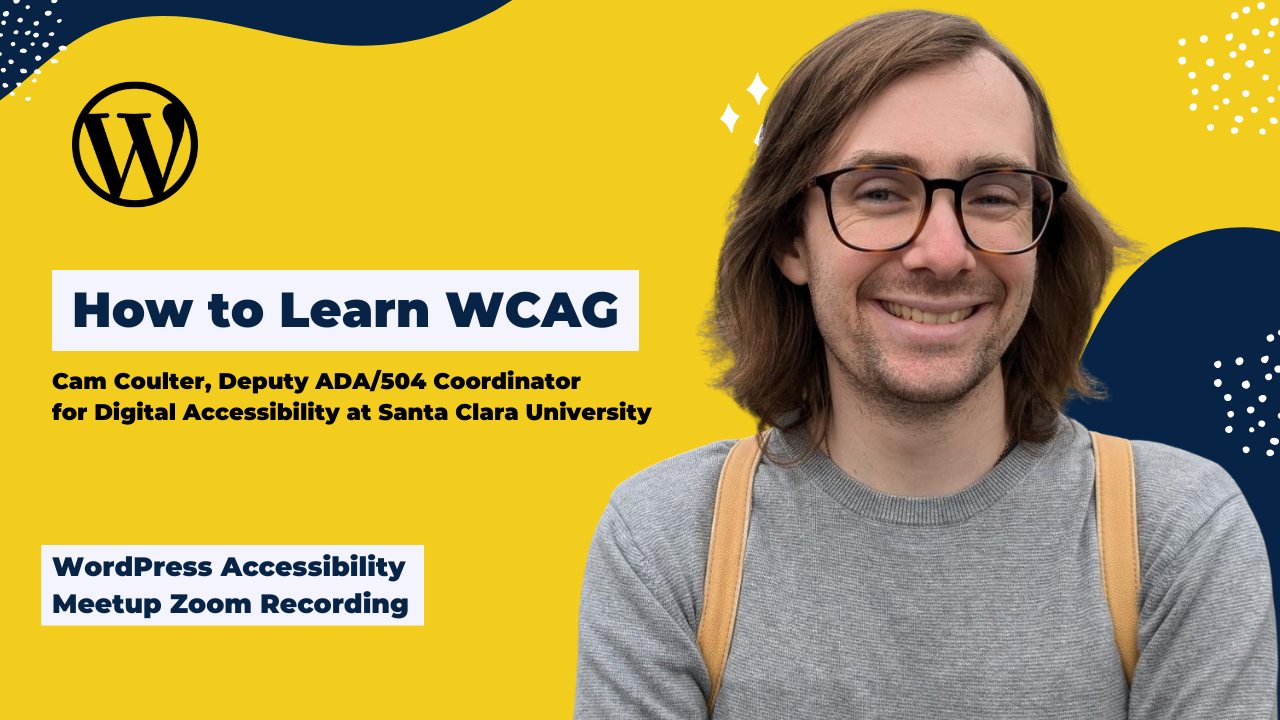
You can’t learn WCAG in an hour, but you can learn how to learn WCAG in an hour.
WCAG 2.x is important because it is the standard for website accessibility (other standards like Section 508 and EN 301 549 incorporate WCAG), but it is technical, complicated, and can be challenging to learn, so many people don’t understand it as well as they need to or would like to.
In this presentation, Cam provided foundational context about WCAG and explained how to slowly and seriously learn WCAG like a professional.
Thanks to Our Sponsor
Watch the Recording
If you missed the meetup or would like a recap, watch the video below or read the transcript. If you have questions about what was covered in this meetup please post a message in our Facebook group for WordPress Accessibility.
Read the Transcript
[00:00:00] Meetup Introduction
Amber: Welcome to WordPress Accessibility Meetup, How to Learn WCAG with Cam Coulter, Deputy ADA/504 Coordinator for Digital Accessibility at Santa Clara University.
A few announcements. If you haven’t been before, it’s good to know that we have a Facebook group you can use to connect between meetups. If you are interested in sharing what you’re working on or getting feedback, this is a great place to chat with others about accessibility. You can find that if you go to facebook.com/groups/wordpress.accessibility.
Everyone always asks, “Is this being recorded?” Yes, it is being recorded. We should have a full transcript and a summary and the recording available in a couple of days. We’ve changed our process around this recently, and it’s been working really well. Probably I would look for it early next week, noting that there is a holiday on Monday here in the US. If you are looking for that, you can find upcoming events and past recordings in one place if you go to equalizedigital.com/meetup.
You can also join our email list to get news and event announcements, and yes, we will tell you when the recap is available, and you can do that at equalizedigital.com/focus-state.
The final place where you can find these, for folks who like to listen only, we got requests to put them on our podcast, so that’s what we’re doing, and you can find those at accessibilitycraft.com, along with other fun accessibility conversations with myself and my two partners, Chris and Steve, and other people from the community.
If you have suggestions for the meetup or you need any additional accommodations to make the meetup work for you, please contact us at meetup@equalizedigital.com. That email goes to myself and Paola, my co-organizer, and we will be happy to help you however we can.
So who am I? I’ve been talking. My name is Amber Hinds. I’m the CEO of a company called Equalize Digital. We are the organizer for the WordPress Accessibility Meetup. Equalize Digital is a mission-driven organization and a corporate member of the IAAP focused on WordPress accessibility. We have a WordPress plugin called Accessibility Checker that helps you find and fix problems on your site.
We have a couple of other WordPress plugins now, including a new one that we just released for free on WordPress.org this week called BoardScribe, which helps you put up board meeting minutes and agendas in a more accessible way. We also offer online courses for NVDA and VoiceOver screen reader testing, and we do accessibility audits, remediation, and consulting.
I want to thank our sponsor for live captioning and transcription for this event.
Kinsta is very generously allowing us to have the captioner here today, and we very much appreciate that. Kinsta provides managed hosting services for WordPress. It is powering 120,000 businesses worldwide. Based on the user reviews, it is the highest-rated managed WordPress host on G2. It has everything you need, including an unbeatable combination of speed, security, and expert support.
Powered by Google Cloud and the fastest C3D and C2 servers, combined with CDN and Edge Caching. Your sites are secured with Cloudflare Enterprise, protecting you from DDoS attacks. All plans include free migrations, and the first month of the starter plans is completely free, so you can try the service risk-free.
You can learn more about Kinsta if you go to kinsta.com, and that’s spelled K-I-N-S-T-A.com. I always ask if you are willing on whatever social media platform you are on to tag them or go comment on their wall or tweet at them or however it works on your social media platform of choice and say, “Thank you, Kinsta, for sponsoring captions for WordPress Accessibility Meetup.”
It helps to tell them that this sponsorship matters, which means that when it comes time for us to ask them, “Hey, would you please consider sponsoring more?” That they are more likely to do so. So if you’re willing to give them a quick shout-out or thank you or send them a message we would very much appreciate that.
Two upcoming events that you want to be aware of.
On Tuesday, September 15th, at this same time slot Maria Maldonado from our team will be presenting about Email Accessibility in WordPress. WordPress websites send a lot of emails, even more if you have a e-commerce shop or if you’re selling memberships or you accept people as users on your website. And Maria is going to be talking about how to make sure that all of the website emails, all the emails that the website send are accessible.
And then, on Thursday, October 1st, Deneb Pulsipher will be talking about Ethical AI and quote, “Benevolent Friction”: Rethinking Alternative Text in WordPress. So if you’ve been wondering, can I use AI to generate my alt text? Should I? What might happen if I do that? This is a great presentation to come to.
I am very excited to introduce today’s speaker, Cam Coulter. Cam is a writer and accessibility nerd, among other things, who thinks incessantly about ethical technology, speculative fiction, and intentional community.
They work at Santa Clara University as the deputy ADA 504 coordinator for digital accessibility, where they support people who use assistive technology and work to improve campus-wide digital accessibility. Welcome, Cam.
Cam: Hello. It’s really nice to be with you all today.
Amber: Yeah. I am going to turn off my camera and go away and let Cam take over the presentation.
While we get set up for that, I do wanna let everyone know that there is a Q&A panel. You can find that in your Zoom toolbar as an attendee. I will come back at the end to pass along questions. It is easiest for us if you put them there because we have a lot of folks here today, and they can get buried in the chat.
[00:06:33] About Cam
Cam: Thanks, Amber, for having me here today and for the introduction. Welcome. Thanks for being here, everyone. Thanks for your time. Again, thank you to the Equalize Digital team for the opportunity to come here and talk about how to learn WCAG.
The sort of idea I had for this talk is that I don’t think you can learn WCAG in an hour, but I think you can learn how to learn WCAG in an hour, or maybe a little bit more. And so my goal here today is to provide some foundational context about WCAG and then explain how to slowly and seriously go about learning it like a professional.
I am a nerd for many things, but learning is one of them, and so I’m excited to have this opportunity to have a meta-level conversation about how to go about learning this thing that I find really interesting.
Let’s get started, and I’ll start by introducing myself a little bit.
I am a white person in my 30s wearing glasses and a dark blue short-sleeve button-up shirt. I am a member of the International Association of Accessibility Professionals, or IAAP and through that, I am a certified professional in web accessibility. As Amber mentioned, I work at Santa Clara University as deputy ADA 504 coordinator digital accessibility.
Previously, I have worked in disability services primarily supporting adults with intellectual and developmental disabilities many of whom have multiple or compound disabilities. And I have also worked in accessibility consulting. Most recently, I worked at Level Access where I tested a lot of websites and apps for other companies and worked with their developers to make sure that they work well for people with disabilities and people who use assistive technology.
I’ll say that I previously had a background in working with people with disabilities, and I was always a bit of a computer nerd. Loved learning how the web works. And around 2020 that was, a lot of us are spending a lot more time online that year, and that was when I discovered the world of digital accessibility.
So it’s been, about six years since I’ve dived headfirst into, “Okay, I have this background working with people with disabilities and I also have some level of background with technology, and oh, this is a really cool area where I can use– sort of combine those to use technology to do some good.”
And so that’s been a little bit of my journey. You can find me online at www.camcoulter.com. That’s C-A-M-C-O-U-L-T-E-R dot com. So that is about me.
[00:09:12] The Road Before Us
Cam: And then let’s talk about our presentation. The road before us today. My presentation is actually pretty simple. It’s basically black text on a white background, but I have it here actually in a web browser tab because we’re gonna be jumping around to a lot of websites as I show you different resources.
You can find all of the notes and basically my whole presentation available as a webpage on my website. That’s camcoulter.com/presentations/how-to-learn-wcag.
And I think we should be able to get a link to that in the chat from the team at Equalize Digital. So you can go ahead and open that up on your end to follow along with everything that I’ll be sharing here today.
The structure for what we’re looking at is we’re gonna begin with some essential context into what WCAG is.
Don’t worry. I will be explaining it. I know I haven’t defined that term yet. And then after that, we’re gonna talk about beginning your journey to really understand it. And then we’ll talk about how to get to where you’re going, how to learn it a little bit more comprehensively.
And then we’ll talk about what to do when the road curves for some situations that are a little bit more complicated.
Let’s begin with essential context. I’m gonna have a quick sip of water.
[00:10:35] What is WCAG
Cam: WCAG stands for the Web Content Accessibility Guidelines. It is an international standard published by the World Wide Web Consortium known as the W3C. And one thing that I think is a good way to think about WCAG is there’s this great article I love called “Disability is a Spectrum, Not a Binary” by Steve Barnett and Nicola du Toit which talks about how disability is a spectrum of things not a binary condition. I’d encourage y’all to check that one out.
And I think I would say not only is disability a spectrum, but I think accessibility is a pretty broad spectrum too. There are a lot of different people with different access needs. If someone’s disabled, you’re not necessarily disabled in every capacity all the time.
With accessibility, you can have a video that has captions and audio descriptions, and that’s great, but does it have sign language interpretation for people who might need that? Is there a transcript available for other folks who might need that, right? And so there’s a very broad spectrum of accessibility, which makes it hard to talk about accessibility.
And so this is one of the cool things about WCAG, is that it gives us a specific, measurable way to assess accessibility so that you can agree that does something meet the standard? Okay, that means you, you can… it gives you something specific to ground things to. You otherwise, you can be like is it accessible enough? Maybe not.
But WCAG gives us a clear way to talk about accessibility. WCAG is published by the W3C, and if you go to their website, they have a web accessibility initiative portion of their site. They have a page here titled WCAG 2 Overview. This is a great starting point that explains what WCAG is at a high level.
They have a section about introduction, who it’s for what’s new in WCAG 2, and explaining the different versions of it.
[00:12:26] Why learn WCAG?
Cam: That’s what WCAG is, and then I wanna talk about why bother learning WCAG? It’s the central standard for website accessibility. And by that I mean that other standards actually reference or incorporate it.
Two other standards for accessibility are the Section 508 ICT Standards, published by the US Federal Government, as well as EN 301 549, which comes out of the European Union, and both of these actually reference and incorporate WCAG.
If you go to view the Section 508 standard on the website of the US Access Board, which is the organization that published it, we can actually read here and it says… I can make this a little bigger it says “Electronic content shall conform to Level A and Level AA Success Criteria and Conformance Requirements in WCAG 2.0.” So right here we have this other standard that actually incorporates WCAG. So it’s a central standard for digital accessibility.
Additionally, laws, regulations, and even settlement agreements might cite WCAG. You might actually have an affirmative obligation to meet it. For example, the Department of Justice here in the United States published a April 2024 regulation under the Americans with Disabilities Act Title II, and that actually identified WCAG 2.1 AA as the technical standard for web content and mobile apps. If we go to their website here, they have a fact sheet about this new rule, and if you scroll on down, we can find a section here that says, “Requirement: State and local governments’ web content usually needs to meet WCAG 2.1, Level AA.”
Additionally, I have a link here to an article titled “Justice Department Applies ADA Title III to Carnival’s Cruise Ships, Websites and Mobile App in Landmark Settlement.” This is an article available on the ADA Title III blog, which is a great place to keep informed. ADA Title III applies to places of public accommodations and many private businesses. Here we can see they actually have a link to the settlement agreement. And in the settlement agreement, I’m gonna search for WCAG, and I can see it actually says, “Within 18 months of the Effective Date of this Agreement, the Company will conform the Covered Websites to the Level A and Level AA Success Criteria and Conformance Requirements of the Web Content Accessibility Guidelines.”
In the settlement agreement the Department of Justice was basically saying, “Hey, Carnival your website is not accessible. We’re gonna reference the Web Content Accessibility Guidelines as that clear standard we can hold you to under the Americans with Disabilities Act here.” And then additionally, you might be thinking maybe I’m not… maybe I don’t care about the web as much. Maybe you have an app or you’re more focused on documents. You can also apply WCAG to non-web content. The W3C actually has some guidance published about how you would do that.
So whether you’re a developer or content creator wanting to make sure that the content you create is accessible or maybe you’re a product manager or a website owner and you wanna make sure that your website, your product is gonna be- is gonna work for people and not get you in trouble, WCAG is the way to do that.
That’s why I think you wanna learn it.
[00:15:59] How is WCAG structured?
Cam: Let’s talk about it at a high level. How is it structured?
It has four broad principles, and each of those are broken into guidelines and then into more specific testable Success Criteria. The broad principles form the acronym POUR, P-O-U-R, so they are Perceivable, Operable, Understandable, and Robust.
Te idea here is that users should be able to perceive content in whatever way works for them, whether that’s by reading it or perhaps by listening to it, or even for some people, maybe by reading it as braille. Operable means that users should be able to operate any of the user interface components of your webpage. Understandable is kinda what it sounds like. Users should be able to understand your content in ways that actually are useful for them. Robust is the one that’s a little bit weird at first. It basically means your content should be developed in a way so that it’s gonna work robustly and support a wide range of different web browsers and different types of assistive technology.
And as an example here, so I’m gonna jump to WCAG just for a moment.
And you can see here we have… This is a page called How to Meet WCAG Quick Reference, and it breaks down, Principle 1 is Perceivable. That says, “Information and user interface components must be presentable to users in ways they can perceive.”
Then we can actually be a little bit more specific there, and that’s our first guideline here, which is text alternatives. That reads, “Provide text alternatives for any non-text content so that it can be changed into other forms people need, such as large print, braille, speech, symbols, or simpler language.” And that, that’s more specific, but it’s still not necessarily something you can easily test.
And so that breaks down to our first Success Criteria, 1.1.1 Non-text Content, Level A. That reads, the first portion of it anyway, “All non-text content,” and that basically means images here. “All non-text content that is presented to the user has a text alternative that serves the equivalent purpose, except for a number of situations that are listed below.” Here you can see we have a broad principle, we have a guideline that’s a little bit more specific, but still pretty broad, and then we have a Success Criteria that for any given webpage you should be able to say, “Is this true or is this false?” So that’s the overarching structure for WCAG.
Let me jump back to our presentation. Great.
You may have noticed that Success Criteria we looked at was tagged as, I believe it was level A. Each of your Success Criteria in WCAG has a certain level: A, AA, or AAA. And that sort of breaks down into different tiers. In general, the Success Criteria that are at level A are the ones that are gonna be most essential. And the ones that are at AAA are actually kinda going above and beyond in many ways. So you can conform to WCAG at three different levels.
In practice, most people aim for the AA level, which provides a really good level of support for most people. But it doesn’t actually mean your website is fully accessible because, for example, there’s a lot of AAA Success Criteria that are actually going above and beyond. But the AA level does provide a really good level of coverage and accessibility for most people most of the time.
WCAG has a few different versions. So version 1.0 actually came out in 1999, and then version 2.0, which is the version that’s widely used today, originally came out in 2008, and then version 2.1 came out in 2018, and version 2.2 came out in 2023, and that’s the current version. But there is a draft of WCAG 3 currently available although that’s not expected to be completed and finalized still probably for a couple years, and we’ll talk a little bit more about that at the end of the presentation.
These dates are when the WCAG specification was published as a W3C recommendation. That actually means it’s an official final what’s the word? Standard. When it’s published through the W3C. So if you see it marked as a recommendation that actually does mean it’s a serious recommendation from the W3C.
For the WCAG 2 series, they each sort of build off each other. WCAG 2.1 is basically identical to 2.0, but it adds some additional Success Criteria. Same thing with 2.2. If you conform to 2.2, that actually means you will conform to 2.1, and if you know you conform to 2.0, for example you’ve done a lot of work toward conforming with 2.1, so they build off each other in that way.
[00:21:06] How do I conform?
Cam: In order to conform with WCAG, in order to make a page conform you need to satisfy each Success Criteria.
Or there is actually a note in WCAG that it is possible to provide a conforming alternate version. If a Success Criteria does not apply, it does count as being satisfied. So if you don’t have any images, that first Success Criteria we looked at, you would count as satisfying that.
The rules for conforming alternate versions are pretty specific, and in all of my experience, they are rarely something you wanna use, both because it can also be a… It’s often a worse experience for folks, and often it’s easier just to make your one version work for everyone. But it is important to note that in some cases, you can conform to WCAG if you have a version of content that doesn’t meet the standard, but then you have another version of it that does conform.
There are two other important things to note about conformance.
The first is that you need to use what are called accessibility-supported methods. That basically means that you need to make sure whatever technologies you’re using to meet the Success Criteria are actually supported in practice by web browsers and assistive technology. If it’s not supported by browsers and assistive technology, it won’t actually work for end users, and so you can’t actually say that, “Oh, because I coded it this way, it’s gonna work.” Sure, but you just made that up, and so nothing– it’s not gonna be properly supported for end users.
You also need to ensure non-interference. This typically is something that might come up if you have a conforming alternate version and a version that is not accessible under WCAG. You need to make sure that version that is your sort of inaccessible version doesn’t somehow prevent users from accessing the conforming alternate version.
You basically need to ensure your site doesn’t in some way like interfere with users’ ability to use their assistive tech.
[00:23:01] Beginning Your Journey
Cam: That’s a little bit of context, and now let’s get into the core of our presentation here about how do you actually learn it in detail?
I would recommend you go ahead and read it.
You can find WCAG two dot two on the web at w3.org/TR/WCAG22.
And I’m gonna go ahead and pull it up for you here. And one thing I wanna stress is that this is actually a pretty approachable document. I know it can be intimidating but here I have it pulled up, and on the left side of the page. I can see there’s a introduction section, and then it breaks down those four principles and Success Criteria we looked at. And then after you get past those, there’s a section on Conformance, which we were just talking about. And then, hey, look at that, you’re at the end of the document. There’s a Glossary and there’s a couple sections after that. So there’s actually not too much here. If you print this out, you’re looking at probably a little under a hundred pages.
But if you take out the Glossary and the Table of Contents and some of the other content that’s a little bit at the beginning and end of the document, it’s only closer to fifty pages, which is a lot, but also not that long. So I would say if you… I would recommend you start by reading it, and you’ll wanna come back and read it again later, but it is, I think, a little bit more approachable than you might think at first.
Particularly this Introduction section it gives you… It is actually a good introduction to someone who knows a little bit about digital accessibility and is ready to start learning. There’s a section that provides some Background. There’s a section that explains some Layers of Guidance that are available to help you understand as well as it explains some available supporting documents. And it briefly explains a comparison to… This is the 2.2 version, so it explains what’s new since 2.1.
[00:24:52] Resources in Plain English
Cam: If you’re trying to learn WCAG, I would say start by trying to read it over. However, I think it will be challenging. The standard itself, it can be pretty sparse sometimes. It can be technical, and it can be hard to interpret.
For example, Success Criteria 1.3.1 Info and Relationships, states, “Information, structure, and relationships conveyed through presentation can be programmatically determined or are available in text.” The first time you read that, you might be confused. The second time you read that, you might have some idea of what it means but you won’t necessarily have a clear sense of how to apply that in practice.
Similarly, 2.5.3 Label in Name, states, “For user interface components with labels that include text or images of text, the name contains the text that is presented visually.” Now, there’s a lot going on here with the word, with the word “name” here. This is actually a technical concept here, and so if you’re newer to digital accessibility you’ll read this, but I don’t think you’re gonna get a lot out of it at first.
So I think it can be really helpful to check out some resources that try to break down WCAG in plain English.
My favorite of these is WCAG in Plain English by AAArdvark. But there are a couple other. Here’s Simple WCAG. WCAG but in language I can Understand and the A11y Project A11y. They actually have a checklist for WCAG.
I’m gonna go over to WCAG in Plain English here and I’m gonna go to the Success Criteria we just read, 1.3.1 Info and Relationships, and they actually have a page here breaking it down in plain language, explaining what is it, why does it matter, who is affected, and how to implement it. And this part I think is really helpful. It shows you okay, so this Success Criteria you’re gonna be looking for Landmark Regions on a page, like your Header section, your Nav section. This is gonna be relevant for Markup for Semantic Elements like H1 and H2 for Headings using block quotes for quotes.
If you scroll down, it mentions that lists should always use proper HTML list elements. And then there’s also a section about tables. So this I think is much more approachable for a lot of people, and I think it’s a great starting point.
Similarly, if you go to the A11y Project’s checklist they actually have a checklist here for you to check your WCAG compliance.
And this isn’t quite… This one’s a little different, but I think it’s useful. For example they have here a section titled Content, and under that, they have a Checklist option that says, “Make sure that button, a, and label element content is unique and descriptive.” And if I expand that, I can see that actually references the Success Criteria we were talking about. So it helps you start to create some connection between the Success Criteria and the actual coding practices you’ll want to follow.
I do wanna add a note of caution. This is a new blog post I actually just recently read by Adrian Roselli that notes, It’s titled “The 2.1.1 specific timings Clause.” We don’t have time to dive into this one in too much detail right now but basically Adrian Roselli sort of noted that a lot of the WCAG in plain English, these resources, they don’t go into as much depth as they should.
So 2.1.1 Keyboard basically says you need to make sure you have keyboard accessible. Your controls need to be keyboard operable. However, there’s also a really important clause in there that’s easy to overlook. It says you can’t have specific timings associated with those. So even if you can operate something by a keyboard, if you need to hold down a button for three seconds, that can actually be an accessibility issue for some people with dexterity challenges. And a lot of the simple WCAG resources can overlook important things like that.
I think these are a really good way to start helping to make sense of WCAG, but it should only be one of the early steps in your journey. Once you look this over, go back to the actual source that we were looking at.
[00:29:28] Layers of Guidance
Cam: All right, moving on. And this part here I think is gonna be really helpful as you’re really trying to learn WCAG more seriously.
Layers of Guidance. The W3C has several different WCAG documents they’ve published. The standard itself is, in many parts, what is, what they explicitly call out as normative. Normative here means required for conformance. However, the W3C publishes a lot of additional material that are informative and that means that it is for informational purposes, and it does not create requirements under the standard, but it can help you learn what the standard means and how to apply it in practice.
In addition to the standard itself, there’s a great resource called Understanding WCAG. There are techniques and failures that help demonstrate different ways to meet or fail Success Criteria. There are also Accessibility Conformance Testing Rules that show you ways you can test for WCAG, and there’s this excellent resource that we actually looked at earlier, which is titled How to Meet WCAG: A Quick Reference, which is a great starting point for accessing all of these.
And then more broadly, the W3C’s Web Accessibility Initiative website has a lot of great resources in general to help you learn more about digital accessibility and WCAG in general.
Right now, I’m gonna go to this webpage for for WCAG 2 Documents on the W3C’s website, and let’s walk through some of these together.
And this, I think you’re gonna get a lot of mileage out of these resources if you’re not familiar with them yet. First up they have a link to the actual standard itself and the Quick Reference document, and then if you go down you can see there’s a section here on Understanding WCAG, and it says, “This is a guide to understanding and implementing WCAG.”
And so I’m gonna go here to Understanding Documents List, and here they have a list of all of the different Success Criteria. I’m gonna pull up 1.4.11 Non-text Contrast. This Success Criteria basically asks you to make sure that you have good color contrast for user interface components and important graphical objects so that people with low vision can easily see them. And the Success Criteria is pretty small here. It only takes up a few lines, but this page is much longer, which is great because this one can be a little tricky, and so it breaks down the intent. It breaks down how it applies to user interface components. And one thing which is really great is it has a lot of pictures and for a lot of these elements, it actually, below each figure, it shows you whether this example would pass or fail. So it gives you really clear examples to help you understand. This Success Criteria is tricky, and so I’m glad to see how long and detailed this page is. So if you’re trying to understand it, there’s actually a lot of examples here to help you understand different common design patterns and how you might apply the Success Criteria. This is gonna be your best starting point.
One other thing I wanna point out is that the Understanding Docs are not just for the Success Criteria. If you go to the bottom of the page, you’ll notice there’s a list of Other Understanding Docs, and in particular, I wanna call your attention to one titled Understanding Conformance.
Earlier, we talked about what goes into conformance, and we talked about how you can have conforming alternate versions. And so here we have a page that really breaks down conformance in more detail than you get from the standard itself, and this is a great way to help you wrap your head around it and begin to understand WCAG more deeply.
Next up, I want to jump to the Understanding page for 2.5.3 Label in Name. This is one we actually looked at a little bit earlier. And we had talked about how it says that “the name contains the text that is presented visually.” And name here is actually referring to what’s known as the accessible name. That is what will be announced by screen readers which that can be a little technical. So if you’re trying to understand how you would implement this in practice you can actually scroll to the bottom of the page, and you’ll notice there’s a section here titled Techniques, and they list Sufficient Techniques, Advisory Techniques, and Failures. These are some common examples. The failure conditions sketch out in detail, “Hey, if you see this on a website, that’s a failure of the Success Criteria.” Sufficient Techniques say, “Hey, if this is what you’re doing, you’re doing a good job. You are meeting the Success Criteria.” And Advisory Techniques are best practices. You don’t necessarily have to do them, but they can make your content more accessible.
I’ll go ahead and open up one of the Sufficient Techniques and one of the Failures here.
And you can see for each of these there is a broad description of what that technique would look like, and then they actually have a list of examples along with HTML code and some text describing how that that example applies. Similarly, for the Failure, we have a description, and then we have a number of examples along with HTML code. You can look at these to get a better understanding of the Success Criteria and how to apply it.
Next up, back on the WCAG docs page, if I scroll down a little bit past the Techniques, you’ll notice the Accessibility Conformance Testing Rules. And so here we can pull up a list of rules that can help you test for WCAG.
The rules are more specific. Basically, the idea here is that if you fail one of these rules, you will then fail that Success Criteria. If you pass the rule, you could still fail the Success Criteria in another way, but the rules are pretty clear ways, “Hey, if you fail this, you will be failing the Success Criteria.”
I’m gonna search for 1.4.5 Images of Text, and under that Success Criteria I can see there’s a related rule that says “HTML images contain no text.” So if I go ahead and open that up, there’s a brief description. There’s a section titled Applicability, Expectation, Background. And then if you scroll down a bit further, there are examples here as well, and they’re very clearly labeled.
These are examples that pass the rule or the test. Then if you go further down, there are examples that have failed the test. And they should give you HTML code, but you can also open it up and view it in a new tab to see that code in practice. This is another good way to really dig into a Success Criteria to better understand if code might fail it or conform with it.
One thing I’ll note with a lot of the rules, some of them are tagged as proposed. And again, a lot of the content we’ve been looking at, the Understanding Docs, the Techniques and the test, they are considered informative as opposed to normative. So they don’t necessarily create responsibilities or requirements under WCAG, but they do help you better understand it.
That’s how I would encourage you to view and use these. And then one other thing I want to note is if you go to that How to Meet WCAG document we looked at… I’m gonna jump to 2.5.3 Label and Name that we looked at earlier. And here, this document is a great way to quickly read the Success Criteria, and you can actually get a link to the Understanding Document, and you can toggle down an accordion to view the Techniques and Failures. This is a great resource that if you’re really serious about WCAG, I would encourage you to bookmark, ’cause it’s got basically all of the key things you’re gonna be wanting to reference all conveniently in one page. That is a lot of stuff there.
Let me check my notes. All right. Yeah. But if you take away nothing else from this presentation other than this one page and that Layers of Guidance, I think you’re gonna be in a much, much better place.
[00:37:56] Getting to Where You’re Going
Cam: But we have another section here titled Getting to Where You’re Going. And so if you get all of that you’re gonna be in a pretty good spot.
You’ll have a foundational understanding of WCAG. You’ll understand where to go to learn it and begin to better understand the places where it can be a little too sparse or a little too technical.
[00:38:19] Learn How the Web Works
Cam: But if you really wanna get a deep understanding about it, you’re gonna need to learn how the web works, and that means you’re gonna need to learn some HTML, CSS, and JavaScript.
There are a lot of resources out there for helping you with this. One that I personally have used and appreciated is FreeCodeCamp. They actually have certifications for responsive web design and for JavaScript. The responsive web design certification from FreeCodeCamp is really great because if you check it out, you’ll see that it actually has a section for accessibility with 55 sort of sub-steps within it. Which is great. When you learn HTML, you should be learning accessibility foundations. This is a thing that is missed in a lot of different… for a lot of people as they’re learning HTML. So FreeCodeCamp does actually include that, and so I would recommend that as a good starting point for people. They do have a JavaScript certification as well, which can impact accessibility but it is a little bit maybe more of a challenge for some folks, and it is less common when it comes to identifying WCAG violations than HTML. So you don’t necessarily need to learn that as much, but I would recommend it in general.
Additionally, LinkedIn Learning has some great learning paths available. They have one titled Advance Your Skills in HTML, Learn CSS, and Getting Started with WordPress, which does include a course within it on WordPress accessibility.
Those are two great places to go if you really wanna start to learn HTML more better. I would also say watch some YouTube. I’ve watched a lot of good YouTube over the years from Jen Simmons. She has a great channel called Layout Land that I would recommend. Kevin Powell has great content on CSS. Also Miriam Suzanne has some great content explaining CSS at a level that helps make it make sense. For a lot of people CSS can be a weird language, but these people help make CSS and HTML clear and I would say very engaging.
Another way to learn how the web works is to check out the MDN Web Docs. This is a really great resource you can go to look up specific HTML elements and learn more about them.
Also, make a website. This is how you really learn the web, is you’re gonna wanna make websites. You can definitely make WordPress websites. I think that is a good way to learn.
I might also encourage you, if you wanna learn WCAG more deeply, try to make a website by writing some HTML, whether it’s just some plain, some text files where you write the HTML, or maybe using a static site generator like Jekyll, or there’s one called Eleventy. And I think those are great ways to learn the web more deeply.
[00:41:06] Learn ARIA
Cam: Next, you’ll want to learn ARIA. That stands for Accessible Rich Internet Applications. It’s often referred to as WAI-ARIA for the Web Accessibility Initiative. This is another specification published by the W3C. ARIA is what I think of as advanced HTML or HTML 201 perhaps.
ARIA is a set of additional attributes that you can apply to your HTML elements. It’s really useful when you’re creating custom controls. They’ll let you specify additional information like the role of an element or its accessible name, and so that assistive technology can work a little better with it. It has a lot of implications for screen readers but it does affect other types of assistive technology as well such as some Voice Access software.
To learn ARIA, I would say start by maybe watching, looking up a video online from another presentation as a good starting point. But I would also recommend if you go to the W3C’s website again, similarly they have another overview page, which does explain it in a good introduction here, and then they link to various resources here.
There is the ARIA specification. I’m gonna open this one for a moment. You’ll notice this one actually is a lot longer and more detailed than than WCAG itself. And this is gonna take you more time to learn, but it is important to start learning the fundamentals because oftentimes ARIA is a really important element for being able to determine if something is meeting a Success Criteria.
But there are two other things I want to point out here because ARIA is important, and I want to make sure you get a sense of that. In the specification for ARIA, if you go to section 5.4 Definition of Roles, it breaks down a lot of different types of roles. So in HTML, there is a checkbox that you can use by default like the native input element with the type of checkbox. However, if you, for whatever reason, are trying to create a custom control we can actually look up in the specification the role of checkbox. And this section of the specification is really useful because it gives you some information about that role, and it also explains what else is required.
For example, if you have a role of checkbox, you need to make sure that you add the attribute aria-checked, and that will indicate whether or not that checkbox is checked or not. That is something that screen readers will then go on to communicate to their users. It also breaks down additional ARIA attributes that are supported or that should be supported for that role. So this can, particularly this section of definitions is a great place to look in the specification.
I am gonna go back to my presentation. One thing I wanna note about ARIA, though, is that the browser and assistive tech support is really important. Again, you would- someone would be using ARIA if they’re trying to create custom controls, and so by adding these additional attributes to your elements, you can help communicate more information to assistive technology. But that only works if browsers and assistive technology, like screen readers, properly support ARIA, and they don’t always do. There are a couple resources you can look into to get a sense of that, but you’re really gonna have to do some testing to see if that’s actually gonna work for users in practice. I recommend you check out Assistive Technology Interoperability Reports and a11ysupport.io as a starting point. Those are good resources to start to see how well different ARIA attributes are supported.
In particular, I also wanna draw your attention to another resource from the W3C, which is the ARIA Authoring Practices Guide. This guide is awesome. It breaks down different Practices and Patterns. So we were just talking about the role of a checkbox if you wanted to create your own custom checkbox element. Here, I can actually view a checkbox pattern created with ARIA. It has a section on About this Pattern. It actually has some examples, and it explains expected keyboard interaction and roles, states, and properties. If you view the example, they’ll actually have a working example here and you can inspect the code in CodePen. If you scroll down, they have a section breaking out accessibility features, keyboard support different attributes that this will have, and you can view the HTML source code.
Here I can see using ARIA we have constructed a checkbox, and it’s actually a div element with a role of checkbox, an aria-checked attribute, and a tabindex attribute. Again, one important thing to note with ARIA, though, is you’ll notice at the top of each of these pages, it says, “This code is not intended for production environments.” And the idea here is that these examples are examples of the ARIA specification as it was intended, but that doesn’t mean that browsers and assistive technologies will robustly support this. That’s something to be very mindful of.
In addition to the patterns which you’re gonna wanna check out, there is a section here on Practices, and I would really encourage you to read this. These are wonderful articles. For example, there’s a article here titled Developing a Keyboard Interface. If you’re trying to create custom controls, you should definitely read this ’cause it will break down how to do that. For example, in the example we just looked at with the checkbox there was a tabindex attribute there, and that was there as a way to help make that control keyboard operable, and this page helps you get a better understanding of why.
So that’s ARIA. It’s basically, again, what I would think of as HTML, what 201. And it will be really important for helping you better understand some of the WCAG Success Criteria.
[00:47:07] Start Testing
Cam: Next up, if you want to learn WCAG, you gotta start testing. There, I would say go ahead and try to learn different ways to test the Success Criteria. Some that you can test manually, others you can test with bookmarklets, automatic tools, assistive technology.
There is a tool here called ANDI that I have a link to, and this is a bookmarklet. You can actually drag this tool up into your browser bookmarks, and then I’m gonna go to my notes for this presentation, and if I click on that bookmark that I just created, it will launch this ANDI tool at the top of my webpage.
And now… There’s a lot of controls here, but for example, I can select the module for structures, and over here on the top right, it’ll actually list out all of the Headings on the page and their level. I can see if it’s an H1 or an H2. And if you remember when we talked about Success Criteria 1.3.1 Info and Relationships earlier, we looked at how Headings are… making sure your Headings are programmatically marked is one element of that Success Criteria. And so this tool actually, for example, can show you what is programmatically a Heading on the page and what is not, what is properly coded as a Heading. So that’s, for example, one way you might test that Success Criteria.
If you’re trying to learn how to test there’s also something you might wanna check out called the Section 508 ICT Testing Baseline for Web. And this is like a structured way to test for the Section 508 standards, which as we looked at, include WCAG. For example, here, if I go to section 13 Content Structure, I can see it actually references the WCAG Success Criteria we were just talking about, Info and Relationships, and it has a section for Limitations, Assumptions, and Exceptions, and then it gives you a Test Procedure for different things. You can see Test Procedure for Visual Headings Programmatic, and it actually gives you sorta step-by-step instructions to test for accessibility related to that Success Criteria.
If you’re new to WCAG, and you’re learning how to test, this is a good place to look over. I would also recommend you use different testing tools and see what Success Criteria they reference. For example if you used axe DevTools in Chrome, when it flags accessibility issues, it should reference a Success Criteria. This is the WordPress Accessibility Meetup Group. You might be using Equalize Digital’s Accessibility Checker for WordPress, which is an excellent plugin for WordPress. I love it. So over here on my blog, I have a test page in WordPress. If I go over to the Accessibility Checker, and I open up the panel for that, you’ll notice that it says, “Accessibility Analysis.” I can expand that section, and it has flagged a couple problems and then it says, “Insufficient Color Contrast.” If I expand that, and if I go ahead and select one of these issues it’s tagged and it pulls up the affected code, and it shows me, “Hey, this area, it’s against a white background, but it has a light gray text. That’s gonna be really hard to read, and it’s flagged for Insufficient Color Contrast.” Here I can actually see it references WCAG 1.4.3 Contrast Minimum. And if I go ahead and click on that, it’ll take me to the WCAG Standard and that Success Criteria. And then from here, you can actually go to the Understanding page to get a better understanding of it. And so this is a great way, as you’re using these automatic tools, to begin to associate errors that they flag with Success Criteria to get a better understanding of them.
One thing to note with a lot of automatic tools is sometimes they can tell for sure that there’s an issue, like with color contrast, but sometimes they need manual review. They basically say, “Hey, I think there’s an issue here, but we need a human to think about this to confirm it.” And so we have one example of that here under Needs Review, Possible Heading. I can click here, and you can see I wrote, “This is a fake heading,” and it’s large text, it’s bold, it looks like a heading, but it’s in a P tag, not a heading tag. And here in the dialogue again, we have a link to WCAG, and this links us to 1.3.1 Info and Relationships, where we talked earlier about how it’s important to make sure you are using proper Headings.
If you are using the Accessibility Checker in WordPress, this is a great way to begin to associate the issues it shows you with different Success Criteria.
[00:51:49] Learn Screen Readers
Cam: All right. One other way to better learn WCAG is to learn a couple screen readers. Screen readers can help you test for Conformance with WCAG, but they can also help you better understand and appreciate WCAG.
There are a number of Success Criteria that are there for screen reader support. In particular, most notably 4.1.2 Name, Role, Value. The idea with that Success Criteria is that all of your custom controls should have an accessible name, something that screen readers can announce that describes its purpose. If they have a particular role, like a role of button or link, that is something that screen readers should be able to identify and announce for their users. And so if you learn how to use a screen reader, it’ll help you test for that, but it’ll also help make it more clear to you just why that Success Criteria is important and what it really means and why it’s really there.
I have recommendations for which screen readers to learn. On Windows, I would recommend you learn NVDA. This is a free and open source screen reader that is fairly popular. If you’re on a Mac computer, I recommend you learn VoiceOver. It’s created by Apple and included by default on your Mac. If you’re on an Android device I would recommend TalkBack. It is created by Google and included by default. And if you’re on an iPhone, the VoiceOver screen reader is also available there. There are a couple of resources to help get you started. Deque has some screen reader reference guides that are great. They’re actually set up as web pages as well as PDF documents. So you can print them out and have it as a reference at your desk while you’re testing it out. Also, the A11y Project has a couple Getting Started Guides that I would recommend and I also have links here to the official documentation for these screen readers. In particular, VoiceOver on Mac has a user guide that’s pretty, pretty detailed. It has a number of sections, including Getting started, Navigate your Mac, Advanced navigation, Work with text, and more. Definitely check out the official documentation from the folks who make it.
One thing I’ll note with screen readers, they can be complicated, but I like to use an iceberg metaphor to describe them. With icebergs, I think we have this idea that there’s a little bit above the surface, but actually, most of the iceberg is below. I think screen readers are like that. Just to learn the basics of how to turn it on and do essential navigation with it is actually not too complicated. There are a lot going, there is a lot going on behind the scenes, and there’s a lot of different features and capabilities of a screen reader that if you’re blind, you’ll probably want to learn.
But if you’re a sighted person trying to get foundational understanding, you can actually ignore most of the time. So don’t be too intimidated. Just try to learn the basics. How do you turn it on? How do you navigate by heading? How do you advance through a page and go backward to read other content?
[00:54:57] Check out WCAG-EM
Cam: Next up, I’m gonna recommend that you check out WCAG-EM. This is a specification published by the W3C again called WCAG Evaluation Methodology. Similarly, again, as a W3 resource, it has a really good Overview page that I recommend you check out to get a good introduction into what it is and why you might use it.
I’ll go ahead and open it up, open up the specification here. This one is actually pretty approachable as well. What this does is it tells you how do you evaluate an entire site or product for conformance with WCAG? It actually breaks it down into a step-by-step sequence.
Here in the table of contents, it says, “Step one, define the evaluation scope. Step two is explore the target product. Step three is select a representative sample. Step four is you’re gonna evaluate that, and step five is you’re gonna report the evaluation findings.” That– I think that’s a reasonably clear idea, and then it breaks it down in thoughtful again, step-by-steps for each of those steps we looked at. This is a great way to go from trying to understand WCAG to being like, “All right. Can I actually do a full audit of a website?”
In particular, there’s a Report Tool created by the W3C here. And you can actually walk through this tool, and you can fill in your product scope. You can add in notes about your selected sample set.
You can have this section here where you can go through Success Criteria by Success Criteria, and you can note if you’ve checked it, if it passed, if it failed, and you can add in your notes about what the issues were. And then at the end, you can actually go to View Report, and it’ll show you in a webpage your report here. And so this is a great way to get started testing WCAG if you wanna do a full report and you’re like, “Where do I start?” I would say use this tool to give you a step-by-step flow. Additionally, once you finish, you can download that report as a independent HTML webpage or as a JSON file. So this is gonna be a really good way for you to level up your understanding of WCAG and be like, “Yeah I’ve gone through a full website and I’ve done a full audit of a website using a representative sample, and I’ve gone through and tested all of the Success Criteria.” This is a good getting-started point, I would say.
[00:57:20] Practice
Cam: Another thing you’re gonna need to do is practice. Knowbility is a great nonprofit organization. They have a program called Accessibility Internet Rally. I did this a few years ago, and it was really helpful. This program is super cool. They pair people who want to learn about accessibility and make websites with people who have websites, typically nonprofits, and want to have an accessible website. So it’s actually a friendly competition where the teams work together the web teams and the nonprofit teams. And Knowbility actually provides accessibility training to you. So if you wanna learn more about WCAG, participate in this. You’ll get some accessibility training, and you’ll get practice creating an accessible website.
One thing to note is that their timeline for the upcoming thing is registration opens in September, on September fourteenth, so just in a couple weeks here, and then the actual program kicks off in January. This is coming up, and I would recommend it as a good way to get more experience and practice.
Similarly, to learn WCAG and get more practice, you’re gonna need to audit your websites.
Earlier I told you to make a website, now you can have an opportunity to do an audit of your website. You’ll want more practice, though, so go ahead and audit more websites. If there are community groups you’re involved with, go ahead and try to do an audit of your group’s website.
Even then, though, it really helps to get more practice. If you can, I would say get a job auditing websites. This was really helpful for me to work at Level Access for a couple years and audit websites all the time with other people who were able to give me guidance. There’s a great website you can check out called A11y Jobs, which is a digital accessibility job board. Keep your eye peeled there for jobs that look like this might be a good opportunity to get more practice testing and perhaps learn from other people on my team.
[00:59:16] Get Certified
Cam: Additionally, to really learn WCAG and get more fluent with it, I would recommend that you pursue certification. Through the International Association of Accessibility Professionals you can get certifi- you can become a certified professional in accessibility core competencies. This certification is not too challenging.
I’m gonna go to the website here. Basically, all you need to do is pass a test and there are courses available that you can take to prepare for the test. I’m gonna open up the content outline, which is basically the content you’re gonna be tested on here, and you can see it breaks down into Disabilities, Challenges, and Assistive Technologies, Cccessibility and Universal Design, Standards, Laws, and Management Strategies.
And so there will be content in here about WCAG, but it’s relatively high level. And so this is a good starting point I would recommend if you really wanna become a WCAG professional that you pursue the Web Accessibility Specialist certification. I have both of these and the Web Accessibility Specialist one really gets into the technical details of WCAG.
It gets into individual Success Criteria. And one thing which is kinda cool about here is if you go to the Prepare section on the overview here… I’m gonna search for sample. There we go. We actually have some sample questions for these tests that are available. And so I’m gonna scroll down I’m gonna magnify this a little bit for y’all. And so you can see we actually have questions here on this test about individual WCAG Success Criteria. I’ll go with Question Five here, and I’ll read this. “Which of the following statement is true for the intentions of SC 1.4.12 Text Spacing?” And then they have four different options, and then they actually tell you what is the correct option.
And so if you’re studying for the WCAG test, you’re gonna get a lot of good practice better understanding the Success Criteria. One thing I’ll note, though, is that this is a hard test to study for, and I think it makes a lot of sense for people to get experience first with WCAG, with testing for webs, making accessible content, testing content, trying to remediate it. And then once you have more experience, I think this is a great thing to pursue.
There is another certification I should mention called Trusted Tester. This is actually through the Department of Homeland Security, and it’s focused on Section 508. They have a certification program and they also have a training portal. What’s really cool about the training portal is that it’s actually available for free, I believe. So that is a great way, thing to check out to help you learn more about testing for digital accessibility. They also have a test process for this Trusted Tester thing, which is pretty similar to the Baseline for Web we looked at earlier.
Similarly, if I go to content structure, you can similarly see there’s a section here about headings. Are headings programmatically determinable? But what’s different about the Trusted Tester test process is it actually calls out the tool you should use. It tells you to use the ANDI bookmarklet. And so this is another good way to get more experience testing for accessibility using specific tools and associating them with specific Success Criteria, associating the issues you find.
We are near the end of the time here. Let me check my notes. All right, I think we’re doing okay.
[01:02:48] When the Road Curves
Cam: That is really how you grow into learning WCAG more seriously. There’s a lot there. But what do you do when the road curves? When you hit those moments and you’re like, “I’m not sure what to do exactly. How exactly should I interpret this?” I would say be in community.
[01:03:07] Be in Community
Cam: First, start with the W3C itself. They’re the folks who publish WCAG. They actually have a GitHub project for WCAG itself, and so here you can actually view Issues, Pull requests, and dDscussions associated with WCAG. If you read over the Understanding Doc, if you looked at the Techniques and you’re still not sure if something is a Success or Failure, this is a great place to go.
For example, I’m gonna go to Discussions here, and I’m gonna search for 3.3.2 required/optional. And so this Success Criteria is basically says you need to provide labels and instructions for your form fields. And here I can find, oh, there’s discussion, and somebody asked, “Does the Success Criteria mean that you need to visually indicate the difference between required and optional fields?”
And this post is actually by John Avila of Level Access, who is a very respected, I would say, accessibility professional. And I can see other folks have chimed in, including Wilco Fiers and Patrick Lauke, who are other folks I respect in this field, and I can get their opinion on how they interpret this case. So this can help make sure I am aligned with other professionals.
Similarly, if you go to Issues, you can see issues people flagged against WCAG. And so I’m gonna search for 2.4.6 icons / images without visible text. And just briefly, I can find here someone had an issue about this Success Criteria, and they weren’t quite sure how to interpret it. I can see here at the bottom of the page after a long discussion, Where did it go? No, I can’t find it, but I had it, pulled it the other day. One sec. Oh, wait. I think I pulled up the wrong issue, but I’m gonna change that. 4147. That one is still open, but this other issue is marked as… Actually was. So for some of these, for example, I can see there’s a Pull request here, and this was associated with another Issue. And I can actually see where they changed the Understanding Document to add in additional information about this issue. So if you read the Understanding Doc, you’d see it, but this is the behind-the-scenes. You can see Discussions. You can see Pull requests. Maybe someone has just recently suggested an update to the Understanding Doc, and you can see Discussion. So this is a great place to look to be like, “What are other people saying?”
IAAP is a great place to go as well. They have courses and webinars, but there’s also a Connections Community for members where you can find a lot of informed people who can give you thoughtful responses to your questions.
The next step of being in community is what you’re doing now showing up to webinars, reading newsletters.
I really appreciate A11Y Weekly is a good one to follow. axe-con, Inclusive Design 24, WordPress Accessibility Day are great conferences with talks about WCAG. And one talk I really appreciate is “These still aren’t the SCs you’re looking for” by Patrick Lauke, which really dives into some of the nuance of WCAG in a way that I had a lot of fun watching and I would encourage you to check out.
Other organizations that post, that have good posts about digital access– about WCAG specifically are TetraLogical, Vispero. And some other blogs that I enjoy are HTMHell, which actually basically shows you bad examples of HTML code. Similarly, Adrian Roselli, Eric Eggert, and Nat Tarnoff routinely blog about WCAG and are great people to follow to learn more and so by following all those things, you’ll get some sense of what other professionals think.
I think it’s important to be in community and in conversation with other professionals to have some humility and curiosity and openness that maybe you don’t know everything, and it’s important to get other folks’ opinions. And so this is how you can do some of that.
[01:07:21] WCAG 3
Cam: Lastly, I’m gonna touch on WCAG 3.
We’ve been talking about WCAG 2, but I mentioned there’s this new draft out. And so similarly, I’m gonna recommend that you go to the W3C’s website, and they have an introduction page to WCAG 3. This is a really cool evolution. It actually stands for, instead of the Web Content Accessibility Guidelines, the W3C Accessibility Guidelines, because these are designed from the beginning to apply more broadly to things like apps or maybe documents as well.
The structure is quite different than what we talked about in ways that I am excited about. But we don’t expect it to be finalized for still probably a couple more years. And even then, once it’s finalized it might– it won’t necessarily immediately be incorporated into other standards or laws or regulations the same way that the 2.0 series is. So it’s gonna be a while before you really need to meet this one, and if you do meet the 2.0 series, you’ll be along the way to meeting this one.
But there is a draft right now that you can check if you wanna go read that, and it’s linked on the W3C page. But there’s also a couple webinars that you can check out. Last year, I watched one titled “Be a Digital Ally” from Rachel Bradley-Montgomery which was a great overview. And there’s actually another presentation coming up titled “How we want to make WCAG better” that is in the Inclusive Design 24 Conference that’s coming up, I think, later this month. If we go to their website we can see it’s in 20 days. September 23rd, I believe.
Okay. That is the end of our little marathon here. Thank you for your time. I wanna thank Amber and the team at Equalize Digital for letting me be a little WCAG nerd for an hour here.
And you can find me on the web at camcoulter.com, and again, all of those links I shared, you can find them on my website, camcoulter.com/presentations/how-to-learn-wcag.
So yeah, I’d be curious to know what questions we all have.
[01:09:29] Q&A
Amber: Thank you. This has been so phenomenal. I just loved seeing everything you dived into, and such a phenomenal list of resources. Fantastic. Thank you so much. And I saw… I imagine you probably couldn’t see the chat while you were talking, but I saw a lot of people saying the same things, that they very much appreciated and they found it an incredibly awesome presentation, so thank you.
I am gonna run through some of the questions. I don’t know, I didn’t see any, I think, that require you to share your screen, so maybe you could stop sharing, and then if anyone has any questions you want me to pass along, please put them in the Q&A. So the first one, Andrew asked, “Is WCAG mandatory for private companies in the USA?”
Cam: I got to that a little bit in the beginning. It’s a little complicated. I would recommend speaking with a lawyer for a really good answer to that. But as I noted under ADA Title III there have been settlement agreements that reference WCAG. But there’s not necessarily a clear law or regulation that I’m aware of that basically says you must meet it, in the same way that we did recently get the Title II regulation that really made WCAG explicit as part of that regulation.
There’s not an equivalency there. But again, if you meet WCAG, that is a really that is a really reliable way to make sure your website is gonna work for people and to help you avoid trouble.
Amber: I think that is a great answer from neither of us are attorneys . So thank you. Let’s see. RD said “I adore the presentation on your website.”
So we’re gonna step away for a second and just talk about how you gave your presentation, because I also think that this was really great. And RD said they love it so much that they wanna learn how to set up web pages. I’m curious, are you using Reveal.js for your presentation? Or how did you-
Cam: Yeah.
Amber: Actually create your presentation?
Cam: Yeah. I created my presentation as markdown content. And I am a huge fan of the tool Pandoc. I can drop a link in the chat here. It’s Pandoc.org.
Amber: That’d be great.
Cam: It’s an amazing tool that will basically… It’s a command line tool that you can use to quickly convert one file to another.
I can briefly screen share here again, actually, just to walk through it.
And so if you go to their documentation which… There we go, the User Guide. They actually have a section here on Slideshows, and so they show you how you would structure your markdown content to make it a slideshow, and then you can use Pandoc in the command line to convert it from that slideshow to any number of file formats.
I use something called Slide Slidy, S-L-I-D-Y to create the slides that I screen shared, and then I took the markdown that I had created, and I just put that up on my website as a normal page. But that is-
Amber: And if you have WordPress, you can copy and paste markdown in and it converts it to all the blocks.
Cam: Yeah.
Amber: Which is kinda cool.
Cam: Yeah. So that was how I created it. I wrote it as markdown, I used Pandoc to, with the Slidy option to make a presentation, and then I just copied it into my…
Amber: That’s awesome. I might also throw a link, ’cause I did see in there, it said that works with Reveal.js.
Cam: You can do that as well, I believe.
Amber: Yeah, and that’s one that I’ve used before, and I actually know that’s pretty accessible because I gave a talk at a conference with Alex Stine, who for folks that don’t know him, is blind screen reader user developer, and he and I, that is how we made our slides, ’cause he’s “I don’t want Google Slides, I don’t want to use PowerPoint.” So we used Reveal, and it worked very well for him and his screen reader. Okay.
So let me go back. I’m gonna sort these by upvotes. Paul asked, ” “Is it still necessary to learn the JAWS screen reader? Right now I’m learning NVDA.” Do you have an opinion about that?
Cam: Yeah. I would, for most people, I would say start with learning NVDA because it is free. I think that’s important. JAWS you have to pay for. A lot of people do use JAWS I would say for an individual professional, use NVDA ’cause it’s free. But for an organization, I would seriously cons- I would, I encourage organizations that wanna make sure their content works for folks to go ahead and test with JAWS.
If you look up WebAIM, they have a survey of screen readers, and you can get a sense of how many people use NVDA versus JAWS. They’re both pretty popular. So organizationally, I would say I would recommend organizations test with both. For professionals, I would say start with learning NVDA because it’s the free tool.
But they’re both relatively popular and worth learning overall.
Amber: Awesome. Okay. And then let’s see. Linda had asked about having a replay. Yes, there will be a replay. We’ll get it out next week if you watch our website.
But also a question of what color contrast level is recommended, 7? So I’m guessing she’s saying 7:1. Do you typically try to do AAA, or do you have thoughts on color contrast?
Cam: Yeah. I have a really strong instinct to screen share again and, and-
Amber: Okay. Yeah
Cam: …practice what we just talked about.
Amber: You can just keep screen sharing. We’re good.
Cam: So here on the How to Meet WCAG page there are…
If you go to, I believe it’s… Yeah. Perceivable, and then you can go down to the Distinguishable Guideline. There’s a require- 1.4.3 Contrast Minimum, basically says “text needs to have a contrast ratio of 4.5:1” in most cases. So that’s what I target for text. There’s the Non-text Contrast Requirement, which is basically if you have important user interface components or graphical objects, the requirement there is only 3:1 or better. There is the… I’m not sure I have the filter. Okay. Where’d it go? Contrast Enhanced, 1.4.6. And so this is a AAA requirement for 7:1. And so if you wanna aim for 7:1 contrast ratio that is a higher contrast ratio that can make it easier for some folks to see your content. I think that can be worth doing.
But I also sometimes hear that sometimes high contrast ratios can be challenging for some individuals. I would, in most cases, I think if you stick to the level AA, things are gonna work well for you.
And then if you know you have users who maybe need a little bit more contrast that’s when I would go ahead and target the 7:1 ratio.
I think in most cases sticking to the AA standard is gonna have you in a good place, but think about your users and maybe adjust from there.
Amber: Yeah, we do a lot of trying to do AAA on body text, big blocks of text ,and things like that, and then we might say, “Okay if this is an incidental text or maybe a, you know very large font,” right? Then having that lower contrast isn’t as big of a deal.
Cam: I think that’s a great approach.
Amber: Yeah. Okay. Someone asked, “Do you recommend using AI to help you learn WCAG?”
Cam: I was wondering if I’d get that question.
Amber: How accurate have you found it?
Cam: I wouldn’t recommend it because I think with all the resources I just shared, I think those are great.
I think if you work through those, it’ll take some work, but I think you’ll learn it really deeply. That’s been my experience. I’ve noticed with AI, it’s helpful sometimes, but it also will get things wrong. When it tries to do accessibility, it will frequently have mistakes. When it makes code, in my experience, I have frequently seen accessibility mistakes.
When you ask it to make accessible code or test code for accessibility issues, it does a little better, but there’s still mistakes there, and I don’t know if it always explains things as richly as it might.
I think if you get stuck with something it’s not necessarily the worst idea to try to think it through.
But I also think hopefully with the structure I gave you today, you’ll be in a good place for moving ahead on your own and learning it more deeply. But AI is a weird thing and a weird place in the world right now. Maybe things will be different for you as an individual or for you in three months from now.
But I don’t think you necessarily need it.
Amber: Yeah. I feel like it’s good at some of the really easy to understa- like color contrast
Cam: Yeah.
Amber: If you asked it to explain or identify if it failed it would probably notice that. But some of the more obscure or more it requires thought and human assessment on is this a failure of the Success Criterion or not, I feel like- it has a harder time with that. And so if you were just asking it to explain Success Criterion to you, I think it might not do a very in-depth job.
Cam: Yeah. I can definitely see it making mistakes. Things do get technical and complicated, and I think it’s best to go to the authoritative sources where possible.
And if you get stuck there, then maybe go there, but I would say start with the sources I had shared today.
Amber: Do you have any good sources, Tom was asking, for checklists for meeting WCAG for documents? Are you aware of any?
Cam: I’m not sure I’m aware of checklist for documents. I have some resources on my end about document accessibility, so I can check some of those. But I will say if you’re looking for there are automatic checkers built into Microsoft Office to help you check for document accessibility.
Google Docs doesn’t have those, but there’s a Grackle extension for Google Docs which can help you automatically check for accessibility. Obviously, automatic tools are not gonna be as comprehensive but some other I’m not sure I have good checklists for document accessibility, though. So that might be worth, actually, I just found an article I flagged from Adobe, which is The Complete Checklist to PDF Accessibility. So I’ll drop a link in the chat. But that, I’m not… that’s what I got there in terms of document accessibility checklists.
Amber: Yeah. Thank you.
Cam: Yeah.
Amber: Let’s see. There was… Marsha put in another pitch for AIR.
For folks who are interested in learning and doing, I think that is definitely worth looking into, and it’s gonna open up soon.
Patrick asked or said, “I use Dragon NaturallySpeaking for the Section 508 government. Do you recommend using that tool?” And maybe for folks who aren’t familiar, could you give a little intro to what that tool is?
Cam: Yeah. Dragon NaturallySpeaking is a tool for dictation, but it’s a little broader than that. You can use it for voice access. So if you can’t easily use a keyboard or a mouse or a touchscreen you can basically use your voice to control your computer. It’s a pretty robust tool. I believe it only runs on Windows, but I believe Mac comes with a similar program called Voice Access that you can use.
It is a important tool for people with mobility and dexterity impairments, and I think it’s worth testing in. There are some Success Criteria, accessibility issues that are particularly affected by it. So I would recommend using it for testing where possible. In particular, the one of the ones we looked at, which is Label in Name is something that can cause problems for people who are using those types of tools.
I think as a best practice, I would say it’d be good to test with, but it’s not gonna catch everything with WCAG. So you’ll need to use other tools to supplement it.
Amber: Do you normally do you always test… If you’re auditing a page, will you always test with voice control?
‘Cause I’ll admit, this is something that I don’t do regularly. Is that part of your normal testing process?
Cam: I often don’t. I will say for that Success Criteria we’re talking about people who use voice control are affected by it, but you can test it relatively effectively with a screen reader or other tools ’cause they’ll visually… they’ll show you the accessible name. And then once you know the ex- you can compare that to what you visually see. But there are cases where I think it’s useful. I would maybe view it more as a user testing or usability testing.
When I had worked at Level Access, we would sometimes do, in addition to our routine full audits of WCAG, we’d have folks on our team who use screen readers or who use Dragon go through a user flow and give folks their feedback.
And I think it’s probably most useful in that way.
Amber: Rather than someone who doesn’t need it trying to learn it just for tests, because if you don’t use it every day, you might not be getting an accurate result if you try to just spin it up for testing.
Cam: Yeah. Yeah. I might, again, look at it as like a institutionally, like it’s a good thing to have someone test with to make sure your content’s really good.
But you should be able to do a pretty comprehensive audit of WCAG without using it, and if you are an individual, I would say start with a screen reader. That’s gonna get you more mileage as a tool.
Amber: Great. Thank you so much. That was all of the questions that we had.
Again, I really appreciate everything that you’ve shared. We will have the recap up for people next week. Could you just remind us all, where’s the best place for people to reach out if they wanna follow up or have any additional questions?
Cam: Yeah. You can find me at my website, camcoulter.com. I have a email available through there so you should be able to reach out.
Would be happy to follow up with you that way. I’m a social internet as opposed to social media person. I am on Mastodon, but I don’t really use it much. So reaching out through a email address via my website is probably the best way.
Amber: Perfect. All right. Thank you. Thanks everybody.
Have a great rest of the week.
Cam: Thank you all. That was great.
About the Meetup
The WordPress Accessibility Meetup is a global group of WordPress developers, designers, and users interested in building more accessible websites. The meetup meets twice per month for presentations on a variety of topics related to making WordPress websites accessible to people of all abilities. Meetups take place on the first Thursday and third Tuesday of the month at 10:00 AM U.S. Central (5 PM CET).
Learn more about WordPress Accessibility Meetup.
Summarized Session Information
Learning the Web Content Accessibility Guidelines takes time, practice, and familiarity with the people and technologies the guidelines support. The goal of this presentation was to explain how to learn WCAG progressively, beginning with its purpose and structure, then moving into supporting documentation, web development, accessibility testing, certification, and professional community.
In this session, Cam Coulter provided a detailed path for developing that knowledge. Plain-language explanations offer an introduction, while the official standard, Understanding documents, techniques, and testing resources help build a more precise understanding. Applying those resources to actual websites connects individual requirements with the barriers people encounter.
Session Outline
- About Cam
- What is WCAG
- Why learn WCAG?
- How is WCAG structured?
- How do I conform?
- Beginning Your Journey
- Resources in Plain English
- Layers of Guidance
- Getting to Where You’re Going
- Learn How the Web Works
- Learn ARIA
- Start Testing
- Learn Screen Readers
- Check out WCAG-EM
- Practice
- Get Certified
- When the Road Curves
- Be in Community
- WCAG 3
- Q&A
About Cam
Cam Coulter is the Deputy ADA/504 Coordinator for Digital Accessibility at Santa Clara University, where they support people who use assistive technology and work to improve digital accessibility across the university. They are a member of the International Association of Accessibility Professionals and a Certified Professional in Web Accessibility.
Their background includes disability services, particularly supporting adults with intellectual and developmental disabilities, many of whom have multiple disabilities. Their accessibility consulting experience includes work at Level Access, testing websites and applications, and collaborating with developers to address barriers.
Digital accessibility brought together two existing interests: supporting people with disabilities and understanding technology. That connection developed into a professional focus around 2020.
Learning WCAG thoroughly takes longer than a single presentation. Learning how to approach it is an achievable starting point. In this session, Cam focused on the resources, habits, and practical experience needed to build professional fluency over time.
What is WCAG
WCAG stands for Web Content Accessibility Guidelines, an international standard published by the World Wide Web Consortium (W3C).
Accessibility involves a wide range of needs and experiences. A video might include captions and audio description but still lack sign language interpretation or a transcript. Each format can support different people, and one accessible feature does not necessarily address every need.
The article “Disability is a Spectrum, Not a Binary,” by Steve Barnett and Nicola du Toit, provided context for this broader view. Disability is not a single, uniform condition, and accessibility also involves many different considerations.
WCAG provides specific, measurable requirements that make accessibility easier to evaluate and discuss. Instead of relying only on a general impression that a website is accessible, teams can assess whether particular requirements have been met.
The W3C’s Web Accessibility Initiative website includes a WCAG 2 Overview page that introduces the standard, explains its intended audience, and describes its different versions. This is a useful entry point before reading the full specification.
Why learn WCAG?
WCAG is a central standard for web accessibility because other accessibility standards incorporate it. The presentation connected WCAG with both the Section 508 ICT Standards in the United States and EN 301 549 in Europe.
WCAG serves as a foundation for other accessibility standards and appears in regulations and settlement agreements. These three examples show how its requirements are incorporated into broader accessibility obligations:
- Section 508: The ICT Standards require electronic content to meet WCAG 2.0 Level A and Level AA success criteria and conformance requirements, illustrating how broader accessibility standards incorporate WCAG.
- ADA Title II: The April 2024 regulation identified WCAG 2.1 Level AA as the technical standard for state and local government web content and mobile applications.
- Carnival settlement: A Department of Justice settlement concerning Carnival’s cruise ships, websites, and mobile application required covered websites to conform to WCAG.
These examples establish why accessibility work may involve obligations tied to a particular version and conformance level.
WCAG’s relevance also extends beyond websites. The W3C publishes guidance on applying it to non-web information and communications technologies, making it useful for people working with applications and documents.
For developers and content creators, WCAG provides requirements to consider while building accessible experiences. For product managers and website owners, it offers a framework for evaluating whether a product supports people with disabilities.
How is WCAG structured?
WCAG follows a hierarchy of principles, guidelines, and success criteria. Each layer becomes more specific, moving from broad accessibility goals to testable requirements.
The Four Principles
The four principles form the acronym POUR:
- Perceivable: People can obtain information in ways that work for them, including visually, through speech, or through braille.
- Operable: People can operate the interface and its controls.
- Understandable: People can understand the content and use it meaningfully.
- Robust: Content works with a range of browsers and assistive technologies.
These principles provide the overall organization. Guidelines describe more specific goals within each principle, and success criteria establish testable requirements.
From a Principle to a Success Criterion
Under Perceivable, the Text Alternatives guideline addresses providing text equivalents for non-text content. Those alternatives allow information to be presented in forms such as speech, braille, or large print.
The related Success Criterion 1.1.1, Non-text Content, establishes a more specific requirement for text alternatives that serve an equivalent purpose, with exceptions and additional provisions.
This progression matters when learning WCAG. A principle explains the broad goal, a guideline narrows the subject, and a success criterion provides a requirement to evaluate.
Conformance Levels
WCAG assigns individual success criteria to Level A, Level AA, or Level AAA. Level A includes foundational requirements, while Level AAA includes additional requirements that extend accessibility support.
Level AA is a common target and offers substantial coverage of accessibility needs. However, meeting Level AA does not mean every person will find every aspect of a website accessible. Additional improvements, including relevant Level AAA criteria, can still benefit users.
Versions of WCAG
WCAG’s publication history:
- WCAG 1.0: 1999.
- WCAG 2.0: 2008.
- WCAG 2.1: 2018.
- WCAG 2.2: 2023.
At the time of the presentation, WCAG 2.2 was the current version discussed, and WCAG 3 was still a draft.
The WCAG 2 versions build on a shared foundation, with later versions adding requirements. Knowledge gained from working with an earlier version therefore remains useful when learning a later one.
The W3C’s term Recommendation also has a specific meaning: it identifies a published standard, rather than an informal suggestion.
How do I conform?
Conformance means meeting the success criteria for the targeted level and the standard’s conformance requirements. A success criterion that does not apply to the content counts as satisfied. For example, a page without images does not need image alternatives for content that is not present.
WCAG also allows conforming alternate versions under specific conditions. This can involve providing an accessible version of content alongside another version that does not meet the standard.
However, alternate versions introduce additional requirements and can create a less satisfactory user experience. Making a single version work for everyone is often more practical.
Another essential concept is accessibility-supported use of technology. An implementation must work with browsers and assistive technologies in practice. Code cannot provide an accessible experience if the technology people use does not support the chosen method.
Non-interference is also required. Content that is not accessible must not prevent people from reaching or using accessible content, or interfere with their assistive technology. This is especially relevant when considering alternate versions.
Beginning Your Journey
Start by reading WCAG itself. Although the standard can look intimidating, its core organization is manageable: an introduction, the principles and success criteria, conformance requirements, and a glossary.
The introduction provides useful background before the detailed requirements begin. It explains the layers of guidance, identifies supporting documents, and describes changes from the previous version.
A first reading does not need to produce complete understanding. Its purpose is to establish familiarity with the structure, terminology, and range of requirements. Some passages will become clearer after working through examples or testing a website.
Returning to the standard is part of the learning process. Supporting resources explain difficult sections, and later readings connect those explanations to the exact requirements.
Resources in Plain English
Some success criteria are difficult to understand without technical context. 1.3.1, Info and Relationships, addresses information and structure conveyed through presentation, but its brief wording may not immediately suggest headings, lists, tables, or page regions to a new reader.
Similarly, 2.5.3, Label in Name, uses “name” in a technical sense. Understanding that requirement depends on knowing what an accessible name is and how it relates to the label someone sees.
Plain-language resources help establish these connections. Cam included AAArdvark’s WCAG in Plain English, Simple WCAG, WCAG but in language I can understand, and The A11Y Project’s checklist.
AAArdvark’s explanation of Info and Relationships breaks the criterion into practical subjects. These include landmark regions, semantic headings, block quotations, lists, and tables. It also explains why the requirement matters, who it affects, and how to implement it.
The A11Y Project’s checklist approaches the material through concrete tasks. An item about making button, link, and label content unique and descriptive connects an everyday coding practice with related WCAG requirements.
Plain-language explanations are a starting point, but simplifying them can omit important details. An article by Adrian Roselli about the “specific timings” clause in 2.1.1, Keyboard, illustrated this limitation.
Keyboard accessibility involves more than confirming that a control responds to a key. Requiring a specific timing, such as holding a key for a set duration, can create barriers for people with dexterity impairments. A simplified summary may leave out that qualification.
Use introductory resources to develop understanding, then return to the official wording and supporting documentation to examine the details.
Layers of Guidance
The W3C publishes several connected resources to help you understand and apply WCAG. Knowing what each document does makes it easier to find the right level of explanation.
The distinction between normative and informative material is central. Normative content establishes requirements for conformance. Informative material explains those requirements and provides examples, but does not create additional requirements.
Understanding WCAG
The Understanding documents expand on individual success criteria. They explain intent, benefits, examples, and implementation considerations that cannot fit into the short wording of the standard.
For 1.4.11, Non-text Contrast, the Understanding document includes extensive explanations and visual examples. These help clarify how contrast requirements apply to user interface components and important graphical objects, including examples that pass or fail.
Understanding documents also cover broader subjects. Understanding Conformance explains concepts such as conforming alternate versions in greater depth than the standard’s brief requirements.
Techniques and Failures
Understanding pages link to three useful categories of supporting material:
- Sufficient techniques: Approaches that can satisfy a success criterion when applied appropriately.
- Advisory techniques: Additional practices that can improve accessibility.
- Failures: Examples of conditions that fail a success criterion.
For 2.5.3, Label in Name, these resources help explain the relationship between a visible label and an accessible name, including the name announced by a screen reader.
Technique and failure pages provide descriptions, examples, and HTML code. This makes it possible to connect a short requirement with specific implementation choices.
Accessibility Conformance Testing Rules
Accessibility Conformance Testing, or ACT, Rules describe more focused tests related to accessibility requirements. Their pages include applicability, expectations, background information, and examples.
The presentation explored a rule associated with 1.4.5, Images of Text, titled “HTML images contain no text.” Its examples included passing and failing cases, with code that could be opened in a separate tab.
Passing an individual rule does not establish that the entire success criterion has been satisfied. A rule tests a particular condition, while other aspects of the criterion may still require evaluation.
Some rules may also be marked as proposed. Consider their status and purpose when using them to support an assessment.
How to Meet WCAG Quick Reference
The How to Meet WCAG Quick Reference brings much of this material together. It provides the success criteria, links to Understanding documents, and expandable sections for techniques and failures.
This makes it a practical resource to bookmark and use regularly. A tester can move from a requirement to an explanation or implementation example without searching across unrelated pages.
The Quick Reference and the layers of supporting guidance provide a foundation for learning WCAG more deeply.
Getting to Where You’re Going
Understanding the documentation establishes a foundation, but professional fluency also requires practical experience. The next stage connects WCAG with how websites are built, how assistive technologies interact with them, and how accessibility barriers are identified.
That means learning enough about web technologies to interpret implementations, then practicing with testing tools, screen readers, structured evaluation methods, and real websites.
Learn How the Web Works
HTML, CSS, and JavaScript provide essential context for understanding web accessibility. HTML is particularly important because many accessibility requirements involve the meaning and structure communicated through markup.
freeCodeCamp is a learning resource, particularly its responsive web design material and accessibility exercises. Its JavaScript curriculum offers a way to develop further technical knowledge.
Accessibility should be part of learning HTML from the beginning. Understanding headings, labels, lists, and other semantic elements makes WCAG requirements more concrete.
LinkedIn Learning offers learning paths for HTML, CSS, and WordPress, including WordPress accessibility material. Additional educational resources include Jen Simmons’s Layout Land, Kevin Powell’s CSS content, and Miriam Suzanne’s CSS explanations.
MDN Web Docs provides a reference for looking up individual HTML elements and learning how they work. This is useful when a WCAG example includes unfamiliar markup or when evaluating a particular implementation.
Building a website puts that knowledge into practice. WordPress offers one route, while writing HTML directly can make the relationship between code and the resulting page easier to examine. You can also use static site generators such as Jekyll and Eleventy/
Creating websites and evaluating the results helps turn technical definitions into usable knowledge.
Learn ARIA
ARIA stands for Accessible Rich Internet Applications, also called WAI-ARIA. It is a W3C specification that defines attributes used to communicate additional information about interface elements to assistive technologies.
ARIA is especially relevant to custom controls. It can identify an element’s role, accessible name, and state, helping assistive technologies communicate what the control is and how it works.
Its effects extend beyond screen readers to other technologies, including voice control software. Learning ARIA therefore helps explain several WCAG requirements involving user interface components.
Roles, States, and Properties
The ARIA specification’s definitions of roles provide detailed information about individual controls. A custom checkbox, for example, can use the checkbox role, while aria-checked communicates whether it is checked.
Understanding the role alone is not enough. The accompanying attributes provide information needed to represent the control accurately to assistive technology.
The specification identifies required and supported attributes for each role, making it useful for checking whether a custom control is implemented appropriately.
Browser and Assistive Technology Support
Test ARIA implementation in practice. Support varies across browsers and assistive technologies, so using an attribute does not automatically establish that users will receive the intended information.
Resources such as Assistive Technology Interoperability Reports and a11ysupport.io can provide information about support. They help inform testing, while direct evaluation establishes how the implementation behaves in the relevant environment.
ARIA Authoring Practices Guide
The ARIA Authoring Practices Guide, or APG, provides patterns and broader implementation guidance. A pattern describes expected keyboard interaction, roles, states, properties, and working examples.
The checkbox example included a div with a checkbox role, an aria-checked attribute, and a tabindex attribute. Its documentation connected the markup with keyboard support and accessibility features, and the code could be inspected in CodePen.
The examples are educational and require evaluation before production use. Cam called attention to the warning on example pages that the code is not intended for production environments.
The guide’s Practices section also provides broader explanations, including “Developing a Keyboard Interface.” These articles help clarify how features such as keyboard navigation and focus should work across custom controls.
Start Testing
Learning WCAG requires testing it against real content. Different requirements call for different methods, including manual review, bookmarklets, automated tools, and assistive technology.
The ANDI bookmarklet provided an example of inspecting page structure. Its structures module lists headings and their levels, making it possible to identify what is programmatically marked as a heading.
This connects directly with 1.3.1, Info and Relationships. Text may look like a heading without having heading markup, and a structural inspection helps identify that difference.
The Section 508 ICT Testing Baseline for Web offers structured procedures for accessibility evaluation. Its content structure section includes relevant WCAG references, limitations, assumptions, exceptions, and steps for testing whether visual headings are programmatically identifiable.
Automated tools can also support learning by connecting reported problems with individual success criteria. axe DevTools and Equalize Digital Accessibility Checker were examples of tools that provide these references.
In Accessibility Checker, an insufficient contrast issue involved light gray text against a white background. The issue linked to 1.4.3, Contrast (Minimum), allowing the tester to move from the affected code to the requirement and its Understanding document.
A second example involved large, bold text reading “This is a fake heading.” It looked like a heading but used a paragraph element. The tool flagged it as a Possible Heading requiring review and linked to 1.3.1, Info and Relationships.
A confirmed issue and an item requiring manual review are different types of results. Some conditions can be identified automatically, while others need human judgment to determine whether a failure is present.
Following the WCAG references in tool results helps build an understanding of why an issue matters and how it relates to the standard.
Learn Screen Readers
Screen readers support both accessibility testing and a deeper understanding of WCAG. They make it possible to experience how information encoded in a page reaches someone who uses speech output.
4.1.2, Name, Role, Value, is particularly relevant. Interface controls need information that allows assistive technologies to communicate their purpose and characteristics. A screen reader helps a tester determine whether a control is announced with an appropriate name and role.
The presentation suggested these starting points:
NVDA offers a free, open-source starting point on Windows. VoiceOver and TalkBack are available within their respective platforms.
Learning resources include Deque’s screen reader reference guides, The A11Y Project’s getting-started guides, and official documentation. Printable reference sheets can help as you learn commands, and the VoiceOver user guide provides more detailed coverage of navigation and other features.
Start with basic operation rather than trying to master every feature. Learn how to turn the screen reader on, move forward and backward through content, and navigate by headings.
Screen readers have extensive capabilities, but foundational testing does not require learning every advanced function immediately. The iceberg comparison describes a manageable set of introductory skills above a much larger collection of features you can explore over time.
Check out WCAG-EM
WCAG-EM, the WCAG Evaluation Methodology, provides a structured approach to evaluating a website or product. It helps connect knowledge of individual success criteria with the process of conducting a broader audit.
The workflow presented included five steps:
- Define the evaluation scope.
- Explore the target product.
- Select a representative sample.
- Evaluate the sample.
- Report the evaluation findings.
Each step is broken into more detailed activities, providing a way to organize the work.
The W3C’s WCAG-EM Report Tool supports this process. It provides places to document the scope, describe the selected sample, record success criterion results, and add notes about identified problems.
The tool can then display the report as a webpage. You can also download results as an independent HTML page or JSON file.
For someone beginning to conduct full audits, this provides a practical structure. The process encourages deliberate coverage of the success criteria and clear documentation of the findings.
Practice
Regular practice develops the ability to recognize accessibility barriers, investigate their causes, and connect them with WCAG.
Knowbility’s Accessibility Internet Rally, or AIR, offers an opportunity to learn while building a website. The program pairs web teams with organizations, typically nonprofits, that need accessible websites.
Participants receive accessibility training and work together in a friendly competition. This combines instruction with the practical responsibility of producing an accessible result.
At the time of the presentation, the announced schedule included registration opening on September 14 and the program beginning in January.
Personal projects also provide useful practice. A website created while learning HTML or WordPress can become the subject of an accessibility audit. Community organizations offer further opportunities to work with different content and site structures.
Experience across multiple websites helps broaden understanding. Professional auditing work can add regular practice and access to colleagues who provide guidance on difficult findings.
The presentation included A11y Jobs, a digital accessibility job board, as a resource for finding opportunities involving testing and collaboration.
Get Certified
Certification provides a structured reason to study accessibility concepts and assess knowledge. The presentation covered two IAAP certifications and the Department of Homeland Security’s Trusted Tester program.
Certified Professional in Accessibility Core Competencies
The Certified Professional in Accessibility Core Competencies (CPACC) covers broad accessibility knowledge.
Its content areas include disabilities, challenges, assistive technologies, accessibility and universal design, and standards, laws, and management strategies.
WCAG is part of this foundation, but the focus is relatively high-level. Preparation courses and the published content outline help organize study.
Web Accessibility Specialist
The Web Accessibility Specialist, or WAS, certification addresses web accessibility in more technical detail. Preparation involves understanding individual success criteria and how to apply them.
Sample questions show the expected knowledge. One example in the presentation concerned the intent of 1.4.12, Text Spacing.
Practical experience is valuable before pursuing this more technical assessment. Creating content, testing websites, identifying failures, and working on remediation provide context that supports deeper study.
Trusted Tester
The Trusted Tester program focuses on Section 508 testing. The presentation included its training portal, certification program, and documented testing process as additional learning resources.
Its procedures connect testing activities with specific tools. For example, a heading-related test directs the tester to use ANDI to evaluate whether headings are programmatically determinable.
This makes the process useful for learning how to move from a requirement to a repeatable test and then to a documented result.
When the Road Curves
Some WCAG questions remain difficult after reading the standard, reviewing an Understanding document, and examining techniques.
Uncertainty is a reason to investigate further and consult other professionals. Building expertise includes learning how to compare interpretations, identify missing context, and recognize when an initial conclusion needs revision.
Community participation provides a way to work through those questions with people who have encountered similar situations.
Be in Community
The W3C’s WCAG GitHub repository provides access to issues, discussions, and pull requests concerning the standard and its supporting documents.
These conversations can clarify questions that are not obvious from a brief success criterion. One example concerned 3.3.2, Labels or Instructions, and whether required and optional fields need visual distinction.
The discussion included contributions from accessibility professionals such as John Avila, Wilco Fiers, and Patrick Lauke. Reading the reasoning behind different interpretations can help a tester assess their own understanding.
Issues and pull requests also reveal how supporting guidance develops. The presentation explored discussion involving 2.4.6, Headings and Labels, including questions about icons or images without visible text. Related changes to Understanding documents can provide additional clarification.
IAAP’s Connections Community offers another place for members to ask questions and exchange knowledge. Its courses and webinars provide further opportunities for continuing education.
Other learning resources included A11y Weekly, along with conferences such as axe-con, Inclusive Design 24, and WordPress Accessibility Day. Patrick Lauke’s presentation, “These still aren’t the SCs you’re looking for,” was suggested for exploring nuances in WCAG interpretation.
The resource collection included organizations and authors such as TetraLogical, Vispero, HTMHell, Adrian Roselli, Eric Eggert, and Nat Tarnoff. HTMHell’s examples of problematic HTML provide another way to examine implementation choices. Cam’s resources also include Vispero’s “Heading off confusion: When do headings fail WCAG?”
Humility, curiosity, and openness to other interpretations support better accessibility work. Staying in conversation with other professionals helps maintain those habits.
WCAG 3
As of today, September 2026, WCAG 3 is a draft and has a different structure from the WCAG 2 series.
Its expanded name, W3C Accessibility Guidelines, reflects an intended scope broader than web content alone, including areas such as applications and documents.
Finalization was still expected to take time. Publication would also not automatically mean immediate adoption into every law, regulation, or other standard that references WCAG.
Learning and applying WCAG 2 remained the practical priority. That work also provides relevant accessibility knowledge for understanding future developments.
The W3C’s WCAG 3 introduction page and draft were suggested for those interested in following the work. Additional resources included a Be a Digital Ally webinar with Rachael Bradley Montgomery and the announced Inclusive Design 24 presentation, “How we want to make WCAG better.”
Q&A
Is WCAG mandatory for private companies in the United States?
The legal answer depends on the situation. The discussion distinguished the explicit WCAG requirements in the ADA Title II regulation from the Title III context, where settlement agreements have referenced WCAG.
A lawyer can advise on a particular company’s obligations. WCAG provides a useful accessibility benchmark, but this discussion did not establish a universal legal requirement for every private business.
How were the presentation slides and webpage created?
The content was written in Markdown and converted into slides using Pandoc with Slidy. The same Markdown content was also published as a regular webpage.
Pandoc supports multiple output formats, including slideshow formats. Reveal.js was discussed as another option, and WordPress can convert pasted Markdown into blocks.
Should I learn JAWS if I am already learning NVDA?
Start with NVDA if you are an individual learning screen reader testing, because it is free and provides a practical foundation.
Organizations should consider testing with both NVDA and JAWS because both have substantial user communities. WebAIM’s screen reader survey was suggested as a resource for understanding usage.
Should I aim for a 7:1 color contrast ratio?
Level AA was the suggested starting point, including 4.5:1 for most text and 3:1 for applicable non-text interface components and graphical objects.
The discussion also covered 1.4.6, Contrast (Enhanced), a Level AAA criterion with a 7:1 requirement for most text. Higher contrast can help some users, and aiming for AAA on body text was suggested as a useful approach. Consider the audience and the applicable requirements for the content.
Do you recommend using AI to learn WCAG?
Start with the authoritative sources and supporting resources covered in the presentation. AI can produce incorrect explanations, inaccessible code, and incomplete assessments, even when explicitly asked to consider accessibility.
It may help explore a question when stuck, but its responses need verification. Nuanced interpretations of success criteria are particularly dependent on context and human judgment.
Are there checklists for document accessibility?
Adobe’s “The Complete Checklist to PDF Accessibility” was shared as a resource. The discussion also identified Microsoft Office’s built-in accessibility checkers and the Grackle extension for Google Docs.
These tools can support document review, but automated checking is not comprehensive. No single checklist covering every document accessibility need was identified.
Is Dragon NaturallySpeaking useful for accessibility testing?
Yes, particularly for evaluating voice access. Dragon allows people to control a computer through speech, supporting users who have difficulty using a keyboard, mouse, or touchscreen.
It is relevant to requirements such as 2.5.3, Label in Name, because differences between visible labels and accessible names can interfere with voice commands. It should be used alongside other testing methods.
Does every WCAG audit need voice control testing?
Voice control testing was not described as a routine part of every audit. Some relevant requirements can be evaluated by inspecting accessible names and comparing them with visible labels.
Testing complete workflows with experienced voice control users can provide valuable usability feedback. For an individual beginning to learn assistive technology testing, a screen reader was the suggested first priority.