

This Changelog livestream covered enhancements to Accessibility Checker Free v1.37.0 and Pro v1.20.0, which were released at the end of January 2026.
We aim to release updates every two weeks for the plugin. This most recent release focused on identification of duplicate identical issues on a page and providing better ordering of – and more accurate highlighting – of issues on the front end. It also includes improvements to the disable styles functionality, improved ordering in Fast Track and a fix for default ordering on the Open Issues page.
Watch the video or read on for more details about the changes in this release.
Watch the Video
Video Transcript
[00:00:00] Steve: All right. We’re live. How’s it going?
[00:00:10] William: Yeah, it’s going pretty good. No complaints.
[00:00:13] Steve: No complaints. Well, that’s good.
[00:00:15] William: I’ve got lots of complaints, but I’m coming here.
[00:00:21] Steve: Yeah. So it looks like it looks like we’re going out live just fine. Lemme check X and make sure we’re doing, we’re going out there.
[00:00:34] Okay? Yeah. So second live stream of 2026. We are just plowing through 2026 already.
[00:00:44] William: Only one 12th of the way.
[00:00:46] Steve: Only one 12th. But boy, it went fast, didn’t it?
[00:00:49] William: Yep, it did for sure.
[00:00:53] Steve: It did. So we have been busy working on new features for Accessibility Checker and yep. Looks like we’re going out live on X. Cool.
[00:01:04] Welcome & Intro to Accessibility Checker
[00:01:04] Steve: Welcome. Anybody joining now or after the fact? We do pre, we do save these recordings for later so you can enjoy ’em in your own time, in your own leisure. This is the Accessibility Craft change log livestream where we go over the latest features in the Accessibility Checker WordPress plugin, which is an automated accessibility scanning plugin to help your website become and stay accessible.
[00:01:32] We have a full suite of plugins. We have a free plugin that is full featured for scanning individual posts. We have a pro plugin where you can do site level scans and get more advanced auditing and remediation features. And then we have a few add-ons that go along with our pro plugin. We have a audit history to track accessibility issues over time.
[00:01:54] A multi-site plugin to help you manage your accessibility licenses and stats and activations at the network site level of a WordPress multi-site, and we have an export add-on that allows you to export your issues to CSV, so you can import them into any system you desire. Today we’re talking about stability, ordering, and issue clarity.
[00:02:19] So it’s not a huge release, but it’s an important release. So we’re continually, we’re always trying to refine things and make things better and to be able to detect issues with greater accuracy and in this case, being able to surface identical issues where we have historically had a little bit of trouble surfacing those accurately.
[00:02:44] So the the plugin updates are in our free plugin and our pro plugin. Free plugin release is version 1.37.0, and the pro release version is 1.20.0. Alright, so welcome William. William.
[00:03:05] William: Hey.
[00:03:06] Steve: Doing good?
[00:03:07] William: Yeah, doing good to there.
[00:03:09] Steve: All right. Let’s dive in and start going through these, and William will help me describe some of the things that we’ve done and some of these improvements.
[00:03:18] Better Unique Issue Identification with JavaScript Selectors
[00:03:18] Steve: So first off, we’re gonna start with issue identity, knowing when two things are the same. So historically, like I mentioned if you had two identical issues on the same page, Accessibility Checker would a lot of times think that they were the same and would only surface it once. And what we’ve and this is because of the way that Accessibility Checker has historically worked and how it uniquely, or how it was identifying issues.
[00:03:50] And basically it was evaluating based on the code object that it detected as the issue on the page. And do you wanna describe why that’s problematic, William?
[00:04:02] William: Yeah. So if. Pre, previously, the entire HTML fragment was the unique identifier for an individual issue, and that, in some instances might be true.
[00:04:15] You might only have one skip link on a page. That’s fine. You might only have one homepage logo on a page. That’s also fine. But what you’re likely to also have is a lot of paragraphs and. Say, for example, there’s two empty paragraph tags. They will look exactly the same as far as our system processing previously would work.
[00:04:34] So only the first discovered item would be flagable. The subsequent items would be considered as the same if the system wouldn’t know that it was the second item, and in most cases. That’s fine. In some cases it’s not, as I said in, in the case of empty paragraphs, but what if you also had the same broken link on a page?
[00:04:56] It would only be flagged once, and that has some cascading issues. So if you fix the link, the issue wouldn’t go away. You would think you fixed it because you would see the first instance of that issue. You would be able to click The view on page button. It would take you to it. You would fix it. The issue wouldn’t go away.
[00:05:16] It would actually just highlight another issue on subsequent scans. So it would look like you’re, it would effectively look like you’re not doing anything. And hence the problem, it wasn’t an issue for a long time or wasn’t realized to be an issue for a long time, but it turns out there are some pretty nasty edge cases that.
[00:05:35] Yep. Make things maybe not necessarily true.
[00:05:39] Steve: Yeah, and I think where it pops up a lot of times is like in the WordPress block editor, like it’s very easy to generate empty paragraph tags just by, hitting a return in the wrong place and not putting any text. And so like you could end up with empty paragraph tags and William said, if you had three empty paragraph tags, the plugin would say, Hey, you have an empty paragraph tag.
[00:06:02] And you would fix it and then it would say, Hey, you have an empty paragraph tags, and then you would fix the next one. Until they were resolved.
[00:06:08] William: So because that issue was so prevalent, there was some affordances added that made paragraphs technically unique. So there would be, if you had three empty paragraphs, it would be stored as three unique items.
[00:06:19] However, then they wouldn’t properly be grouped in the pro plugins open issues tab, the fast track tab, because they weren’t the same markup object. Because we treated the markup object as the only unique aspect when that just. Ended up just not being true.
[00:06:37] Steve: Yeah. So to that this has been quite some time in the making.
[00:06:42] We started storing additional selector information in the database. I wanna say eight or nine months ago.
[00:06:50] William: It is been quite a while. I think most people will already have selector data stored.
[00:06:57] Steve: Yeah. So we’ve quietly been collecting this data in the database, in, in your database. We haven’t been collecting it.
[00:07:04] It’s in your database, on your website and
[00:07:06] William: Your website, your data, your markup.
[00:07:08] Steve: Yeah. Yeah. So when we scan a rule, we get, certain artifacts that come from that scan. And of course the code object is one. And we have historically been using that as the source of truth for what’s unique. And you have a selector you have an ancestor.
[00:07:27] And you have an X path. And so those three metrics have been, or those three artifacts of the scan have been added and several releases ago. So that when we did switch to this, we didn’t have to run an update process or but that being said, if for some reason somebody hasn’t scanned in like nine months.
[00:07:51] We do have an update process in that case to actually put in a unique identifier into that selector field so that the functionality we’ve added will work even if you haven’t re-scanned in nine months. So in making the making every empty paragraph, unique. So now we’ve switched to the selector as the unique identifier.
[00:08:17] And how does that make it unique, William? Why is that any different than the code object?
[00:08:23] William: Yeah, so if you wanna pull up my screen, I actually have a, an actual database from one of my test sets up that shows how this is unique. So right here we have previously how we would store paragraph tags and this markup fragment here.
[00:08:38] Signifies a less than tag, and some of these require signified greater than tags. But this is an empty P tag, and if you see this inside the curly brackets, there is a P nth-child five. So this is the fifth P tag on post ID 2616. So this is a unique selector. However, this was. Not how we originally were storing the selectors.
[00:09:08] If I scroll up to the top of this, you can see here this does not contain the end child value in the object. However, we have a selector over on this side and if we see your sixth, seventh, eighth child, ninth, 10th child. So these all appear on the same page and these are the unique selectors for this object.
[00:09:29] And this is quite a simple selector, the six paragraph tag on the page and we are. Fairly certain that this is a unique selector. However, sometimes the selector isn’t as simple as this one. For example, this item here, which is a YouTube embedded iframe, so this selector is much longer. It has four different levels.
[00:09:55] Of selector only way the iframe is them that we are targeting. But it’s inside an embed wrapper from Core, which has an identifier with an embedded YouTube block, and it’s inside from a plugin from called Newsletter Glue. So all of these combined together to make this unique and the reason that the selector is so long is because there probably is other iFrames on this page.
[00:10:23] That means that iFrame on its own, it’s not sufficient. But if we look at the item above this is WP dash image dash 5 7 0. This is unique on the page. This is a unique selector, and as such can be short. And with these selectors, it is far easier to identify the actual item on the page. So if we look at this, which is Rule 21 in the database, this image.
[00:10:49] Scroll back to what the object looks like. It is significantly larger.
[00:10:56] Steve: Mm-hmm.
[00:10:57] William: Some, most of the market fragments will be much larger than the selectors now, so we will be more effective in what we have to deliver to the page to find aims.
[00:11:07] Steve: And more efficient to some degree in some of our queries as well.
[00:11:11] William: Correct. I think I’ve done some initial measurements, nothing entirely scientific, but searching by this selector is probably 15 times faster than searching by this item. It is roughly the same when you’re searching for a paragraph because it’s a small markup fragment, but the larger the markup fragment is,
[00:11:34] the more time we’re gonna save on our queries. So yeah, ultimately, we’re gonna save several seconds every time we don’t run a scan.
[00:11:41] Steve: Mm-hmm.
[00:11:42] William: Most likely.
[00:11:45] Steve: Yeah, so switch switching to using this selector is a better long-term solution for the plugin. And it, it brings a certain level of stability and consistency and issue tracking, whereas the selector is it’s a kind of a known pattern on how that’s generated, whereas a piece of relying on market alone.
[00:12:07] Can, is, can really, it could be anything. And we’re not in complete control of the markup. Yeah. That’s detected
[00:12:14] William: well. But if we were searching by this markup we previously did write the code that would find this markup on the page and handle the highlighting. And it was a rather complicated solution to, to find this and also not very performant on the front end.
[00:12:28] Whereas this selector right here can be passed into native JavaScript functions.
[00:12:34] Steve: Yep. Yep. Without any fancy parsing. Yep.
[00:12:40] William: Document dot querySelector is the function, and this is native JavaScript. Almost everyone will have. Probably use this if they have ever written JavaScript before, and you can find this exact element with this one lane.
[00:12:54] Nothing else required. And we have, because we have made sure that this is stored as a unique selector, we know this is only gonna return one object. It’s never gonna return more than one.
[00:13:06] Steve: Mm-hmm.
[00:13:09] Yeah, so the reason why this matters for accessibility is that we can surface and report on the overall state of the accessibility more accurately. So we’re not, we’re no longer grouping, say five empty paragraphs. Together and counting it as one. We will actually now count that as five individual issues, giving you more, more of an accurate assessment and accurate stats on where the accessibility of your page sits.
[00:13:39] William: And not to call out something that was negative about the way we were doing it previously. However, we have had at least one customer support query come in where someone was fixing an issue and getting slightly frustrated that the issue was never going away. And the reason why is because there was several of this, the same markup on the page, and they were fixing one, and the next one was the one identified.
[00:14:01] And it was frustrating for them. So now we are removing that as a potential issue that someone might run into.
[00:14:07] Steve: So reducing noise and
[00:14:09] William: Correct.
[00:14:10] Steve: So it’s repeated noise to, and it’s putting a lot on the remediators hands to, to say they’re, that they identify an issue, they fix it, and then it’s, they’re presenting with the exact issue.
[00:14:23] It’s not the exact issue, but it’ll actually,
[00:14:26] William: then it looks like the same issue in the back end. Unless they’re using the front end entirely. They might not know that it’s a different instance.
[00:14:33] Steve: Yeah, cool. So
[00:14:35] William: No longer an issue.
[00:14:36] Steve: No longer an issue. So all of your duplicate identical markup will now be uniquely identified by Accessibility Checker.
[00:14:45] So that was the first step in improving that. And then we’ve taken that and we’ve done the second step, which is improving the front end highlighter. In regards to, surfacing unique issues and the stability around having these selectors and the ancestor and XPath and improving how issues are identified and highlighted on the front end highlighter.
[00:15:13] So I’ll pull us back up, William. So we added stability, selectors and DOM ordering. So before in the front end highlighter you would, when you would pull up an issue and you, we have a next and a previous button, so you can just, quickly toggle through the issues on the page. It would actually go in the order in which those issues were identified and stored in the database.
[00:15:39] And we wanted to give a more seamless and fluid experience to. Going through the front end of your website and fixing accessibility issues. So we’ve decided to order from the top of the DOM down. So your first issue in the dom will be the first one that’s highlighted, and then so on down the page.
[00:16:05] And this helps just bring a, a. Less jumpy experience to tabbing through those. ’cause if issues were identified in the top of the page and then in the bottom of the page it would lit, literally jump down to the bottom of the page and then jump back to the top of the page. So it’s just a way of making it more of a seamless experience and, in do. In doing that, we switched it to using the selector to identify these issues and so the targets actually end up more accurately in the right place.
[00:16:42] William: At, like I said earlier on, it is at least 15 times faster at discovering these issues on the front end, which might not matter so much for someone who has a fairly high end PC.
[00:16:54] But for someone that might have a PC that is running background tasks or doing other things it is actually noticeable. I didn’t realize how noticeable it was until we ran the CPU role simulation yesterday.
[00:17:06] Steve: Mm-hmm.
[00:17:06] William: And it, it is quite a lot faster to find by selector.
[00:17:11] Steve: Yeah. Because, a code object.
[00:17:14] William said, could be, it could be a thousand characters. We’ve done a really good job of reducing that down to the smallest HTML character we can to identify the issue. But it could be a pretty big piece of code. And when you take that and then you try to parse it and generate a selector from it there can be some inconsistencies.
[00:17:35] And we actually did work on, so the front end highlighter that. We would actually take that code object and we would pull out and generate a JavaScript selector from it. And what we’ve done is we’ve taken, and that had been refined over several years and it was very accurate, but this is actually more accurate than that.
[00:17:56] And not only. Using the selector isn’t more accurate. It’s, like William said, it’s way more performant to only pull, like in some of those cases it’s five characters and you have a U unique identifier, whereas, the code object could be quite a few, like it could be a hundred characters easily.
[00:18:13] And and. And so the, so we had that we would build a selector before. And what we’ve done is we still have that functionality. And from a programmatic standpoint, what we’ve done is we’ve built a layered try and switch case, it, it first tries to use the unique selector to find the issue on the page.
[00:18:35] And if it actually fails to do that, which. In most cases, I don’t think it will.
[00:18:40] William: I have not found a fail case in the last two weeks, right? It always finds a selector now.
[00:18:46] Steve: If that fails, then it would, it’ll go down to the ancestor and it’ll try to find it with the unique ancestor. And in the rare case that both of those actually fail to identify the issue, it will go to our legacy code object selector to try to find it.
[00:19:05] So we’re doing everything we can to make the selection of these issues on the front end of your page as. Accurate as possible, and we can’t promise a hundred percent accuracy, but I would say that it is very close to that now at finding issues on the page.
[00:19:21] William: Yeah. Well, one of the benefits of the selector backed discovery is an issue I’ve previously run into is code on the front end of a website changing what the HTML looks like.
[00:19:32] Sometimes injects data attributes for image lazy loading or pre prefetch. But a lot of things are added sometimes on the page after it renders. And if you’re searching for a specific issue and the markup has changed, then sometimes you’re not gonna be able to find that item.
[00:19:54] Steve: Yeah. Sorry William, it looks like I dropped off.
[00:19:57] William: That’s fine. I was yammering away.
[00:20:00] Steve: There.
[00:20:01] There we go. And it’s, we’re back and cool. Looks like we switched positions, but I like you on the left. It’s better. It’s good.
[00:20:12] Oh,
[00:20:13] I think I can move it, but I’m afraid too. Yeah, so we, we must have an, we must have an internet problem there, but yeah. Cool.
[00:20:22] Changes in Highlighter Position
[00:20:22] William: I think we’re moving on to the what, the changes to the highlighter position.
[00:20:26] Steve: Yeah.
[00:20:27] William: Which also we got more, significantly more accurate in terms of visually where it gets placed and also the order in which items are presented.
[00:20:41] Steve: Yeah. So in a previous release, William, you had worked on a feature to try to spread out, targets like it, like one highlight targets so that they don’t
[00:20:50] William: Yes.
[00:20:51] If there’s one object, one, one markup object that had two issues, they would stack on top of each other. You wouldn’t be able to individually click them with a mouse.
[00:21:01] Steve: Mm-hmm.
[00:21:01] William: And you would need to use the highlighter to. The previous and next button to find them. And before we made the recent change, they may not be in the correct order.
[00:21:09] They may actually be very different. They may not be side by side than the previous and next. Now they are, which is, a good improvement. But I did previously make an affordance that would add five plus pixels off to the side, which would allow them to be clickable as well. As a side effect of that, introduce some bugs.
[00:21:32] Steve: Yeah. Yeah.
[00:21:34] William: And position and accounting.
[00:21:36] Steve: Yeah. Which, and with the adding in the unique issues and reordering the DOM, the targets in the in DOM order highlighted a little bit of a bug with that. So this is a bug that was generated with some of our changes, unreleased changes. And so William took a fine tooth comb through that positioning and reworked how the targets are po are initially positioned and how they’re repainted when the page scrolls to make that just a, a.
[00:22:08] A more accurate and a better visual experience and to work with these new features that we introduced.
[00:22:18] Disable Styles Improvements in Front End Highlighter
[00:22:18] Steve: So that brings us to some more frontend, highlighter changes we made. So disable style improvement. So we got a little bit of feedback that our disable styles does some funny things every now and then and, the disable styles is a bit of a complex thing. In theory it’s simple, so I, if you’re looking on the front end highlighter and you’re going through issues, you may come across an issue where the front end highlighter says it’s not visible on the page, and there can be many reasons for that.
[00:22:53] And the number one reason is typically. It’s something that’s hidden on the desktop view, so like a mobile menu and there’s an accessibility issue inside of that, and it says, Hey, we know this issue’s not visible on the page. You can toggle off the styles and it, and if you toggle off the styles, then you can see the target and you can see the element in which has the accessibility issue.
[00:23:18] So you can toggle that. It removes all the styles from the page. You basically get like a old school looking like HTML page. And it, if you’re. From the early days of the internet, like William and I, you were used to those HTML pages.
[00:23:33] William: I kinda like it.
[00:23:34] Steve: I do too. It’s a little nostalgic, but
[00:23:37] William: I
[00:23:37] don’t wanna jump in here though and say that earlier you mentioned that it was quite complicated to do this disable styles.
[00:23:43] It isn’t actually complicated to disable them at all. You just remove them completely.
[00:23:48] Steve: But
[00:23:48] William: Re-enabling them is surprisingly complex.
[00:23:52] Steve: Yeah. Yeah. So this was most notably on websites that used like page builders or websites that had a lot of snippets or websites that had custom code added in the places throughout the page rather than, your styles and your being collected into a unified stylesheet that’s enqueued in the header, which is a much easier place to pluck out and put back.
[00:24:19] So when you were, and. And the reason why is ’cause if you have like inline styles or you have a style tag somewhere in the middle of the page and you have other styles that are loaded in the header and you got, maybe you could even have styles loaded in the footer who knows? And so you’re fighting a, an a cascading stylesheet, inheritance game here.
[00:24:40] So every style that’s inserted has the ability to modify or or inherit styles that are added further up in the page,
[00:24:51] William: Or specifically to override them if the specific LEE is exactly the same. So
[00:24:57] the order in which the styles are presented. Is quite
[00:25:01] important.
[00:25:01] Steve: Is
[00:25:01] important, quite important.
[00:25:03] And it’s really highlighted on websites like that. And so we reworked it a bit to where we are, we’re going through and we’re removing the styles and maybe even setting flags to where they should be. And then we’re, when the styles are re-enabled we’re inserting them back to where they belong.
[00:25:21] Or where they started. I’m not sure if that’s where they belong, but
[00:25:26] William: Back to where they were.
[00:25:27] Steve: Yeah,
[00:25:27] back to where they were in the order in which they were there. And programmatically, when you’re doing this, you’re doing it from top down and then when you go to put ’em back, you’re need to reverse the order so you don’t mess up that in inheritance.
[00:25:41] William said, simple on its face, but like complex in practice.
[00:25:48] William: Yeah, and it’s not just complex because you have stylesheets to contend with. You also have inline styles and you also have inline style tags as well. And they are treated quite differently. Particularly in generally in the cascade,
[00:26:01] inline styles on a specific element are gonna have the highest specificality, the highest priority. All the time. And if you don’t restore them back to the existing object, then that is gonna be pretty problematic because they will instantly lose all of their specificality which you know, is a thing we did see on some test sets when we were refactoring this as we’ve seen images that had inline sizing suddenly grow.
[00:26:27] When you reenable the styles quite often we see an extra space at the end of pages because margin collapse wasn’t present.
[00:26:36] Steve: Yeah, so we consider this quite the improvement. And, we, we’re always trying to improve the product. We’re always trying to take the feedback we get about the features and the plugin and make it better.
[00:26:48] And we consider this quite the improvement.
[00:26:51] Performance Enhancements When Closing the Front End Highlighter
[00:26:51] Steve: So in regards to like, we did some like CPU throttling testing of the plugin and we were messing with these styles. We noticed that the styles would reload anytime you tried to close the Accessibility Checker front end highlighter panel and in, in most ca in some cases, it only needs to actually reload those when you have styles disabled so that your page restores the normal.
[00:27:21] If your styles are not disabled, it doesn’t need to do that.
[00:27:25] William: And it was just whenever you closed it, doing it by default, and as you said, we were doing CPU throttling and realized that low power devices. Well, we, well, I already knew this, but page CSS painting on the page is quite a expensive process in terms of CPU cycles, and most of us don’t notice it day to day because, or we have high power computers or whatever.
[00:27:49] But if you’re on a mobile device, for example, and you have to close that box you’re probably gonna notice a flicker because it’s gonna take time to repaint every single style that was on that page. And if we don’t need to do it, we just shouldn’t. And that is now how it works. We don’t do it if we don’t need to.
[00:28:07] Steve: Yeah. And likely the, in most cases we don’t need to do it. Yes.
[00:28:14] So
[00:28:14] William: Exactly. We were absolutely doing it in most cases when we didn’t require it, which is wasteful.
[00:28:20] Steve: Yep.
[00:28:21] William: That we don’t waste those CPU cycles.
[00:28:23] Steve: So we are passing the CPU savings onto you. The Accessibility Checker users.
[00:28:28] William: Yep. Save yourself like 2 cents of electricity per month.
[00:28:32] Steve: Two per, yeah. Per lifetime.
[00:28:35] William: Yeah. It’s worth it. Save the planet a little bit at a time.
[00:28:39] Steve: That’s right. That’s right. And plus, it hedges against, if that reenable styles really does have a slight issue on. On any, on a certain website, it, it hedges against not modifying the page. Don’t mess with the page if you don’t have to.
[00:28:55] William: Correct.
[00:28:56] Steve: And cool. So that was a nice little added bonus into adding improvements to the disabled styles.
[00:29:05] Sorting in Fast Track Improvements
[00:29:05] Steve: So finally, let’s move on to sorting in fast track improvements. Along with, generating unique id unique objects. We had to make a few updates to our I’m skipping ahead to the fast track one here, William, but the, we had to make some updates to the fast track improvements or to the fast track page so that the numbers ca make more sense. When
[00:29:33] it was initially coded. It was coded under the assumption that. There, there wouldn’t be
[00:29:42] William: one instance per page. Yeah,
[00:29:44] Steve: there’d be one instance of every object per page. Whereas now that assumption is incorrect, there could be five instances, there could be 99 instances of the same code. Object on the page.
[00:29:57] Do you have this up? Do you wanna show this?
[00:29:59] William: Yes. I have this up on a demo site, so maybe I should. ’cause this code object might be unreadable, right?
[00:30:10] Steve: Yeah.
[00:30:10] William: Yeah, so this is our fast track page and as we, this specific issue here is an empty paragraph. And I keep using this as a way of testing things because this is the smallest markup chunk that I can write that creates an issue.
[00:30:26] But as we can see, this is on five effective pages. One failing check, which the check is. Paragraph tag, but when we open the issues panel, it says there’s 15 instances of this check. Previously, this would only be able to detect one instance per page, so this number would be five for instances and five affected pages.
[00:30:48] And the title of this column was actually affected PA pages previously. However, now that there can be more than one detected markup fragment, that’s the same on a page. This has been renamed to be instances and there’s 15 instances of paragraph across five pages. So now this label here used to be pages, and now it is affected pages.
[00:31:11] It contains the view pages link. I click on this, it opens up a panel which has 1, 2, 3, 4. Five pages and that matches the affected pages here. So if we click on any one of these view on page links, it will take us to the page and highlight the first empty paragraph instance. So let’s see if I click on this one, and here we go.
[00:31:37] We have a bunch of empty paragraphs, and this is the first instance of it on this page.
[00:31:46] Steve: Yeah, so previously with previous Logic, this would’ve showed 15 pages, which would’ve been a bit redundant.
[00:31:51] William: Correct. And it would’ve been five. So there’s probably, this page here probably has five on it. This probably has one.
[00:31:59] There would be this link with the P five times if there was five instances on this page, which, you don’t need all of those links and it would read out quite nastily to screen readers as I discovered.
[00:32:12] Steve: Yeah. Yeah. So it just, it’d be duplicate links over and over again and add a bit of confusion.
[00:32:18] So we’ve rolled those all up and tried to make this logically make a little bit more sense when we’re dealing with duplicated identical issues. Issues. Cool.
[00:32:31] Open Issues Sorting Fix
[00:32:31] Steve: So since you have your screen up, do you want to jump over to the open issue sorting? So in a previous release, we released this more advanced sorting when it comes to open issues.
[00:32:44] We sort by severity and then by count. And we made the ability to sort these columns. So if you want to see what these look like, order differently, you can, and, we have since refined this a bit. Do you wanna speak to that way?
[00:33:02] William: Yes. So I think the refinements we’ve made is by default, there is now an indicator.
[00:33:09] You can see this is by default, sorted by severity. And severity is a two tier sort, as you were just saying.
[00:33:15] Steve: Mm-hmm.
[00:33:16] William: Previously there wasn’t good visual indicators, so no, there is. Change these. You can also just go back to the default sort. Mm-hmm. Yep. So that’s the default
[00:33:33] Steve: actually. You’re sorting, yeah.
[00:33:34] You’re sorting by severity. If you wanna go back to the default, we have a reset to default sorting. Because the default sorting is a bit custom. It’s two tiered. Yes.
[00:33:44] William: Yes it is. So I didn’t, I actually didn’t notice the count was not sorted properly on severity. You only sort.
[00:33:50] Steve: So if you sort by severity individually by clicking on the top of the table, you can support you can sort just by severity without regards to the count.
[00:34:01] And vice versa. If you want to just see what is, what issues have the highest count, you can just click on count and get the lowest or the highest count of issues to start working on. The reason we sort this default sorting, I. Is we’re trying to highlight to you what’s the most critical issue and which one has the most.
[00:34:22] So if you’re trying to, improve your accessibility coverage or your numbers you go, you click on this top one, which in this case is missing form label, and you fix these four issues and you’ve fixed the most severe and the highest number of issues. It’s like a, what’s my biggest bang for my buck?
[00:34:42] Where can I most devote my time?
[00:34:45] William: But if that’s, it’s mostly for the critical issues though, is what’s the most high any issue that you can solve if you are looking for most bang for your buck as far as raw numbers go, you probably are gonna want to use the fast track,
[00:34:59] Steve: right? ‘
[00:34:59] William: cause I could fix this link here, which would be 13 pages solved,
[00:35:03] Steve: right?
[00:35:05] And you just have to fix it in one place.
[00:35:07] William: Yes, exactly.
[00:35:09] Steve: Yeah. Yeah. Well, yeah. In that instance, one place.
[00:35:12] William: Yeah.
[00:35:14] Steve: Yep. So those are the improvements in the latest releases. We try to put out releases every two weeks and we try to move fast here and have a really iterative development release workflow so that we can fix these things and we can get these out to you, the user as quick as possible.
[00:35:32] New Things Coming Up
[00:35:32] Steve: So we are working on new things as well. We can’t really tease too much of it, but we are currently in, in a a workflow work cycle of doing some UI improvements to help bring Accessibility Checker more in line with, some modern WordPress layouts. And as Williams pulled up here, our current meta box.
[00:35:59] So a little tease is that we are we’re bringing this meta box kind of. Into the WordPress editor in a more, Hey don’t be highlighting stuff. Don’t click on that. I
[00:36:12] William: can’t click on it. It’s broken.
[00:36:14] Steve: Oh, okay. I haven’t
[00:36:15] William: made the work yet.
[00:36:16] Steve: William’s teasing here he’s looking at the WordPress editor sidebar, and there, there appears to be something in regards to Accessibility Checker in that sidebar that I will not speak of.
[00:36:28] Here, but I just wanna let our users know that we’re doing a lot of UI and UX enhancements to try to improve the experience and the layout of our meta box. And we are gonna really excited to get this out to you here in in an upcoming release. Hopefully not too far from now. Well, that’s our episode.
[00:36:49] Kind of a short one this time. But some important features, having unique, being able to identify, items uniquely is huge. And being able to improve the selector and the accuracy of the front end highlighter, we think is pretty huge. And being able to restore those styles without issues is, seems minor, but it’s important.
[00:37:11] So we’re always continually improving the Accessibility Checker. And we do these live streams twice a month. We do it on the. First and the
[00:37:23] William: second And the fourth.
[00:37:24] Steve: Second and fourth. That’s right. Second and fourth. I’m off because of January. Because January 1st was like on a Thursday and that would’ve been Yeah, but
[00:37:32] William: I think technically it’s the second and the last.
[00:37:35] Steve: Yeah. The second and the, but some
[00:37:37] William: months might have five.
[00:37:38] Steve: Yeah. Yeah. So we should be on a normal, schedule for February. Look for this live stream here in a couple weeks and we look forward to joining you and thanks for being with us today. See you
[00:37:50] William: see.
Summary of Improvements
More accurate “duplicate issue” tracking (unique issue identification)
On many websites, we have been seeing identical issues repeated in multiple places on a page. An example of that could be a page with many empty paragraph tags, or a website that has a linked logo image without alternative text in both the header and footer.
Accessibility Checker used to treat identical HTML fragments on the same page as the same issue. This meant it might only show one instance in reports, even if there were many. This created confusing workflows: someone would fix an issue, but it appeared to not get removed from reports because another identical instance showed up as failing when the first got fixed.
This release aimed to solve that confusion and create more accurate issue counts when a duplicate issue is repeated throughout the page.
New primary identifier: CSS selectors (instead of markup fragments)
The plugin now uses a unique CSS selector as the main way to identify each issue instance and finds them using native JavaScript querySelector functions. This makes each occurrence (like multiple empty paragraph tags or repeated broken links) trackable as its own issue, improving counts, stats, and resolution behavior.
We have been preparing for, and testing, this change over several months. Selector data has already been getting stored alongside issues, so you should see this improvement immediately after updating.
If a site hasn’t been scanned in a long time, the plugin includes an update process to populate the selector field so the new identity system still works.
Front-end highlighter is faster and more accurate (layered targeting)
As a result of the selector change, we were also able to significantly improve the Front-end Highlighter’s speed and accuracy.
The highlighter now finds elements using a layered approach:
- Try the unique CSS selector with native
querySelectorfunctions. - If needed, try the ancestor data to produce a selector.
- Fall back to the legacy markup-based method previously used.
This improves reliability, especially on pages where markup can change after load (e.g., injected attributes for lazy loading). It’s also much faster looking up by CSS selector than it is by markup fragments.
In our testing pre-release, the only elements that Accessibility Checker is now unable to highlight are hidden items not visible on desktop or in a collapsed container. All other elements visible on desktop can be quickly identified and highlighted.
Issues in the highlighter are now ordered by DOM position (top-to-bottom)
Previously, the front-end highlighter ordered issues the order they were discovered in. This meant that if you were using the previous/next navigation to move through issues, it might jump you up and down the page if the content was edited and new issues were found.
Now, instead of stepping through issues by count, the next/previous navigation follows the page’s DOM order, reducing the “jumping around the page” feeling and making remediation smoother.
Highlighter positioning bug fixes (stacking and repaint behavior)
The release also refines how highlight targets are positioned and repainted during scrolling to provide a more stable visual experience, especially when an element has multiple associated issues.
Previously, if an element had multiple issues, you would only see one error or warning icon button. You can now see multiple icons for each problem on the element. For example, here’s a linked image without alternative text, where the link opens in a new tab:
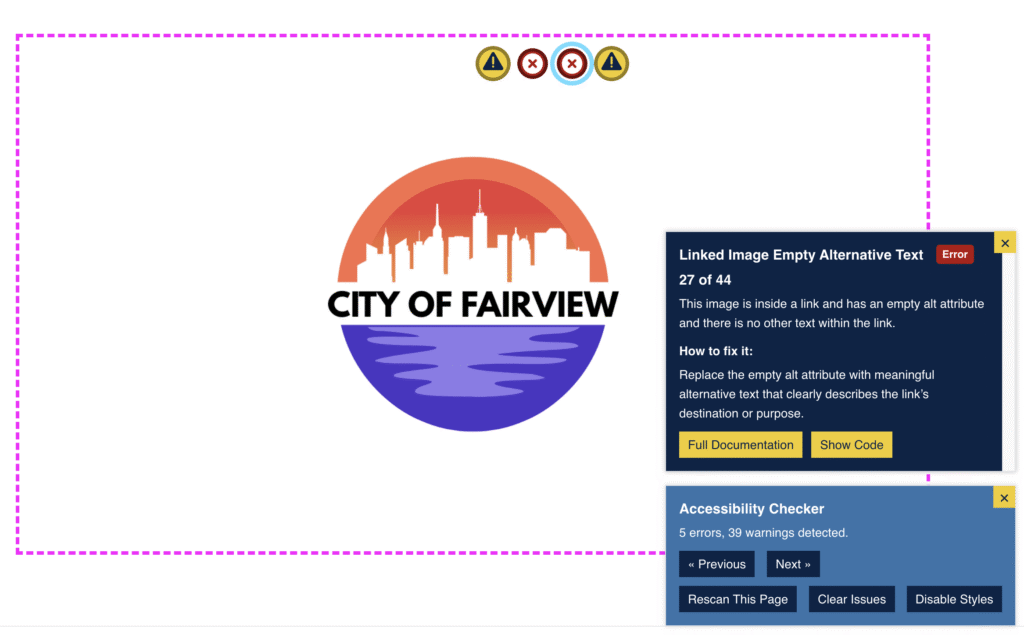
This element now shows two warnings and two errors, and each issue button can be easily clicked with either a mouse or via the keyboard.
“Disable styles” re-enabling improvements
The “disable styles” feature in Accessibility Checker is helpful if you’re trying to find a hidden element. Hidden elements most commonly come up if an issue is in a component like tabs, accordions, or popups, or is not visible on desktop. In that instance, you can disable styles on the site to see an old-school HTML view and quickly locate the element. When you’re done, Accessibility Checker has a button that quickly restores styles so the page looks the way it is intended.
Disabling styles is easy; restoring them as if they never went away is much harder. The order of CSS files matters. This is especially complicated on sites with inline styles, mid-page <style> tags, footer styles, or in some page builders.
Enhancements were made to our re-enabling functions so that Accessibility Checker can better restore styles more reliably. These enhancements help preserve cascade/specificity and reduce odd layout shifts after re-enabling.
The disable/enable styles enhancements are an example of how we continually incorporate feedback and improve the plugins’ features. This was an improvement requested by a user
While working on these enhancements, we noted that closing the front-end highlighter sometimes to reloaded styles even when styles weren’t disabled. This could cause an unnecessary repaint/flicker on lower-power devices, so we addressed that at the same time. Now the front-end highlighter only restores styles when needed (i.e., when styles were actually disabled), saving CPU and avoiding unnecessary page modification.
Fast Track page counts and labels fixed for multiple instances per page
Fast Track, a feature in Accessibility Checker Pro that groups issues by count of instances and number of pages, previously assumed one instance of any issue per page. With the new unique selectors in this release, it properly distinguishes:
- Affected pages: how many pages contain at least one instance.
- Instances total issue occurrences across pages.
This avoids redundant “view page” links and makes the UI clearer, especially for screen reader users. Additionally, it gives you a better picture of what items are truly repeating throughout the site for more easily directing remediation efforts.
Open Issues sorting refinements (plus clearer indicators and reset)
In a recent release, we had made accessibility improvements to the sorting on the Open Issues page. These fixes added more clear visual indicators about how the table was currently sorted and some enhancements to screen reader announcements.
With those changes, the default sorting on the page changed to order by severity (with critical issues at the top) rather than our previous two-level sorting by severity and count.
After getting user feedback, this release restored the default sorting on the open issues page to sort first by severity and then also by count (descending), with all passed items at the bottom of the table.
Here’s an example of how that table looks with default sorting:
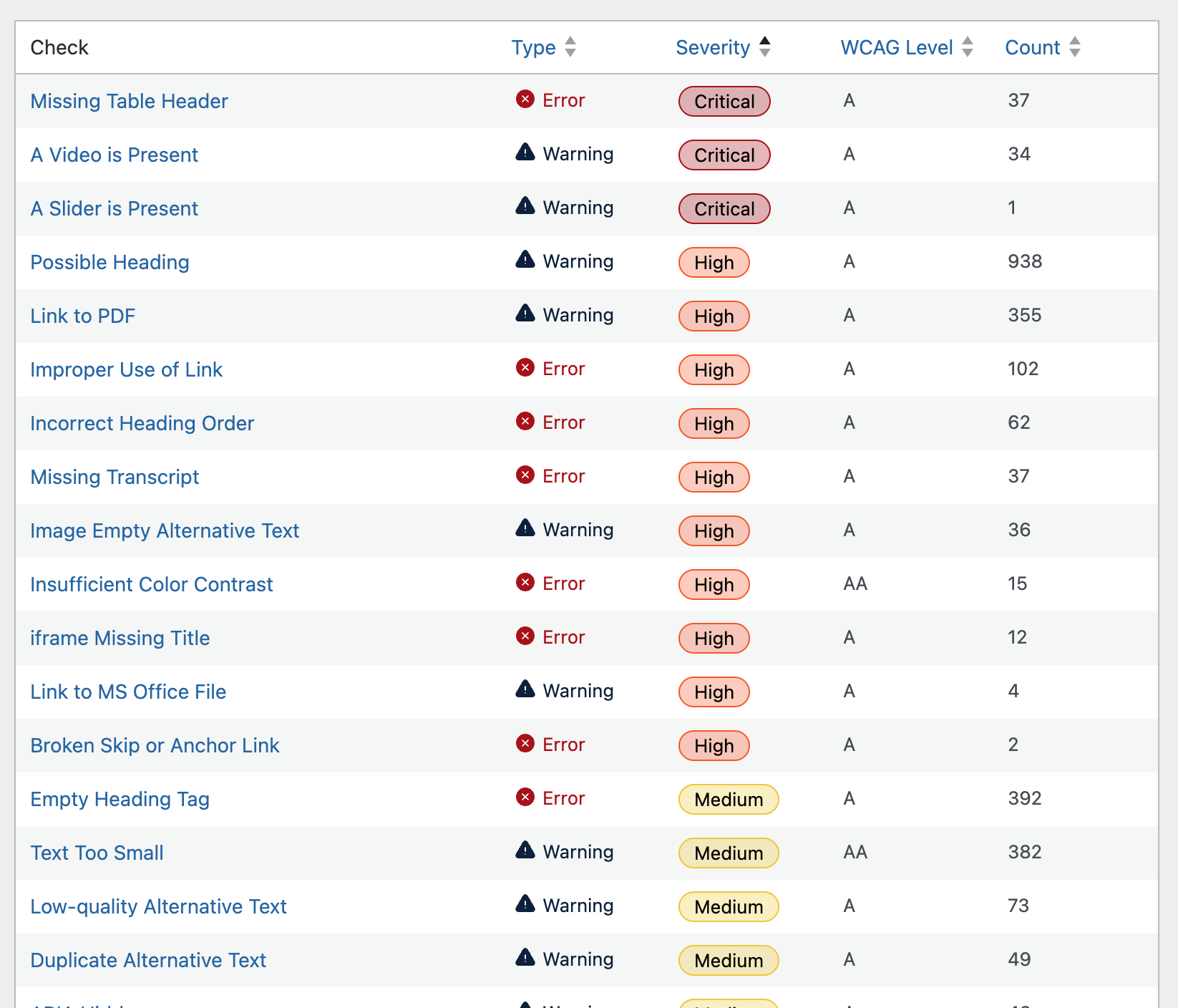
There are still accessible controls that allow you to sort by type, severity, WCAG Level, and count. If you sort and then want to restore back to the default, a restore button can be found above the table (after sorting).
Coming Soon: UI improvements!
We don’t want to tease too much, but there are UI improvements in the works to bring the Accessibility Checker in-editor experience more in line with modern WordPress. The meta box will be getting an overhaul and we’ll be adding a sidebar for the block editor.
Watch for more on that soon.
Join Us for the Next Livestream
The Accessibility Checker Changelog livestream airs on the second and fourth Thursdays of the month, alternating with our plugin release schedule. Each episode will feature demos, technical deep dives, and previews of new features. Follow us on YouTube to get notified when we go live.
To learn more, download Accessibility Checker or upgrade to Pro.
If you have feedback or questions, you can connect with Steve Jones on X or join our Facebook group.
We look forward to sharing more soon in the next changelog.

