
BoardScribe Pro includes a Meeting Types taxonomy that lets you organize board meetings by purpose or format. For example, you might create types for Regular Meetings, Special Meetings, Committee Meetings, or Retreats.
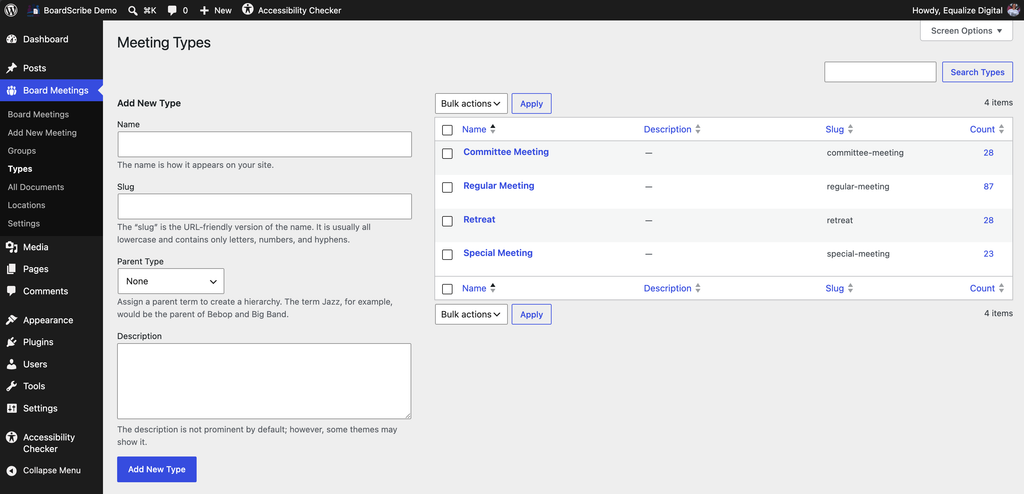
Meeting Types make it easier to organize different kinds of meetings and display only relevant meetings on your website. You can assign meetings to one or more types and filter BoardScribe blocks and shortcodes to display meetings of specific types.
How to Add a Meeting Type
To create a new Meeting Type:
- In the WordPress admin, go to Board Meetings > Types.
- Enter the meeting type name in the Name field. Use a descriptive name that identifies the kind of meeting, such as Regular Meeting or Special Meeting.
- Optionally, enter a slug, select a Parent Type, and add a description.
- Click Add New Type to save the meeting type.
You can also create a Meeting Type directly from the Board Meeting editor.
Meeting Type Fields
The following fields are available when creating or editing a Meeting Type.
Name
Enter the name of the meeting type. This name appears in the WordPress admin and identifies the type when assigning meetings or configuring BoardScribe displays.
Slug
The slug is a URL-friendly version of the meeting type name. WordPress automatically generates a slug if you leave this field blank.
For example, a type named “Special Meeting” might have the slug special-meeting.
Slugs are used when filtering meetings by type in BoardScribe blocks and shortcodes.
Parent Type
Select an existing Meeting Type as the parent if you want to organize meeting types hierarchically.
For example, you might create a Committee Meeting type with Regular Committee Meeting and Special Committee Meeting as child types.
Leave this field set to None if the type does not have a parent.
Description
Enter an optional description of the meeting type. This can help document the purpose of the meeting type in WordPress. As the meeting type taxonomy is not public, this is not displayed by default and is for your internal reference only.
Developer information
- Taxonomy:
edbs_meeting_type - Associated post type:
edbs_meeting - Saved format: WordPress taxonomy terms and term relationships, not post meta.
- Hierarchy: Hierarchical taxonomy supporting parent and child terms.
- Public:
false - Rewrite:
false
Assigning Meetings to Types
After creating Meeting Types, you can assign them to individual Board Meetings.
To assign a meeting to a type:
- Go to Board Meetings in the WordPress admin.
- Select the meeting you want to edit.
- Find the Meeting Types panel in the right sidebar.
- Select the checkbox next to each type you want to assign to the meeting.
- Click Update to save your changes.
A meeting can belong to multiple types. For example, a special meeting of a committee could be assigned to both Special Meeting and Committee Meeting.
You can also create a new type from the Meeting Types panel by clicking Add New Type, entering the name, optionally selecting a parent type, and saving it.
You can assign many existing board meetings to a meeting type at once by importing meetings or using WordPress bulk actions on the meetings screen.
Filtering Meetings by Type
BoardScribe Pro allows you to display meetings of specific types using the Board Meetings block or shortcode. This is useful if you want separate meeting lists for regular meetings, special meetings, or other types.
Filtering with the Board Meetings Block
To filter meetings by type:
- Edit the page or post containing the Board Meetings block.
- Select the Board Meetings block.
- Find the Meeting Types setting in the block sidebar.
- Select one or more meeting types to include.
- Save or update the page.
The block displays meetings assigned to the selected types while still respecting other settings, such as date ranges, pagination, and column visibility.
Filtering with a Shortcode
You can also filter meetings by type using the meeting_type shortcode attribute.
For example, to display only Regular Meetings:
[edbs_boardscribe meeting_type="regular-meeting"]
To include multiple meeting types, separate the type slugs with commas:
[edbs_boardscribe meeting_type="regular-meeting,special-meeting"]
This displays meetings assigned to either type. Meetings assigned to both types are not duplicated.
You can combine the Meeting Types filter with other shortcode attributes.
For example, to display Special Meetings from 2026:
[edbs_boardscribe meeting_type="special-meeting" included_years="2026"]
If you do not want to write shortcode attributes manually, use the Shortcode Builder to select meeting types and generate the shortcode.
Developer information
- Shortcode attribute:
meeting_type - REST query parameter:
meeting_type - Accepted format: One or more comma-separated Meeting Type slugs.
- Filtering behavior: Meetings matching any selected type are included.
How Meeting Types Are Displayed
Meeting Types are a non-public WordPress taxonomy. This means individual meeting types do not have public archive pages or URLs.
Instead, types are used to organize Board Meeting posts and filter which meetings appear in BoardScribe blocks and shortcodes.
Important: Creating a Meeting Type does not automatically create a page displaying meetings of that type. To display meetings for a specific type, add a BoardScribe block or shortcode to a page and configure it to filter by that type.
How to Edit an Existing Meeting Type
To update a type:
- Go to Board Meetings > Types in the WordPress admin.
- Find the meeting type you want to edit.
- Click Edit under the type name.
- Update the name, slug, parent type, or description as needed.
- Click Update to save your changes.
Changing a meeting type’s name does not remove its existing meeting assignments.
If you change the slug, review any BoardScribe shortcodes that reference the old slug. You may need to update those shortcodes so they continue displaying the correct meetings.
How to Delete a Meeting Type
To delete a meeting type, go to Board Meetings > Types, find the type you want to remove, and click Delete.
Deleting a Meeting Type removes the type and its associations with meetings. It does not delete the Board Meeting posts assigned to that type.
Before deleting a type, check whether it is used in any BoardScribe blocks or shortcodes. Displays that filter exclusively by a deleted type may no longer show any meetings. If you want to reorganize meetings without deleting their records, consider assigning them to another type before deleting the old one.
Meeting Types vs. Meeting Groups
BoardScribe Pro includes both Meeting Types and Meeting Groups. These taxonomies serve different purposes.
Meeting Types identify the kind of meeting being held. Examples include Regular Meeting, Special Meeting, Committee Meeting, and Retreat.
Meeting Groups identify the board, committee, or organizational body responsible for a meeting. Examples include Board of Directors, Finance Committee, and Marketing Committee.
You can assign both a Meeting Type and a Meeting Group to the same meeting.
For example, a meeting could have:
- Meeting Type: Regular Meeting
- Meeting Group: Marketing Committee
Using both taxonomies lets you organize meetings by meeting type and the group responsible for it.