
The Board Meetings block allows you to display BoardScribe meetings in the WordPress block editor without writing a shortcode. It displays a paginated, accessible table of board meetings with links to available agendas and minutes.
The block includes settings to filter which meetings appear, format dates, change column and link labels, hide columns, and add custom CSS.
Adding the Board Meetings Block
To add the block:
- Edit the page or post where you want to display your meetings.
- Click the Block Inserter (+) button in the top left corner of the editor.
- Search for Board Meetings.
- Select the Board Meetings block.
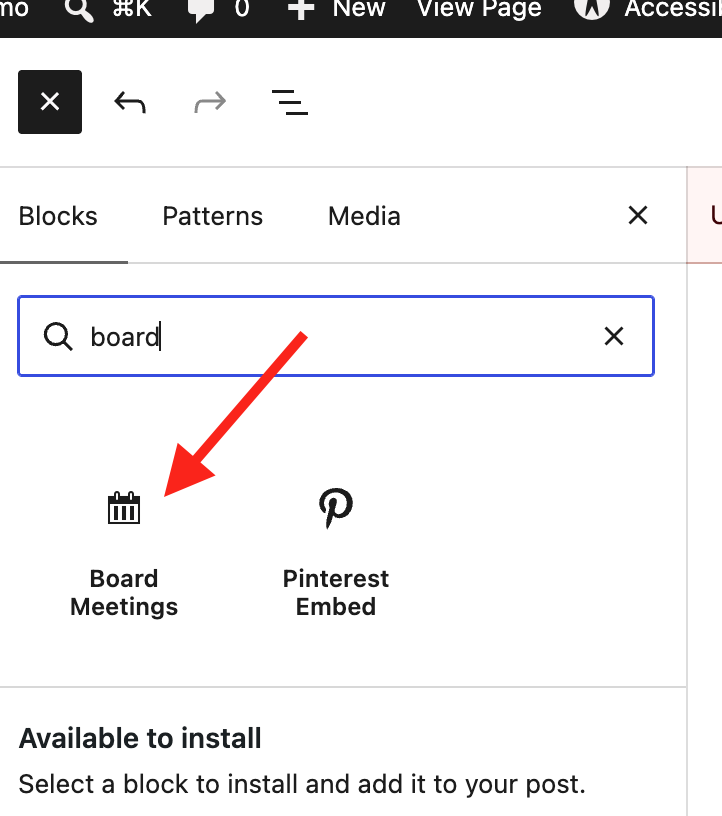
After you add the block, select it and use the block settings in the right sidebar to configure the meeting display.
Display Settings
Display Settings control which meetings are displayed and how meeting dates and columns are formatted.
Display Template
Select the template used to display your meetings.
Default: Table
The free version of BoardScribe includes the standard table template. Additional templates may available in the future.
Show All Meetings
Enable Show all meetings to display all meetings that match the other filters in a single request.
Default: Off
When enabled, the normal per-page limit is ignored, so all matching meetings are displayed without pagination in a single table.
Leave this setting off if you have many meetings and want visitors to navigate them using pagination.
Included Years
Limits the meeting list to one or more calendar years.
Default: All years
Format: Comma-separated four-digit years
For example:
2025,2026Leaving the field blank displays meetings from all years.
If you enter a Start Date or End Date, those settings take priority over Included Years.
Start Date
Displays only meetings held on or after the specified date.
Default: No start-date restriction
Use the date picker or enter a valid date in this format: MM/DD/YYYY.
For example, setting 07/01/2026 limits the results to meetings on or after July 1, 2026.
Start Date is especially useful for displaying meetings from a fiscal year, school year, or another period that does not match the calendar year.
If Start Date or End Date is set, the date range takes priority over Included Years.
End Date
Displays only meetings held on or before the specified date.
Default: No end-date restriction
For example, you could set:
- Start Date: July 1, 2026
- End Date: June 30, 2027
This would display meetings from the July-to-June fiscal or school year.
Meetings Per Page
When Show all meetings is disabled, use the per-page setting to control how many meetings appear before pagination is added.
Default: 20 meetings
Enter a positive whole number, such as 10, 20, or 50.
If Show all meetings is enabled, this setting is ignored.
Held Date Format
Controls how dates are displayed for meetings that have a specific held date.
Default:
l, F j, YThe default displays a date like: Wednesday, August 26, 2026.
This field uses standard PHP date() formatting. Common formatting characters include:
| Character | Meaning | Example |
|---|---|---|
l | Full weekday | Wednesday |
F | Full month | August |
M | Abbreviated month | Aug |
j | Day without leading zero | 6 |
d | Day with leading zero | 06 |
Y | Four-digit year | 2026 |
y | Two-digit year | 26 |
The default format uses a fully written weekday and month to make dates easier to understand, including when read by screen readers. However, you can change this to match your preferred format. See the PHP manual for more available formats.
Not Held Date Format
Controls the date format used when a meeting has been marked as canceled. You can set this to the same format if you want to show the full date when it would have been held, or you can have a more generic date format such as “Month Year” if preferred.
Default: F Y
The default produces dates such as: August 2026.
For a shorter month, you could enter M Y, which displays: Aug 2026.
Force All Columns to the Same Width
Enable Force all columns to the same width to give each displayed table column an equal width.
Default: Off
This can help create more consistent alignment and vertical rhythm across rows, particularly when the content in individual columns varies significantly in length.
Column Labels
Expand Column Labels to customize the headings used for the meeting table.
You can provide custom labels for:
- Title
- Date
- Agenda
- Minutes
Leave a field blank to use BoardScribe’s default label.
For example, you could enter:
| Setting | Custom Label |
| Title | Meeting Name |
| Date | Held On |
| Agenda | Agenda Document |
| Minutes | Approved Minutes |
These settings correspond to BoardScribe’s customizable title, date, agenda, and minutes labels.
Customizing the labels can be useful if your organization uses different terminology for meetings or documents, or if you want the labels in a different language.
Link Labels
Expand Link Labels to customize the visible text used for links to agenda and minutes documents.
Agenda Link Label
Changes the text used for agenda links.
Minutes Link Label
Changes the text used for minutes links.
Important: If editing this link text, choose labels that clearly describe the link’s destination or purpose. Avoid vague text such as “Click here” or “Read more.”
Hide Columns
Expand Hide Columns to remove columns that you do not want displayed.
You can hide any of the following:
- Title
- Date
- Agenda
- Minutes
Default: All columns are shown.
For example, if you only want to display meeting titles and dates, enable Agenda and Minutes under Hide Columns. Or, if you only want to display dates and meeting documents, you could hide the Title column.
Each column can be controlled independently.
Advanced
Expand Advanced for additional options related to custom styling.
Additional CSS Class(es)
Use Additional CSS Class(es) to add one or more custom CSS classes to the Board Meetings table. This allows you to add custom styles for the block.
Separate multiple classes with spaces.
For example:
meeting-table compact-tableYou can then target these classes in your site’s stylesheet:
.meeting-table {
    max-width: 1200px;
}
Enter only the class names. Do not include a period (.) before the class name.
BoardScribe sanitizes the value as a space-separated list of HTML class names before applying it.
Additional CSS
Depending on your theme compatibility with the block editor, you may also see an “Additional CSS” option to add CSS that applies specifically to the current Board Meetings block.
Enter CSS properties only. You do not need to include a CSS selector.
For example:
font-size: 1.1rem;This is useful when you want to make a small visual adjustment to one Board Meetings block without adding CSS elsewhere on your website. However, it may be difficult to target specific parts of the block, as WordPress doesn’t allow you to define selectors here.
Using Multiple Board Meetings Blocks
You can add more than one Board Meetings block to the same page. Each block has its own settings, allowing you to create different meeting displays.
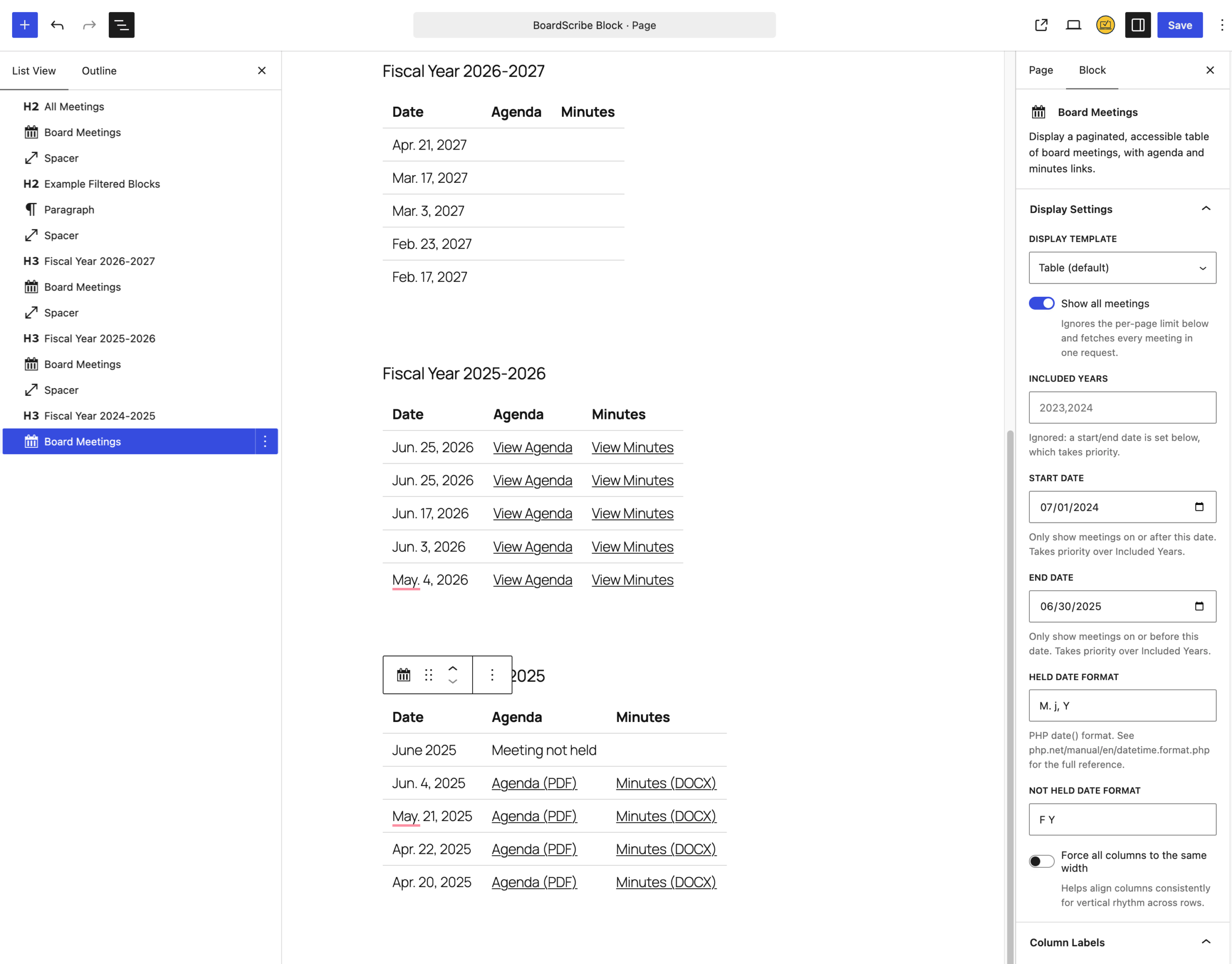
When adding multiple blocks to a page, we recommend including headings before them so website visitors understand what each table represents.
Block or Shortcode?
The Board Meetings block and [edbs_boardscribe] shortcode provide different ways to configure the same BoardScribe meeting display.
Use the Board Meetings block when you’re working in the WordPress block editor and want to configure the display using visual controls.
Use the shortcode when you need to place a meeting list somewhere that accepts shortcodes, when you’re using a page builder that doesn’t support the block, or if you are coding a BoardScribe output in your theme.
BoardScribe’s shared field registry provides the core shortcode and block settings, keeping the available options and their defaults consistent across display methods. The two approaches have identical controls and output.