
BoardScribe uses a Board Meetings post type to manage meeting dates, agendas, and minutes. Create a Board Meeting post for each meeting your organization needs to publish.
How to add a Board Meeting
To create a meeting:
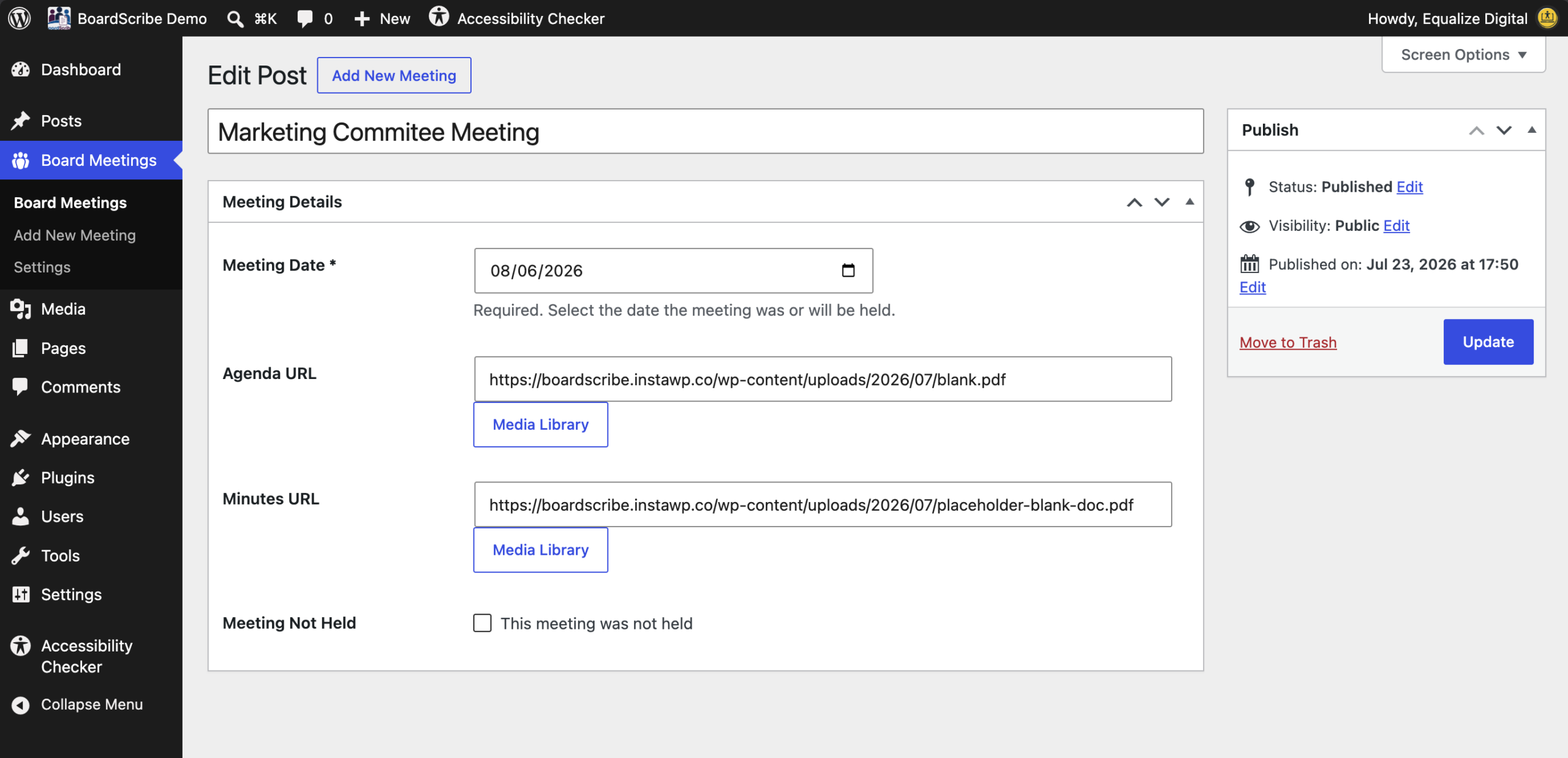
- In the WordPress admin, go to Board Meetings > Add New Meeting.
- Enter the meeting name in the title field. Use a descriptive name that helps visitors identify the meeting, such as Marketing Committee Meeting or Board of Directors Meeting. You may want to add the date or month and year in the title.
- Complete the fields in the Meeting Details section, as applicable.
- Click Publish to make the meeting visible in BoardScribe blocks or shortcodes.
Meeting details fields
The following fields let you add information for each meeting.
Meeting Date
Enter the date the meeting was or will be held. This field is required to publish the post, as the date is necessary to order meetings in BoardScribe blocks and shortcodes.
Developer information
- Meta field:
edbs_meeting_date - Saved format:
YYYY-MM-DD
Agenda URL
Enter the meeting agenda URL. You can link directly to any URL or click the “Media Library” button to choose an existing agenda from the WordPress Media Library or upload a new file.
This field is optional. You can publish future meetings to show in BoardScribe blocks or shortcodes before an agenda is available, then come back later to add the agenda.
Developer information
- Meta field:
edbs_agenda_url - Saved format: any valid URL, beginning with
https://orhttp://
Minutes URL
Enter the URL of the approved meeting minutes. You can link directly to any URL or click the “Media Library” button to choose an minutes document from the WordPress Media Library or upload a new file.
You can leave the Minutes URL empty when minutes are not yet available. Edit the meeting post later to add the minutes once they are ready to be published.
Developer information
- Meta field:
edbs_minutes_url - Saved format: any valid URL, beginning with
https://orhttp://
Meeting Not Held
The “This meeting was not held” checkbox indicates when a scheduled meeting did not take place.
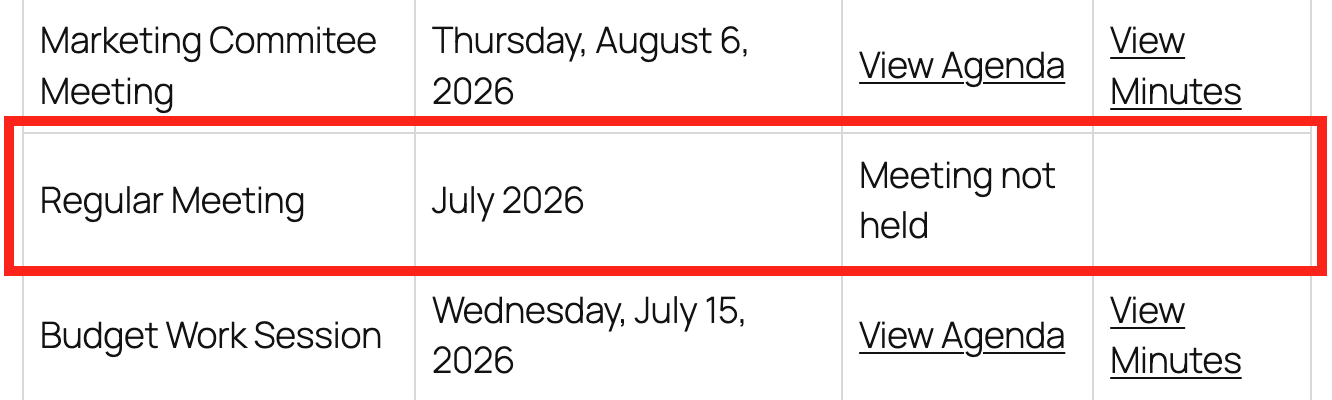
Use this instead of deleting the meeting post if you want the meeting to remain in BoardScribe for public transparency, while indicating why agendas and minutes are not published.
Meetings marked as not held can use a different date format in the block/shortcode output and will show a “Meeting not held” message instead of the agenda.
Developer information
- Meta field:
edbs_meeting_not_held - Saved format: checkbox type; accepts
1ortrue
How board meeting posts are displayed
Board Meetings are stored as a non-public post type in WordPress. This means individual Board Meeting posts do not have their own public URLs and cannot be viewed directly on the front end of your website.
Instead, BoardScribe displays meeting information using the BoardScribe block or shortcode. The block and shortcode pull information from your Board Meeting posts and display it in a table on a page of your choosing.
Important: Creating or publishing a Board Meeting post does not automatically create a public page for that meeting. To make meeting information available to website visitors, you must add a BoardScribe block or shortcode to a public page.
How to Edit an Existing Meeting
To update a meeting:
- Go to Board Meetings in the WordPress admin.
- Select the meeting you want to edit.
- Update the meeting details as needed.
- Click the Update button to save your changes.
If you add minutes after a meeting, replace an agenda or minutes document, correct the meeting date, or mark a scheduled meeting as not held, it will automatically update on any pages that have a BoardScribe block or shortcode. If you are not seeing changes immediately on those pages or don’t see them while logged out, try clearing your website’s cache.
How to Delete a Meeting
To remove a meeting, open it for editing and click “Move to Trash” in the Publish panel. You can also delete meetings using “bulk actions” on the main Board Meetings admin page.
Only delete a meeting if it should no longer appear in your organization’s meeting records. If a scheduled meeting was canceled or otherwise did not occur, consider using the checkbox to indicate the meeting was not held instead, so the originally scheduled meeting still has a record.