
• Skip to main content
  • Skip to primary sidebar
  • Skip to footer
Equalize Digital Home

Equalize Digital

Website Accessibility Consulting, Training, and Development

  • My Account
  • Support
  • Checkout
  • Software
    • Accessibility Checker
      • Features: Accessibility Checker
      • Documentation: Accessibility Checker
      • Buy Accessibility Checker
      • Start Free
    • ArchiveWP
      • Documentation: ArchiveWP
      • Buy ArchiveWP
      • Demo All Plugins
  • Services
    • Accessibility Audits
    • User Testing
    • Accessibility Remediation
    • VPAT & ACR Preparation
    • Accessibility Monitoring
    • Web Accessibility Training
    • Accessibility for Agencies
  • Company
    • About Us
    • Our Team
    • Industry Expertise
    • Accessibility Statement
    • Contact Sales
    • Become An Affiliate
  • Learn
    • Online Courses
    • Accessibility Meetup
    • Articles & Resources
    • Accessibility Craft Podcast
    • Upcoming Events
    • Office Hours
    • Custom Accessibility Training
    • Global Accessibility Awareness Day
  • Contact Sales
  • My Account
  • Support
  • Checkout
Home / ArchiveWP / Documentation / How to Control Which Taxonomy Terms Persist when Posts are Archived

How to Control Which Taxonomy Terms Persist when Posts are Archived

ArchiveWP has a setting that allows taxonomy terms to stay attached to posts when they are archived. When enabled, terms are copied to the Archive Categories taxonomy as posts are archived. This makes them available to filter content on the archive page. Learn more in ArchiveWP settings documentation.

Maintaining taxonomy terms during migration saves content managers a lot of time, but in some cases, you only want specific taxonomy terms to become archive categories, not all terms. This guide explains how you can include or exclude individual terms from being migrated when posts are archived.

Why Not Migrate All Terms

The number one reason why you might not want to migrate all taxonomy terms into Archive Categories is bloat.

Archive categories are one of the ways that people search and filter your archived content. If there are too many terms available for filtering, it may be overwhelming or lead to unhelpful results. Additionally, you want filters that return a good number of results. If a filter only returns one or two posts, it’s not helpful.

If you have a website with hundreds of tags or categories that are redundant and don’t return unique content, we recommend excluding those terms from migrating.

Include/Exclude Terms from Migration

The settings for including or excluding a taxonomy term when posts are archived are managed directly on the term itself on the taxonomy edit screen in the WordPress admin.
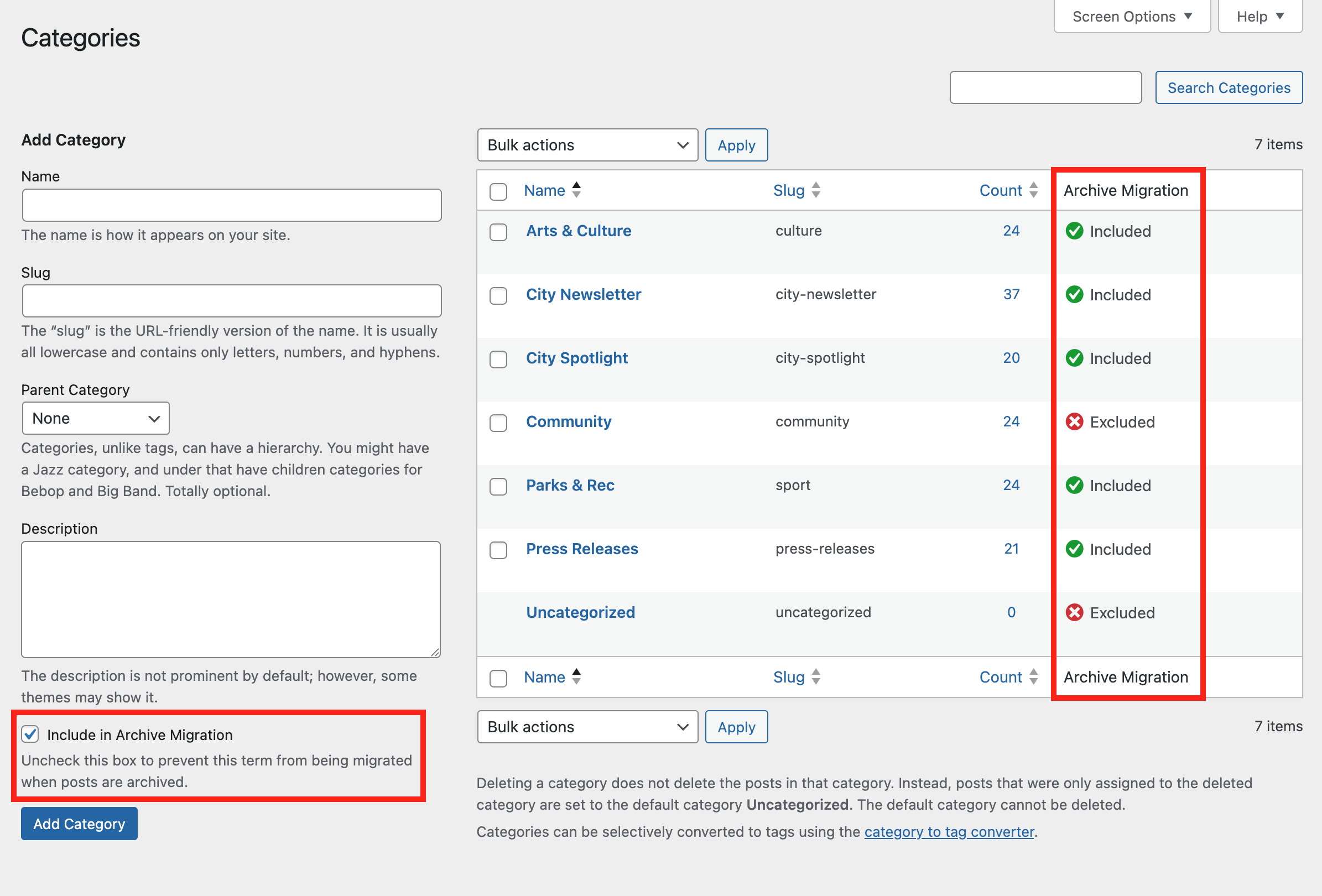
Post Categories edit screen highlighting that there is an Include in Archive Migration setting saved on every taxonomy term.

By default if the “Copy taxonomy terms to Archive Categories when archiving posts” setting is enabled, all terms are included. If you want to exclude terms, you can do that one-by-one or in bulk.

How to Exclude an Individual Term

There are a few ways to exclude an individual term.

Button in the Terms Table

As shown in the image above, ArchiveWP adds a column to the terms table on the taxonomy edit screen in the WordPress admin. In this example, we’re looking at the Categories screen for posts, which can be reached by going to [yourwebsite.com]/wp-admin/edit-tags.php?taxonomy=category.

The added column has a heading of ‘Archive Migration,’ and each row in the column displays visible text indicating whether the element is included or excluded. This text is a button.

Click the text in the Archive Migration column to toggle the status from included to excluded and vice versa.

Term Edit Screen

You can also change the status when editing an individual term.

Edit screen for a category showing the Archive Migration setting which is a checkbox labelled "Include in Archive Migration."

Click “Edit” on an individual term and on the edit screen, check or uncheck the box labelled “Include in Archive Migration” to change the setting as needed.

This same checkbox is available when creating terms and can be set at the time of term creation.

How to Exclude Terms in Bulk

If you have many terms that you want to exclude at once, you can do that with a bulk action on the taxonomy page in the WordPress admin.
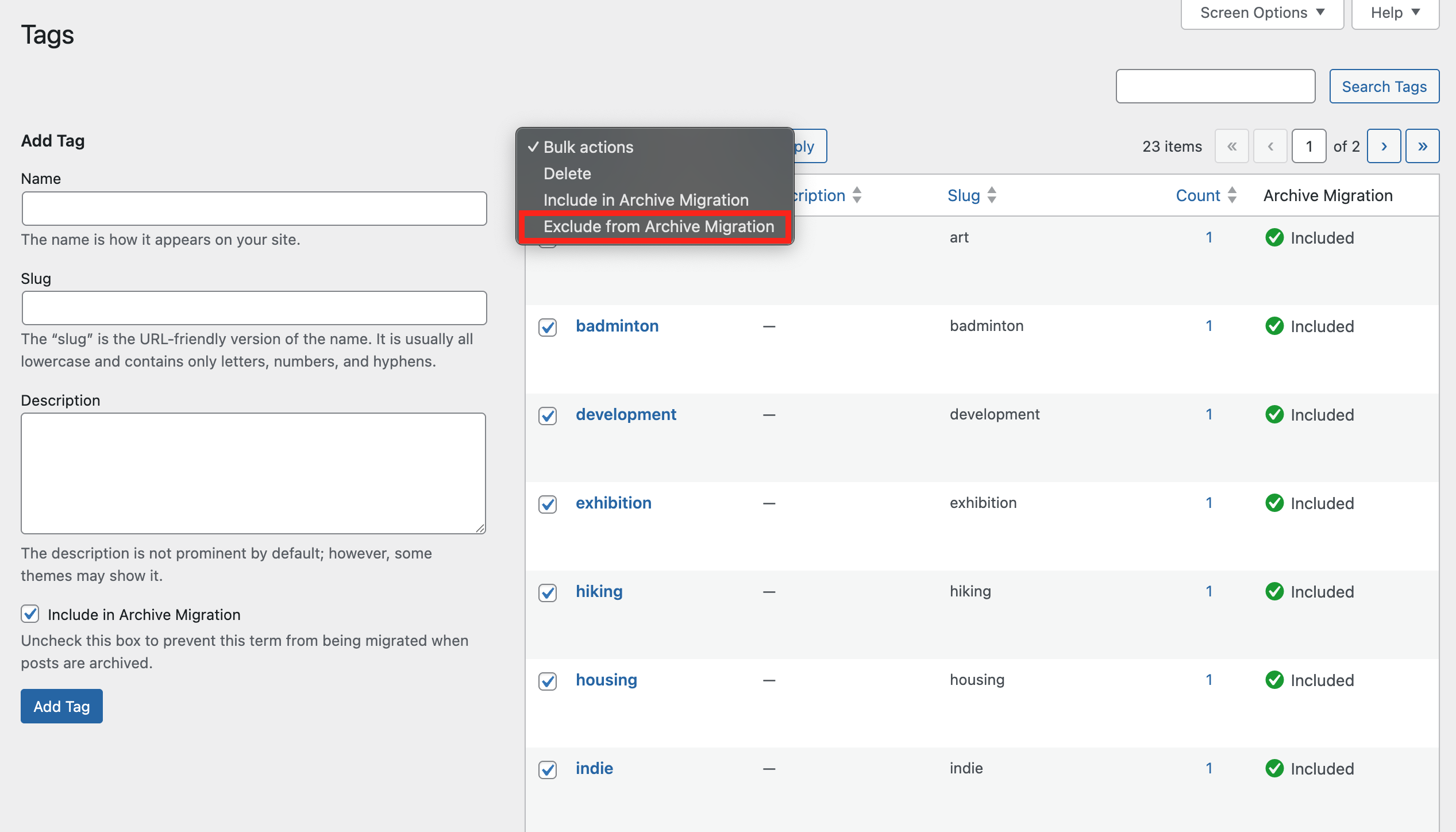
A box highlighting the "Exclude from Archive Migration" bulk action on the Tags screen in the WordPress admin.
  1. Go to the taxonomy page for the terms you want to exclude.
  2. Check the select box next to the desired terms or select them all.
  3. In the Bulk Actions dropdown above the Terms table, select “Exclude from Archive Migration.”
  4. Click the Apply button.
  5. A success message will appear telling you how many terms have been excluded.

Primary Sidebar

ArchiveWP: Take control of your legacy content. Buy ArchiveWP Today.

Starter guide

  • Downloading and Installing ArchiveWP
  • How to Activate Your License Key
  • First-Time Configuration
  • ArchiveWP Settings
  • ArchiveWP Blocks
  • ArchiveWP Shortcodes

General Usage

  • How to Archive a Post
  • How to Archive Posts in Bulk
  • How to Control Which Taxonomy Terms Persist when Posts are Archived
  • How to Restore Archived Posts

FAQs

  • Is ArchiveWP accessible?
  • What languages is ArchiveWP available in?

Developer Docs

  • ArchiveWP Developer Guide
  • ArchiveWP Hooks Reference
  • ArchiveWP WP-CLI Commands

Easier, Faster Accessibility Testing

Equalize Digital Accessibility Checker gives you real-time accessibility feedback in the WordPress editor. Learn accessibility and make fixes earlier in the dev and content creation process. Full-site accessibility scanning without the per page fees.

Get Accessibility Checker

Footer

Equalize Digital Websites for Everyone

Your WordPress accessibility team. Accessibility plugins, rapid audits, and consulting to help you make your website usable by people of all abilities.

  • Facebook
  • GitHub
  • LinkedIn
  • YouTube

Company

  • About Equalize Digital
  • WordPress Accessibility Meetup
  • Accessibility Statement
  • Blog
  • Events
  • Contact Us

Services

  • Accessibility Audits
  • User Testing
  • Remediation
  • Ongoing Monitoring
  • VPAT & ACR Preparation
  • Accessibility Training
  • For Agencies
  • Website Development

Accessibility Checker

  • Features
  • Pricing
  • Documentation
  • How to Get Support
  • My Account
  • Affiliate Dashboard
  • Become an Affiliate

© 2026 Equalize Digital · Privacy Policy · Terms of Service · Software Terms & Refund Policy

International Association of Accessibility Professionals member

Small Business Accessibility Playbook

Learn how to make your website accessible.

Free Ebook: The Small Business Accessibility Playbook for WordPress by Equalize Digital and WP Buffs.

Get a copy of the free e-book via email.

This field is for validation purposes and should be left unchanged.
Name(Required)
This field is hidden when viewing the form
Privacy Policy(Required)
This field is hidden when viewing the form