
Archiving a post is as easy as clicking a button! This guide explains how to move an individual post into the content archive with instructions for the block editor, classic editor, and page builders.
Posts can only be archived if the post type is set to be archived in ArchiveWP settings. Read more about ArchiveWP settings.
Archiving Posts in the Block Editor
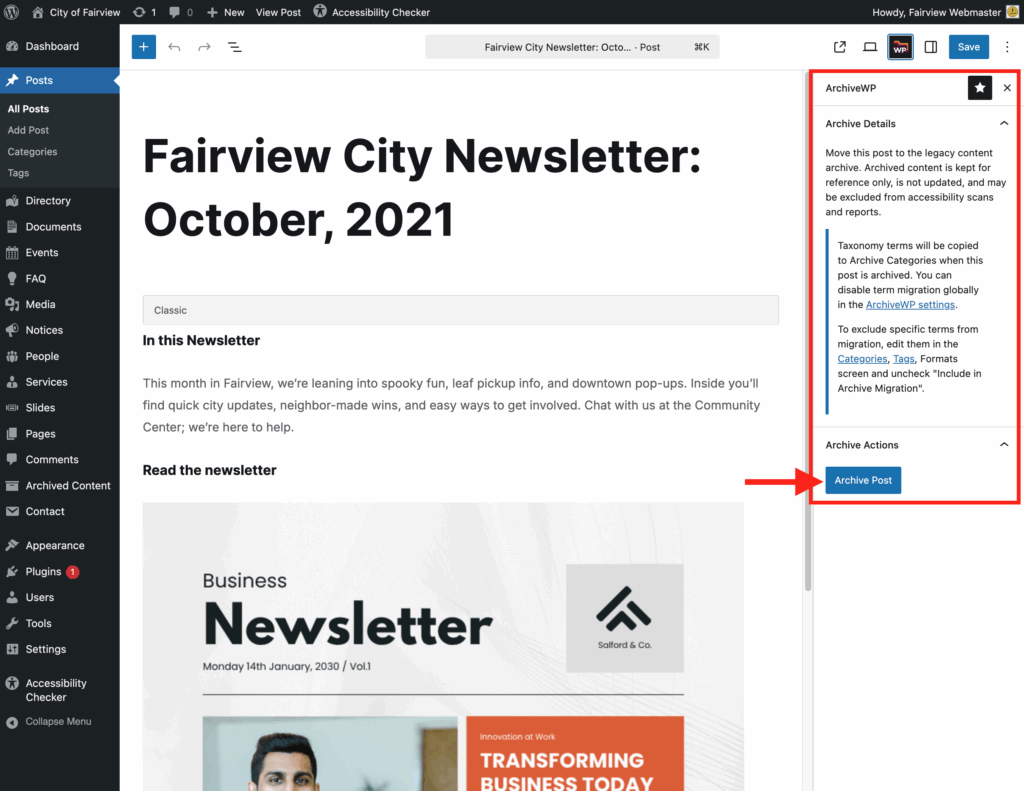
To archive a post in the WordPress block editor, open the ArchiveWP sidebar and click the “Archive Post” button.
Show/Hide Helper Text from Image
The ArchiveWP sidebar and metabox have the following information above the Archive Post button:
Move this post to the legacy content archive. Archived content is kept for reference only, is not updated, and may be excluded from accessibility scans and reports.
Information notice: Taxonomy terms will be copied to Archive Categories when this post is archived. You can disable term migration globally in the ArchiveWP settings.
To exclude specific terms from migration, edit them in the Categories, Tags, Formats screen and uncheck “Include in Archive Migration”.
How to Find the ArchiveWP Sidebar
The ArchiveWP sidebar can be reached in several ways:
- Click the ArchiveWP button in the “Editor top bar” landmark region. This button resembles a file folder with ‘WP’ on it and is located near the Save button, alongside other pinned items.

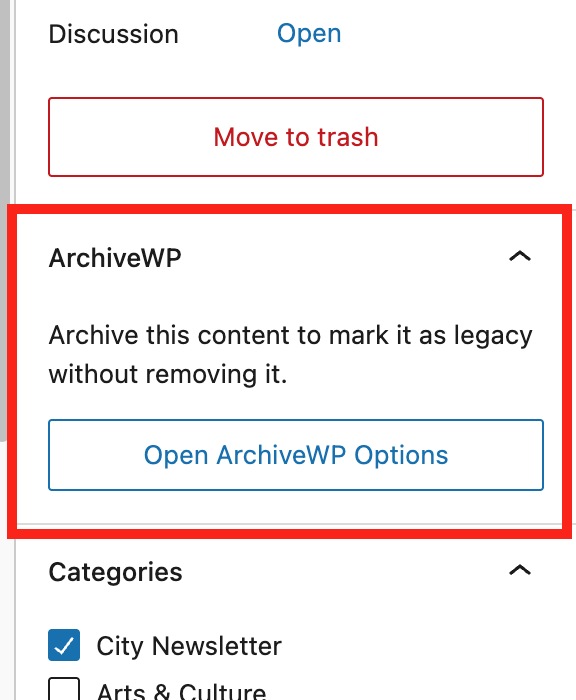
- Click the “Open ArchiveWP Options” button in the ArchiveWP editor sidebar panel.


Detailed Instructions
Once you have located the ArchiveWP sidebar, all you have to do to archive the post is:
- Click the Archive Post button.
- A browser dialog will appear that says, “Are you sure you want to archive this post?”
- In the dialog, click the OK button.
- A second browser dialog will appear saying “Post archived successfully.”
- Click OK in the success dialog.
- The post edit page will reload, and the post will now be in the Archived Content post type.
Archiving Posts in the Classic Editor
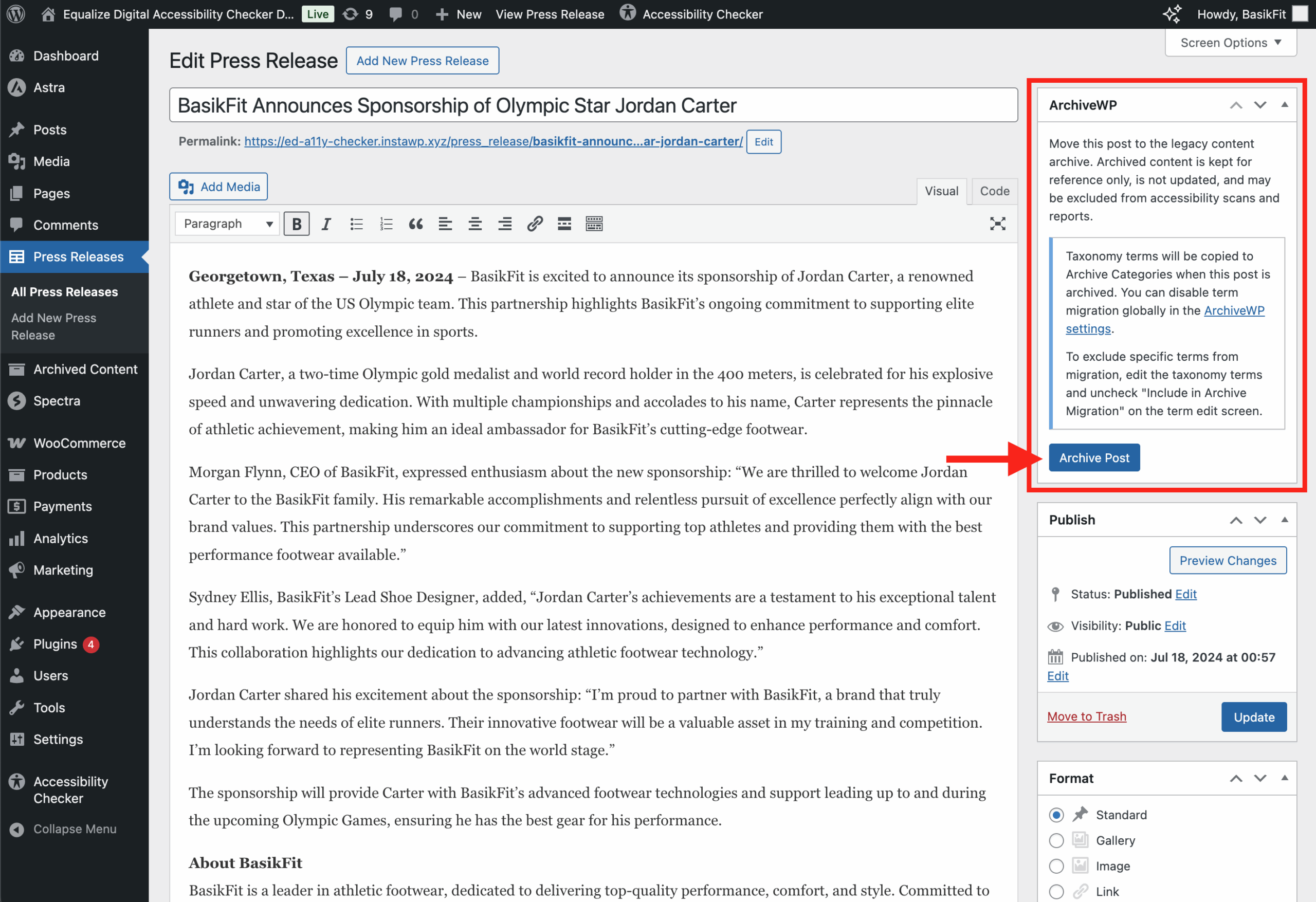
To archive a post built with the classic editor, look for the ArchiveWP metabox and click the “Archive Post” button.
How to Find the ArchiveWP Metabox
The ArchiveWP metabox is typically located at the top of the right sidebar on the edit screen in the classic editor; however, individual users can customize the position of these boxes or collapse them, so you may find it elsewhere on the page.
If you don’t see the ArchiveWP metabox at all, click the Screen Options button in the top right corner of the editor and confirm that the option for ArchiveWP is checked. If the option is unchecked, as shown in this example, the metabox will be hidden.
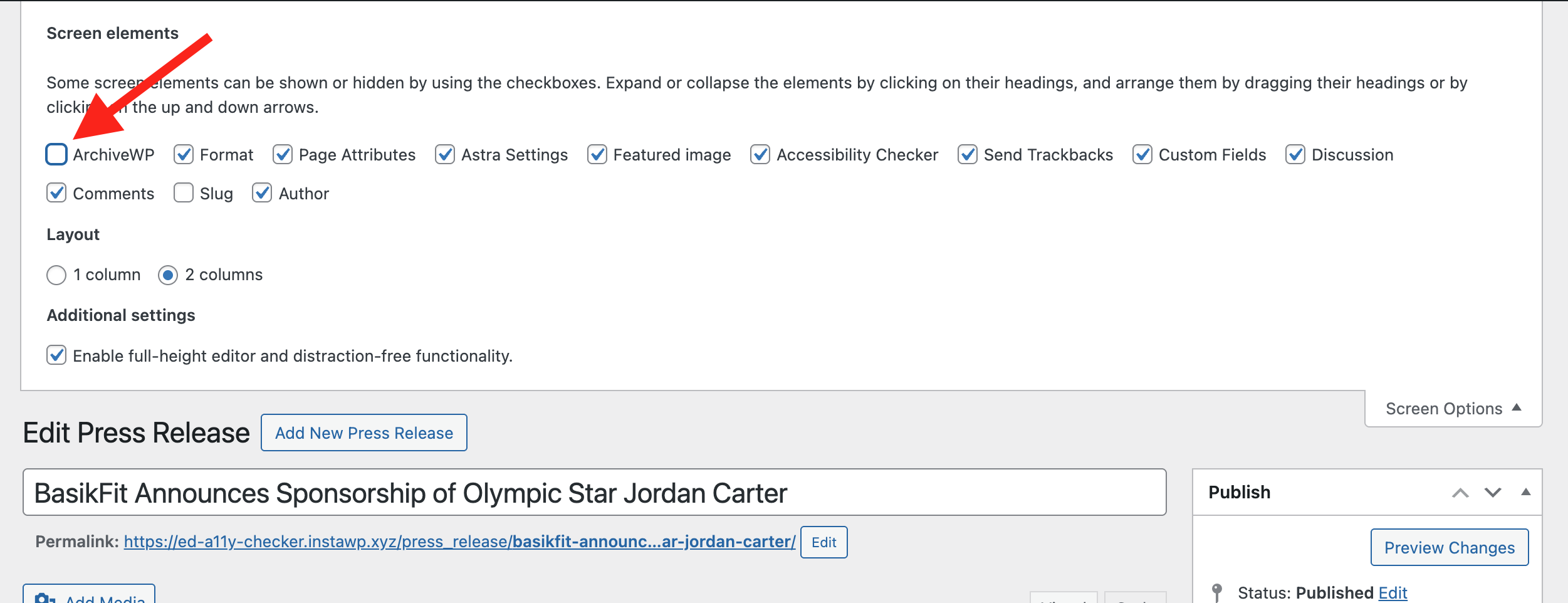
Checking the ArchiveWP screen option will make the metabox visible again.
Detailed Instructions
Once you have located the ArchiveWP metabox, all you have to do to archive the post is:
- Click the Archive Post button.
- A browser dialog will appear that says, “Are you sure you want to archive this post?”
- In the dialog, click the OK button.
- A second browser dialog will appear saying “Post archived successfully.”
- Click OK in the success dialog.
- The post edit page will reload, and the post will now be in the Archived Content post type.
Editor Experience May Change
A key thing to note when archiving content that uses the classic editor is that after archiving, the content may utilize the default block editor.
This switch from the classic editor to the block editor will occur on any sites that are not forcing all post types to use the classic editor. If your website is forcing all post types to use the classic editor, then archived posts will also use the classic editor. But if your website is mixed classic and block editor, archived posts will use the block editor by default.
Here is an example of the same classic editor press release post once it has been moved into the content archive:
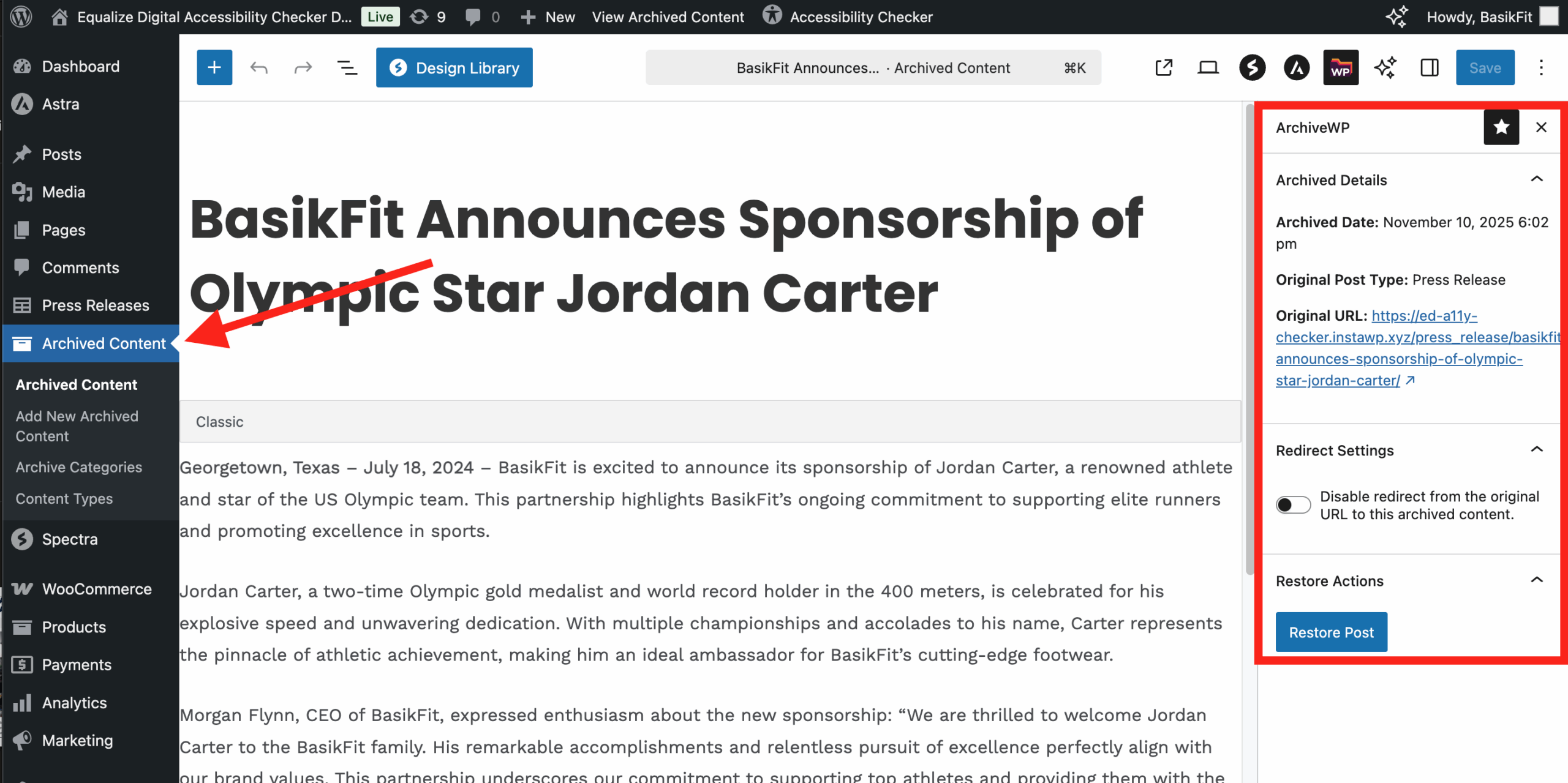
When this example post moved post types, it switched from the classic editor to a classic block in the block editor.
Archiving Posts Built with Page Builders
ArchiveWP does not currently have archive integrations built for specific page builders. If you want to archive a post that was built with a page builder like Elementor, you’ll need to archive the post in the WordPress editor using the instructions above.
You may need to enable your page builder for the ‘Archived Content’ post type to ensure that page builder posts retain their content and formatting when archived.
