
ArchiveWP includes three blocks that are used to build the Archived Content page:
- ArchiveWP Disclaimer
- ArchiveWP Filters
- ArchiveWP Loop
These blocks can also be used in templates built with the Full Site Editor.
ArchiveWP Disclaimer
Functionality
The Disclaimer block displays the disclaimer text for archived content. By default, it displays the disclaimer as configured in ArchiveWP settings; however, there is a setting that allows the text to be edited within the block.
Example Screenshot
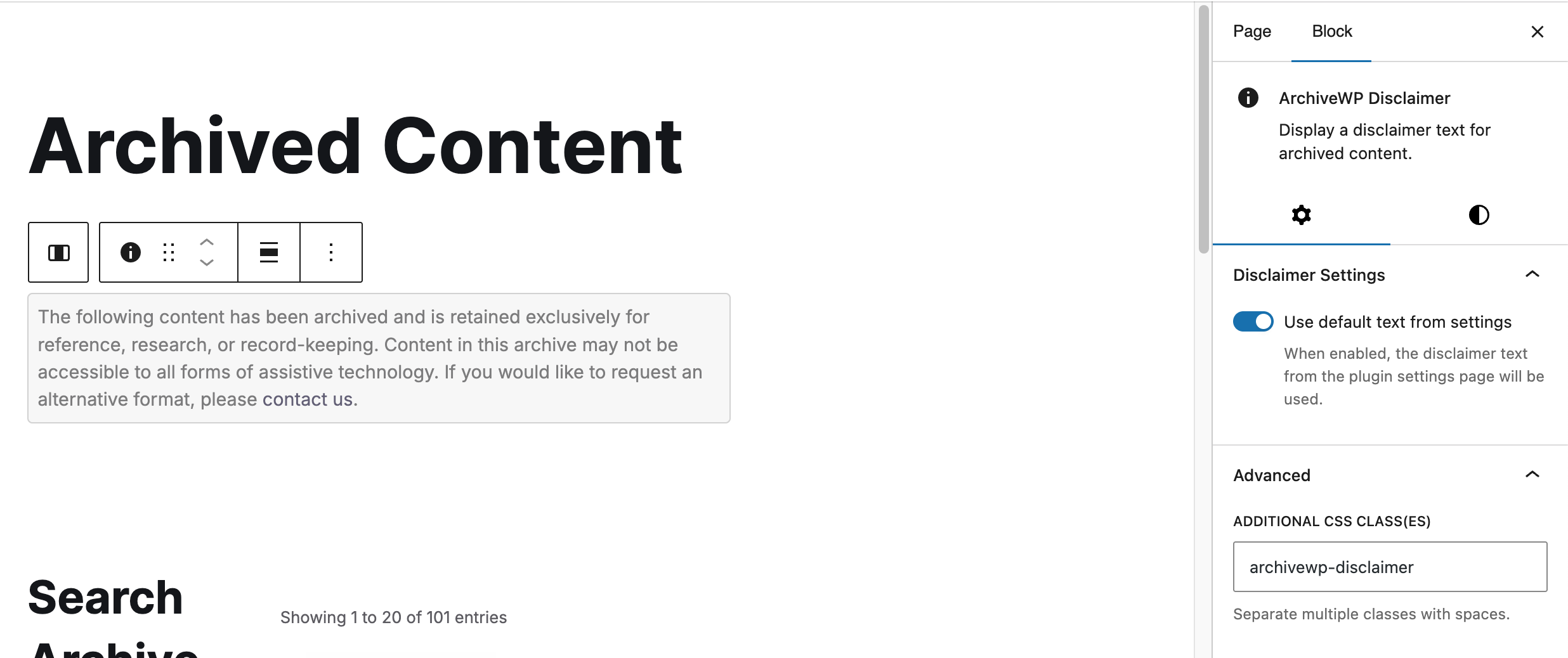
Available Settings
This block has minimal settings and configuration options:
- Settings Tab
- Use default text from settings: Enabled by default. When enabled, the disclaimer text from the plugin settings page will be used. When disabled, you can edit the text directly within the block.
- Additional CSS Class(es): By default, the
archivewp-disclaimerclass is set on the block. This is what assigns the light gray background, border, and padding to make the disclaimer distinct from a normal paragraph. To style the disclaimer in the block editor, remove this class.
- Styles Tab
- Color (Text and Background): Allows the background and text colors to be customized.
- Typography: Allows the font size for the disclaimer text to be increased or decreased.
Output Example
Here’s example code showing the block’s front-end output:
<div class="archive-disclaimer archivewp-disclaimer wp-block-archivewp-archive-disclaimer">
	<div id="edawp-disclaimer-1" class="archive-disclaimer edawp-disclaimer-renderer">
		<div class="edawp-disclaimer-content">
			[Your custom text here.]
		</div>
	</div>
</div>
ArchiveWP Filters Block
Functionality
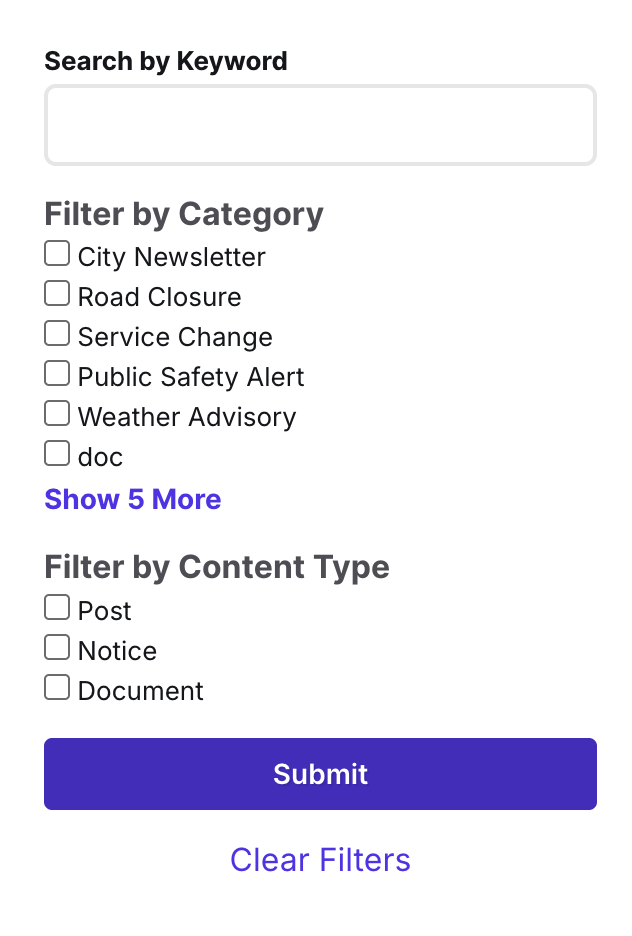
The Filters block adds a form that filters the content of the ArchiveWP Loop block. This allows website visitors to find posts in the archive more easily.
The Filters block must be placed on the same page as the Loop block to function. It submits search and filter queries on the same page and adds parameters to the URL.
Example Screenshot

Available Settings
The following settings are available to control this block and its design:
- Settings Tab
- Show Search Field: Display a search field to filter archived content by keyword.
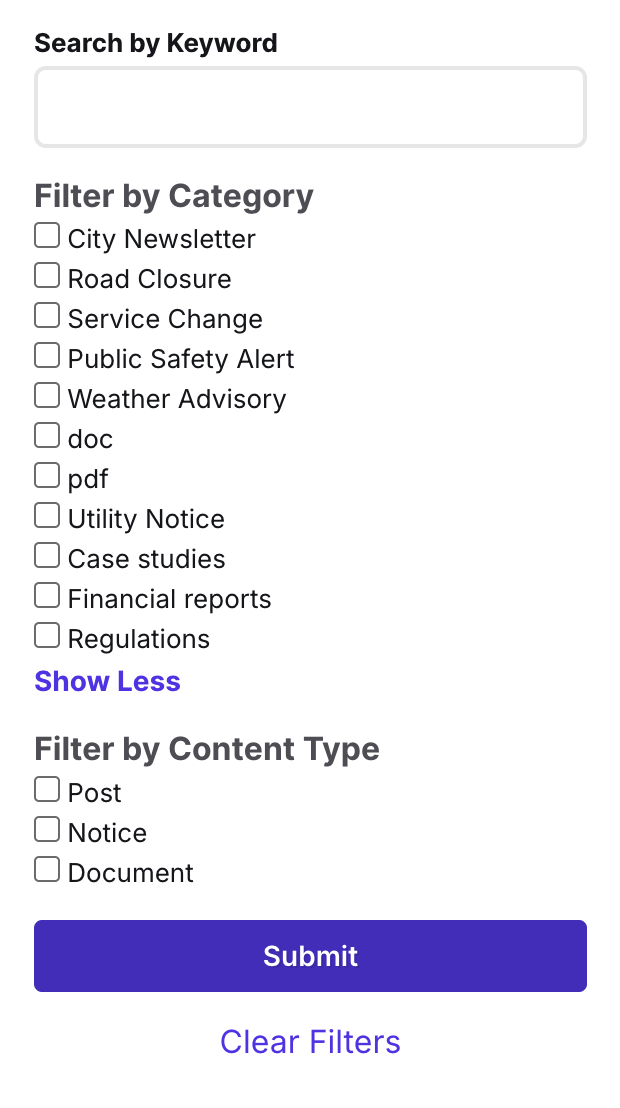
- Show Category Filters: Display category checkboxes to filter archived content by terms in the “Archive Categories” taxonomy.
- Collapse on Mobile: When enabled, the filters will be hidden on mobile; there will be a “Show Filters” button that users must click to reveal them. This setting is helpful if you want users to scroll less on mobile to access archived posts.
- Visible Filters Limit: This is a number field that controls the number of filters shown before a “Show More” button appears. Useful if you have a very long list of Archived Categories terms. Use 0 to show all.
- Additional CSS Class(es): Empty by default, but available if you would like to add your own class for styling purposes.
- Styles Tab
- Color (Text and Background): Allows the background and text colors to be customized. The text color setting will only change the color of the fieldset labels; individual field labels are not controlled.
- Typography: Allows the font size for all text in the block to be increased or decreased.
Output Examples
Here are several screenshots showing this block on the front-end:


Important Notes
- This block will adopt your styles: ArchiveWP has limited styles to ensure that components match your theme’s components as closely as possible. The submit button should adopt your theme’s button styles, and the Clear Filters button should adopt your link styles. If this does not work, it may be that your theme is missing styles for the
<button>element. If needed you can target these elements with these CSS classes:- All buttons:
.edawp-archive-form__button - Submit button:
.edawp-archive-form__submit - Clear filters button:
.edawp-archive-form__clear-filters - Mobile show/hide filters button:
.edawp-archive-form__toggle - Categories Show more/less button:
.edawp-archive-form__show-more
- All buttons:
- Watch for accessibility issues: Because ArchiveWP adopts your theme styles, you are responsible for ensuring accessibility. Examples of problems in themes that could break the accessibility of the filter block include poor color contrast, missing focus styles, missing link underlines, etc. Use Accessibility Checker to look for these issues and more.
- Keep an H2 about the filters: If you’re building a custom page instead of using our starter block pattern, we recommend always including an H2 above the filters to help screen reader users locate them on the page.
ArchiveWP Loop
Functionality
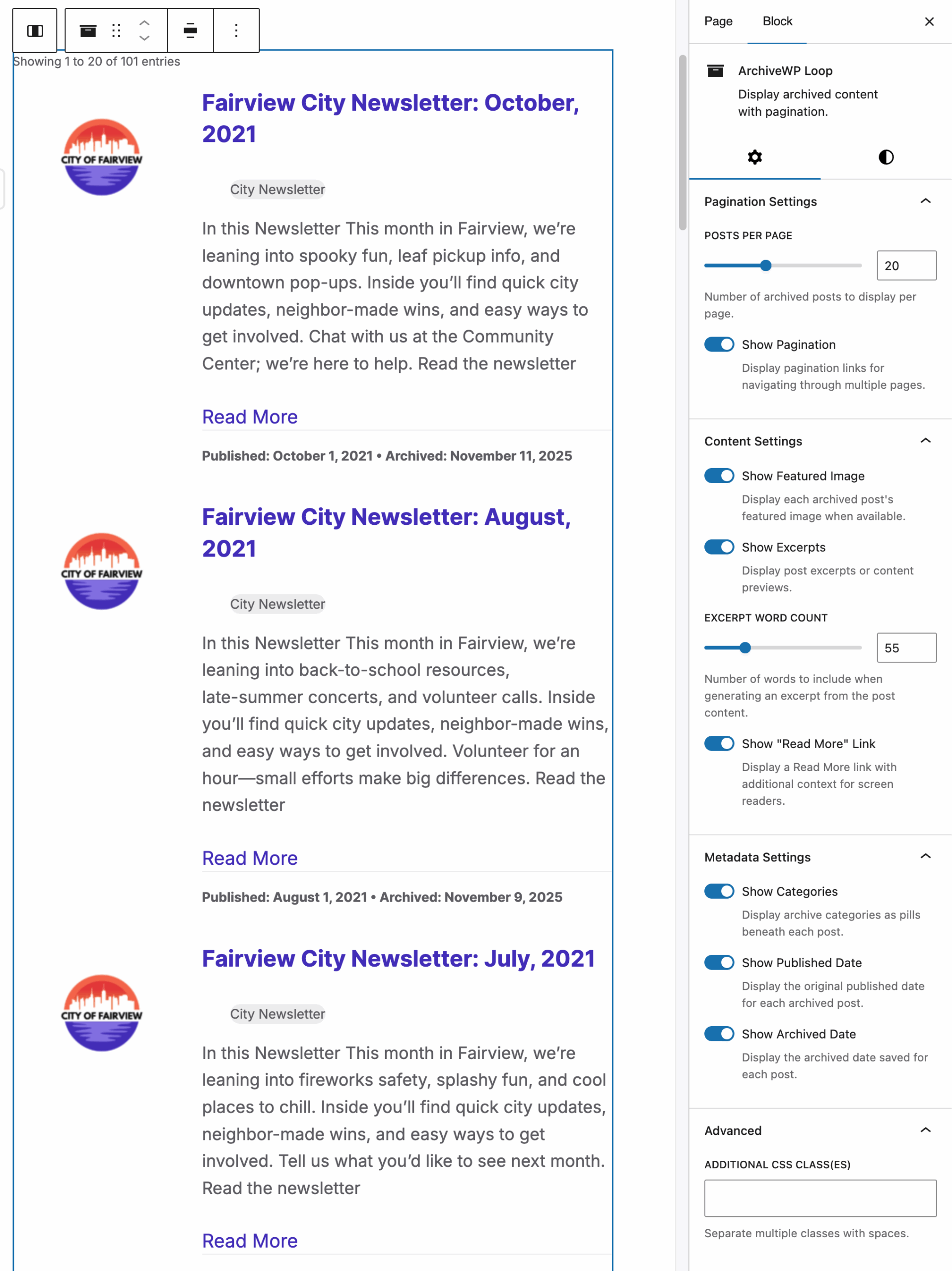
The Loop block displays archived posts, accompanied by optional pagination. This block may be used with the Filters block or on its own if you prefer not to offer search or filters for posts.
Example Screenshot
Available Settings
The following settings are available to control this block and its design:
- Settings Tab
- Pagination Settings
- Posts Per Page: The number of archived posts to display per page.
- Show Pagination: Enables display of pagination links for navigating through multiple pages of results.
- Content Settings
- Show Featured Image: Display each archived post’s featured image when available.
- Show Excerpts: Display post excerpts or content previews.
- Excerpt Word Count: The number of words to include when generating an excerpt from the post content if an excerpt is not available for the post. Requires ‘Show Excerpts’ to be enabled.
- Show “Read More” Link: Display a Read More link with additional context for screen readers. Keep this disabled if you want to avoid redundant links.
- Metadata Settings
- Show Categories: Display archive categories as pills beneath each post’s title.
- Show Published Date: Display the original published date for each archived post.
- Show Archived Date: Display the archived date for each post – this is the date that the post was moved into the archive.
- Pagination Settings
- Styles Tab
- Color (Text and Background): Allows the background and text colors to be customized. The text color setting will change the color of all text (heading, excerpt, metadata); we recommend keeping this disabled unless absolutely necessary.
- Typography: Allows the font size for all text in the block to be increased or decreased.
Output Example
Here is an example of this block on the front-end:

Important Notes
- Watch for accessibility issues: Like with the Filters block, the Loop block adopts your theme styles; this means that any accessibility issues in your theme (such as poor color contrast, missing underlines on links, etc.) may also be present in this block. You are responsible for ensuring accessibility.
- Accessibility Features: The following features are present in this block to enhance accessibility:
- This block has a hidden, screen reader-only H2 above it: “Results” — please keep this in mind when inserting the block onto a page.
- The posts count has an alert role — when used with the Filters block this will alter screen reader users to the results of their search and if it worked.
- Posts are in a list.
- Read more links have screen reader text with the post title appended.
- Pagination is in a nav tag, has meaningful labels, and indicated the current page.
