
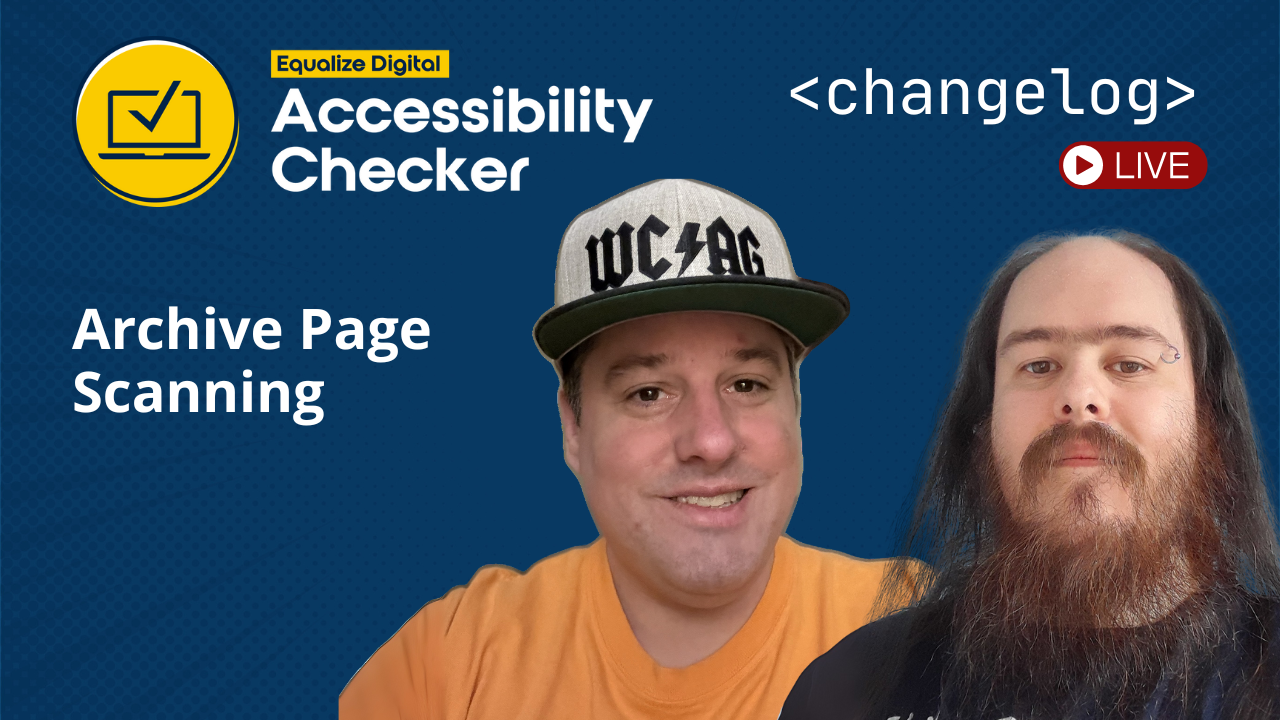
The latest episode of the Accessibility Checker Changelog livestream was hosted by CTO Steve Jones and lead developer William Patton. This biweekly series offers a behind-the-scenes look at the newest Accessibility Checker WordPress plugin update, including recent features, development decisions, and insights into the broader WordPress accessibility landscape.
This episode focused on our new Pro Feature Archive Page Scanning and a look ahead at what’s coming next.
Watch the Video
Video Transcript
Show/Hide Transcript
Changelog 004: Archive Page Scanning
Steve: [00:00:00] All right, and we are live.
Okay, we’re just getting set up here. How’s it going, William?
William: Yeah, it’s going pretty good.
Otherwise, you heard The second thing there is sub birds, outside, I would say they’re gonna fight.
Steve: Yeah.
William: Some someone must have thrown bread out or something. I don’t know. They’re going crazy.
Steve: Yeah, it’s those, uh, you know, it’s a little bit, a little taste of Scotland for everybody. The Birds of Scotland, right?
Speaker 2: Seagulls. I think we have seagulls everywhere, right? Nobody likes them.
Steve: So you’re by the water, right?
William: Yeah.
Kinda close. Just down the home.
Steve: Yeah.
Cool. Well, I’m just checking. It looks like we are live on YouTube. Looks like, [00:01:00] I guess it would go out to X, right? Are we up on X?
William: I’ll check that.
Steve: Hmm.
William: X I think just links to YouTube.
Steve: Yeah. Maybe. I thought it actually did a live, showed a live, but it doesn’t look like we are up there.
Yeah.
I guess it’s all right.
Cool. So, uh, welcome [00:02:00] everybody to the Equalize Digital Accessibility Checker Changelog livestream. It’s a mouthful, isn’t it?
William: Just calling it the changelog.
Steve: The changelog. There you go. Um, cool. I’m just making sure all our screens are set up and that we’re good to go.
Cool. Let’s see.
All right, well if anybody joins, we got a chat going here and we’re happy to field any questions anybody has as we go along and talk about the latest features in Accessibility Checker.
So, if anybody watching this is is not aware of what Accessibility Checker [00:03:00] is yet. Accessibility Checker is an automated accessibility scanning plugin to help your WordPress website become and stay accessible. So, it’s not just an automated accessibility scanner, it’s also a fixer. Sometimes we don’t lean into that enough, but the Accessibility Checker actually does provide a good set of automated fixes for your website as well to help you instantly implement accessibility fixes to your website. Accessibility Checker is a full-featured free plugin that you can get from EqualizeDigital.com/AccessibilityChecker. You can also get it from the WordPress.org plugin repository.
We do have a premium plugin that adds premium features such as scanning archive pages and global site-wide administrative tools.
We have add-ons for our Pro plugin.
We got Audit [00:04:00] History, which allows you to check your accessibility stats over time. We have a multi-site add-on that allows you to manage all the Accessibility Checker plugins at the network level of a WordPress multi-site install.
And, we have the Exporter Add-on that allows you to export your Accessibility Checker data to CSV files.
So today, we are focusing on one major feature, and because it’s such a big one, I think it constitutes its own episode, and that is Archive Scanning. I feel like we should have a drum roll. We need some sound effects, William.
William: Yes. I was looking at doing the sound effects. Hockey’s not so good on my system.
Steve: That’s right. We need a soundboard so we can do drum roll, Archive Scanning and
Yeah.
I don’t have a drum roll, but I could put my thinking cap on, my WCAG thinking [00:05:00] cap on
William: Every time I see that, it just reminds me of the AC/DC logo.
Steve: Yeah, I mean, that’s what it is, you know. A descriptive we can give, it’s my hat is just like a trucker hat, you know, and it says WCAG on it. WC and it’s got like a lightning bolt AG, so it’s like AC/DC. That’s exactly what it is, William. You caught the reference.
William: It shows how old I am.
Steve: That’s right.
And it’s kind of fitting for me a little bit because, you know, I work in accessibility and I like to rock and roll and I don’t know if we’ve talked about this, William, but you like to rock and roll as well. Okay.
William: Yeah.
Steve: It always seems to be that people in our space also have hobbies, like being musicians and playing guitar.
William: Yeah. People tend to have tastes in our industry, right?
Steve: Oh, there you go.
William: I’ll get a lot of flak for that one.
Steve: Yeah.
Cool. So, just as a kind of overview of Archive Scanning, what do we mean when we say Archive Scanning, William? [00:06:00]
William: Yep. So WordPress includes various Pages, which are effectively the lists of your Posts or Page content or various archives of content, of various types. When we say Archive Scanning, for right now, what we primarily mean is Taxonomy Terms and Custom Post Type Archives.
Not the archives, not Author Pages, yet. So we are primarily talking about term archives just for the moment.
Steve: Right. Well, Term Archives and actual archive archives. Does that make sense?
William: Yes.
Steve: Like Custom Post Type Archive archives.
William: Custom Post Archives.
Steve: Yeah, cool. So, and an Archive is not typically a Page that you create in WordPress.
It’s a page that’s kind of dynamically created with a loop, right?
Speaker 2: Yes. Generated [00:07:00] on the fly. It doesn’t exist as its own database entry or really effectively at it. It is fully dynamic runtime generated.
Steve: Right. And, that’s why Accessibility Checker up until this point actually has not included Archives because the way that the Accessibility Checker was architected was based on the Post ID System. And, Archives don’t have a Post ID and when your application is built exclusively on post IDs that creates quite the challenge. I think we’ll talk about that challenge a little bit later. But before we jump into that, I think it would be good to do a demo.
William: Yep, we can do some demo.
Steve: Okay, let me pull up your screen, William. Are you good to do demo?
Speaker 2: Yep. So this is our General Settings Page. We actually have two new signs here. You can see them. I’ll talk a bit more about what [00:08:00] these exact ends do after we, do a quick showcase. But yeah, effectively these are the two newest ends.
This is how we power, or this is how we enable Archive Scanning effectively. So without this box checked, Archives will never be scanned without this box checked Smart Sampling is enabled. When this box is checked, all terms will get checked, which could be a significant load on your server or on your full-site scan time, effectively.
Steve: Yeah.
William: So what we are trying to do, well, first off we’ll say that you know, by default this is disabled.
Steve: Yeah.
William: So, we didn’t want to introduce a brand new feature, which could increase your fill-site scan time, increase your overall scores, or decrease your scores as the case might be by having this new feature enabled by default, so it [00:09:00] is off by default.
You do currently have to come in and turn this on, perhaps for new installs we will enable this by default, but if you update and receive this feature, it is off.
Steve: Yeah, and the reason we did that was for, I mean, you did a good job explaining it, but just to add to that, like we didn’t want the stats to like greatly increase without you enabling it and causing… You know, I know a lot of customers and users of the plugin work really hard to get these scores down and to resolve all the accessibility issues and we didn’t want for you to come in and all of a sudden, “Oh, my issues have gone up 10 or 20.”
William: Yeah, well have a look at this 13% on my test site, which is intentionally bad. But, this score was in the 60s before enabling the Archive Scanning. And this could happen to the average website because if you’ve been scanning standard Post Types, you’ll have been [00:10:00] fixing issues and this number will be, ideally high, quite high. But, when I have not been fixing Archive Pages and as such, this number is horrific for a typical site. Hopefully your sites are not this way.
Steve: Right. For a future update, I think it is a good idea to consider having that enabled.
William: For new installs.
Yeah. Enabled by default.
Steve: Being a longtime user of the plugin, I can tell that things don’t look the same here. The order of the settings have changed a bit, and this may be even more noticeable if the Pro Plugin is disabled.
And I think that also bears mentioning too, that the Archive Scanning comes with the Pro Plugin, not with the free plugin. Is that correct, William?
William: Yes, that is correct. This is entirely a pro feature, for now or maybe in forever.
Steve: Anybody on our individual Pro Plan and up will [00:11:00] get access to Archive Scanning. So, we’ve reordered the settings, correct?
William: Yep.
Steve: We tried to group things in a more logical way.
William: There is now this new System Setting portion, which currently only has the one Setting. But ,this setting used to be here, it used to be second, which you know, it is not as important as all the other settings. So, we have moved that to the end now and grouped other related settings in this first session.
So, Scan Settings is in your grouping, which contains these four settings if you have Pro. If you only have free, it is only this setting.
Steve: Yeah.
Let’s walk through Archive Scanning and then Taxonomy Scanning. Can you explain how the plugin is determining what an Archive Page is and then…
William: Yes.
Steve: Yeah.
William: Archive Scan, is effectively, will search for your website for [00:12:00] Taxonomies, either Default Taxonomies or Custom Taxonomies. So this is a Custom Taxonomy on a Custom Post Type for locations. There are also, generally on most websites by default Categories and Tags. So, these are the Taxonomy Terms or these are the Taxonomies Tag is. The Taxonomy Terms are what it contains, and any custom Taxonomy Term is also included as part of this Archive Scan.
Steve: Cool. So, the setting there where you talk about like a sampling, what exactly is?
Speaker 2: The sampling is semi-smart. It isn’t the most smart. It doesn’t try to find every possible permutation of your Term Pages. But, what it does do is it tries to find a Term that contains the most Posts, the Term that contains the least Posts, and additionally, [00:13:00] a Term that contains zero and you know, least and zero might be the same.
So, we do try and find three Terms per Taxonomy in when this is disabled. So, in the smart scan mode, we will look for up to three Terms for every one of these Custom Taxonomies.
So like, we’ll try and find three Categories. If we take a quick look, this one here has nine items. This one has 38 items. So, it is gonna use the Uncategorized and any one of these other ones, right? So, this one is one, this is one, this is three. So, it will pull a one, a 38 because we have no zero here. So, for this Term, Smart Sampling will determine two. For this one, Smart Sampling will actually determine three items. So, it will either pick North America or Canada [00:14:00] as the highest Term. It will pick Asia as the lowest, which is three. And, then there’s a zero Europe or United States.
Steve: Yeah.
Speaker 2: So it will pick three here, whereas on Categories,
Steve: Yeah.
William: Only two.
Steve: And when you’re talking about permutations of Term Pages… so in WordPress you can use like their templating to make a Custom Archive Page of every Term if you see fit, right?
Speaker 2: Yes, you can. So, I have a lot of custom templates in this test site. So, I have one for a whole bunch of various different categories. I have a whole bunch of custom templates for individual Pages and a couple for individual Terms.
So, Post Tags this is a specific Post Tag. So, this Taxonomy Archive is for Post Tags, the Tags Archive. All Tags will use this one aside from the Tag named “Payment,” which will use this template [00:15:00] so you can have dozens of permutations of individual Templates, even for individual pages. These are just the Archive Templates, which is what the overarching Custom Post Types are. So, one for page post CPT 484, which is one of my test Custom Posts.
So yeah, there is a lot of options for templates in WordPress. How you make them and how they get designed. They can look significantly different.
Steve: So, if you’re certain that your Taxonomy template page is the same for all your Terms, I think it’s safe to leave the sampling mode on.
If you know that your theme has multiple Term archive pages, then it might be a good idea to turn on scanning all Term Pages correct, William?
Speaker 2: Yes. So, if yours are significantly different, you’re gonna need to scan all of them if you wanna cover all the potential issues. We are doing our best [00:16:00] with the Smart Sampling to try and find Empty Term Pages, what they’re gonna look like, Full Posts, which ideally will have pagination on them that we will be able to check.
So yeah, we are doing our best with the Smart Scan. But, if you have significantly different, like, as I was showing in this custom theme. I have a lot. I would really need to scan every Term to cover these.
Steve: Cool, well, why don’t we enable one of those?
You want to enable both or just…
William: Yeah, so I have the default one enabled for the moment.
Steve: Okay.
William: Well, not the default, but have just the Smart Sampling and if I visit the Scan Page and start a new scan.
So, it says 68 Posts, 10 Pages, 0 of this Custom Post Type, 0 of this Custom Post Type. So, that doesn’t mean that they’re, these have zero posts in them effectively.
Steve: Mm-hmm.
Speaker 2: So, 68 plus [00:17:00] 10 is 78. We’ll see what the number is when I start it. But, if you notice here, Archive Pages will be checked using a sampling. So, if I click Start. See 103 Pages are what’s being checked. That’s quite a lot more than the 78 actual Posts and the reason why is because as soon as I’ve clicked the Start Button, it’s processed all of these Taxonomies and decided these are the ones we need to scan. So, it is scanning them and it scans them up front.
Steve: Mm-hmm.
Speaker 2: So first, and on this test site there will be around 25, 26, something like that. So once this scan reaches that point.
Steve: So this takes those Custom Archive Pages and groups them into the scanner.
And this will, this does add to the overall scan count and scan time, correct?
William: Yes. So, as you saw, about 25 additional Pages on top of what was [00:18:00] counted upfront, and unfortunately, we can’t know upfront prior to starting a scan in Smart Sampling Mode, what number of Archive Pages we’re gonna have. So, it’s passed. It was 76 or, yeah, it’s past all the Archives.
If we visit this new item in our sidebar,
Steve: Can you describe that? What you just clicked on?
Speaker 2: Yeah, so in our Accessibility Checker menu, we have a new menu called Archive Pages, and if you click that, you will see a relatively familiar looking table. This looks like a standard WordPress Post Table because effectively that is what this table is and each of these entries are, you know, we have Social Note, which is the Custom Post Type, we have Some New Tag, which is the name of the Tag, Critical, which is the name of a Term in the Custom Taxonomy. If United States has a location, so it has found a bunch of different [00:19:00] locations for different Post Types and this is effectively the same as just the Standards Post List.
So, if we just pick any one of these to visit, provides, it looks almost like the Post Editor. There is no Editor here, but we can see our Results. So, in the Details Tab, we have our standard list of Items or Issues that may have been discovered. We have the Summary Tab that lists the Tool. So, this post has 8 Errors, 3 Warnings, and 3 Ignored Items for a total of 84% of Tests Passed.
And, if we open any one of these, you can just use these standard links that you will have grown to get used to. And the rest of the plugin, like the View on Page Links, so if I were to click any one of these, it takes you to that Issue on the Front End. So, this is a Term Page. This isn’t Edit Post, [00:20:00] this isn’t a specific Category. This is the specific Term, and it contains a bunch of errors.
Steve: So, if I visited this page directly, we actually now have the Front-End Highlighter accessible to these Archive Pages.
Speaker 2: Correct, this works exactly the same as the standard Post Content will visit. Or, if you’ve previously visited on the Front-End side, then you will have noticed the Font-End Highlighter. They are now visible on these Terms. Now, not just because the Pages have been scanned, but because we now know we contexts aware of this being a scannable Page.
Steve: Mm-hmm.
William: Whereas previously it was not.
Yeah, you can use those. Those links, you can do everything that you can normally do. You can clear the issues, you can re-scan it, scroll through them, disable the styles.
Steve: Yeah, so we’ve gone through pretty good lengths to ensure that we didn’t create a disjointed experience [00:21:00] from what you’re used to doing already in Accessibility Checker.
William: Correct. So, this is exactly what you would see on a Post. It’s our standard widget. It behaves the same way. The one difference that I will call out is that contains no Readability Score Tab, because this content will be dynamic, it will change.
There is no point in having a Readability Score that asks you to input a Custom Description. For the content that appears on this Page because the content will change as you create New Posts.
Steve: Yeah, and Archive Pages a lot of times are not very content heavy Pages.
William: Correct.
Steve: Aside from maybe some Headers and some Descriptions. But, in general, it’s not super content heavy. So we opted to kind of not include the Readability in that, it’s, it’s not to say that we can’t do it, it’s, just that right now, the UI of that would have to change quite a bit to kind of make it fit in because [00:22:00] like William said, even if we did check the Readability, there’s really no reason to output a Simplified Summary on that Page unless it really was a unique Custom Archive Page and in that instance, you would probably need to modify the template to output the Simplified Summary.
William: Yeah.
I do wanna call it while I’m here that see if we disable some of these Types and I just scroll down and I save these changes. If we take a look, so now it’s only 18 Items as opposed to the 25 or 26 that was previously there because it has removed Terms that was part of these Custom Taxonomies. Which as these two didn’t have any actual Posts assigned, was just the Custom Post Type Term.
Steve: So it does its own cleanup.
William: I should change things. I’m not gonna say that it does cleanup everything based on all the changes, but it definitely changes here, and if we actually disable the entire [00:23:00] feature.
Steve: Right. But if…
William: All of them are gone.
Steve: If Custom Post Type definitions are changed or modified, would the issues still be subjected to the same cleanup routines that we have?
William: Yes, so actually that is a good point. So, if this Social Note, if this is added by Custom plugin on this website. If this Custom Post Type goes away, we do have a cleanup routine that will detect that the item no longer exists. So, it will be here when the Custom Post Type goes away. But, once a day we will check for orphaned items and it will detect the issues or orphaned for this specific Type and the issues will go away. The post won’t specifically go away itself, or this Archive Page. So, we call this is virtual content pages. This will not go away until you run a fresh scan.[00:24:00]
Steve: So, for the Open Issues Tab and Fast Track, we’ve updated the same things. When you hit the View on Page, and things like that, you will be directed to the Archive Page as well. But, do you still have some Archive Pages scanned, William?
William: I’ve just re-scanned.
Steve: Okay. Oh, it’s running. Okay.
So, if you go to the Open Issues and you click on one, how can we tell which ones? Yeah, there we go.
William: Yeah, so there’s this Post Type listed, normally. This we Post, Page, or whatever the Custom Post Type is, but, we also added that there’s EDAC Virtual Item, and it is available to be favored here. So, Archive Posts, Pages.
Steve: So, it acts as if it’s its own Custom Post Type, right?
William: Correct. And effectively to the system this is a Custom Post Type, but these are all the Terms [00:25:00] and you can get everything that you expect to work, works the same as usual. This your on Page Link.
An interesting one is the Edit Link. ‘Cause this Edit Link takes you to the Virtual Page rather than the Edit. Here, so this is how you would edit this exact Term. This is the Issue, and you effectively can’t edit this, so maybe that’s a change that we want to be making in the future.
Steve: Yeah, I think it was definitely a little bit of a point of internal debate between the two of us, right?
Where to send that. Because there’s nothing, there is no Edit Page for an Archive.
William: Yeah, there’s just this on the backend, which is, the Description. But, changing this, probably doesn’t change any of the Issues that are discovered.
Steve: Yeah. We kinda had three options. Go to the Term Edit Page, go to the Archive Scanning Post Page or not show [00:26:00] the Edit Link. So we opted to show you the Results Page of that. But, that is definitely something that is still kind of up in the air if we’re gonna keep that way. Is there anything else to demo or is that the full…?
William: I think that is mostly everything.
Steve: Cool.
William: I guess maybe we can talk about some of the challenges. And I actually do have this open and give a sneak peek behind the scenes. So, this is what our Data Tables look like. Every one of our Issues has a Role here. And, if you see this Post ID column, this is the actual Post ID that these Issues are assigned to. So, this is the Issue ID and this is the Post ID.
So, this Post is 2077, and I’m pretty sure this is gonna be one of the Archive Templates.
Steve: Yeah. Yeah.
William: Previously, we couldn’t scan this because we require a Post ID.
Steve: Before you go too far with that, I want to take a little bit of a step back and preface this kind of [00:27:00] section of the livestream with, what were the technical challenges of implementing Archive Scanning and quite frankly, what took so long to actually implement it because Archive Scanning has been on our roadmap, and it’s been on our Features Page, on our Pricing Page as Coming Soon for nearly five years.
It was definitely a feature that was definitely needed even at launch and something that we had considered a priority even at launch, and it kind of stayed on the roadmap for many years.
William: Because it was actually quite complicated. There was a number of really difficult challenges.
Steve: Yeah.
Speaker 2: To overcome, which were, nicely solved.
I’m gonna say that it solved the “a hundred percent perfect, ideal way.” But, that is often the way that works.
Steve: Well, I think that a lot of times as programmers, that’s where we can really get into a paralysis place to where like the system is built on Post IDs, right? [00:28:00] And it’s kind of built on Post Types. Anyway, we need to have a Post Type to be able to show you your information. We need Post Meta to be able to store your Scan Stats. Everything’s kind of built around a Post and having a Post ID, and then when you bring in something like an Archive Scan, it doesn’t fit the pattern at all.
So, it’s like, “what do you do?”
Early this summer, it may even been springtime, William and I sat down, and a lot of times, I think I was at a, one of our kids’ swim meets and I was on my phone and I was on ChatGPT, just kind of like coming up with ideas on how we could do this. And at the same time, I’m pinging William, like, “what do you think about this?”
William: And, I’ll be honest, I was not very impressed actually, at first.
Steve: Yeah.
William: And I still don’t know if I’m entirely impressed, but the fact is that this works, and this solves the major technical challenge, which was we require a Post ID for everything that we do. And on top of that, we also do require Post Type, primarily.
Steve: [00:29:00] Well, what were some of the approaches that we were consider at first? It was almost like…
William: The strong consideration was effectively building a second copy of this Table that did not care about IDs at all.
Another kind of idea I came up with was that all of these Custom Items that have not got an ID would just be ID 0. And the problem with that is that actually breaks quite a lot of our quite a lot of our plugin. I could change this, like the UI, that will break…
Steve: Yes.
William: That it’ll break the UI. It will also break queries that we have ’cause it’s an expectation that 0 will never exist. The expectation is that this will always be a positive.
Steve: Yeah.
William: Yeah. An image, one or above.
Steve: So, like any solution that we were kind of coming up with was kind of leading us to major refactors of our UI and all of our queries. You would have to have logic built into every database query that you do on whether or not this [00:30:00] is a Post ID or it’s an Archive that maybe comes from a different Post Table. We went as far as to even starting to scope out some kind of elastic search to where this is kind of built in the background.
But, what you’re talking about is complete overhaul of the whole plugin.
William: Yes, anything that does away with this expectation that everything will be assigned to a Post ID at some point breaks the entire system as built from the beginning of time.
Steve: You’re showing that these scan results have a Post ID, but these are Archive Pages that don’t have a Post ID. So, how did we assign a Post ID to these?
William: Correct. As you can see there, there’s two Types, right? This is a Virtual Item, this is a Standard Post. Posts are expected to have an ID. Virtual items do not. And, so this one is 2397. So, this actually gets its ID because [00:31:00] we…
If you take a look at this page, interestingly, this looks like a Post Page and there’s a reason for that. These are Posts effectively Post, so these are Virtual Posts. It’s the same table because it’s the same thing. These are individual Posts and if we Edit this one and you see in the Header and the the URL, I’m actually gonna paste the ID that we were just looking at a second ago. So, it’s this… is a Category Term called child has 6 Errors, 2 Warnings, 3 Ignored Items.
So, from what I was looking at in the database, an ARIA-hidden Warning. That is actually a relic of me previously having this page scanned. [00:32:00]
Steve: Oh.
William: That, now that I’m thinking of it.
So, these will be cleared up.
This is a good time to talk about the cleanup. So, these are from when I first scanned, when I first started showing the demo. I’ve obviously cleared these Pages and what Issues get found as kinda random because of the weird template system that I’ve set up. So, these Issues will get cleared out.
Steve: We do have a CLI command that you can run?
William: We do. Let me see if I can just…
Yeah, here’s the command. WP Accessibility Checker, clean up Orphaned Issues, and Accept Batch Size, and the Sleep.
I think we did demo this.
Steve: Yeah.
William: [00:33:00] Previously. I’m gonna just copy this and paste this.
Has no Orphaned Issues, so I’ll need to look into why this is.
Steve: Mm-hmm.
William: I actually, I know exactly why this is, I’m looking at the wrong table. This is the wrong database because I set up a fresh database. So, this is my actual live test environment.
Steve: Yeah, yeah, yeah.
William: But the pattern is the same, right?
Steve: Yeah, yeah.
William: The tables look the same. Everything now has a Post ID. This is the EDAC Virtual Item, this is a Virtual Item. This is technically a Custom Post Type called Archive.
Steve: Which actually doesn’t have any Public Pages or anything like that.
William: Public.
It has its own two Term Taxonomies for the Item Tag, which, you can see is the name of the Taxonomy.
So, this is the Category, Topics, Moods, and the Type, which in this case is all Posts. But, we could have Post Type Archives, and maybe that [00:34:00] leads us onto another thing that the reason this exists is because now that we have this system of the Archive Pages or Virtual Items, we could add other Types.
Steve: Mm-hmm.
William: We don’t just need Posts or maybe we add Author Archives in the not too distant future. But, maybe we also can scan Block Patterns individually or Element or Template Pages or other types of content that aren’t WordPress Posts as such.
Steve: Yeah, we’re talking about that a little bit more here in a second too.
What William’s saying is essentially, we went down the path of the most difficult way to achieve this, and the reason why a lot of times software engineers would do this because that is the right way to do it. That is the least intrusive way to do it and maybe the most performant way to do it down the road, but it doesn’t fit into the plugin at all.
So, [00:35:00] we had to come up with something to where we can implement this feature in, in a timely manner too. We’re trying to accelerate our feature output and, we can’t spend six months adding Archive Page scanning. We essentially need to do it in, three or four weeks. So, we came to this solution, “Hey, why don’t we make…” At first we were calling it a Ghost Post, but we thought that would be kind of weird to actually put in as a Slug, but , it’s a Virtual Custom Post Type that has no Public Pages generated. And, we’ve modified this a little bit to make sure there’s not like, Edit Preview Links, and things like that that shouldn’t be here, that actually comes stock. And then like Bulk Actions that don’t apply to this.
William: Just while we’re doing this, like the Edit Link goes to the standard Editor that we previously, but the View Link actually goes to the actual Page. It doesn’t go to “View This.”
Steve: Yeah.
William: It does go to where this actual Term exists.
Steve: This allows us to pull in our Custom [00:36:00] Admin columns here, so you can see these and manage these.
The other way would’ve been to make a Custom Settings Page on every Custom Post type, and that would sprawl throughout your WordPress Admin and kind of create more clutter on all of your Custom Post Types.
And, you turn the setting on, so, I guess that’s the, you granting permission for us to add that. But, what this allows us to do is to group it all in one place. Somewhere you can manage it easily and get to all the same UI that you have available on a Standard Custom Post Type.
From a technical standpoint, this was…
At first we thought it was more straightforward than it really was. It did take a little bit more technical work. Anytime that we’re modifying our Full-Site Scanner it is always a big technical challenge.
William: Actually, I do wanna step in what you say that, so again, this what we see here set up. Figuring out what Terms we were gonna scan, [00:37:00] how we discover those Terms. But, the fact that we ended up with them actually being Posts did mean that there was not a great deal of change required to the actual Full-Site Scanner. But, because these became Virtual Items, like Posts, effectively they scan the same as all other Items.
Steve: Yeah.
William: To give you an idea, so when I visit this Page or click Update. Say if the template for Parent has changed in the background, you can click Update and it will re-scan it. You won’t see the front-end and you can’t see any changes ’cause I haven’t changed my template, but it is re-scanning and resaving these Issues because this is just the Post as far as the plugin is concerned.
Steve: Mm-hmm.
William: It’s much more than that for us under the hood, but the plugin doesn’t need to care about that.
Steve: Right
Speaker 2: At all, which is, the nice option with how we ended up doing this.
Steve: Yeah. [00:38:00] It worked out nice and it allows us to get this Feature out to our customers and users.
William: Yeah, and it actually has been out for a couple of weeks now and we have had no support inquiries as of yet.
We have had questions. But…
Steve: Yeah.
William: It hasn’t broken anyone’s site. No one has told us that it doesn’t work the way that they want it to.
Steve: Mm-hmm.
William: It’s been pretty stable. It worked.
Steve: Yeah.
William: And it could have broken all the things if we did go ahead and try and refactor the entire plugin to squeeze this in. Things would’ve broken that we didn’t see.
Steve: Just to kind of play, of course going this route, when you talk about like, is there a better way to do this? But, it comes with all kinds of refactoring needed.
William: I’m sure there is a better way of doing this.
Steve: Right.
William: But it is much, much longer to reach that point.
Steve: This is probably the best way for Accessibility Checker, but to play devil’s advocate a little bit and to maybe speak to performance and database concerns and things like that, what are your thoughts [00:39:00] around adding Custom Post Types to the Post Table?
‘Cause we’ve always taken the approach as Accessibility Checker that everything goes into our Custom Database Tables. But, this is the first time that we’re kind of, aside from Post Meta, but this is the first time where we’re like, we created a Custom Post Type and we’re adding to the Post Table.
Do you have any concerns?
William: I don’t have a great deal of concerns on this. We’ve seen a test site, right? 68 Posts. Not very many Posts. With all Terms scanned it’s about 25, 26 terms. That’s, maybe, let’s say I had a hundred Terms that would number with more than double, we have scanned.
With our plugin, we have scanned websites that have hundreds of thousands of Posts. I do have a test website that has 200,000 Posts, and what I’ve came to realize is that the number of Posts is less of a concern than the size of the Post made at the Table. And we generally don’t have a lot of [00:40:00] control over the size of the Post Meta Table. That is based on how many other plugins someone has installed, what data they get stored, built, or plugin store log post mail. That sort of is a concern in the same sense, but that is not a concern exclusive to the Archive Page Scanner Feature, that’s just a general scanner concern.
That is literally the crux of this, is that we didn’t introduce more performance concerns by increasing the Custom Post Type number by one and potentially a few hundred additional Posts.
The performance concerns that we might have with the feature already existed. We’re not making them better, we’re not making them worse.
Steve: Yeah.
William: It’s the same.
Steve: Yeah, that’s good.
William: On top of this, with Custom Tables, you can index them however you want. You can be quite performant with your own Custom Tables. But, you have to manage your own queries and write your own queries and maintain your own queries.
The benefit of this system is that [00:41:00] WordPress has WPQuery Class is specifically set up through Query Posts in the way we have them set up. And, there’s also the Meta Query Class, which, could be a slow query in general, but that also exists and is part of Core and it means we don’t need to write those Custom Queries or be concerned about keeping them performing secure or anything like that. WordPress handles that in the box.
Steve: Yeah.
This implementation is a very WordPress way of doing this, right?
William: I don’t like doing things the WordPress way.
Steve: Yeah, same.
This may be a question for myself because, I’ve been around for the full life of the plugin and I initially created it five years ago. Why this take us so long to implement it, if this was like feature number one? I mean, I can give my take on it a little bit. When you create a product, a WordPress Plugin, especially something like [00:42:00] Accessibility Checker that is complex in many ways that you launch and you quickly learn a lot of things that you need to fix and a lot of things that you need to refactor.
William: In software development it’s almost impossible to imagine the problem you will next face.
Steve: Right.
In our case, Page Scanning may be that pebble that just kept getting kicked down the road.
William: Upfront. I didn’t have any concerns when I first seen this as a feature request. I thought, “Yeah, this will be easy.”
Turns out not so much. Not so much at all.
Steve: I will say that I felt like the implementation was easier than the kind of architectural discovery it took to get to where we’re at. It took us a long time mentally to wrap our head around.,
I think we actually had to, it’s weird, there’s a WordPress, what we talked about the WordPress way, right? There’s a WordPress way of doing things and I think for years the way we thought [00:43:00] about this feature was very non-WordPress way of implementing it.
What really got this feature to production was thinking the WordPress way, “hold on, we have all this stuff. Why am I trying to re-engineer and reinvent the whole thing? Why don’t we just try to fit it into the shape we already have?”
I think it just mentally took a long time to get there. It definitely did take a good bit of back and forth between William and I to kind of come to what the solution was.
But, I think once we determined the solution, the implementation was three or four weeks, and we had to feature.
William: Yeah, a couple of distracted weeks though as well.
It would’ve been maybe one and a half to two weeks of solid development time, I think, to build this, because we had pre-scoped. We’d spent several weeks asynchronously coming up with the plan, thinking through even alley of if we make this decision, what affects other things, what doesn’t? We did end up with a decision that had the [00:44:00] minimal amount of side effects.
We built a weird Virtual Item System, but, that’s the trade off. The weird Virtual Item System for me, Steve maybe disagrees, but I think it is a bit weird. But the trade off of building that gives us the freedom to handle everything else except the same way, minimal side effects throughout the entire plugin. This did not create like any echo effect or domino effect where introducing this new feature required a whole bunch of changes everywhere. It required a very succinct set of changes in very small places.
Steve: Yeah.
William: I don’t know if I’ve told Steve this, but the very first time I ever tested this plugin was on a site that contained Virtual Items Posts that appeared on the front-end that were dynamically generated from a very large array of data in the database. They didn’t have their own Post IDs. They appeared to be Post, but they were fake Ghost Types.
Steve: Mm-hmm.
William: Effectively, now [00:45:00] those could be scanned with being added to the scannable list on that website. So that would cover, several thousand Fake Posts on that website that could now feasibly be scanned thanks to this. The way this edition was created.
Steve: Yeah, yeah, totally.
I think I just took over your screen share. Sorry.
William: Maybe. Well, I’m showing of anybody anything, so,
Steve: Maybe you could pull up our, do you have the Documentation Page? We do have a Documentation Page on our website that you can read through the Archive Scanning and just to get a better understanding of that.
You did mention a little bit about Author Archive Pages, how those aren’t included now. But I think that this would be a good time to talk about what other possible additions to the Archive Scanner do we envision?
William: The number one thing based on a couple of chats with a few people is that people would [00:46:00] like to be able to scan WordPress patterns, and I think that would be incredibly useful to pre-scan a WordPress pattern that might be getting used on a Page.
Author Archives for magazine websites, probably a useful thing, and for me, personally, as the developer of this feature.
I think, other Virtual Items that may exist on websites that aren’t Posts are gonna be useful for me personally.
The world is your oyster with this feature. The way this was built, we can add anything to the scannable list and so long as it has a renderable Page, it can be scanned.
Steve: Yeah.
I’m definitely interested in things like patterns and full-site block areas, such as maybe, just being able to scan just the Header from a Block Theme or something. That does seem super interesting. And of course, Author Pages. Author pages is kind of a straightforward addition [00:47:00] that wouldn’t really require too much work on our end.
We did have a little bit of feedback earlier this week. You got some about, being able to choose Terms, right?
William: Yes. Terms, people being able to choose what Terms, or not the Terms specifically, but, which Taxonomy gets scanned. People may not care so much about Categories or Tags. They might be same old, same old across an entire website, but some people do have Custom Terms that appear very different, so they’re not used in the same way that Taxonomies are listed. They’re not Archives as such in the sense that they’re just a random list of Posts. They might contain Custom Content on those Custom Terms, and people would like to be able to choose those Terms or those Taxonomies and exclude others.
So yeah, that probably is a not too distant future.
Steve: Mm-hmm.
William: Enhancement to the system where you will be able to choose what term or what [00:48:00] Taxonomy. I keep saying Term, potentially what Term have some ideas as well about whether you can determine the exact Terms that will be scanned or not. And all of this is now fairly trivial to do since the system is in place.
Previously, it would be effectively impossible, but the way this works now we can scan abstract things.
Steve: Mm-hmm. Yeah, totally.
Those are definitely things that I think would be great to add and it’s great that some of that’s coming from actual user feedback.
William: Yes.
Steve: Because, we can guess what templates are Archive Pages, what Custom Template Archive Pages you’ve implemented, but you know better than us. And if we can just allow you the user to choose that, that may be the best solution.
But, that does present a little bit of a challenge to a technical challenge from our end where, should that be done globally at the [00:49:00] Global Settings Level, or should we bring those kind of arguments into the scanner to where when you initiate a scan, you can actually choose from a set of options of what exactly the scan for that scan?
Then that kind of creates a little bit of a domino effect between the site stats. If you create a Custom Scan, do those go towards the Site Stats or do we create like a site steps Snapshot from your last scan? Things like that. That does open the door to more stuff for us to think through and how best to implement.
William: On that note, if anyone does watch this video later or anyone is in the comments, let us know how do you imagine that this Page might include two sets of data, one for the full-site, the most recent Full Summary and one for a Snapshot?
Does anyone have any specific ideas of what they might imagine?
A partial site scan would look like side by side with data about a Full Scan, because this is a Full-Site Scan data. But, what if you only ran a site like, one Post Type, one [00:50:00] Term, one set of…? You might wanna only just scan your Author Pages. You may have scanned the rest of your site. Let us know what a Snapshot looks like in your mind because I have a million ideas and I don’t know which one that someone might care for more than me.
Steve: Yeah. Because , not everybody that uses Accessibility Checker is using it with the same exact goals and the same…
William: And at this point I think we are effectively more than power users, right? It’s very difficult for us to put our feet, to pretend we are an average user at this point.
Steve: Well, the Global Site Stats really are reflective of the overarching accessibility of the website, right? How well are you resolving all the issues identified by Accessibility Checker? If we allow you to limit that in a scan, then those results get kind of muddied a little bit.
If you’re running our Audit History Plugin, you could have just ran a scan that excludes all the Custom Post Types and only scans the Posts [00:51:00] and then the next day when the audit …
William: Click that run two pages.
Steve: Yeah.
William: I’ll have two pages worth of Issues that should still reflect the full site, but it would be nice to have a way of reflecting where that two page scan is.
Steve: Right, and it could be as simple as in the scanning that we just allow them to choose to not add those stats into the Full Site Stats, so it’s an isolated Snapshot.
William: I guess right here probably wouldn’t be where…
Steve: Are you showing something on your screen?
William: Well, my screen isn’t up, so I guess that’s fine.
Steve: There we go.
William: I pulled it up somewhere here.
Steve: So, you’re on…
William: This is the Full-Site Scan Page, and here where it outputs the information would be the ideal place like this, could have a checkbook.
Steve: Yeah.
William: You could turn that off and target all…
Steve: You’re pointing to the Check Summary Box.
William: Yes.
Steve: Where it describes what it’s going to check.
That’s a bigger discussion and, that’s something that we’re looking at down the road .
William: Sneak peak.
Steve: Sneak peak.
That’s Archive Scanning.
It’s available now. It’s been out for what, two or three weeks now, William?
William: Two or three weeks? Yeah, I think [00:52:00] three, as of today.
Steve: If you have Accessibility Checker, go to your Settings and enable it and test it out and see how it works for you. Feel free to pass any feedback on to us.
If you haven’t used Accessibility Checker, I encourage you to download it at EqualizeDigital.com/AccessibilityChecker or you can find it by searching the WordPress.org plugin repository.
William: If you do happen to get it from the repository and you like what you see, we would very much appreciate reviews over there. I love to hear where people like things, and I would love them to be five star reviews, but if there’s three star reviews and you have issues, I would also like to know about that.
Steve: Actually, William’s happiness is tied to the number of stars that you give.
William: Yep. If you give one star, I have a sad day.
Steve: Yeah, he’s a sad William that day.
We appreciate any feedback or reviews, like William said. We look forward to joining you again in two weeks to talk about new features.
[00:53:00] Thanks. See you.
William: See you.
Archive Page Scanning Now Available in Accessibility Checker
One of the most requested features since Accessibility Checker launched is finally here: Archive Page Scanning. Archive templates, such as Categories, Tags, and Custom Taxonomies, have always posed a challenge for automated accessibility testing. This release addresses that.
“Archives have been on our roadmap for five years. It’s been the hardest feature to figure out how to implement without breaking the plugin.”
What is Archive Page Scanning?
WordPress dynamically generates archive pages to display groups of posts. Because they don’t have a standard Post ID, Accessibility Checker couldn’t previously include them in scans. That meant issues on those Pages could slip through the cracks.
With Archive Page Scanning enabled, Accessibility Checker now creates Virtual Posts that represent archive templates. These appear right alongside Posts and Pages in the Accessibility Checker reports, making it easy to see accessibility errors, warnings, and passes.
Demo of Archive Page Scanning
During the livestream, William walked through the new Settings Panel. Two new options are available:
- Enable Archive Scanning
- Scan All Terms (vs. smart sampling)
By default, Archive Scanning is disabled to prevent unexpected changes in scan times or issue counts. For example, enabling this feature could suddenly add dozens of new issues to a site that previously scanned clean.
Smart Sampling
If Smart Sampling is enabled, Accessibility Checker will select up to three representative terms per Taxonomy:
- A Term with the most Posts
- A Term with the fewest Posts
- A Term with zero Posts (if applicable)
This gives a balanced snapshot without overwhelming your server. For sites that use different Archive templates for different Terms, you can enable scanning of all terms to ensure full coverage.
Scanning in Action
When a new scan is run, Archive Pages are automatically included. In the demo, William used a site with 68 Posts and 10 Pages, which jumped to 103 scanned items after Archive Pages were added. You can view the results in a new Archive Pages menu in the WordPress dashboard, which resembles the familiar Posts Table.
Each Archive entry includes details like Errors, Warnings, and Test Pass Rates. You can also view Issues on the front-end using the Front-End Highlighter, just as you would with regular Posts. The only difference is that readability scoring isn’t included for Archives, since their content is dynamic and not well-suited for that type of evaluation.
When settings are disabled or Taxonomy Terms removed, Accessibility Checker automatically cleans up those entries. A daily routine also checks for Orphaned Items, ensuring your results stay up to date.
Technical Challenges: Why This Feature Took Time
Archive Page Scanning has been on our roadmap for nearly five years, but implementing it was far from simple.
The biggest hurdle was the fact that Archive Pages don’t have IDs. Accessibility Checker was designed around Post IDs, and changing that core structure would have required rewriting significant portions of the plugin.
“We spent a lot of time thinking about non-WordPress solutions, but in the end, the answer was doing it the WordPress way.”
We decided the best approach was to create a Virtual Custom Post Type. These “Virtual Posts” don’t generate Public Pages but live in the WordPress Post Table, allowing Archives to be scanned and managed like standard content without disrupting the existing system.
This approach:
- Preserved plugin stability
- Avoided large-scale refactors
- Allowed results to integrate seamlessly with existing UI and workflows
Once we committed to that path, development took only a few weeks.
Performance Considerations
We knew some people might worry about adding more entries to the Post Table. But in practice, post counts aren’t the bottleneck for performance; Post Meta Tables usually cause more strain. By working within WordPress’s native query system, Archive Page Scanning avoids creating new performance issues while keeping queries efficient.
What’s Next for Archive Page Scanning
This release is just the beginning. We are discussing potential future enhancements, including support for Author Archives, Scanning Block Editor Patterns and Full-Site Editing Templates, External URLs, and more control over which Taxonomies and Terms are included. These additions will further expand Accessibility Checker’s coverage and give users more flexibility in shaping the scans.
Get Started with Archive Page Scanning
Archive Page Scanning is available now in Accessibility Checker Pro. Enable it in your Settings to start including Archive Templates in your accessibility audits.
If you’re not using Pro yet, upgrade today to unlock this feature along with Audit History, Multi-Site Support, and more.
We’d love to hear your feedback as you try it out. Your input helps shape the roadmap for Accessibility Checker.
Join Us for the Next Livestream
The Accessibility Checker Changelog livestream airs biweekly, alternating with our plugin release schedule. Each episode will feature demos, technical deep dives, and previews of new features. Follow us on YouTube to get notified when we go live.
To learn more, download the plugin, or upgrade to Pro, visit our Accessibility Checker page.
If you have feedback or questions, connect with us on X:
- Steve Jones: @SteveJonesDev
- Equalize Digital: @EqualizeDigital
We look forward to sharing more soon. See you at the next changelog update.

