
BoardScribe Pro uses a Locations post type to manage reusable meeting locations. Create a Location post for each physical or virtual place where your organization holds meetings. Locations can include addresses, virtual meeting links, public instructions, and contact information.
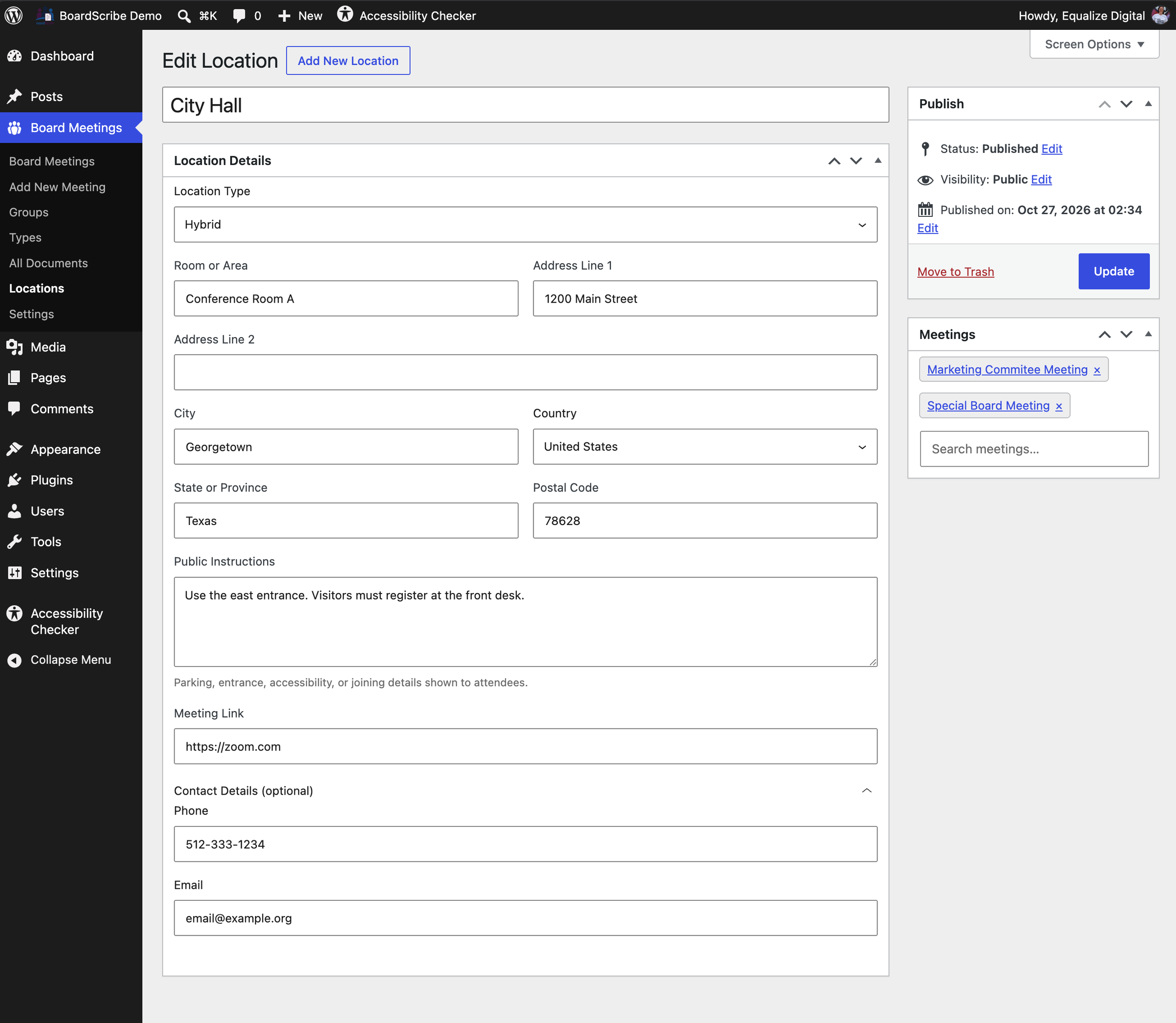
Once you create a location, you can assign it to multiple Board Meetings. This lets you manage location information in one place instead of entering the same details for every meeting.
How to Add a Location
To create a location:
- In the WordPress admin, go to Board Meetings > Locations.
- Click Add New Location.
- Enter the location name in the title field. Use a descriptive name that helps identify the location, such as City Hall, Council Chambers, or Virtual Meeting Room.
- Complete the fields in the Location Details section, as applicable.
- Click Publish to save the location.
You can also create a new location directly from the Location field when editing a Board Meeting.
Location Details Fields
The following fields let you add information about each location. The available fields change depending on whether the location is in-person, virtual, or hybrid.
Location Type
Select the type of location from the dropdown. There are three options:
- In Person: A physical location where attendees can participate in the meeting.
- Virtual: An online meeting that attendees can join using a meeting link.
- Hybrid: A meeting location that supports both in-person and virtual attendance.
The location type controls which additional fields are available. In-person locations include address and public instruction fields; virtual locations include a meeting link field; and hybrid locations include both.
Developer information
- Meta field:
edbs_location_type - Saved format:
in_person,virtual, orhybrid - Default value:
in_person
Room or Area
Enter the specific room or area within the location where meetings are held, such as Council Chambers, Conference Room A, or Main Auditorium.
This field is optional and is available for in-person and hybrid locations.
Developer information
- Meta field:
edbs_location_room - Saved format: Plain text string
Address
Enter the physical address of the meeting location. The address is divided into separate fields to make it easier to manage and display consistently.
The available fields are:
- Address Line 1: Street address of the location.
- Address Line 2: Additional address information, such as a suite, floor, or building number.
- City: City where the location is located.
- Country: Select the country from the dropdown.
- State or Province: State, province, or other administrative region.
- Postal Code: ZIP or postal code.
Address fields are available for in-person and hybrid locations.
Developer information
- Address Line 1 meta field:
edbs_location_address_1 - Address Line 2 meta field:
edbs_location_address_2 - City meta field:
edbs_location_city - Country meta field:
edbs_location_country - State or Province meta field:
edbs_location_state - Postal Code meta field:
edbs_location_zip - Saved format: Plain text strings
- Default country:
United States
BoardScribe also automatically generates a hidden formatted address from the individual address fields.
- Formatted address meta field:
edbs_location_full_address - Saved format: Plain text string containing the combined address
The formatted address is updated when the structured address fields are saved. The country is omitted from the formatted address when it is United States.
Public Instructions
Enter additional information that attendees may need when visiting or joining the meeting location. This field can be used for parking instructions, building entrance information, accessibility accommodations, or other directions.
For example, you might enter: “Use the east entrance. Visitors must register at the front desk.”
Public Instructions is an optional field available for in-person and hybrid locations.
Developer information
- Meta field:
edbs_location_instructions - Saved format: Plain text string
Meeting Link
Enter the URL attendees can use to join a virtual or hybrid meeting.
This might be a link to a Zoom meeting, Microsoft Teams meeting, Google Meet, or another online meeting platform.
The Meeting Link field is available for virtual and hybrid locations. It is optional, so you can create the location before the meeting link is available and add it later.
Developer information
- Meta field:
edbs_location_meeting_link - Saved format: Full URL beginning with
https://orhttp://
Contact Details
Expand the Contact Details section to add a phone number or email address associated with the location.
These fields are optional and can be used to provide attendees with contact information for questions about the meeting location.
Phone
Enter a contact phone number for the location.
Developer information
- Meta field:
edbs_location_phone - Saved format: Plain text string
Enter a contact email address for the location.
Developer information
- Meta field:
edbs_location_email - Saved format: Email address string
Assigning Meetings to a Location
After creating a location, you can associate it with one or more Board Meetings.
You can assign meetings to a location in two ways.
1. From the Location Editor
The Meetings panel on the right side of the Location editor shows meetings currently assigned to that location.
To assign an additional meeting, use the Search meetings field to find and select the meeting you want to associate with the location.
You can also remove an existing meeting association using the remove control next to the meeting name.
2. From the Board Meeting Editor
You can also assign a location when creating or editing a Board Meeting.
- Go to Board Meetings in the WordPress admin.
- Select the meeting you want to edit.
- Find the Location field in the Meeting Details section.
- Choose an existing location or create a new one.
- Click Update to save the meeting.
Once assigned, the location appears in the meeting editor with links to edit, replace, or remove it.
Developer information
- Location post type:
edbs_location - Meeting meta field:
edbs_location_id - Saved format: WordPress post ID of the associated location
A location can be associated with multiple meetings, but each meeting references one saved location.
How Locations Are Displayed
Locations are stored as a non-public post type in WordPress. This means individual Location posts do not have their own public URLs and cannot be viewed directly on the front end of your website.
Instead, BoardScribe associates location information with Board Meetings and uses it when displaying meeting details.
Important: Publishing a Location post does not automatically create a public page for that location. A location must be associated with a meeting for its information to be used in the meeting display.
How to Edit an Existing Location
To update a location:
- Go to Board Meetings > Locations in the WordPress admin.
- Select the location you want to edit.
- Update the location details as needed.
- Click Update to save your changes.
Because locations are reusable, changes to a location can affect all meetings that reference it. For example, if a meeting room changes or a building’s entrance instructions are updated, you only need to edit the saved location rather than updating each meeting individually.
If you don’t see updated location information on the front end of your website, try clearing your website’s cache.
How to Delete a Location
To remove a location, open it for editing and click Move to Trash in the Publish panel. You can also delete locations using bulk actions on the main Locations admin page.
Before deleting a location, review its associated meetings to decide whether to assign them to a different location.
When a location is permanently deleted, BoardScribe clears its association with any meetings that reference it. If the meeting does not already have legacy location text saved, BoardScribe preserves the deleted location’s name and available address as fallback text.
Deleting a location does not delete the meetings associated with it.